1
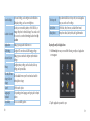
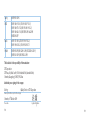
 Capture video: Shoot a video clip and attach to your MMS.
Replying to a Message
Audio: Select an audio file to attach to your MMS.
1.Tap the message thread you want to reply to from the Messages Screen.
Record audio: Record an audio file to attach to your MMS.
2.Tap Type to compose and type your message.
Slideshow: Edit a slideshow to attach to your MMS.
3.Tap Send.
7.When you’ve finished, tap Send.
Deleting a Message Thread
NOTE: Add an attachment to text message and it will be converted into an MMS
without you having to do a thing. Likewise if you remove an attachment from an
MMS, it’ll automatically become a text message.
Managing Messages and Their “Threads”
Text and MMS messages sent to and received from the same contact (or number)
are grouped into a message thread in your Messages Screen. That way you can
tap a message thread and see the “conversation” you’ve had with someone – like
a chat program. These message threads are arranged according to when you
received them, with the latest one on top.
1. Tap Menu Key > Delete threads from the Messages Screen.
2.Select the threads you want to delete and tap Delete.
3.Tap Delete.
Message Settings
To configure your message settings, tap Menu Key > Settings from the Messages
Screen.
Storage settings:
• Delete old messages: Select to delete old messages when your storage limits are
reached.
• Text message limit: Set the maximum number of text messages allowed in a
single thread.
80
81