1
CHAPTER 3: PATCHING
This section will cover simple patching in of dimmers and moving lights. Anything with more than
one DMX channel we call a Fixture, this can be anything from an LED parcan, a moving light or a
strobe. Since Titan V6, we now have a Patch View window, which makes it a lot easier to patch your
show.
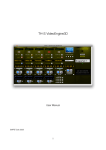
To get into this, press [Patch], then select softkey G [Patch View]. You will see there are 5 tabs along
the top – the 2 main ones we’re going to look at in the Level 1 course are [Patched Fixtures] and
[Personality List]
[Patched Fixtures] – All types of fixtures and dimmers patched in the show appear in this window.
You can filter by colour code, or DMX line, and have a variety of sort options. You can see
information about the fixtures, including the mode they’re patched in, their DMX address, and
whether they’re inverted or frozen.
[Personality List] – lets you find a personality file to patch in.
Hint: Why not save the Patch View as a workspace?
Patching dimmers
Using the patch sheet for the Titan Level 1 Show File, let’s try patching some Source 4s:
Select the Personality List tab, and type in ‘generic dimmer’, and choose [Generic Dimmer] from the
list.
[A] – Quantity (how many you have, so 6 Source 4s. This only works if you have consecutive
addresses, or have entered the correct offset under [Options])
[B] – DMX Line (choose 1 – 12, so for the source 4s we need line 4)
[C] – Address (make sure this matches up to the address of the dimmer, in this case 25)
[D] – User Number (this is the consoles ID for the dimmer, you can number it whatever you like. Each
dimmer/fixture has a unique User Number)
[E] – Legend (name for the dimmer/fixture – in this case, call it ‘Source 4)
[F] – Patch Generic Dimmer (if you press this, the console will patch the Source 4s into the first
available slot in the Fixture Window. Alternatively, open the Fixture Window and specify which
handle you wish to patch onto. This alternative lets you decide exactly how to lay out your patch)
[G] – Options (contains options such as preset palettes, auto groups, and the new options of offset if
you have gaps in the DMX addresses)
Patch all the dimmers into the first tab of the Fixture Window. Please note you must ALWAYS set up
the information contained in softkeys [A] – [E] before you choose patch the fixtures.
Avolites Ltd
184 Park Avenue, Park Royal, London, NW10 7XL, England.
www.avolites.com
Written by Emma Thompson. Last Update 07/08/13
Page 5 of 24