1
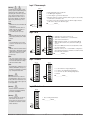
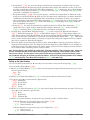
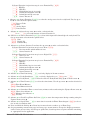
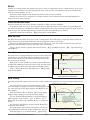
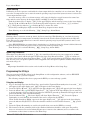
Page, Alarm Menu).
Alarm Silencing
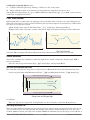
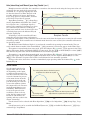
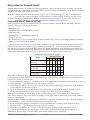
If Silencing is on the operator can disable the alarm output while the controller is in an alarm state. The process value or temperature has to enter the normal operating range beyond the hysteresis zone to activate the
alarm output function again.
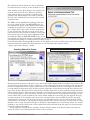
An active message, such as an alarm message, will cause the display to toggle between the normal settings and the active message in the upper display and [Attn] in the lower display.
Push the Advance Key to display [ignr] in the upper display and the message source in the lower display.
Use the Up ¿ and Down ¯ keys to scroll through possible responses, such as Clear [`CLr] or Silence
[`SiL]. Then push the Advance ‰ or Infinity ˆ key to execute the action.
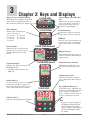
See the Keys and Displays chapter and the Home Page chapter for more details.
Turn Silencing on or off with Silencing [`A;Si] (Setup Page, Alarm Menu).
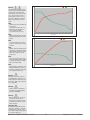
Alarm Blocking
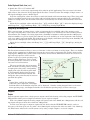
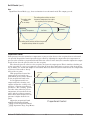
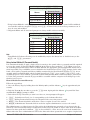
Blocking allows a system to warm up after it has been started up. With Blocking on, an alarm is not triggered when the process temperature is initially lower than the Low Set Point or higher than the High Set
Point. The process temperature has to enter the normal operating range beyond the hysteresis zone to activate the alarm function.
If the EZ-ZONE PM has an output that is functioning as a deviation alarm, the alarm is blocked when the
set point is changed, until the process value re-enters the normal operating range.
Turn Blocking on or off with Blocking [`A;bL] (Setup Page, Alarm Menu).
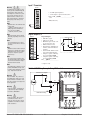
Open Loop Detection
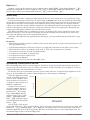
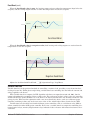
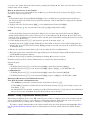
When Open Loop Detection is enabled [`l; d e] , the controller will look for the power output to be at 100%.
Once there, the control will then begin to monitor the Open Loop Detect Deviation [`l; d d ] as it relates to
the value entered for the Open Loop Detect Time [`l; d t] . If the specified time period expires and the deviation does not occur, an Open Loop Error will be triggered. Once the Open Loop Error condition exists the control mode will go off.
Note:
All prompts identified in this section can be found in the Loop Menu of the Setup Page.
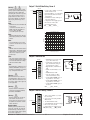
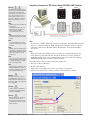
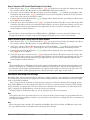
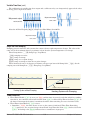
Programming the EZ Key/s
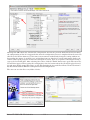
You can program the EZ Key either in the Setup Menu or with configuration software, such as EZ-ZONE
Configurator, using a personal computer.
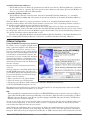
The following examples show how to program the EZ Key to start and stop a profile.
Using keys and display:
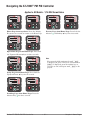
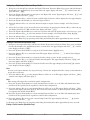
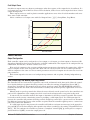
1. To go to the Setup Page from the Home Page, press both the Up ¿ and Down ¯ keys for six seconds. [``Ai]
will appear in the upper display and [`Set] will appear in the lower display.
2. Press the Up Key ¿ until [`Fun] appears in the upper display and [`SEt] will appear in the lower display.
3. Press the Advance Key ‰ until Digital Input Level [`leu] appears in the lower display. Use an arrow key
to specify the state of the key (high or low) when the controller is powered up. Functions will toggle with each
press of the EZ Key, such as Profile Start/Stop.
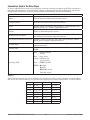
4. Press the Advance Key ‰. The lower display will show Digital Function [``Fn]. Press the Up ¿ or
Down ¯ key to scroll through the functions that can be assigned to the EZ Key
When Profile Start/Stop [P;StS] appears in the upper display and [``Fn] appears in the lower display,
press the Advance Key ‰ once to select that function and move to the Function Instance [``FS] parameter.
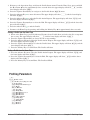
5. Press the Up ¿ or Down ¯ key to scroll to the profile that you want the EZ Key to control.
6. The instance tells the controller which of the numbered functions should be acted upon. For profiles,
there are 4 instances. Press the Infinity Key ˆ once to return to the submenu, twice to return to the
main menu or three times to return to the Home Page.
Watlow EZ-ZONE ® PM PID Controller
•
106
•
Chapter 9 Features