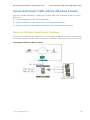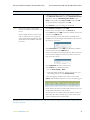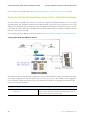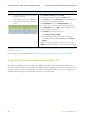
1
Palo Alto Networks ® VM-Series Deployment Guide PAN-OS 6.0 Contact Information Corporate Headquarters: Palo Alto Networks 4401 Great America Parkway Santa Clara, CA 95054 http://www.paloaltonetworks.com/contact/contact/ About this Guide This guide describes how to set up and license the VM-Series firewall; it is intended for administrators who want to deploy the VM-Series firewall. For more information, refer to the following sources: PAN-OS Administrator's Guide– for instructions on configuring the features on the firewall. https://paloaltonetworks.com/documentation– for access to the knowledge base, complete documentation set, discussion forums, and videos. https://support.paloaltonetworks.com– for contacting support, for information on the support programs, or to manage your account or devices. For the latest release notes, go to the software downloads page at https://support.paloaltonetworks.com/Updates/SoftwareUpdates. To provide feedback on the documentation, please write to us at: [email protected]. Palo Alto Networks, Inc. www.paloaltonetworks.com © 2014 Palo Alto Networks. All rights reserved. Palo Alto Networks, PAN-OS, and Panorama are trademarks of Palo Alto Networks, Inc. All other trademarks are the property of their respective owners. Revision Date: April 15, 2014 ii Table of Contents About the VM-Series Firewall. . . . . . . . . . . . . . . . . . . . . . . . . . . . . . . . . . . . . .1 VM-Series Models . . . . . . . . . . . . . . . . . . . . . . . . . . . . . . . . . . . . . . . . . . . . . . . . . . . . . . . . . . . . . . . . . . . . . . . 2 VM-Series Deployments . . . . . . . . . . . . . . . . . . . . . . . . . . . . . . . . . . . . . . . . . . . . . . . . . . . . . . . . . . . . . . . . . . 3 License the VM-Series Firewall . . . . . . . . . . . . . . . . . . . . . . . . . . . . . . . . . . . . . . . . . . . . . . . . . . . . . . . . . . . . . 5 Create a Support Account . . . . . . . . . . . . . . . . . . . . . . . . . . . . . . . . . . . . . . . . . . . . . . . . . . . . . . . . . . . . . 5 Register the VM-Series Firewall . . . . . . . . . . . . . . . . . . . . . . . . . . . . . . . . . . . . . . . . . . . . . . . . . . . . . . . . . 6 Activate the License . . . . . . . . . . . . . . . . . . . . . . . . . . . . . . . . . . . . . . . . . . . . . . . . . . . . . . . . . . . . . . . . . . 6 Upgrade the PAN-OS Software Version. . . . . . . . . . . . . . . . . . . . . . . . . . . . . . . . . . . . . . . . . . . . . . . . . . 9 Upgrade the VM-Series Model. . . . . . . . . . . . . . . . . . . . . . . . . . . . . . . . . . . . . . . . . . . . . . . . . . . . . . . . . . 9 Monitor Changes in the Virtual Environment . . . . . . . . . . . . . . . . . . . . . . . . . . . . . . . . . . . . . . . . . . . . . . . . 11 Set Up a VM-Series Firewall on an ESXi Server . . . . . . . . . . . . . . . . . . . . . . .9 Supported Deployments on VMware vSphere Hypervisor (ESXi) . . . . . . . . . . . . . . . . . . . . . . . . . . . . . . . . 10 System Requirements and Limitations. . . . . . . . . . . . . . . . . . . . . . . . . . . . . . . . . . . . . . . . . . . . . . . . . . . . . . . 11 Requirements. . . . . . . . . . . . . . . . . . . . . . . . . . . . . . . . . . . . . . . . . . . . . . . . . . . . . . . . . . . . . . . . . . . . . . . 11 Limitations. . . . . . . . . . . . . . . . . . . . . . . . . . . . . . . . . . . . . . . . . . . . . . . . . . . . . . . . . . . . . . . . . . . . . . . . . 11 Install a VM-Series firewall on VMware vSphere Hypervisor (ESXi) . . . . . . . . . . . . . . . . . . . . . . . . . . . . . . 13 Troubleshoot ESXi Deployments . . . . . . . . . . . . . . . . . . . . . . . . . . . . . . . . . . . . . . . . . . . . . . . . . . . . . . . . . . 18 Basic Troubleshooting . . . . . . . . . . . . . . . . . . . . . . . . . . . . . . . . . . . . . . . . . . . . . . . . . . . . . . . . . . . . . . . 18 Installation Issues . . . . . . . . . . . . . . . . . . . . . . . . . . . . . . . . . . . . . . . . . . . . . . . . . . . . . . . . . . . . . . . . . . . 18 Licensing Issues . . . . . . . . . . . . . . . . . . . . . . . . . . . . . . . . . . . . . . . . . . . . . . . . . . . . . . . . . . . . . . . . . . . . 20 Connectivity Issues . . . . . . . . . . . . . . . . . . . . . . . . . . . . . . . . . . . . . . . . . . . . . . . . . . . . . . . . . . . . . . . . . . 21 Set Up a VM-Series Firewall on the Citrix SDX Server . . . . . . . . . . . . . . . . . 23 About the VM-Series Firewall on the SDX Server . . . . . . . . . . . . . . . . . . . . . . . . . . . . . . . . . . . . . . . . . . . . . 24 System Requirements and Limitations. . . . . . . . . . . . . . . . . . . . . . . . . . . . . . . . . . . . . . . . . . . . . . . . . . . . . . . 25 Requirements. . . . . . . . . . . . . . . . . . . . . . . . . . . . . . . . . . . . . . . . . . . . . . . . . . . . . . . . . . . . . . . . . . . . . . . 25 Limitations. . . . . . . . . . . . . . . . . . . . . . . . . . . . . . . . . . . . . . . . . . . . . . . . . . . . . . . . . . . . . . . . . . . . . . . . . 25 Supported Deployments—VM Series Firewall on Citrix SDX . . . . . . . . . . . . . . . . . . . . . . . . . . . . . . . . . . . 27 Scenario 1—Secure North-South Traffic . . . . . . . . . . . . . . . . . . . . . . . . . . . . . . . . . . . . . . . . . . . . . . . . 27 Scenario 2—Secure East-West Traffic (VM-Series Firewall on Citrix SDX) . . . . . . . . . . . . . . . . . . . . 30 Install the VM-Series Firewall on the SDX Server . . . . . . . . . . . . . . . . . . . . . . . . . . . . . . . . . . . . . . . . . . . . . 31 Upload the Image to the SDX Server . . . . . . . . . . . . . . . . . . . . . . . . . . . . . . . . . . . . . . . . . . . . . . . . . . . 31 Provision the VM-Series Firewall on the SDX Server . . . . . . . . . . . . . . . . . . . . . . . . . . . . . . . . . . . . . . 32 Secure North-South Traffic with the VM-Series Firewall . . . . . . . . . . . . . . . . . . . . . . . . . . . . . . . . . . . . . . . 33 Secure East-West Traffic with the VM-Series Firewall. . . . . . . . . . . . . . . . . . . . . . . . . . . . . . . . . . . . . . . . . . 42 VM-Series Deployment Guide iii Set Up a VM-Series NSX Edition Firewall. . . . . . . . . . . . . . . . . . . . . . . . . . . 45 VM-Series NSX Edition Firewall Overview. . . . . . . . . . . . . . . . . . . . . . . . . . . . . . . . . . . . . . . . . . . . . . . . . . 46 Deploy the VM-Series NSX Edition Firewall. . . . . . . . . . . . . . . . . . . . . . . . . . . . . . . . . . . . . . . . . . . . . . . . . 55 iv VM-Series Deployment Guide About the VM-Series Firewall The Palo Alto Networks VM-Series firewall is the virtualized form of the Palo Alto Networks next-generation firewall. It is positioned for use in a virtualized or cloud environment where it can protect and secure east-west and north-south traffic. VM-Series Models VM-Series Deployments License the VM-Series Firewall Monitor Changes in the Virtual Environment VM-Series Deployment Guide 1 VM-Series Models About the VM-Series Firewall VM-Series Models The VM-Series firewall is available in four models—VM-100, VM-200, VM-300, and VM-1000-HV. All four models can be deployed as guest virtual machines on VMware ESXi and on Citrix NetScaler SDX; on VMWare NSX, only the VM-1000-HV is supported. The software package (.xva or .ovf file) that is used to deploy the VM-Series firewall is common across all models. The VM-Series model is driven by license; when you apply the license on the VM-Series firewall, the model number and the associated capacities are implemented on the firewall. Each model can be purchased as an Individual or an Enterprise version. The Individual version is in multiples of 1. The orderable SKU, for example PA-VM-300, includes an auth-code to license one instance of the VM-Series firewall. The Enterprise version is available in multiples of 25. For example, the orderable SKU PAN-VM-100-ENT has a single auth-code that allows you to register 25 instances of the VM-100. Each model of the VM-Series firewall is licensed for a maximum capacity. Capacity is defined in terms of the number of sessions, rules, security zones, address objects, IPSec VPN tunnels and SSL VPN tunnels that the VM-Series firewall is optimized to handle. When purchasing a license, make sure to purchase the correct model for your network requirements. The following table depicts some of the capacity differences by model: Model Sessions Security Rules Dynamic IP Addresses Security Zones IPSec VPN Tunnels SSL VPN Tunnels VM-100 50000 250 1000 10 25 25 VM-200 100000 2000 1000 20 500 200 VM-300 250000 5000 1000 40 2000 500 VM-1000-HV 250000 10000 100000 40 2000 500 For information on the platforms on which you can deploy the VM-Series firewall, see VM-Series Deployments. For general information, see About the VM-Series Firewall. 2 VM-Series Deployment Guide About the VM-Series Firewall VM-Series Deployments VM-Series Deployments The VM-Series firewall can be deployed on the following platforms: VM-Series for VMware vSphere Hypervisor (ESXi) VM-100, VM-200, VM-300, or VM-1000-HV is deployed as guest virtual machine on VMware ESXi; ideal for cloud or networks where virtual form factor is required. For details, see Set Up a VM-Series Firewall on an ESXi Server. VM-Series for VMware NSX The VM-1000-HV is deployed as a network introspection service with VMware NSX, and Panorama. This deployment is ideal for east-west traffic inspection, and it also can secure north-south traffic. For details, see Set Up a VM-Series NSX Edition Firewall VM-Series for Citrix SDX VM-100, VM-200, VM-300, or VM-1000-HV is deployed as guest virtual machine on Citrix NetScaler SDX; consolidates ADC and security services for multi-tenant and Citrix XenApp/XenDesktop deployments. For details, see Set Up a VM-Series Firewall on the Citrix SDX Server Here is a brief look at some of the requirements for deploying PAN-OS 6.0 on the VM-Series firewall: Deployment Hypervisor Versions Supported Base Image Required from the Palo Alto Relevant Capacity Networks Support Portal Licenses 5.0, 5.1, and 5.5 PAN-OS for VM-Series Base Images VM-Series for VMware vSphere Hypervisor (ESXi) For example, the download-able image (without VMware NSX) name reads as: PA-VM-6.0.0.zip VM-100 VM-200 VM-300 VM-1000-HV VM-Series Deployment Guide 3 VM-Series Deployments About the VM-Series Firewall Deployment Hypervisor Versions Supported Base Image Required from the Palo Alto Relevant Capacity Networks Support Portal Licenses VM-Series for VMware NSX 5.5 PAN-OS for VM-Series NSX Base Images VM-1000-HV For example, the download-able image name reads as: PA-VM-NSX-6.0.0.zip vSphere with VMware NSX and Panorama VM-Series for Citrix SDX SDX version 10.1+ XenServer version 6.0.2 or later PAN-OS for VM-Series SDX Base Images VM-100 For example, the download-able image name reads as: PA-VM-SDX-6.0.0.zip VM-200 VM-300 VM-1000-HV 4 VM-Series Deployment Guide About the VM-Series Firewall License the VM-Series Firewall License the VM-Series Firewall When you purchase a VM-Series firewall, you receive a set of auth-codes over email. Typically the email includes a capacity auth-code for the model purchased (VM-100, VM-200, VM300, VM-1000-HV), a software and support auth-code (for example, PAN-SVC-PREM-VM-100 SKU auth-code) that provides access to software/content updates and support. If you purchased additional subscriptions for Threat Prevention, URL Filtering, GlobalProtect, or WildFire, a list of the other auth-codes purchased with the order are included. If you do not have an existing support account, you must use the capacity auth-code to register and create an account on the support portal. After your account is verified and the registration is complete, you will be able to log in and download the software package required to install the VM-Series firewall. If you have an existing support account, you can access the VM-Series Authentication Code link on the support portal to manage your VM-Series firewall licenses and download the software. If you have an evaluation copy of the VM-Series firewall and would like to convert it to a fully licensed (purchased) copy, clone your VM-Series firewall and use the instructions to register and license the purchased copy of your VM-Series firewall. For instructions, see Upgrade the VM-Series Model. To license your VM-Series firewall, see the following sections: Create a Support Account Register the VM-Series Firewall Activate the License Upgrade the PAN-OS Software Version Upgrade the VM-Series Model For instructions on installing your VM-Series firewall, see VM-Series Deployments. Create a Support Account A support account is required to manage your VM-Series firewall licenses and to download the software package required to install the VM-Series firewall. If you have an existing support account, continue with Register the VM-Series Firewall. Create a Support Account 1. Log in to https://support.paloaltonetworks.com. 2. Click Register and fill in the details in the user registration form. You must use the capacity auth-code and the purchase or sales order number to register and create an account on the support portal. 3. Submit the form. You will receive an email with a link to activate the user account; complete the steps to activate the account. After your account is verified and the registration is complete, you will be able to log in and download the software package required to install the VM-Series firewall. VM-Series Deployment Guide 5 License the VM-Series Firewall About the VM-Series Firewall Register the VM-Series Firewall Use the instructions in this section to register your capacity auth-code with your support account. Register the VM-Series Firewall 1. Log in to https://support.paloaltonetworks.com with your account credentials. 2. Select Assets and click Add VM-Series Auth-Codes. 3. In the Add VM-Series Auth-Code field, enter the capacity auth-code you received by email, and click the checkmark on the far right to save your input. The page will display the list of auth-codes registered to your support account. You can track the number of VM-Series firewalls that have been deployed and the number of licenses that are still available for use against each auth-code. When all the available licenses are used, the auth-code does not display on the VM-Series Auth-Codes page. To view all the assets that are deployed, select Assets > Devices. Activate the License To activate the license on your VM-Series firewall, you must have deployed the VM-Series firewall and completed initial configuration. For instructions to deploy the VM-Series firewall, see VM-Series Deployments. Until you activate the license on the VM-Series firewall, the firewall does not have a serial number, the MAC address of the dataplane interfaces are not unique, and only a minimal number of sessions are supported. Because the MAC addresses are not unique until the firewall is licensed, to prevent issues caused by overlapping MAC addresses, make sure that you do not have multiple, unlicensed VM-Series firewalls. 6 VM-Series Deployment Guide About the VM-Series Firewall License the VM-Series Firewall When you activate the license, the licensing server uses the UUID and the CPU ID of the virtual machine to generate a unique serial number for the VM-Series firewall. The capacity auth-code in conjunction with the serial number is used to validate your entitlement. After you license a VM-Series firewall, if you delete and redeploy the VM-Series firewall on the same host (typically occurs only in a lab environment), use a unique name when redeploying the firewall. Using a unique name ensures that the UUID assigned to the firewall is not the same as that assigned to the deleted instance of the firewall. A unique UUID is required to complete the licensing process without any problems. Activate the License for the VM-Series Firewall (Standalone Version) Activate the License for the VM-Series NSX Edition Firewall Activate the License for the VM-Series Firewall (Standalone Version) To activate the license on your VM-Series firewall, you must have deployed the VM-Series firewall and completed initial configuration. Activate the License 1. Select Device >Licenses and select the Activate feature using authentication code link. 2. To activate the license, the firewall must be configured with an IP address, netmask, default gateway, and DNS server IP address. Enter the capacity auth-code that you registered on the support portal. The firewall will connect to the update server (updates.paloaltonetworks.com), and download the license and reboot automatically. 3. Log back in to the web interface and confirm that the Dashboard displays a valid serial number. If the term Unknown displays, it means the device is not licensed. 4. On Device > Licenses, verify that PA-VM license is added to the device. • If your VM-Series firewall has direct Internet access. VM-Series Deployment Guide 7 License the VM-Series Firewall About the VM-Series Firewall Activate the License • If your VM-Series firewall does not have Internet 1. access. Navigate to Device > Licenses and click the Activate Feature using Auth Code link. 2. Click Download Authorization File, and download the authorizationfile.txt on the client machine. 3. Copy the authorizationfile.txt to a computer that has access to the Internet and log in to the support portal. Click My VM-Series Auth-Codes link and select the applicable auth-code from the list and click the Register VM link. 4. On the Register Virtual Machine tab upload the authorization file. This will complete the registration process and the serial number of your VM-Series firewall will be attached to your account records. 5. Navigate to Assets > My Devices and search for the VM-Series device just registered and click the PA-VM link. This will download the VM-Series license key to the client machine. 6. Copy the license key to the machine that can access the web interface of the VM-Series firewall and navigate to Device > Licenses. 7. Click Manually Upload License link and enter the license key. When the capacity license is activated on the firewall, a reboot occurs. 8. Log in to the device and confirm that the Dashboard displays a valid serial number and that the PA-VM license displays in the Device > Licenses tab. Activate the License for the VM-Series NSX Edition Firewall Panorama serves as the central point of administration for the VM-Series NSX edition firewalls and the license activation process is automated. When a new VM-Series NSX edition firewall is deployed, it communicates with Panorama to obtain the license. Therefore, you need to make sure that Panorama has internet access and can connect to the Palo Alto Networks update server to retrieve the licenses. For an overview of the components and requirements for deploying the VM-Series NSX edition firewall, see VM-Series NSX Edition Firewall Overview. For this integrated solution, the auth-code (for example, PAN-VM-!000-HV-SUB-BND-NSX2) includes licenses for threat prevention, URL filtering and WildFire subscriptions and premium support for the requested period. In order to activate the license, you must have completed the following tasks: Registered the auth-code to the support account. If you don’t register the auth-code, the licensing server will fail to create a license. Configured the VMware Service Manager and entered this auth-code on Panorama. On Panorama, select VMWare Service Manager to add the Authorization Code. 8 VM-Series Deployment Guide About the VM-Series Firewall License the VM-Series Firewall If you have purchased an evaluation auth-code, you can license up to 5 VM-Series firewalls with the VM-1000-HV capacity license for a period of 30 or 60 days. Because this solution allows you to deploy one VM-Series firewall per ESXi host, the ESXi cluster can include a maximum of 5 ESXi hosts when using an evaluation license. In order to activate the licenses, complete the following tasks: Verify that the VM-Series firewalls that you just deployed, display as Managed Devices and are connected to Panorama. Select Panorama > Device Deployment > Licenses and click Refresh. Select the VM-Series firewalls for which to retrieve subscription licenses and click OK. Panorama will apply the licenses to each firewall that has been deployed with the matching auth-code. Upgrade the PAN-OS Software Version Now that the VM-Series firewall has network connectivity and the base PAN-OS software is installed, consider upgrading to the latest version of PAN-OS. Upgrade PAN-OS Version 1. From the web interface, navigate to Device > Licenses and make sure you have the correct VM-Series firewall license and that the license is activated. On the VM-Series firewall standalone version, navigate to Device > Support and make sure that you have activated the support license. 2. To upgrade the VM-Series firewall PAN-OS software, select Device > Software. 3. Click Refresh to view the latest software release and also review the Release Notes to view a description of the changes in a release and to view the migration path to install the software. 4. Click Download to retrieve the software then click Install. Upgrade the VM-Series Model The licensing process for the VM-Series firewall uses the UUID and the CPU ID to generate a unique serial number for each VM-Series firewall. Hence, when you generate a license, the license is mapped to a specific instance of the VM-Series firewall and cannot be modified. In order to apply a new capacity license to a firewall that has been previously licensed, you need to clone the existing (fully configured) VM-Series firewall. During the cloning process, the firewall is assigned a unique UUID, and you can therefore apply a new license to the cloned instance of the firewall. Use the instructions in this section, if you are: Migrating from an evaluation license to a production license. Upgrading the model to allow for increased capacity. For example you want to upgrade from the VM-200 to the VM-1000-HV license. VM-Series Deployment Guide 9 License the VM-Series Firewall About the VM-Series Firewall Migrate the License on the VM-Series Firewall Step 1 Power off the VM-Series firewall. Step 2 Clone the VM-Series firewall. If you are manually cloning, when prompted indicate that you are copying and not moving the firewall. Step 3 Power on the new instance of the VM-Series firewall. 1. Launch the serial console of the firewall on the vSphere/SDX web interface and enter the following command: show system info 2. Verify that: • the serial number is unknown • the firewall has no licenses • the configuration is intact Step 4 Register the new auth-code on the support portal. See Register the VM-Series Firewall. Step 5 Apply the new license. See Activate the License. After you successfully license the new firewall, delete the previous instance of the firewall to prevent conflict in configuration or IP address assignments. 10 VM-Series Deployment Guide About the VM-Series Firewall Monitor Changes in the Virtual Environment Monitor Changes in the Virtual Environment In a legacy client-server architecture with physical infrastructure resources, security administrators controlled the deployment of servers on the network, and had visibility over the applications that traversed the network; security policies were based on static IP addresses. By nature, the network architecture was static and inflexible, and therefore unable to meet the scale and performance needs that emerged with growth. To mitigate the challenges of scale, lack of flexibility and performance, server virtualization technology was globally adopted. Virtual networks allow for servers and applications to be provisioned, changed, and deleted on demand. This agility poses a challenge for security administrators because they have little visibility into the IP addresses of the dynamically provisioned servers and the plethora of applications that can be enabled on these virtual resources. In order to protect the network resources and safely enable applications, the VM-Series firewall provides an automated way to gather information on the virtual machine (or guest) inventory on each monitored source and create policy objects that stay in sync with the dynamic changes on the network. This capability is provided by the coordination between the VM Information Sources and Dynamic Address Groups features on the firewall. The following tasks are applicable to the VM-Series firewall deployed on a VMware ESXi server or on the Citrix SDX server. Enable VM Monitoring to Track Changes on the Virtual Network Use Dynamic Address Groups in Policy Attributes Monitored on a VMware Source The VM-Series NSX edition firewall, which is jointly developed by Palo Alto Networks and VMware, is designed for automated provisioning and distribution of Palo Alto Networks next-generation security services and the delivery of dynamic context-based security policies using Panorama. For information on how the VM-Series NSX edition firewall meets the security challenges on the virtual network, see Set Up a VM-Series NSX Edition Firewall. Enable VM Monitoring to Track Changes on the Virtual Network VM Information sources provides an automated way to gather information on the Virtual Machine (VM) inventory on each monitored source (host); the sources that the firewall can monitor include VMware ESXi and vCenter Server. As new virtual machines (guests) are deployed, the firewall monitors 16 metadata elements in the VMware environment and collects the list of tags assigned to each guest; these tags can then be used to define Dynamic Address Groups and matched against in policy. The firewall can monitor the VMware vCenter server and/or an ESX(i) server version 4.1 or 5.0, and poll for information on IP address and tags on newly provisioned VMs, or on VMs that have been updated or moved on the network. Up to 10 VM information sources can be configured on the firewall. By default, the traffic between the firewall and the monitored sources uses the management (MGT) port on the firewall. VM Information Sources offers easy configuration and enables you to monitor a predefined set of 16 metadata elements or attributes in the VMware environment. If you can use the set of attributes that the firewall monitors (and do not need a customized set of attributes), use the VM Information Sources on the firewall to enable VM monitoring, in lieu of using external scripts and the XML API on the firewall. VM-Series Deployment Guide 11 Monitor Changes in the Virtual Environment About the VM-Series Firewall Set up the VM Monitoring Agent Step 1 Enable the VM Monitoring Agent. 1. Select Device > VM Information Sources. 2. Click Add and enter the following information: a. A Name to identify the VMware ESX(i) or vCenter server that you want to monitor. Note Up to 10 sources can be configured for each firewall, or for each virtual system on a multiple virtual systems capable firewall. If your firewalls are configured in a high availability configuration: • An active/passive setup, only the active firewall monitors the VM sources. • An active/active setup, only the firewall with the priority value of primary monitors the VM sources. b. Enter the Host information for the server—hostname or IP address and the Port on which it is listening. c. Select the Type to indicate whether the source is a VMware ESX(i) server or a VMware vCenter server. d. Add the credentials (Username and Password) to authenticate to the server specified above. Use the credentials of an administrative user to enable access. e. (Optional) Modify the Update interval to a value between 5-600 seconds. By default, the firewall polls every 5 seconds. The API calls are queued and retrieved within every 60 seconds, so updates may take up to 60 seconds plus the configured polling interval. f. (Optional) Enter the interval in hours when the connection to the monitored source is closed, if the host does not respond. (default: 2 hours, range 2-10 hours) To change the default value, select the check box to Enable timeout when the source is disconnected and specify the value. When the specified limit is reached or if the host cannot be accessed or does not respond, the firewall will close the connection to the source. g. Click OK, and Commit the changes. h. Verify that the connection Status displays as 12 connected. VM-Series Deployment Guide About the VM-Series Firewall Monitor Changes in the Virtual Environment Set up the VM Monitoring Agent (Continued) Step 2 Verify the connection status. 1. Verify that the connection Status displays as connected. If the connection status is pending or disconnected, verify that the source is operational and that the firewall is able to access the source. If you use a port other than the MGT port for communicating with the monitored source, you must change the service route (Device > Setup > Services, click the Service Route Configuration link and modify the Source Interface for the VM Monitor service). Use Dynamic Address Groups in Policy Dynamic address groups allow you to create policy that automatically adapts to changes—adds, moves, or deletions of servers. It also enables the flexibility to apply different rules to the same server based on its role on the network or the different kinds of traffic it processes. Each metadata element or attribute that the firewall tracks in the VMware environment can be tagged with a value. A dynamic address group uses the tag(s) as a filtering criteria, and matches on the tags(s) to determine its members. The filter uses a logical and and or operators. Therefore, multiple tags can be applied to each guest to represent virtual machine attributes such as IP address, operating system, the virtual switch to which it belongs, for example. Tags can be defined statically on the firewall and/or registered (dynamically) to the firewall. All entities that have the tags and match the defined criteria become members of the dynamic group. The difference between static and dynamic tags is that static tags are part of the configuration on the firewall, and dynamic tags are part of the runtime configuration. This implies that a commit is not required to update dynamic tags; the tags must however be used in policy and the policy must be committed on the device. The IP address and associated tags for an entity can be dynamically registered on the firewall using the XML API or the VM Monitoring Agent on the firewall; each registered IP address can have up to 32 tags. Within 60 seconds of the API call, the firewall registers the IP address and associated tags, and automatically updates the membership information for the dynamic address group(s). Because the members of a dynamic address group are automatically updated, using dynamic address groups in lieu of static address objects, allows you to adapt to changes in your environment without relying on a system administrator to make policy changes and committing them on the firewall. Use the following table to verify the maximum number of IP addresses that can be registered for each model of firewall: Platform Maximum number of dynamically registered IP addresses PA-7050, PA-5060, VM-1000 100,000 PA-5050 50,000 PA-5020 25,000 PA-4000 Series, PA-3000 Series 5000 VM-Series Deployment Guide 13 Monitor Changes in the Virtual Environment Platform About the VM-Series Firewall Maximum number of dynamically registered IP addresses PA-2000 Series, PA-500, PA-200, VM-300, VM-200, 1000 VM-100 The following example shows how dynamic address groups can simplify network security enforcement. The example workflow shows how to: Enable the VM Monitoring agent on the firewall, to monitor the VMware ESX(i) host or vCenter Server and register VM IP addresses and the associated tags. Create dynamic address groups and define the tags to filter. In this example, two address groups are created. One that only filters for dynamic tags and another that filters for both static and dynamic tags to populate the members of the group. Validate that the members of the dynamic address group are populated on the firewall. Use dynamic address groups in policy. This example uses two different security policies: – A security policy for all Linux servers that are deployed as FTP servers; this rule matches on dynamically registered tags. – A security policy for all Linux servers that are deployed as web servers; this rule matches on a dynamic address group that uses static and dynamic tags. Validate that the members of the dynamic address groups are updated as new FTP or web servers are deployed. This ensure that the security rules are enforced on these new virtual machines too. Use Dynamic Address Groups in Policy Step 1 14 Enable VM Source Monitoring. See Enable VM Monitoring to Track Changes on the Virtual Network. VM-Series Deployment Guide About the VM-Series Firewall Monitor Changes in the Virtual Environment Use Dynamic Address Groups in Policy (Continued) Step 2 Create dynamic address groups on the firewall. 1. Log in to the web interface of the firewall. 2. Select Object > Address Groups. View the tutorial to see a big picture view 3. of the feature. Click Add and enter a Name and a Description for the address group. 4. Select Type as Dynamic. 5. Define the match criteria. You can select dynamic and static tags as the match criteria to populate the members of the group. a. Click Add Match Criteria, and select the And or Or operator and select the attributes that you would like to filter for or match against. b. Click OK. 6. Click Commit. The match criteria for each dynamic address group in this example is as follows: ftp_server: matches on the guest operating system “Linux 64-bit” and annotated as “ftp” ('guestos.Ubuntu Linux 64-bit' and 'annotation.ftp'). web-servers: matches on two criteria—the tag black or if the guest operating system is Linux 64-bit and the name of the server us Web_server_Corp. ('guestos.Ubuntu Linux 64-bit' and 'vmname.WebServer_Corp' or 'black') Click to see members /registered IP addresses VM-Series Deployment Guide 15 Monitor Changes in the Virtual Environment About the VM-Series Firewall Use Dynamic Address Groups in Policy (Continued) Step 3 Use dynamic address groups in policy. 1. Select Policies > Security. View the tutorial. 2. Click Add and enter a Name and a Description for the policy. 3. Add the Source Zone to specify the zone from which the traffic originates. 4. Add the Destination Zone at which the traffic is terminating. 5. For the Destination Address, select the Dynamic address group you created in Step 2 above. 6. Specify the action— Allow or Deny—for the traffic, and optionally attach the default security profiles to the rule. 7. Repeats Steps 1 through 6 above to create another policy rule. 8. Click Commit. This example shows how to create two policies: one for all access to FTP servers and the other for access to web servers. Step 4 Validate that the members of the dynamic 1. address group are populated on the 2. firewall. 3. Select Policies > Security, and select the rule. Select the drop-down arrow next to the address group link, and select Inspect. You can also verify that the match criteria is accurate. Click the more link and verify that the list of registered IP addresses is displayed. Policy will be enforced for all IP addresses that belong to this address group, and are displayed here. 16 VM-Series Deployment Guide About the VM-Series Firewall Monitor Changes in the Virtual Environment Attributes Monitored on a VMware Source When the firewall is configured to monitor VM Information Sources, the following metadata elements or attributes are monitored on each VMware source: UUID Name Guest OS VM State — the power state can be poweredOff, poweredOn, standBy, and unknown. Annotation Version Network —Virtual Switch Name, Port Group Name, and VLAN ID Container Name —vCenter Name, Data Center Object Name, Resource Pool Name, Cluster Name, Host, Host IP address. VM-Series Deployment Guide 17 Monitor Changes in the Virtual Environment 18 About the VM-Series Firewall VM-Series Deployment Guide Set Up a VM-Series Firewall on an ESXi Server The VM-Series firewall is distributed using the Open Virtualization Format (OVF), which is a standard method of packaging and deploying virtual machines. You can install this solution on any x86 device that is capable of running VMware ESXi. In order to deploy a VM-Series firewall you must be familiar with VMware and vSphere including vSphere networking, ESXi host setup and configuration, and virtual machine guest deployment. If you would like to automate the process of deploying a VM-Series firewall, you can create a gold standard template with the optimal configuration and policies, and use the vSphere API and the PAN-OS XML API to rapidly deploy new VM-Series firewalls in your network. For more information, see the article: VM Series DataCenter Automation. See the following topics for information on: Supported Deployments on VMware vSphere Hypervisor (ESXi) System Requirements and Limitations Install a VM-Series firewall on VMware vSphere Hypervisor (ESXi) Troubleshoot ESXi Deployments VM-Series Deployment Guide 9 Supported Deployments on VMware vSphere Hypervisor (ESXi) Set Up a VM-Series Firewall on an ESXi Server Supported Deployments on VMware vSphere Hypervisor (ESXi) You can deploy one or more instances of the VM-Series firewall on the ESXi server. Where you place the VM-Series firewall on the network depends on your topology. Choose from the following options (for environments that are not using VMware NSX): One VM-Series firewall per ESXi host—Every VM server on the ESXi host passes through the firewall before exiting the host for the physical network. VM servers attach to the firewall via virtual standard switches. The guest servers have no other network connectivity and therefore the firewall has visibility and control to all traffic leaving the ESXi host. One variation of this use case is to also require all traffic to flow through the firewall, including server to server (east-west traffic) on the same ESXi host. One VM-Series firewall per virtual network—Deploy a VM-Series firewall for every virtual network. If you have designed your network such that one or more ESXi hosts has a group of virtual machines that belong to the internal network, a group that belongs to the external network, and some others to the DMZ, you can deploy a VM-Series firewall to safeguard the servers in each group. If a group or virtual network does not share a virtual switch or port group with any other virtual network, it is completely isolated from all other virtual networks within or across the host(s). Because there is no other physical or virtual path to any other network, the servers on each virtual network, must use the firewall to talk to any other network. Therefore, it allows the firewall visibility and control to all traffic leaving the virtual (standard or distributed) switch attached to each virtual network. Hybrid environment—Both physical and virtual hosts are used, the VM-Series firewall can be deployed in a traditional aggregation location in place of a physical firewall appliance to achieve the benefits of a common server platform for all devices and to unlink hardware and software upgrade dependencies. Continue with System Requirements and Limitations and Install a VM-Series firewall on VMware vSphere Hypervisor (ESXi). 10 VM-Series Deployment Guide Set Up a VM-Series Firewall on an ESXi Server System Requirements and Limitations System Requirements and Limitations This section lists requirements and limitations for the VM-Series firewall on VMware vSphere Hypervisor (ESXi). To deploy the VM-Series firewall, see Install a VM-Series firewall on VMware vSphere Hypervisor (ESXi). Requirements You can create and deploy multiple instances of the VM-Series firewall on an ESXi server. Because each instance of the firewall requires a minimum resource allocation—number of CPUs, memory and disk space—on the ESXi server, make sure to conform to the specifications below to ensure optimal performance. The VM-Series firewall has the following requirements: VMware ESXi with vSphere 5.0, 5.1, and 5.5 for VM-Series running PAN-OS 6.0. Minimum of two vCPUs per VM-Series firewall. One for the management plane and one for the dataplane. You can assign 2 or 6 additional vCPUs to allocate a total of 2, 4 or 8 vCPUs to the firewall; the management plane only uses one vCPU and any additional vCPUs are assigned to the dataplane. Minimum of two network interfaces (vmNICs). One will be a dedicated vmNIC for the management interface and one for the data interface. You can then add up to eight more vmNICs for data traffic. For additional interfaces, use VLAN Guest Tagging (VGT) on the ESXi server or configure subinterfaces on the firewall. If you are deploying the VM-Series firewall using layer 2, virtual wire, or tap interfaces you must enable promiscuous mode on the port group of the virtual switch to which the data interfaces on the firewall are attached. If promiscuous mode is not enabled, the firewall will not receive any traffic because the destination MAC addresses assigned by PAN-OS will be different from the vmNIC MAC addresses assigned by vSphere. By default, vSphere will not forward a frame to a virtual machine if the destination MAC address of the frame does not match the vmNIC MAC address. If you are deploying the VM-Series firewall using layer 3 interfaces, you can instead set the vmNIC MAC address to match the PAN-OS MAC address by manually editing the MAC address for each vmNIC in vSphere to match what is assigned on the VM-Series firewall. This change must be done while the VM-Series is powered off; it allows the firewall to receive frames that are meant for it. Minimum of 4GB of memory for all models except the VM-1000-HV, which needs 5GB. Any additional memory will be used by the management plane only. If you are applying the VM-1000-HV license, see How do I modify the base image file for the VM-1000-HV license? Minimum of 40GB of virtual disk space. You can add additional disk space of 40GB to 2TB for logging purposes. Limitations The VM-Series firewall functionality is very similar to the Palo Alto Networks hardware firewalls, but with the following limitations: VM-Series Deployment Guide 11 System Requirements and Limitations Set Up a VM-Series Firewall on an ESXi Server Dedicated CPU cores are recommended. Only High Availability (HA) lite is supported (active/passive with no stateful failover). High Availability (HA) Link Monitoring is only supported on VMware ESXi installations that support DirectPath I/O. Up to 10 total ports can be configured; this is a VMware limitation. One port will be used for management traffic and up to 9 can be used for data traffic. Only the vmxnet3 driver is supported. Virtual systems are not supported. vMotion of the firewall is not supported. Jumbo frames are not supported. Link Aggregation must be enabled on the ESXi host. 12 VM-Series Deployment Guide Set Up a VM-Series Firewall on an ESXi Server Install a VM-Series firewall on VMware vSphere Hypervisor (ESXi) Install a VM-Series firewall on VMware vSphere Hypervisor (ESXi) To install a VM-Series firewall you must have access to the Open Virtualization Format (OVF) template. Use the auth code you received in your order fulfillment email to register your VM-Series firewall and gain access to the OVF template. The OVF is downloaded as a zip archive that is expanded into three files: the .ovf extension is for the OVF descriptor file that contains all metadata about the package and its contents; the .mf extension is for the OVF manifest file that contains the SHA-1 digests of individual files in the package; and the .vmdk extension is for the virtual disk image file that contains the virtualized version of the firewall. Provision the VM-Series Firewall on an ESXi Server Perform Initial Configuration on the VM-Series on ESXi Provision the VM-Series Firewall on an ESXi Server Use these instruction to deploy the VM-Series firewall on a (standalone) ESXi server. For deploying the VM-Series NSX edition firewall, see Set Up a VM-Series NSX Edition Firewall. Provision a VM-Series Firewall Step 1 Download the zip file that contains the OVF template. Register your VM-Series firewall and obtain the OVF template from: https://support.paloaltonetworks.com . Note VM-Series Deployment Guide The zip file contains the base installation. After the base installation is complete, you will need to download and install the latest PAN-OS version from the support portal. This will ensure that you have the latest fixes that were implemented since the base image was created. For instructions, see Upgrade the PAN-OS Software Version. 13 Install a VM-Series firewall on VMware vSphere Hypervisor (ESXi) Set Up a VM-Series Firewall on an ESXi Server Provision a VM-Series Firewall (Continued) Step 2 Before deploying the OVF template, set To configure a virtual standard switch to receive frames for the up virtual standard switch(es) and virtual VM-Series firewall: distributed switch(es) that you will need 1. Configure a virtual standard switch from the vSphere Client by for the VM-Series firewall. navigating to Home > Inventory > Hosts and Clusters. Note If you are deploying the VM-Series firewall with layer 2, virtual wire, or tap interfaces, any attached virtual switch must allow the following modes (set to Accept): 2. Click the Configuration tab and under Hardware click Networking. For each VM-Series firewall attached virtual switch, click on Properties. 3. Highlight the virtual switch and click Edit. In the vSwitch properties, click the Security tab and set Promiscuous Mode, MAC Address Changes and Forged Transmits to Accept and then click OK. This change will propagate to all port groups on the virtual switch. – Promiscuous mode – MAC address changes – Forged transmits – For details, see here To configure a virtual distributed switch to receive frames for the VM-Series firewall: 1. Select Home > Inventory > Networking. Highlight the Distributed Port Group you want to edit and select the Summary tab. 2. 14 Click Edit Settings and select Policies > Security and set Promiscuous Mode, MAC Address Changes and Forged Transmits to Accept and then click OK. VM-Series Deployment Guide Set Up a VM-Series Firewall on an ESXi Server Install a VM-Series firewall on VMware vSphere Hypervisor (ESXi) Provision a VM-Series Firewall (Continued) Step 3 Deploy the OVF template. 1. Log in to vCenter using the vSphere client. You can also go directly to the target ESXi host if needed. 2. From the vSphere client, select File > Deploy OVF Template. 3. Browse to the OVF template that you downloaded in Step 1, select the file and then click Next. Review the templates details window and then click Next again. 4. Name the VM-Series firewall instance and in the Inventory Location window, select a Data Center and Folder and click Next VM-Series Deployment Guide 5. Select an ESXi host for the VM-Series firewall and click Next. 6. Select the datastore to use for the VM-Series firewall and click Next. 7. Leave the default settings for the datastore provisioning and click Next. The default is Thick Provision Lazy Zeroed. 15 Install a VM-Series firewall on VMware vSphere Hypervisor (ESXi) Set Up a VM-Series Firewall on an ESXi Server Provision a VM-Series Firewall (Continued) Note 8. Select the networks to use for the two initial vmNICs. The first vmNIC will be used for the management interface and the second vmNIC for the first data port. Make sure that the Source Networks maps to the correct Destination Networks. 9. Review the details window, select the Power on after deployment check box and then click Next. If you add additional interfaces (vmNICs) to the VM-Series firewall, a reboot is required because new interfaces are detected during the boot cycle. To avoid the need to reboot the firewall, make sure to add the interfaces at initial deployment or during a maintenance window so that you can reboot the firewall. 10. To view the progress of the installation, monitor the Recent Tasks list. When the deployment is complete, click the Summary tab to review the current status. Perform Initial Configuration on the VM-Series on ESXi Use the virtual appliance console on the ESXi server to set up network access to the VM-Series firewall. You must first configure the management interface, and then access the web interface to complete further configurations tasks. If you have Panorama for central management, refer to the Panorama Administrator’s Guide for information on managing the device using Panorama. 16 VM-Series Deployment Guide Set Up a VM-Series Firewall on an ESXi Server Install a VM-Series firewall on VMware vSphere Hypervisor (ESXi) Configure the Management Interface Step 1 Gather the required information from your network administrator. • IP address for MGT port • Netmask • Default gateway • DNS server IP address Step 2 Step 3 Access the console of the VM-Series firewall. 1. Select the Console tab on the ESXi server for the VM-Series firewall, or right click the VM-Series firewall and select Open Console. 2. Press enter to access the login screen. 3. Enter the default username/password (admin/admin) to log in. 4. Enter configure to switch to configuration mode. Configure the network access settings for Enter the following command: set deviceconfig system ip-address <Firewall-IP> the management interface. netmask <netmask> default-gateway <gateway-IP> dns-setting servers primary <DNS-IP> where <Firewall-IP> is the IP address you want to assign to the management interface, <netmask> is the subnet mask, <gateway-IP> is the IP address of the network gateway, and <DNS-IP> is the IP address of the DNS server. Step 4 Step 5 Commit your changes and exit the configuration mode. Enter commit. Enter exit. Verify network access to external services To verify that the firewall has external network access, use the ping required for firewall management, such as utility. Verify connectivity to the default gateway, DNS server, and the Palo Alto Networks Update Server. the Palo Alto Networks Update Server as shown in the following example: admin@VM_200-Corp> ping host updates.paloaltonetworks.com PING updates.paloaltonetworks.com (67.192.236.252) 56(84) bytes of data. 64 bytes from 67.192.236.252: icmp_seq=1 ttl=243 time=40.5 ms 64 bytes from 67.192.236.252: icmp_seq=1 ttl=243 time=53.6 ms 64 bytes from 67.192.236.252: icmp_seq=1 ttl=243 time=79.5 ms Note After verifying connectivity, press Ctrl+C to stop the pings. An unlicensed VM-Series firewall can process up to 200 concurrent sessions. Depending on the environment, the session limit can be reached very quickly. Therefore, apply the capacity auth-code and retrieve a license before you begin testing the VM-Series firewall; otherwise, you might have unpredictable results, if there is other traffic on the port group(s). VM-Series Deployment Guide 17 Troubleshoot ESXi Deployments Set Up a VM-Series Firewall on an ESXi Server Troubleshoot ESXi Deployments Many of the troubleshooting steps for the VM-Series firewall are very similar to the hardware versions of PAN-OS. When problems occur, you should check interface counters, system log files, and if necessary, use debug to create captures. For more details on PAN-OS troubleshooting, refer to the article on Packet Based Troubleshooting. The following sections describe how to troubleshoot some common problems: Basic Troubleshooting Installation Issues Licensing Issues Connectivity Issues Basic Troubleshooting Recommendation for Network Troubleshooting Tools It is useful to have a separate troubleshooting station to capture traffic or inject test packets in the virtualized environment. It can be helpful to build a fresh OS from scratch with common troubleshooting tools installed such as tcpdump, nmap, hping, traceroute, iperf, tcpedit, netcat, etc. This machine can then be powered down and converted to a template. Each time the tools are needed, the troubleshooting client (virtual machine) can be quickly deployed to the virtual switch(es) in question and used to isolate networking problems. When the testing is complete, the instance can simply be discarded and the template used again the next time it is required. For performance related issues on the firewall, first check the Dashboard from the firewall web interface. To view alerts or create a tech support or stats dump files navigate to Device > Support. For information in the vSphere client go to Home > Inventory > VMs and Templates, select the VM-Series firewall instance and click the Summary tab. Under Resources, check the statistics for consumed memory, CPU and storage. For resource history, click the Performance tab and monitor resource consumption over time. Installation Issues Issues with deploying the OVF The VM-Series is delivered as a downloadable Open Virtualization Format (OVF) file. The OVF is downloaded as a zip archive that is expanded into three files. If you are having trouble deploying the OVF, make sure the three files are unpacked and present and if necessary, download and extract the OVF again. The ovf extension is for the OVF descriptor file that contains all metadata about the package and its contents. The mf extension is for the OVF manifest file that contains the SHA-1 digests of individual files in the package. 18 VM-Series Deployment Guide Set Up a VM-Series Firewall on an ESXi Server Troubleshoot ESXi Deployments The vmdk extension is for the virtual disk image file. The virtual disk in the OVF is large for the VM-Series; this file is nearly 900MB and must be present on the computer running the vSphere client or must be accessible as a URL for the OVF. Make sure the network connection is sufficient between the vSphere client computer and the target ESXi host. Any firewalls in the path will need to allow TCP ports 902 and 443 from the vSphere client to the ESXi host(s).There needs to be sufficient bandwidth and low latency on the connection otherwise the OVF deployment can take hours or timeout and fail. Why does the firewall boot into maintenance mode? If you have purchased the VM-1000-HV license and are deploying the VM-Series firewall in standalone mode on a VMware ESXi server or on a Citrix SDX server, you must allocate a minimum of 5GB memory to the VM-Series firewall. To fix this issue, you must either modify the base image file (see How do I modify the base image file for the VM-1000-HV license?) or edit the settings on the ESXi host or the vCenter server before you power on the VM-Series firewall. Also, verify that the interface is VMXnet3; setting the interface type to any other format will cause the firewall to boot into maintenance mode. How do I modify the base image file for the VM-1000-HV license? If you have purchased the VM-1000-HV license and are deploying the VM-Series firewall in standalone mode on a VMware ESXi server or on a Citrix SDX server, use these instructions to modify the following attributes that are defined in the base image file (.ovf or .xva) of the VM-Series firewall. Important: Modifying the values other than those listed hereunder will invalidate the base image file. Modify the base image file (only if using the VM-1000-HV license in standalone mode) Step 1 Open the base image file, for example 6.0.0, with a text editing tool such as notepad. Step 2 Search for 4096 and change the memory allocated to 5012 (that is 5 GB) here: <Item> <rasd:AllocationUnits>byte * 2^20</rasd:AllocationUnits> <rasd:Description>Memory Size</rasd:Description> <rasd:ElementName>4096MB of memory</rasd:ElementName> <rasd:InstanceID>2</rasd:InstanceID> <rasd:ResourceType>4</rasd:ResourceType> <rasd:VirtualQuantity>4096</rasd:VirtualQuantity> <Item> <rasd:AllocationUnits>byte * 2^20</rasd:AllocationUnits> <rasd:Description>Memory Size</rasd:Description> <rasd:ElementName>5102MB of memory</rasd:ElementName> <rasd:InstanceID>2</rasd:InstanceID> <rasd:ResourceType>5</rasd:ResourceType> <rasd:VirtualQuantity>5012</rasd:VirtualQuantity> VM-Series Deployment Guide 19 Troubleshoot ESXi Deployments Set Up a VM-Series Firewall on an ESXi Server Modify the base image file (only if using the VM-1000-HV license in standalone mode) Step 3 Change the number of virtual CPU cores allotted from 2 to 4 or 8 as desired for your deployment: <Item> <rasd:AllocationUnits>hertz * 10^6</rasd:AllocationUnits> <rasd:Description>Number of Virtual CPUs</rasd:Description> <rasd:ElementName>2 virtual CPU(s)</rasd:ElementName> <rasd:InstanceID>1</rasd:InstanceID> <rasd:ResourceType>3</rasd:ResourceType> <rasd:VirtualQuantity>2</rasd:VirtualQuantity> <vmw:CoresPerSocket ovf:required="false">2</vmw:CoresPerSocket> </Item> <Item> <rasd:AllocationUnits>hertz * 10^6</rasd:AllocationUnits> <rasd:Description>Number of Virtual CPUs</rasd:Description> <rasd:ElementName>4 virtual CPU(s)</rasd:ElementName> <rasd:InstanceID>1</rasd:InstanceID> <rasd:ResourceType>3</rasd:ResourceType> <rasd:VirtualQuantity>4</rasd:VirtualQuantity> <vmw:CoresPerSocket ovf:required="false">2</vmw:CoresPerSocket> </Item> Alternatively you can deploy the firewall and before you power on the VM-Series firewall, edit the memory and virtual CPU allocation directly on the ESXi host or the vCenter server. Licensing Issues Why am I unable to apply the support or feature license? Have you applied the capacity auth-code on the VM-Series firewall? Before you can activate the support or feature license, you must apply the capacity auth-code so that the device can obtain a serial number. This serial number is required to activate the other licenses on the VM-Series firewall. Why does my cloned VM-Series firewall not have a valid license? VMware assigns a unique UUID to each virtual machine including the VM-Series firewall.So, when a VM-Series firewall is cloned, a new UUID is assigned to it. Because the serial number and license for each instance of the VM-Series firewall is tied to the UUID, cloning a licensed VM-Series firewall will result in a new firewall with an invalid license. You will need a new auth-code to activate the license on the newly deployed firewall. You must apply the capacity auth-code and a new support license in order to obtain full functionality, support, and software upgrades on the VM-Series firewall. 20 VM-Series Deployment Guide Set Up a VM-Series Firewall on an ESXi Server Troubleshoot ESXi Deployments Will moving the VM-Series firewall cause license invalidation? If you are manually moving the VM-Series firewall from one host to another, be sure to select the option, This guest was moved to prevent license invalidation. Connectivity Issues Why is the VM-Series firewall not receiving any network traffic? On the VM-Series firewall. check the traffic logs (Monitor > Logs). If the logs are empty, use the following CLI command to view the packets on the interfaces of the VM-Series firewall: show counter global filter delta yes Global counters: Elapsed time since last sampling: 594.544 seconds -------------------------------------------------------------------------------Total counters shown: 0 -------------------------------------------------------------------------------- In the vSphere environment, check for the following issues: Check the port groups and confirm that the firewall and the virtual machine(s) are on the correct port group Make sure that the interfaces are mapped correctly. Network adapter 1 = management Network adapter 2= Ethernet1/1 Network adapter 3 = Ethernet1/2 For each virtual machine, check the settings to verify the interface is mapped to the correct port group. Verify that promiscuous mode is enabled for each port group or for the entire switch. Since the dataplane PAN-OS MAC addresses are different than the VMNIC MAC addresses assigned by vSphere, the port group (or the entire vSwitch) must be in promiscuous mode: Check the VLAN settings on vSphere. The use of the VLAN setting for the vSphere port group serves two purposes: It determines which port groups share a layer 2 domain, and it determines whether the uplink ports are tagged (802.1Q). Check the physical switch port settings If a VLAN ID is specified on a port group with uplink ports, then vSphere will use 802.1Q to tag outbound frames. The tag must match the configuration on the physical switch or the traffic will not pass. Check the port statistics if using virtual distributed switches (vDS); Standard switches do not provide any port statistics VM-Series Deployment Guide 21 Troubleshoot ESXi Deployments 22 Set Up a VM-Series Firewall on an ESXi Server VM-Series Deployment Guide Set Up a VM-Series Firewall on the Citrix SDX Server To reduce your carbon footprint and consolidate key functions on a single server, you can deploy one or more instances of the VM-Series firewall on the Citrix SDX server. Deploying the VM-Series firewall in conjunction with the NetScaler VPX secures application delivery along with network security, availability, performance, and visibility. About the VM-Series Firewall on the SDX Server System Requirements and Limitations Supported Deployments—VM Series Firewall on Citrix SDX Install the VM-Series Firewall on the SDX Server Secure North-South Traffic with the VM-Series Firewall Secure East-West Traffic with the VM-Series Firewall VM-Series Deployment Guide 23 About the VM-Series Firewall on the SDX Server Set Up a VM-Series Firewall on the Citrix SDX Server About the VM-Series Firewall on the SDX Server One or more instances of the VM-Series firewall can be deployed to secure east-west and/or north-south traffic on the network; virtual wire interfaces, Layer 2 interfaces, and Layer 3 interfaces are supported. To deploy the firewall, see Install the VM-Series Firewall on the SDX Server. Once deployed the VM-Series firewall works harmoniously with the NetScaler VPX (if needed), which is a virtual NetScaler appliance deployed on the SDX server. The NetScaler VPX provides load balancing and traffic management functionality and is typically deployed in front of a server farm to facilitate efficient access to the servers. For a complete overview of NetScaler feature/functionality, refer to http:www.citrix.com/netscaler. When the VM-Series is paired to work with the NetScaler VPX, the complementary capabilities enhance your traffic management, load balancing, and application/network security needs. This document assumes that you are familiar with the networking and configuration on the NetScaler VPX. In order to provide context for the terms used in this section, here is a brief refresher on the NetScaler owned IP addresses that are referred to in this document: NetScaler IP address (NSIP): The NSIP is the IP address for management and general system access to the NetScaler itself, and for HA communication. Mapped IP address (MIP): A MIP is used for server-side connections. It is not the IP address of the NetScaler. In most cases, when the NetScaler receives a packet, it replaces the source IP address with a MIP before sending the packet to the server. With the servers abstracted from the clients, the NetScaler manages connections more efficiently. Virtual server IP address (VIP): A VIP is the IP address associated with a vserver. It is the public IP address to which clients connect. A NetScaler managing a wide range of traffic may have many VIPs configured. Subnet IP address (SNIP): When the NetScaler is attached to multiple subnets, SNIPs can be configured for use as MIPs providing access to those subnets. SNIPs may be bound to specific VLANs and interfaces. For examples on deploying the VM-Series firewall and the NetScaler VPX together, see Supported Deployments—VM Series Firewall on Citrix SDX. 24 VM-Series Deployment Guide Set Up a VM-Series Firewall on the Citrix SDX Server System Requirements and Limitations System Requirements and Limitations This section lists requirements and limitations for the VM-Series firewall on the Citrix SDX server. Requirements You can deploy multiple instances of the VM-Series firewall on the Citrix SDX server. Because each instance of the firewall requires a minimum resource allocation—number of CPUs, memory and disk space—on the SDX server, make sure to conform to the specifications below to ensure optimal performance. Requirement Detail SDX platforms • 11500, 13500, 14500, 16500, 18500, 20500; • 17550, 19550, 20550, 21550 SDX version 10.1+ 10.1 is not supported; a software version higher then 10.1. is required. Citrix XenServer version 6.0.2 or later • Two vCPUs per VM-Series firewall. One will be used for the for the management plane and one for the dataplane. You can add vCPUs Plan and allocate the total number of data in the following combinations: 2, 4, or 8 vCPUs; additional vCPUs interfaces that you might require on the are assigned to the dataplane. VM-Series firewall. This task is essential during initial deployment, because • Two network interfaces: one dedicated for management traffic and adding or removing interfaces to the one for data traffic. For management traffic, you can use the 0/x VM-Series firewall after initial interfaces on the management plane or the 10/x interfaces on the deployment will cause the data interfaces dataplane. Assign additional network interfaces for data traffic, as (Eth 1/1 and Eth 1/2) on the VM-Series required for your network topology. firewall to re-map to the adapters on the • 4GB of memory (5GB for VM-1000-HV). If you allocate additional SDX server. Each data interface memory, it will be used by the management plane only. sequentially maps to the adapter with the • 40GB of virtual disk space. You can add additional disk space of lowest numerical value, and this 40GB(minimum) to 2TB (maximum). The additional disk space is remapping can cause a configuration used for logging purposes only. mismatch on the firewall. Minimum System Resources Note Limitations The VM-Series firewall deployed on the Citrix SDX server has the following limitations: Up to 24 total ports can be configured. One port will be used for management traffic and up to 23 can be used for data traffic. Jumbo frames are not supported. Link aggregation is not supported. For the supported deployments, see Supported Deployments—VM Series Firewall on Citrix SDX. VM-Series Deployment Guide 25 System Requirements and Limitations Set Up a VM-Series Firewall on the Citrix SDX Server To deploy the firewall, see Install the VM-Series Firewall on the SDX Server. 26 VM-Series Deployment Guide Set Up a VM-Series Firewall on the Citrix SDX Server Supported Deployments—VM Series Firewall on Citrix SDX Supported Deployments—VM Series Firewall on Citrix SDX In the following scenarios, the VM-Series firewall secures traffic destined to the servers on the network. It works in conjunction with the NetScaler VPX to manage traffic before or after it reaches the NetScaler VPX. Scenario 1—Secure North-South Traffic Scenario 2—Secure East-West Traffic (VM-Series Firewall on Citrix SDX) Scenario 1—Secure North-South Traffic To secure north-south traffic using a VM-Series firewall on an SDX server, you have the following options: VM-Series Firewall Between the NetScaler VPX and the Servers VM-Series Firewall Before the NetScaler VPX VM-Series Firewall Between the NetScaler VPX and the Servers The perimeter firewall gates all traffic in to the network. All traffic permitted into the network flows through the NetScaler VPX and then through the VM-Series firewall before the request is forwarded to the servers. In this scenario, the VM-Series firewall secures north-south traffic and can be deployed using virtual wire, L2, or L3 interfaces. VM-Series Firewall with L3 Interfaces VM-Series Firewall with L2 or Virtual Wire Interfaces VM-Series Deployment Guide 27 Supported Deployments—VM Series Firewall on Citrix SDX Set Up a VM-Series Firewall on the Citrix SDX Server VM-Series Firewall with L3 Interfaces Deploying the firewall with L3 interfaces allows you to scale more easily as you deploy new servers and new subnets. You can deploy multiple instances of the firewall to manage traffic to each new subnet and then configure the firewalls as a high availability pair, if needed. Using an L3 interface allows you make minimal changes to the SDX server/network configuration because the SNIP to reach the servers is removed from the NetScaler VPX and is configured on the VM-Series firewall. With this approach, only one data interface is used on the VM-Series firewall, hence only one zone can be defined. As a result, when defining the policy rules you must specify the source and destination IP address/subnets across which to enforce security rules. For details, see Deploy the VM-Series Firewall Using L3 Interfaces. Topology After Adding the VM-Series Firewall with L3 Interfaces In this example, the public IP address that the clients connect to (VIP on the NetScaler VPX), is 192.168.1.10. For providing access to the servers on subnet 192.168.2.x, the configuration on the VPX references the subnets (SNIP) 192.168.1.1 and 192.168.2.1. Based on your network configuration and default routes, the routing on servers might need to be changed. When you set up the VM-Series firewall, you must add a data interface (for example eth1/1), and assign two IP addresses to the interface. One IP address must be on the same subnet as the VIP and the other must be on the same subnet as the servers. In this example, the IP addresses assigned to the data interfaces are 192.168.1.2 and 192.168.2.1. Because only one data interface is used on the VM-Series firewall, all traffic belongs to a single zone, and all intra zone traffic is implicitly allowed in policy. Therefore, when defining the policy rules you must specify the source and destination IP address/subnets across which to enforce security rules. Even after you add the VM-Series firewall on the SDX server, the IP address that the clients continue to connect to is the VIP of the NetScaler VPX (192.168.1.10). However, to route all traffic through the firewall, on the NetScaler VPX you must define a route to the subnet 192.168.2.x. In this example, to access the servers this route must reference the IP address 192.168.1.2 assigned to the data interface on the VM-Series firewall. Now all traffic destined for the servers is routed from the NetScaler VPX to the firewall and then on to the servers. The return traffic uses the interface 192.168.2.1 on the VM-Series and uses the SNIP 192.168.1.1 as its next hop. 28 VM-Series Deployment Guide Set Up a VM-Series Firewall on the Citrix SDX Server Supported Deployments—VM Series Firewall on Citrix SDX For security compliance, if USIP (Use client Source IP) is enabled on the NetScaler VPX, then the VM-Series firewall requires a default route that points to the SNIP 192.168.1.1, in this example. If a default NAT (mapped/SNIP) IP address is used, then you do not need to define a default route on the VM-Series firewall. For instructions, see Deploy the VM-Series Firewall Using L3 Interfaces. VM-Series Firewall with L2 or Virtual Wire Interfaces Deploying the VM-Series firewall using L2 interfaces or virtual wire interfaces requires reconfiguration on the NetScaler VPX to remove direct connection to the servers. The VM-Series firewall can then be cabled and configured to transparently intercept and enforce policy on traffic destined to the servers. In this approach two data interfaces are created on the firewall and each belongs to a distinct zone. The security policy is defined to allow traffic between the source and destination zones. For details, see Deploy the VM-Series Firewall Using Layer 2 (L2) or Virtual Wire Interfaces. Topology After Adding the VM-Series Firewall with L2 or Virtual Wire Interfaces VM-Series Deployment Guide 29 Supported Deployments—VM Series Firewall on Citrix SDX Set Up a VM-Series Firewall on the Citrix SDX Server VM-Series Firewall Before the NetScaler VPX In this scenario, the perimeter firewall is replaced with the VM-Series firewall that can be deployed using L3, L2, or virtual wire interfaces. All traffic on your network is secured by the VM-Series firewall before the request reaches the NetScaler VPX and is forwarded to the servers. For details, see Deploy the VM-Series Firewall Before the NetScaler VPX. Scenario 2—Secure East-West Traffic (VM-Series Firewall on Citrix SDX) The VM-Series firewall is deployed along with two NetScaler VPX systems that service different server segments on your network or operate as termination points for SSL tunnels. In this scenario, the perimeter firewall secures incoming traffic. Then, the traffic destined to the DMZ servers flows to a NetScaler VPX that load balances the request. To add an extra layer of security to the internal network, all east-west traffic between the DMZ and the corporate network are routed through the VM-Series firewall. The firewall can enforce network security and validate access for that traffic. For details, see Secure East-West Traffic with the VM-Series Firewall. 30 VM-Series Deployment Guide Set Up a VM-Series Firewall on the Citrix SDX Server Install the VM-Series Firewall on the SDX Server Install the VM-Series Firewall on the SDX Server A support account and a valid VM-Series license are required to obtain the .xva base image file that is required to install the VM-Series firewall on the SDX server. If you have not already registered the capacity auth-code that you received with the order fulfillment email, with your support account, see Register the VM-Series Firewall. After registration is completed, continue to the following tasks: Upload the Image to the SDX Server Provision the VM-Series Firewall on the SDX Server Upload the Image to the SDX Server To provision the VM-Series firewall, you need to obtain the .xva image file and upload it to the SDX server. Upload the XVA Image to the SDX Server Step 1 Download and extract the base image zip 1. file to a local computer. 2. Go to https://support.paloaltonetworks.com/ and download the VM-Series Citrix SDX Base Image zip file. Unzip the base image zip file, and extract the .xva file. This .xva file is required for installing the VM-Series firewall. Step 2 Upload the image from the local computer onto the Citrix SDX server. 1. Launch the web browser and log in to the SDX server. 2. Select Configuration > Palo Alto VM-Series > Software Images VM-Series Deployment Guide 3. In the Action drop-down, select Upload... and Browse to the location of the saved .xva image file. 4. Select the image and click Open. 5. Upload the image to the SDX server. 31 Install the VM-Series Firewall on the SDX Server Set Up a VM-Series Firewall on the Citrix SDX Server Provision the VM-Series Firewall on the SDX Server Provision the VM-Series Firewall on the SDX Server Step 1 Access the SDX server. Launch the web browser and connect to the SDX server. Step 2 Create the VM-Series firewall. 1. Select Configuration > Palo Alto VM-Series > Instances. 2. Click Add. 3. Enter a name for the VM-Series firewall. 4. Select the .xva image that you uploaded earlier. This image is required to provision the firewall. 5. Allocate the memory, additional disk space, and the virtual CPUs for the VM-Series firewall. To verify resource allocation recommendations, see Requirements. Note Allocate the total number of data interfaces that you might require on the 6. Select the network interfaces. VM-Series firewall during initial a. Use the management interfaces 0/1 or 0/2 and assign an IP deployment. Adding or removing address, netmask, and gateway IP address. interfaces to the VM-Series firewall after Note If needed, you can use a data interface on the SDX server initial deployment will cause the data for managing the firewall. interfaces (Eth 1/1 and Eth 1/2) on the VM-Series firewall to re-map to the b. Select the data interfaces that will be used for handling traffic adapters on the SDX server. Each data to and from the firewall. interface sequentially maps to the adapter with the lowest numerical value, and can Note If you plan to deploy the interfaces as Layer 2 or virtual wire interfaces, select the Allow L2 Mode option so that the therefore cause a configuration mismatch firewall can receive and forward packets for MAC addresses on the firewall. other than its own MAC address. 7. Review the summary and click Finish to begin the installation process. It takes 5-8 minutes to provision the firewall. When completed, use the management IP address to launch the web interface of the firewall. Continue with Activate the License. 32 VM-Series Deployment Guide Set Up a VM-Series Firewall on the Citrix SDX Server Secure North-South Traffic with the VM-Series Firewall Secure North-South Traffic with the VM-Series Firewall This section includes information on deploying the NetScaler VPX and the VM-Series firewall on the Citrix SDX server: Deploy the VM-Series Firewall Using L3 Interfaces Deploy the VM-Series Firewall Using Layer 2 (L2) or Virtual Wire Interfaces Deploy the VM-Series Firewall Before the NetScaler VPX (Using Virtual Wire Interfaces) Deploy the VM-Series Firewall Using L3 Interfaces To secure north-south traffic, this scenario shows you how to deploy the VM-Series firewall as a L3 deployment; the VM-Series firewall is placed to secure traffic between the NetScaler VPX and the servers on your network. Topology Before Adding the VM-Series Firewall VM-Series Deployment Guide 33 Secure North-South Traffic with the VM-Series Firewall Set Up a VM-Series Firewall on the Citrix SDX Server Topology After Adding the VM-Series Firewall The following table includes the tasks you must perform to deploy the VM-Series firewall. For firewall configuration instructions refer to the PAN-OS Documentation. The workflow and configuration on the NetScaler VPX is beyond the scope of this document; for details on configuring the NetScaler VPX, refer to the Citrix documentation. Set up the VM-Series Firewall to Process North-South Traffic Using L3 interfaces Step 1 Install the VM-Series Firewall on the SDX Server. When provisioning the VM-Series firewall on the SDX server, you must ensure that you select the data interface accurately so that the firewall can access the server(s). Step 2 Configure the data interface on the firewall. 1. Select Network > Virtual Router and then select the default link to open the Virtual Router dialog and Add the interface to the virtual router. 2. (Required only if the USIP option is enabled on the NetScaler VPX) On the Static Routes tab on the virtual router, select the interface and add the NetScaler SNIP (192.68.1.1 in this example) as the Next Hop. The static route defined here will be used to route traffic from the firewall to the NetScaler VPX. 3. Select Network > Interfaces> Ethernet and then select the interface you want to configure. 4. Select the Interface Type. Although your choice here depends on your network topology, this example uses Layer3. 5. On the Config tab, in the Virtual Router drop-down, select default. 6. Select New Zone from the Security Zone drop-down. In the Zone dialog, define a Name for new zone, for example default, and then click OK. 7. Select the IPv4 or IPv6 tab, click Add in the IP section, and enter two IP addresses and network mask to the interface—one for each subnet that is being serviced. For example, 192.168.1.2 and 192.168.2.1. 34 VM-Series Deployment Guide Set Up a VM-Series Firewall on the Citrix SDX Server Secure North-South Traffic with the VM-Series Firewall Set up the VM-Series Firewall to Process North-South Traffic Using L3 interfaces (Continued) 8. (Optional) To enable you to ping or SSH in to the interface, select Advanced > Other Info, expand the Management Profile drop-down, and select New Management Profile. Enter a Name for the profile, select Ping and SSH and then click OK. 9. To save the interface configuration, click OK. 10. Click Commit to save your changes to the firewall. Step 3 1. Create a basic policy to allow traffic between the NetScaler VPX and the web 2. servers. 3. In this example, because we have set up only one data interface, we specify the 4. source and destination IP address to allow traffic between the NetScaler VPX and the servers. Select Policies > Security, and click Add. Give the rule a descriptive name in the General tab. In the Source tab, select Add in the Source Address section and select the New Address link. Create a new address object that specifies the SNIP on the NetScaler VPX. In this example, this IP address is the source for all requests to the servers. 5. In the Destination tab, select Add in the Destination Address section and select the New Address link. 6. Create a new address object that specifies the subnet of the web servers. In this example, this subnet hosts all the web servers that service the requests. 7. In the Application tab, select web-browsing. 8. In the Actions tab, complete these tasks: a. Set the Action Setting to Allow. b. Attach the default profiles for antivirus, anti-spyware, and vulnerability protection, under Profile Setting. 9. Verify that logging is enabled at the end of a session under Options. Only traffic that matches a security rule will be logged. 10. Create another rule to deny all other traffic from any source and any destination IP address on the network. Because all intra-zone traffic is allowed by default, in order to deny traffic other that web-browsing, you must create a deny rule that explicitly blocks all other traffic. Go back to Secure North-South Traffic with the VM-Series Firewall, or see Secure East-West Traffic with the VM-Series Firewall. VM-Series Deployment Guide 35 Secure North-South Traffic with the VM-Series Firewall Set Up a VM-Series Firewall on the Citrix SDX Server For an overview of the deployments, see Supported Deployments—VM Series Firewall on Citrix SDX. Deploy the VM-Series Firewall Using Layer 2 (L2) or Virtual Wire Interfaces To secure north-south traffic, this scenario shows you how to deploy the VM-Series firewall in a L2 or a virtual wire deployment. The VM-Series firewall secures traffic destined to the servers. The request arrives at the VIP address of the NetScaler VPX and is processed by the VM-Series firewall before it reaches the servers. On the return path, the traffic is directed to the SNIP on the NetScaler VPX and is processed by the VM-Series firewall before it is sent back to the client. For the topology before adding the VM-Series firewall, see Topology Before Adding the VM-Series Firewall. Topology After Adding the VM-Series Firewall The following table includes the basic configuration tasks you must perform to deploy the VM-Series firewall. For firewall configuration instructions refer to the PAN-OS documentation. The workflow and configuration on the NetScaler VPX is beyond the scope of this document; for details on configuring the NetScaler VPX, refer to the Citrix documentation. Set up the VM-Series Firewall to Process North-South Traffic Using L2 or Virtual Wire Interfaces Step 1 36 Install the VM-Series Firewall on the SDX Server. On the SDX server, make sure to enable Allow L2 Mode on each data interface. This setting allows the firewall to bridge packets that are destined for the VIP of the NetScaler VPX. VM-Series Deployment Guide Set Up a VM-Series Firewall on the Citrix SDX Server Secure North-South Traffic with the VM-Series Firewall Set up the VM-Series Firewall to Process North-South Traffic Using L2 or Virtual Wire Interfaces (Continued) Step 2 Re-cable the server-side interface assigned to the NetScaler VPX. Because the NetScaler VPX will reboot when recabled, evaluate whether you would like to perform this task during a maintenance window. Step 3 Configure the data interfaces. If you have already deployed a NetScaler VPX and are now adding the VM-Series firewall on the SDX server, you have two ports assigned to the VPX. When you deploy the VM-Series firewall, the NetScaler VPX will now only require one port for handling client-side traffic. Therefore, before you configure the data interfaces the VM-Series, you must remove the cable from the interface that connects the VPX to the server farm and attach it to the firewall so that all traffic to the server farm is processed by the firewall. 1. This example shows the configuration for 2. virtual wire interfaces. 3. Launch the web interface of the firewall. Select Network > Interfaces> Ethernet. Click the link for an interface (for example ethernet 1/1) and select the Interface Type as Layer2 or Virtual Wire. Virtual Wire Configuration Each virtual wire interface (ethernet 1/1 and ethernet 1/2) must be connected to a security zone and a virtual wire. To configure these settings, select the Config tab and complete the following tasks: a. In the Virtual wire drop-down click New Virtual Wire, define a Name and assign the two data interfaces (ethernet 1/1 and ethernet 1/2) to it, and then click OK. When configuring ethernet 1/2, select this virtual wire. b. Select New Zone from the Security Zone drop-down, define a Name for new zone, for example client, and then click OK. Layer 2 Configuration For each Layer 2 interface, you require a security zone. Select the Config tab and complete the following tasks: a. Select New Zone from the Security Zone drop-down, define a Name for new zone, for example client, and then click OK. VM-Series Deployment Guide 4. Repeat steps 2 and 3 above for the other interface. 5. Click Commit to save changes to the firewall. 37 Secure North-South Traffic with the VM-Series Firewall Set Up a VM-Series Firewall on the Citrix SDX Server Set up the VM-Series Firewall to Process North-South Traffic Using L2 or Virtual Wire Interfaces (Continued) Step 4 Create a basic policy rule to allow traffic through the firewall. 1. Select Policies > Security, and click Add. 2. Give the rule a descriptive name in the General tab. This example shows how to enable traffic 3. between the NetScaler VPX and the web servers. 4. 5. 6. In the Source tab, set the Source Zone to the client-side zone you defined. In this example, select client. In the Destination tab, set the Destination Zone to the server-side zone you defined. In this example, select server. In the Application tab, click Add to select the applications to which you want to allow access. In the Actions tab, complete these tasks: a. Set the Action Setting to Allow. b. Attach the default profiles for antivirus, anti-spyware, vulnerability protection and URL filtering, under Profile Setting. 7. Verify that logging is enabled at the end of a session under Options. Only traffic that matches a security rule will be logged. Go back to Secure North-South Traffic with the VM-Series Firewall, or see Secure East-West Traffic with the VM-Series Firewall. For an overview of the deployments, see Supported Deployments—VM Series Firewall on Citrix SDX. Deploy the VM-Series Firewall Before the NetScaler VPX The following example shows how to deploy the VM-Series firewall to process and secure traffic before it reaches the NetScaler VPX. In this example, the VM-Series firewall is deployed with virtual wire interfaces, and the client connection requests are destined to the VIP on the NetScaler VPX. Note that you can deploy the VM-Series firewall using L2 or L3 interfaces, based on your specific needs. 38 VM-Series Deployment Guide Set Up a VM-Series Firewall on the Citrix SDX Server Secure North-South Traffic with the VM-Series Firewall Topology Before Adding the VM-Series Firewall Topology after adding the VM-Series firewall The following table includes the basic configuration tasks you must perform on the VM-Series firewall. For firewall configuration instructions refer to the PAN-OS documentation. The workflow and configuration on the NetScaler VPX is beyond the scope of this document; for details on configuring the NetScaler VPX, refer to the Citrix documentation. Set up the VM-Series Firewall Before the NetScaler VPX with Virtual Wire Interfaces Step 1 Install the VM-Series Firewall on the SDX Server. VM-Series Deployment Guide On the SDX server, make sure to enable Allow L2 Mode on the data interface. This setting allows the firewall to bridge packets that are destined for the VIP of the NetScaler VPX. 39 Secure North-South Traffic with the VM-Series Firewall Set Up a VM-Series Firewall on the Citrix SDX Server Set up the VM-Series Firewall Before the NetScaler VPX with Virtual Wire Interfaces (Continued) Step 2 Re-cable the client-side interface assigned If you have already deployed a NetScaler VPX and are now adding the VM-Series firewall on the SDX server, you have two ports to the NetScaler VPX. assigned to the VPX. When you deploy the VM-Series firewall, the Because the NetScaler VPX will reboot NetScaler VPX will now only require one port that connects it to the when recabled, evaluate whether you server farm. would like to perform this task during a Therefore, before you configure the data interfaces the VM-Series, maintenance window. you must remove the cable from the interface that connects the VPX to the client-side traffic and attach it to the firewall so that all incoming traffic is processed by the firewall. Step 3 Configure the data interfaces. 1. Launch the web interface of the firewall. 2. Select Network > Interfaces> Ethernet. 3. Click the link for an interface, for example ethernet 1/1, and select the Interface Type as Virtual Wire. 4. Click the link for the other interface and select the Interface Type as Virtual Wire. 5. Each virtual wire interface must be connected to a security zone and a virtual wire. To configure these settings, select the Config tab and complete the following tasks: a. In the Virtual wire drop-down click New Virtual Wire, define a Name and assign the two data interfaces (ethernet 1/1 and ethernet 1/2) to it, and then click OK. When configuring ethernet 1/2, select this virtual wire. b. Select New Zone from the Security Zone drop-down, define a Name for new zone, for example client, and then click OK. Step 4 Create a basic policy rule to allow traffic through the firewall. 6. Repeat step 5 for the other interface. 7. Click Commit to save changes to the firewall. 1. Select Policies > Security, and click Add. 2. Give the rule a descriptive name in the General tab. This example shows how to enable traffic 3. between the NetScaler VPX and the web servers. 4. 5. 6. In the Source tab, set the Source Zone to the client-side zone you defined. In this example, select client. In the Destination tab, set the Destination Zone to the server-side zone you defined. In this example, select server. In the Application tab, click Add to select the applications to which you want to allow access. In the Actions tab, complete these tasks: a. Set the Action Setting to Allow. b. Attach the default profiles for antivirus, anti-spyware, vulnerability protection and URL filtering, under Profile Setting. 7. Verify that logging is enabled at the end of a session under Options. Only traffic that matches a security rule will be logged. 40 VM-Series Deployment Guide Set Up a VM-Series Firewall on the Citrix SDX Server Secure North-South Traffic with the VM-Series Firewall Go back to Secure North-South Traffic with the VM-Series Firewall, or see Secure East-West Traffic with the VM-Series Firewall. For an overview of the deployments, see Supported Deployments—VM Series Firewall on Citrix SDX. VM-Series Deployment Guide 41 Secure East-West Traffic with the VM-Series Firewall Set Up a VM-Series Firewall on the Citrix SDX Server Secure East-West Traffic with the VM-Series Firewall The following example shows you how to deploy your VM-Series firewall to secure the application or database servers on your network. This scenario is relevant to you if you have two NetScaler VPX instances, where one instance authenticates users and terminates SSL connections and then load balances requests to the DMZ servers and the other VPX instance load balances connections to the corporate servers that host the application and database servers on your network. Topology Before Adding the VM-Series Firewall The communication between the servers in the DMZ and the servers in the corporate datacenter is processed by both instances of the NetScaler VPX. For content that resides in the corporate datacenter, a new request in handed off to the other instance of the NetScaler VPX which forwards the request to the appropriate server. 42 VM-Series Deployment Guide Set Up a VM-Series Firewall on the Citrix SDX Server Secure East-West Traffic with the VM-Series Firewall Topology After Adding the VM-Series Firewall When the VM-Series firewall is deployed (this example uses L3 interfaces), the flow of traffic is as follows: All incoming requests are authenticated and the SSL connection is terminated on the first instance of the NetScaler VPX. For content that resides in the DMZ, the NetScaler VPX initiates a new connection to the server to fetch the requested content. Note that the north-south traffic destined to the corporate datacenter or to the servers in the DMZ are handled by the edge firewall and not by the VM-Series firewall. For example, when a user (source IP 1.1.1.1) requests content from a server on the DMZ, the destination IP is 20.5.5.1 (VIP of the NetScaler VPX). The NetScaler VPX then replaces the destination IP address, based on the protocol to the internal server IP address, say 192.168.10.10. The return traffic from the server is sent back to the NetScaler VPX at 20.5.5.1 and sent to the user with IP address 1.1.1.1. All requests between the DMZ servers and the Corporate datacenter are processed by the VM-Series firewall. For content that resides in the corporate datacenter, the request is transparently processed (if deployed using L2 or virtual wire interfaces) or routed (using Layer3 interfaces) by the VM-Series firewall. It is then handed off to the second instance of the NetScaler VPX. This instance of the NetScaler VPX load balances the request across the servers in the corporate datacenter and services the request. The return traffic uses the same path as the incoming request. For example, when a server on the DMZ (say 192.168.10.10) needs content from a server in the corporate datacenter (say 172.16.10.20), the destination IP address is 172.168.10.3 (the VIP on the second NetScaler). The request is sent to the VM-Series firewall at 192.168.10.2, where the firewall performs a policy lookup and routes the request to 172.168.10.3. The second NetScaler VPX replaces the destination IP address, VM-Series Deployment Guide 43 Secure East-West Traffic with the VM-Series Firewall Set Up a VM-Series Firewall on the Citrix SDX Server based on protocol, to the internal server IP address 172.16.10.20. The return traffic from 172.168.10.20 is then sent to the NetScaler VPX at 172.168.10.3, and the source IP address for the request is set as 172.168.10.3 and is routed to the VM-Series firewall at 172.168.10.2. On the VM-Series firewall, a policy lookup is again performed and the traffic is routed to the server in the DMZ (192.168.10.10). In order to filter and report on user activity on your network, because all requests are initiated from the NetScaler VPX, you must enable HTTP Header insertion or the TCP Option for IP Insertion on the first instance of the NetScaler VPX. . Set up the VM-Series Firewall to Secure East-West Traffic Step 1 Install the VM-Series Firewall on the SDX Server Step 2 Re-cable the interfaces assigned to the NetScaler VPX. If you plan to deploy the VM-Series firewall using virtual wire or L2 interfaces, make sure to enable L2 Mode on each data interface on the SDX server. Because the NetScaler VPX will reboot when recabled, evaluate whether you would like to perform this task during a maintenance window. Step 3 Configure the data interfaces. 1. Step 4 Create security policy to allow application 1. traffic between the DMZ and the 2. corporate data center. 3. Zone: DMZ to Corporate Note that the implicit deny rule will deny 4. all inter-zone traffic except what is explicitly allowed by security policy. 5. Select Network > Interfaces and assign the interfaces as type Layer3 (see Step 2, Layer2 (see Step 3) or virtual wire (see Step 3). Click Add in the Policies > Security section. Give the rule a descriptive name in the General tab. In the Source tab, set the Source Zone to DMZ and Source Address to 192.168.10.0/24. In the Destination tab, set the Destination Zone to Corporate and the Destination Address to 172.168.10.0/24 In the Application tab, select the applications that you want to allow. For example, Oracle. 6. Set the Service to application-default 7. In the Actions tab, set the Action Setting to Allow. 8. Leave all the other options at the default values. 9. Click Commit to save your changes. For securing north-south traffic, see Secure North-South Traffic with the VM-Series Firewall. For an overview of the deployments, see Supported Deployments—VM Series Firewall on Citrix SDX. 44 VM-Series Deployment Guide Set Up a VM-Series NSX Edition Firewall The VM-Series NSX edition firewall is jointly developed by Palo Alto Networks and VMware. This solution uses the NetX API to integrate the Palo Alto Networks next-generation firewalls and Panorama with VMware ESXi servers to provide comprehensive visibility and safe application enablement of all datacenter traffic including intra-host virtual machine communications. The following topics provide information about the VM-Series NSX edition firewall: VM-Series NSX Edition Firewall Overview Deploy the VM-Series NSX Edition Firewall VM-Series Deployment Guide 45 VM-Series NSX Edition Firewall Overview Set Up a VM-Series NSX Edition Firewall VM-Series NSX Edition Firewall Overview NSX, VMware's Networking and Security platform designed for the software-defined data center (SDDC), offers the ability to deploy the Palo Alto Networks firewall as a service on a cluster of ESXi servers. The term SDDC is a VMware term that refers to a datacenter where infrastructure—compute resources, network and storage—is virtualized using VMware NSX. To keep pace with the changes in the agile SDDC, the NSX edition of the VM-Series firewall simplifies the process of deploying a Palo Alto Networks next-generation firewall and continually enforcing security and compliance for the east-west traffic in the SDDC. For details on the VM-Series NSX edition, see the following topics: What are the Components of the NSX Edition Solution? How Do the Components in the NSX Edition Solution Work Together? What are the Benefits of the NSX Edition Solution? What are the Components of the NSX Edition Solution? The components of this joint Palo Alto Networks and VMware solution are: Provider Component Minimum Version Description VMware vCenter Server 5.5 The vCenter server is the centralized management tool for the vSphere suite. NSX Manager 6.0 VMware's Networking and Security platform must be installed and registered with the vCenter server. The NSX Manager is required to deploy the VM-Series NSX edition firewall on the ESXi hosts within a ESXi cluster. ESXi Server 5.5 ESXi is a hypervisor that enables compute virtualization. 46 VM-Series Deployment Guide Set Up a VM-Series NSX Edition Firewall VM-Series NSX Edition Firewall Overview Provider Component Minimum Version Description Palo Alto Networks PAN-OS 6.0 The VM-Series base image (PA-VM-NSX-6.0.0.zip) used for deploying the VM-Series NSX edition firewall is PAN-OS version 6.0. The minimum system requirement for deploying the VM-Series NSX edition firewall on the ESXi server is as follows: • Two vCPUs. One for the management plane and one for the dataplane. You can assign 2 or 6 additional vCPUs to allocate a total of 2, 4 or 8 vCPUs to the firewall; the management plane only uses one vCPU and any additional vCPUs are assigned to the dataplane. • 5GB of memory. Any additional memory will be used by the management plane only. • 40GB of virtual disk space. Panorama 6.0 Panorama is the centralized management tool for the Palo Alto Networks next-generation firewalls. In this solution, Panorama works with the NSX Manager to deploy, license, and centrally administer— configuration and policies—on the VM-Series NSX edition firewall. Panorama must be able to connect to the NSX Manager, the vCenter server, the VM-Series firewalls and the Palo Alto Networks update server. The minimum system requirement for Panorama is as follows: • Two 8-Core vCPUs (2.2GHz); use 3GHz if you have 10 or more firewalls. • 4GB RAM; 16GB recommended if have 10 or more firewalls. • 40GB disk space; To expand log capacity, you must add a virtual disk or set up access to an NFS datastore. For details, refer to the Panorama documentation. VM-Series 6.0 NSX Edition The only VM-Series license available in this solution is the VM-1000 in hypervisor mode (VM-1000-HV). vCenter Server The vCenter server is required to manage the NSX Manager and the ESXi hosts in your datacenter. This joint solution requires that the ESXi hosts be organized into one or more clusters on the vCenter server and must be connected to a distributed virtual switch. For information on clusters, distributed virtual switch, DRS, and the vCenter server, refer to your VMware documentation: http://www.vmware.com/support/vcenter-server.html. VM-Series Deployment Guide 47 VM-Series NSX Edition Firewall Overview Set Up a VM-Series NSX Edition Firewall NSX Manager NSX is VMware’s network virtualization platform that is completely integrated with vSphere. The NSX Firewall and the Service Composer are key features of the NSX Manager. The NSX firewall is a logical firewall that allows you to attach network and security services to the virtual machines, and the Service Composer allows you to group virtual machines and create policy to redirect traffic to the VM-Series firewall (called the Palo Alto Networks NGFW service on the NSX Manager). Panorama Panorama is used to register the NSX edition of the VM-Series firewall as the Palo Alto Networks NGFW service on the NSX Manager. Registering the Palo Alto Networks NGFW service on the NSX Manager allows the NSX Manager to deploy the NSX edition of the VM-Series firewall on each ESXi host in the ESXi cluster. Panorama serves as the central point of administration for the VM-Series NSX edition firewalls. When a new VM-Series NSX edition firewall is deployed, it communicates with Panorama to obtain the license and receives its configuration/policies from Panorama. All configuration elements, policies, and Dynamic Address Groups on the VM-Series NSX edition firewalls can be centrally managed on Panorama using Device Groups and Templates. The REST-based XML API integration in this solution, enables Panorama to synchronize with the NSX Manager and the VM-Series NSX edition firewalls to allow the use of Dynamic Address Groups and share context between the virtualized environment and security enforcement. For more information, see Policy Enforcement using Dynamic Address Groups. VM-Series NSX Edition The VM-Series NSX edition is the VM-Series firewall that is deployed on the ESXi hypervisor. The integration with the NetX API makes it possible to automate the process of installing the VM-Series firewall directly on the ESXi hypervisor, and allows the hypervisor to forward traffic to the VM-Series firewall without using the vSwitch configuration; it therefore, requires no change to the virtual network topology. The VM-Series NSX edition only supports virtual wire interfaces. In this edition, ethernet 1/1 and ethernet 1/2 are bound together through a virtual wire and use the NetX dataplane API to communicate with the hypervisor. Layer 2 or Layer 3 interfaces are neither required nor supported on the VM-Series NSX edition, and therefore no switching or routing actions can be performed by the firewall. The only license available for this version of the VM-Series firewall is the VM-1000-HV. For a brief summary on the capacity, see VM-Series Models; for complete information on the maximum capacities supported on the VM-1000-HV license refer to the VM-Series datasheet. 48 VM-Series Deployment Guide Set Up a VM-Series NSX Edition Firewall VM-Series NSX Edition Firewall Overview How Do the Components in the NSX Edition Solution Work Together? To meet the security challenges in the software-defined datacenter, the NSX Manager, ESXi servers and Panorama work harmoniously to automate the deployment of the VM-Series firewall. 1. Register the Palo Alto Networks NGFW service—The first step is to register the Palo Alto Networks NGFW as a service on the NSX Manager. The registration process uses the NetX management plane API to enable bi-directional communication between Panorama and the NSX Manager. Panorama is configured with the IP address and access credentials to initiate a connection and register the Palo Alto Networks NGFW service on the NSX Manager. The configuration includes the URL for accessing the VM-Series base image that is required to deploy the VM-Series NSX edition firewall, the authorization code for retrieving the license and the device group to which the VM-Series firewalls will belong. The NSX manager uses this management plane connection to share updates on the changes in the virtual environment with Panorama. 2. Deploy the VM-Series automatically from NSX—The NSX Manager collects the VM-Series base image from the URL specified during registration and installs an instance of the VM-Series firewall on each ESXi host in the ESXi cluster. From a static management IP pool (that you define on the NSX Manager), a management IP address is assigned to the VM-Series firewall and the Panorama IP address is provided to the firewall. When the firewall boots up, the NetX dataplane integration API connects the VM-Series firewall to the hypervisor so that it can receive traffic from the vSwitch. VM-Series Deployment Guide 49 VM-Series NSX Edition Firewall Overview Set Up a VM-Series NSX Edition Firewall 3. Establish communication between the VM-Series firewall and Panorama: The VM-Series firewall then initiates a connection to Panorama to obtain its license. Panorama retrieves the license from the update server and pushes it to the firewall. The VM-Series firewall receives the license (VM-1000-HV) and reboots with a valid serial number. 4. Install configuration/policy from Panorama to the VM-Series firewall: The VM-Series firewall reconnects with Panorama and provides its serial number. Panorama now adds the firewall to the device group that was defined in the registration process and pushes the default policy to the firewall. The VM-Series firewall is now available as a security virtual machine that can be further configured to safely enable applications on the network. 5. Push traffic redirection rules from NSX Firewall: On the Service Composer on the NSX Firewall, create security groups and define network introspection rules that specify the guests from which traffic will be steered to the VM-Series firewall. See Integrated Policy Rules for details. To ensure that traffic from the guests is steered to the VM-Series firewall, you must have VMware Tools installed on each guest.If VMware Tools is not installed, the NSX Manager does not know the IP address of the guest and therefore, the traffic cannot be steered to the VM-Series firewall. For more information, see Steer Traffic from Guests that are not Running VMware Tools. 6. Receive real-time updates from NSX Manager: The NSX Manager sends real-time updates on the changes in the virtual environment to Panorama. These updates include information on the security groups and IP addresses of guests that are part of the security group from which traffic is redirected to the VM-Series firewall. See Integrated Policy Rules for details. 7. Use Dynamic Address Groups in policy and push dynamic updates from Panorama to the VM-Series firewalls: On Panorama, use the real-time updates on security groups to create Dynamic Address Groups, bind them to security policies and then push these policies to the VM-Series firewalls. Every VM-Series firewall in the device group will have the same set of policies and is now completely marshaled to secure the SDDC. See Policy Enforcement using Dynamic Address Groups for details. 50 VM-Series Deployment Guide Set Up a VM-Series NSX Edition Firewall VM-Series NSX Edition Firewall Overview Integrated Policy Rules The NSX Firewall and the VM-Series firewall work in concert to enforce security; each provides a set of traffic management rules that are applied to the traffic on each ESXi host. The first set of rules is defined on the NSX Firewall; these rules determine traffic from which guests in the cluster are steered to the VM-Series firewall. The second set of rules (Palo Alto Networks next-generation firewall rules) is defined on Panorama and pushed to the VM-Series firewalls. These are security enforcement rules for the traffic that is steered to the Palo Alto Networks NGFW service. These rules determine how the VM-Series firewall must process—that is allow, deny, inspect, and constrain—the application for enabling it safely on your network. Rules defined on the NSX Firewall—The rules for directing traffic from the guests on each ESXi host are configured on the NSX Manager. The Service Composer on the NSX Manager allows you to define what kind of security protection, such as firewall rules to be applied to the guests in the ESXi cluster. To define the rules on the NSX Firewall, you must first aggregate the guests into security groups, and then create NSX service composer policies to redirect the traffic from these security groups to the Palo Alto Networks NGFW service and/or the NSX Firewall. The following diagram illustrates how security groups can be composed of guests across different ESXi hosts within a cluster. For traffic that needs to be inspected and secured by the VM-Series firewall, the NSX service composer policies redirect the traffic to the Palo Alto Networks NGFW service. This traffic is then steered to the VM-Series firewall and is first processed by the VM-Series firewall before it goes to the virtual switch. VM-Series Deployment Guide 51 VM-Series NSX Edition Firewall Overview Set Up a VM-Series NSX Edition Firewall Traffic that does not need to be inspected by the VM-Series firewall, for example network data backup or traffic to an internal domain controller, does not need to be redirected to the VM-Series firewall and can be sent to the virtual switch for onward processing. Rules centrally managed on Panorama and applied by the VM-Series firewall—The next- generation firewall rules are applied by the VM-Series firewall. These rules are centrally defined and managed on Panorama using templates and device groups and pushed to the VM-Series firewalls. The VM-Series firewall then enforces security policy by matching on source or destination IP address—the use of Dynamic Address Groups allows the firewall to populate the members of the groups in real time—and forwards the traffic to the filters on the NSX Firewall. To understand how the NSX Manager and Panorama stay synchronized with the changes in the SDDC and ensure that the VM-Series firewall consistently enforces policy, see Policy Enforcement using Dynamic Address Groups. Policy Enforcement using Dynamic Address Groups Unlike the other versions of the VM-Series firewall, the NSX edition does not use security zones as the primary traffic segmentation mechanism because both virtual wire interfaces belong to the same zone. Instead, the NSX edition uses Dynamic Address Groups to segment traffic. A Dynamic Address Group is used as a source or destination object in security policy. Because IP addresses are constantly changing in a datacenter environment, Dynamic Address Groups offer a way to automate the process of referencing source and/or destination addresses within security policies. Unlike static address objects that must be manually updated in configuration and committed whenever there is an address change (addition, deletion, or move), Dynamic Address Groups automatically adapt to changes. All security groups defined on the NSX Manager are automatically provided as updates to Panorama using the NetX API management plane integration and can be used as filter criteria to create Dynamic Address Groups; the firewall filters for the name of the security group, which is a tag, to find all the members that belong to a security group. 52 VM-Series Deployment Guide Set Up a VM-Series NSX Edition Firewall VM-Series NSX Edition Firewall Overview If, for example, you have a multi-tier architecture for web applications, on the NSX Manager you create three security groups for the WebFrontEnd servers, Application servers and the Database servers. The NSX Manager updates Panorama with the name of the security groups and the IP address of the guests that are included in each security group. On Panorama, you can then create three Dynamic Address Groups to match objects that are tagged as Database, Application and WebFrontEnd. Then, in security policy you can use the Dynamic Address Groups as source or destination objects, define the applications that are permitted to traverse these servers, and push the rules to the VM-Series firewalls. Each time a guest is added or modified in the ESXi cluster or a security group is updated or created, the NSX Manager uses the PAN-OS REST-based XML API to update Panorama with the IP address, and the security group to which the guest belongs. To ensure that the name of each security group is unique, the vCenter server assigns a Managed Object Reference (MOB) ID to the name you define for the security group. The syntax used to display the name of a security group on Panorama is specified_name-securitygroup-number; for example, WebFrontEnd-securitygroup-47. VM-Series Deployment Guide 53 VM-Series NSX Edition Firewall Overview Set Up a VM-Series NSX Edition Firewall When Panorama receives the API notification, it verifies/updates the IP address of each guest and the security group to which that guest belongs. Then, Panorama pushes these real-time updates to all the firewalls that are included in the device group and notifies device groups in the service manager configuration on Panorama. On each firewall, all policy rules that reference these Dynamic Address Groups are updated at runtime. Because the firewall matches on the security group tag to determine the members of a Dynamic Address Group, you do not need to modify or update the policy when you make changes in the virtual environment. The firewall matches the tags to find the current members of each Dynamic Address Group and applies the security policy to the source/destination IP address that are included in the group. What are the Benefits of the NSX Edition Solution? The NSX edition of the VM-Series firewall is focused on securing east-west communication in the software-defined datacenter. Deploying the firewall has the following benefits: Automated Deployment—The NSX Manager automates the process of delivering next-generation firewall security services and the VM-Series firewall allows for transparent security enforcement. When a new ESXi host is added to a cluster, a new VM-Series firewall is automatically deployed, provisioned and available for immediate policy enforcement without any manual intervention. The automated workflow allows you to keep pace with the virtual machine deployments in your datacenter. The hypervisor mode on the firewall removes the need to reconfigure the ports/ vswitches/ network topology; because each ESXi host has an instance of the firewall, the traffic does not need to traverse the network or be backhauled for inspection and consistent enforcement of policies. Tighter Integration Between Virtual Environment and Security Enforcement for Dynamic Security—Dynamic Address Groups maintain awareness of changes in the virtual machines/applications and ensure that security policy stays in tandem with the changes in the network. This awareness provides visibility and protection of applications in an agile environment. Sturdier Centralized Management—The firewalls deployed using this solution are licensed and managed by Panorama, the Palo Alto Networks central management tool. Using Panorama to manage both the perimeter and datacenter firewalls (the hardware-based and virtual firewalls) allows you to centralize policy management and maintain agility and consistency in policy enforcement throughout the network. In summary, this solution ensures that the dynamic nature of the virtual network is secured with minimal administrative overhead. You can successfully deploy applications with greater speed, efficiency, and security. 54 VM-Series Deployment Guide Set Up a VM-Series NSX Edition Firewall Deploy the VM-Series NSX Edition Firewall Deploy the VM-Series NSX Edition Firewall To deploy the NSX edition of the VM-Series firewall, use the following workflow: Step 1: Set up the Components—To deploy the VM-Series NSX edition, set up the following components: – Set up the vCenter server, install and register the NSX Manager with the vCenter server. If you have not already set up the virtual switch(es) and grouped the ESXi hosts in to clusters, refer to the VMware documentation for instructions on setting up the vSphere environment. This document does not take you through the process of setting up the VMware components of this solution. – Upgrade Panorama to version 6.0. Create a Device Group and Template on Panorama. If you are new to Panorama, refer to the Panorama documentation for instructions on setting up Panorama. – Download and save the ovf template for the NSX edition of the VM-Series firewall on a web server. The NSX Manager must have network access to this web server so that it can deploy the VM-Series firewall as needed. You cannot host the ovf template on Panorama. – Register the capacity auth-code for the VM-Series NSX edition firewall with your support account on the Support Portal. For details, see License the VM-Series Firewall. Step 2: Register—Configure Panorama to register the VM-Series firewall as a service on the NSX Manager. When registered, the VM-Series firewall is added to the list of network services that can be transparently deployed as a service by the NSX Manager. The connection between Panorama and the NSX Manager is also required for licensing and configuring the firewall. Step 3: Deploy the Firewalls and Create Policies—Install the VM-Series firewall and create policies to redirect traffic to the VM-Series firewall and to secure the traffic that is redirected to the firewall. – (On the NSX Manager) Enable SpoofGuard and define rules to block non-IP protocols. – (On the NSX Manager) Define the IP address pool. An IP address from the defined range is assigned to the management interface of each instance of the VM-Series firewall. – (On the NSX Manager) Deploy the VM-Series firewall. The NSX Manager automatically deploys an instance of the VM-1000-HV on each ESXi host in the cluster. – (On the NSX Manager) Set up the service composer and create security groups. A security group assembles the specified guests/applications so that you can apply policy to the group. – (On Panorama) Apply policies to the VM-Series firewall. From Panorama, you define, push, and administer policies centrally on all the VM-Series firewalls. On Panorama, create Dynamic Address Groups for each security group and reference the Dynamic Address Groups in policy, and then push the policies to the managed firewalls. This centralized administration mechanism allows you to secure guests/applications with minimal administrative intervention. VM-Series Deployment Guide 55 Deploy the VM-Series NSX Edition Firewall – Set Up a VM-Series NSX Edition Firewall (On the NSX Manager) Define the network introspection rules that redirect traffic to the VM-Series firewall. The network introspection rules on the NSX Manager use the IP address as a match criterion to steer traffic to the VM-Series firewall. If VMware tools is not installed on the guest, see Steer Traffic from Guests that are not Running VMware Tools. Step 4: Monitor and Maintain Network Security—Panorama provides a comprehensive, graphical view of network traffic. Using the visibility tools on Panorama—the Application Command Center (ACC), logs, and the report generation capabilities—you can centrally analyze, investigate and report on all network activity, identify areas with potential security impact, and translate them into secure application enablement policies. Refer to the Panorama Administrator’s Guide for more information. Create a Device Group and Template on Panorama To manage the VM-Series NSX edition firewalls using Panorama, the firewalls must belong to a device group; adding a firewall to a template is optional. Device groups allows you to assemble firewalls that need similar policies and objects as a logical unit; the configuration is defined using the Objects and Policies tabs on Panorama. Templates are used to configure the settings that are required for the VM-Series firewalls to operate on the network; the configuration is defined using the Device and Network tabs on Panorama. You can for example, use templates to define administrative access to the firewall or to define log settings and server profiles on the managed firewalls. If you are new to Panorama, refer to the Panorama Administrator’s Guide for instructions on setting up Panorama. Create a Device Group and a Template on Panorama Step 1 Log in to the Panorama web interface. Step 2 Add a device group. Using a secure connection (https) from a web browser, log in using the IP address and password you assigned during initial configuration. (https://<IP address>) 1. Select Panorama > Device Groups, and click Add. 2. Enter a unique Name and a Description to identify the device group. 3. Click OK. After the firewalls are deployed and provisioned, they will display under Panorama > Managed Devices and will be listed in the device group. 4. 56 Click Commit, and select Panorama as the Commit Type to save the changes to the running configuration on Panorama. VM-Series Deployment Guide Set Up a VM-Series NSX Edition Firewall Deploy the VM-Series NSX Edition Firewall Create a Device Group and a Template on Panorama Step 3 (Optional) Add a template. 1. Select Panorama > Templates, and click Add. 2. Enter a unique Name and a Description to identify the template. Note The Operational Mode options, Virtual Systems check box and the VPN Disable Mode check box do not apply to the VM-Series firewall. 3. Click OK. 4. Click Commit, and select Panorama as the Commit Type to save the changes to the running configuration on Panorama. Register the VM-Series Firewall as a Service on the NSX Manager To automate the provisioning of the VM-Series NSX edition firewall, enable communication between the NSX Manager and Panorama. This is a one-time setup, and only needs to be modified if the IP address of the NSX Manager changes or if the capacity license for deploying the VM-Series firewall is exceeded. Use Panorama to Register the VM-Series Firewall as a Service Step 1 Log in to the Panorama web interface. Using a secure connection (https) from a web browser, log in using the IP address and password you assigned during initial configuration (https://<IP address>). Step 2 Set up access to the NSX Manager. 1. Select Panorama > VMware Service Manager. 2. Enter the Service Manager Name. On the NSX Manager, this name displays in the Service Manager column on Networking & Security > Service Definitions. See the screenshot in Step 9. Step 3 Specify the location of the OVF file. This file is used to deploy each instance of the firewall. VM-Series Deployment Guide 3. (Optional) Add a Description that identifies the VM-Series firewall as a service. 4. Enter the NSX Manager URL—IP address or FQDN—at which to access the NSX Manager. 5. Enter the NSX Manager Login credentials—username and password, so that Panorama can authenticate to the NSX Manager. In VM-Series OVF URL, add the location of the web server that hosts the ovf file. Both http and https are supported protocols. 57 Deploy the VM-Series NSX Edition Firewall Set Up a VM-Series NSX Edition Firewall Use Panorama to Register the VM-Series Firewall as a Service Step 4 Note Step 5 Enter the authorization code that you received with your order The authorization code must be for fulfillment email. The authorization code is used to license each the VM-Series model NSX bundle; for instance of the VM-Series. example, PAN-VM-1000-HV-PERP- On the support portal, you can view the total number of firewalls that you are authorized to deploy and the ratio of the BND-NSX number of licenses that have been used to the total number of licenses enabled by your authorization code. Verify that the order quantity/ capacity is adequate to support the needs in your network. Add the authorization code. Specify the device group to which the Because the firewalls deployed in this solution will be centrally firewalls belong, and optionally the administered from Panorama, you must specify the Device template. Group that the firewalls belong to. All the firewalls that are deployed using the authorization code defined in Step 4 belong to the specified Template and Device Group during initial deployment. If you would like to reassign the firewalls, you must manually move the firewall into a separate template or device group after they are deployed. Step 6 Set up notification to different device groups as new virtual machines are provisioned or as changes occur on the network. To create context awareness between the virtual and security environments so that policy is consistently applied to all traffic steered to the firewalls, you need to select the device groups that need to be notified. Select the applicable device groups in Notify Device Groups. The firewalls included in the specified device groups receive a real-time update of security groups and IP addresses. The firewalls use this update to determine the most current list of members that constitute Dynamic Address Groups referenced in policy. Step 7 58 Commit your changes to Panorama. Select Commit and Commit Type: Panorama. VM-Series Deployment Guide Set Up a VM-Series NSX Edition Firewall Deploy the VM-Series NSX Edition Firewall Use Panorama to Register the VM-Series Firewall as a Service Step 8 Verify the connection status on Panorama Displays the connection status between Panorama and the NSX Manager. When the connection is successful, the status displays as Registered. This indicates that Panorama and the NSX Manager are in sync and the VM-Series firewall is registered as a service on the NSX Manager. The unsuccessful status messages are: • Not connected: Unable to reach/establish a network connection to the NSX Manager. • Not authorized: The access credentials (username and/or password) are incorrect. • Not registered: The service, service manager, or service profile is unavailable or was deleted on the NSX Manager. • Out of sync: The configuration settings defined on Panorama are different from what is defined on the NSX Manager. • No service/ No service profile: Indicates an incomplete configuration on the NSX Manager. Step 9 Verify that the firewall is registered as a service on the NSX Manager. 1. On the vSphere web client, select Networking & Security > Service Definitions. 2. Verify that Palo Alto Networks NGFW displays in the list of services available for installation. Deploy the VM-Series Firewall After registering the VM-Series firewall as a service (Palo Alto Networks NGFW) on the NSX Manager, complete the following tasks on the NSX Manager. Enable SpoofGuard Define an IP Address Pool Specify the Port Groups from Which to Redirect Traffic Prepare the ESXi Host for the VM-Series Firewall Deploy the Palo Alto Networks NGFW Service VM-Series Deployment Guide 59 Deploy the VM-Series NSX Edition Firewall Set Up a VM-Series NSX Edition Firewall Enable SpoofGuard The NSX distributed firewall can only redirect traffic to the VM-series firewall when it matches an IP address that is known to the vCenter Server. This means that any non-IP L2 traffic, or IP traffic that does not match the IP addresses known to the vCenter Server, will not match the redirection rules defined on the NSX Manager and be steered to the VM-Series firewall. Therefore, to ensure that all traffic is correctly filtered, you need to perform the following steps: Enable SpoofGuard to prevent unknown IP traffic that might otherwise bypass the VM-series firewall. When SpoofGuard is enabled if the IP address of a virtual machine changes, traffic from the virtual machine will be blocked until you inspect and approve the change in IP address. Configure the NSX firewall rules to block non-IP L2 traffic that cannot be steered to the VM-Series firewall. vCenter uses VMware Tools to learn the IP address(es) of each guest. If VMware Tools is not installed on some of your guests, see Steer Traffic from Guests that are not Running VMware Tools. Enable SpoofGuard and Block Non-IP L2 Traffic Step 1 Enable Spoofguard for the port group(s) containing the guests. When enabled, for each network adapter, SpoofGuard inspects packets for the prescribed MAC and its corresponding IP address. 1. Select Networking and Security > SpoofGuard. 2. Click Add to create a new policy, and select the following options: • • • • 60 SpoofGuard: Enabled Operation Mode: Automatically trust IP assignments on their first use. Allow local address as valid address in this namespace. Select Networks: Select the port groups to which the guests are connected. VM-Series Deployment Guide Set Up a VM-Series NSX Edition Firewall Deploy the VM-Series NSX Edition Firewall Enable SpoofGuard and Block Non-IP L2 Traffic Step 2 Select the IP protocols to allow. 1. Select Networking and Security > Firewall > Ethernet. 2. Add a rule that allows ARP, IPv4 and IPv6 traffic. 3. Add a rule that blocks everything else. Define an IP Address Pool The IP pool is a range of (static) IP addresses that are reserved for establishing management access to the VM-Series firewalls. When the NSX Manager deploys a new VM-Series firewall, the first available IP address from this range is assigned to the management interface of the firewall. Define an IP Pool To add or verify that the IP pool is defined: 1. In the Networking & Security Inventory, select the NSX Manager, and double click to open the configuration details of the NSX Manager. 2. Select Manage > Grouping Objects > IP Pools. 3. Click Add IP Pool and specify the network access details requested in the screen including the range of static IP addresses that you want to use for the Palo Alto Networks NGFW. Specify the Port Groups from Which to Redirect Traffic So that the NSX Manager can redirect traffic to the VM-Series firewall, you must select the port groups or logical networks for which the VM-Series firewall must secure traffic. VM-Series Deployment Guide 61 Deploy the VM-Series NSX Edition Firewall Set Up a VM-Series NSX Edition Firewall The port groups are defined on the Palo Alto Networks NGFW service profile. The Palo Alto Networks NGFW service profile simplifies the process of deploying the VM-Series firewall; once configured, the data traffic from the selected port group will be checked against the NSX security policies. If NSX security policies are defined and a policy match occurs for the traffic, the traffic is redirected to the VM-Series firewall. Select the Port Groups from which to Redirect Traffic to the Palo Alto Networks NGFW 1. Select Networking and Security > Service Definitions, and double click the Palo Alto Networks NGFW service. 2. Click the Palo Alto NetworksNGFW-GlobalInstance link to view the profile for the service instance. 3. Click the Palo Alto Networks profile 1 link, and select the Applied Objects option. 4. Edit the profile to add one or more Logical Networks or Distributed Virtual Port Groups from which the firewall will receive data traffic. Note 5. In order for the VM-Series firewall to receive traffic from the selected port group, NSX security policies that steer traffic to the Palo Alto NGFW service must also be defined. For details, see Define Policies on the NSX Manager. Click OK to save the changes. Prepare the ESXi Host for the VM-Series Firewall Before you deploy the VM-Series firewall, each guest in the cluster must have the necessary NSX components that allow the NSX firewall and the VM-Series firewall to work together. The NSX Manager will install the components— the Ethernet Adapter Module (.eam) and the SDK —required to deploy the VM-Series firewall. 62 VM-Series Deployment Guide Set Up a VM-Series NSX Edition Firewall Deploy the VM-Series NSX Edition Firewall Prepare the ESXi Hosts for the VM-Series Firewall 1. On the NSX Manager, select Networking and Security > Installation > Host Preparation. 2. Click Install and verify that the installation status is successful. Note 3. As new ESXi hosts are added to a cluster, this process is automated and the necessary NSX components are automatically installed on each guest on the ESXi host. If the Installation Status is not ready or a warning displays on screen, click the Resolve link. To monitor the progress of the re-installation attempt, click the More Tasks link and look for the successful completion of the following tasks: Deploy the Palo Alto Networks NGFW Service Use the following steps to automate the process of deploying an instance of the VM-Series NSX edition firewall on each ESXi host in the specified cluster. VM-Series Deployment Guide 63 Deploy the VM-Series NSX Edition Firewall Set Up a VM-Series NSX Edition Firewall Deploy the Palo Alto Networks NGFW Service 1. Select Networking and Security > Installation > Service Deployments. 2. Click New Service Deployment (green plus icon), and select the Palo Alto Networks NGFW service. Click Next. 3. Select the Datacenter and the cluster(s) on which the service will be deployed. One instance of the firewall will be deployed on each host in the selected cluster(s). 4. Select the datastore from which to allocate disk space for the firewall. Select one of the following options depending on your deployment: • If you have allocated shared storage for the cluster, select an available shared datatore. • If you have not allocated shared storage for the cluster, select the Specified-on-host option. Be sure to select the storage on each ESXi host in the cluster. Also select the network that will be used for the management traffic on the VM-Series firewall. 64 VM-Series Deployment Guide Set Up a VM-Series NSX Edition Firewall Deploy the VM-Series NSX Edition Firewall Deploy the Palo Alto Networks NGFW Service 5. Select the port group that provides management network traffic access to the firewall. 6. Select the IP address pool from which to assign a management IP address for each firewall when it is being deployed. 7. Review your configuration and click Finish. 8. Verify that the NSX Manager reports the Installation Status as Successful. This process can take a while; click the More tasks link on vCenter to monitor the progress of the installation. Note 9. If the installation of VM-Series fails, the error message is displayed on the Installation Status column. You can also use the Tasks tab and the Log Browser on the NSX Manager to view the details for the failure and refer to the VMware documentation for troubleshooting steps. Verify that the firewall is successfully deployed and that it is connected to Panorama. In the vCenter server, select Hosts and Clusters to check that every host in the cluster(s) has one instance of the firewall. VM-Series Deployment Guide 65 Deploy the VM-Series NSX Edition Firewall Set Up a VM-Series NSX Edition Firewall Deploy the Palo Alto Networks NGFW Service 10. Access the Panorama web interface to make sure that the VM-Series firewalls are connected and synchronized with Panorama. a. Select Panorama > Managed Devices to verify that the firewalls are connected and synchronized. b. Click Commit, and select Commit Type as Panorama. Note A periodic Panorama commit is required to ensure that Panorama saves the device serial numbers to configuration. If you reboot Panorama without committing the changes, the managed devices will not connect back to Panorama; although the Device Group will display the list of devices, the devices will not display in Panorama > Managed Devices. 11. Verify that the capacity license is applied and apply any additional licenses that you have purchased. At a minimum, you must activate the support license on each firewall. a. Select Panorama > Device Deployment > Licenses to verify that the VM-Series capacity license is applied. b. To apply additional licenses on the VM-Series firewalls: 1. Click Activate on Panorama > Device Deployment > Licenses. 2. Find or filter for the firewall, and in the Auth Code column, enter the authorization code for the license to activate. Only one authorization code can be entered at a time, for each firewall. 3. Click Activate, and verify that the result of the license activation was successful. Create Policies The following topics describe how to create policies on the NSX Manager to redirect traffic to the VM-Series firewall and how to create policies on Panorama and apply them on the VM-Series firewall so that the VM-Series firewall can enforce policy on the traffic that is redirected to it. 66 VM-Series Deployment Guide Set Up a VM-Series NSX Edition Firewall Define Policies on the NSX Manager Apply Policies to the VM-Series Firewall Deploy the VM-Series NSX Edition Firewall Define Policies on the NSX Manager In order for the VM-Series firewall to secure the traffic, you must first create security groups on the NSX Manager and assign virtual machines (guests) to the groups. Then, define and apply rules to redirect traffic from the ESXi hosts in these groups to the VM-Series firewall. A security group is a logical container that assembles guests across multiple ESXi hosts in the cluster. Creating security groups makes it easier to manage and secure the guests; to understand how security groups enable policy enforcement, see Policy Enforcement using Dynamic Address Groups. Set up Security Groups on the NSX Manager Assign the guests into security groups on NSX. 1. Select Networking and Security > Service Composer > Security Groups, and add a New Security Group. 2. Add a Name and Description. This name will display in the match criteria list when defining Dynamic Address Groups on Panorama. 3. Select the guests that constitute the security group. You can either add members dynamically using Define Dynamic Membership or statically using Select the Objects to Include. In the following screenshot, the guests that belong to the security group are selected using the Select objects to include > Virtual Machine option. 4. Review the details and click OK to create the security group. VM-Series Deployment Guide 67 Deploy the VM-Series NSX Edition Firewall Set Up a VM-Series NSX Edition Firewall Define Policies to Redirect Traffic to the VM-Series Firewall Create security policies to steer traffic from the NSX Manager to the VM-Series firewall. 1. Select Networking and Security > Service Composer > Security Policies, and click Create Security Policy. 2. Add a Name and a Description. 3. In the Network Introspection Services, click Add and enter a Name for the service. 4. Set the Action as Redirect to service, and set the Service Name as Palo Alto NGFW. 5. Select the service profile that you created earlier; Palo Alto Networks profile 1 in this workflow. This profile specifies the networks/port groups from which the firewall receives data traffic. It will perform network introspection services on the port specified in the profile. 6. Use the Change link under Source and Destination to specify the direction of flow of traffic that requires network introspection. Either the source or destination selection (or both) must be Policy's Security Groups, where you can select the Security Groups you defined earlier. If, for example, if you want to inspect all incoming traffic from the security groups to the web front end servers and all outbound traffic from the servers to the security groups, the rule looks as follows: The completed security policy looks as follows: 68 VM-Series Deployment Guide Set Up a VM-Series NSX Edition Firewall Deploy the VM-Series NSX Edition Firewall Do not apply the traffic redirection policies that you created above unless you understand how rules work on the NSX Manager as well as on the VM-Series firewall and Panorama. The default policy on the VM-Series firewall is set to deny all traffic, which means that all traffic redirected to the VM-Series firewall will be dropped. To create policies on Panorama and push them to the VM-Series firewall, see Apply Policies to the VM-Series Firewall. To apply the redirection policies, see Apply the Security Policies on the NSX Manager. Apply Policies to the VM-Series Firewall Now that you have created the security policies on the NSX Manager, the names of the security groups that are referenced in security policy will be available on Panorama. You can now use Panorama for centrally administering policies on the VM-Series firewalls. To manage centralized policy, you must first create Dynamic Address Group(s) that match on the name of the security group(s) you defined on the NSX Manager. Then, you attach the Dynamic Address Group as a source or destination address in security policy and push it to the firewalls; the firewalls can dynamically retrieve the IP addresses of the virtual machines that are included in each security group to enforce compliance for traffic that originates from or is destined to the virtual machines in the specified group. VM-Series Deployment Guide 69 Deploy the VM-Series NSX Edition Firewall Set Up a VM-Series NSX Edition Firewall Define Policy on Panorama Step 1 Create Dynamic Address Groups. 1. Log in to the Panorama web interface. 2. Select Object > Address Groups. 3. Select the Device Group that you created for managing the VM-Series NSX edition firewalls in Create a Device Group and Template on Panorama. 4. Click Add and enter a Name and a Description for the address group. 5. Select Type as Dynamic. 6. Click Add Match Criteria. Select the And or Or operator and select the next to the security group name(s) to match against. Note 70 The security groups that display in the match criteria dialog are derived from the groups you defined in the Service Composer on the NSX Manager. Only the security groups that are referenced in the security policies and from which traffic is redirected to the VM-Series firewall are available here. 7. Click OK. 8. Repeat Steps 4-7, to create the appropriate number of Dynamic Address Groups for your network. 9. Click Commit. VM-Series Deployment Guide Set Up a VM-Series NSX Edition Firewall Deploy the VM-Series NSX Edition Firewall Define Policy on Panorama Step 2 Create security policies. 1. Select Policies > Security. 2. Select the Device Group that you created for managing the VM-Series NSX edition firewalls in Create a Device Group and Template on Panorama. 3. Click Add and enter a Name and a Description for the rule. In this example, the security rule allows all traffic between the WebFrontEnd servers and the Application servers. 4. For the Source Address and Destination Address, select or type in an address, address group or region. In this example, we select an address group, the Dynamic address group you created in Step 1 above. 5. Select the Application to allow. In this example, we create an Application Group that includes a static group of specific applications that are grouped together. a. Click Add and select New Application Group. b. Click Add to select the application to include in the group. In this example, we select the following: c. Click OK to create the application group. VM-Series Deployment Guide 6. Specify the action— Allow or Deny—for the traffic, and optionally attach the default security profiles for antivirus, anti-spyware, and vulnerability protection, under Profiles. 7. Repeats Steps 3- 6 above to create the pertinent policy rules. 8. Click Commit, select Commit Type as Panorama. Click OK. 71 Deploy the VM-Series NSX Edition Firewall Set Up a VM-Series NSX Edition Firewall Define Policy on Panorama Step 3 Apply the policies to the VM-Series NSX 1. edition firewalls. 2. Step 4 Validate that the members of the Dynamic Address Group are populated on the VM-Series firewall. Note You cannot verify the members (registered IP addresses) for the Dynamic Address Group on Panorama. This information can only be viewed from the VM-Series firewall that enforces policy. Click Commit, and select Commit Type as Device Groups. Select the device group, NSX Device Group in this example and click OK. 3. Verify that the commit is successful. 1. From Panorama, switch device context to launch the web interface of a firewall to which you pushed policies. 2. On the VM-Series firewall, select Policies > Security, and select a rule. 3. Select the drop-down arrow next to the address group link, and select Inspect. You can also verify that the match criteria is accurate. 4. Click the more link and verify that the list of registered IP addresses is displayed. Policy will be enforced for all IP addresses that belong to this address group, and are displayed here. Step 5 72 (Optional) Use template to push a base configuration for network and device configuration such as DNS server, NTP server, Syslog server, and login banner. Refer to the Panorama Administrator’s Guide for information on using templates. VM-Series Deployment Guide Set Up a VM-Series NSX Edition Firewall Deploy the VM-Series NSX Edition Firewall The last step in the process of deploying the VM-Series NSX Edition firewall is to apply the redirection policies to the security groups on the NSX Manager. Apply the Security Policies on the NSX Manager 1. Select Networking and Security > Service Composer > Security Policies. 2. Select the security policy and click Apply Security Policy and select the security groups to which the rules must be pushed. The rules are applied to each ESXi host included in the selected security groups. Steer Traffic from Guests that are not Running VMware Tools VMware Tools contains a utility that allows the NSX Manager to collect the IP address(es) of each guest running in the cluster. NSX Manager uses the IP address as a match criterion to steer traffic to the VM-Series firewall. If you do not have VMware tools installed on each guest, the IP address(es) of the guest is unavailable to the NSX Manager and traffic cannot be steered to the VM-Series firewall. The following steps allow you to manually provision guests without VMware Tools so that traffic from each of these guests can be managed by the VM-Series firewall. Steer Traffic from Guests that are not Running VMware Tools Step 1 Create an IP set that includes the guests that need to be secured by the VM-Series firewall. This IP set will be used as the source or destination object in an NSX distributed firewall rule in Step 4 below. 1. Select NSX Managers > Manage > Grouping Objects > IP Sets. 2. Click Add and enter the IP address of each guest that does not have VMware tools installed, and needs to be secured by the VM-Series firewall. Use commas to separate individual IP addresses; IP ranges or subnets are not valid. VM-Series Deployment Guide 73 Deploy the VM-Series NSX Edition Firewall Set Up a VM-Series NSX Edition Firewall Steer Traffic from Guests that are not Running VMware Tools Step 2 Verify that SpoofGaurd is enabled. If not enabled, see Enable SpoofGuard Step 3 Manually approve the IP address(es) for each guest in Spoofguard; this validates that the approved IP addresses is the accurate address for that network adapter. For a manually-configured IP address, make sure to add the IP address to the IP set before approving it in SpoofGuard. 1. Select the new SpoofGuard policy you created to earlier and View: Inactive Virtual NICs. 2. Select the guest and add the IP address in the Approved IP field and Publish changes. 3. Review and approve all previously approved IP addresses too. Step 4 Attach the IP sets to the Security Groups on NSX, to enforce policy. 1. Select Networking and Security > Service Composer > Security Groups. 2. Select Select objects to include > IP Sets, add the IP set object to include. 74 VM-Series Deployment Guide