1
Useful adjustment settings
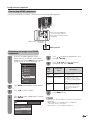
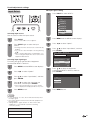
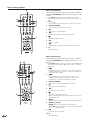
AV MODE
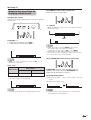
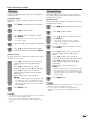
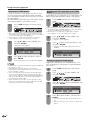
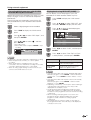
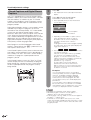
AV MODE gives you 7 viewing options to choose from
to best match the surrounding environment of the TV,
which can vary due to factors like room brightness, type
of program watched or the type of image input from
external equipment.
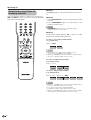
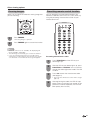
1
Press AV MODE.
2
Press AV MODE again before the mode
displayed on the screen disappears.
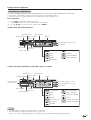
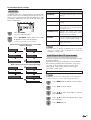
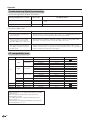
STANDARD
For a highly defined image in a normal
lighting
MOVIE
For a movie
GAME
Lowers image brightness for easier
viewing
USER
Allows the user to customize settings
as desired. You can set the mode for
each input source.
DYNAMIC (Fixed)
Changes the image and sound
settings to the factory preset values.
No adjustments are allowed.
DYNAMIC
For a clear-cut image emphasizing high
contrast, useful for sports viewing
PC
For PC mode. (Only available when the
input is from a PC.)
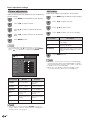
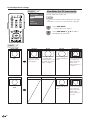
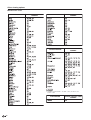
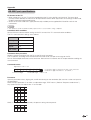
• Current AV MODE displays.
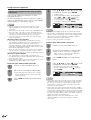
• The mode changes as shown below.
Mode selection for TV, INPUT 1 to 5 and i.LINK
terminals (Example)
AV MODE: STANDARD
AV MODE: MOVIE
AV MODE: DYNAMIC
AV MODE: GAME
AV MODE: DYNAMIC (Fixed)
Description
Selected item
AV MODE: USER [TV]
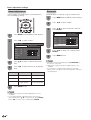
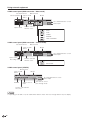
Mode selection for the PC terminal (Example)
AV MODE: STANDARD
AV MODE: MOVIE
AV MODE: DYNAMIC
AV MODE: GAME
AV MODE: DYNAMIC (Fixed)
AV MODE: PC
AV MODE: USER [PC]
NOTE
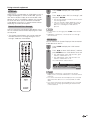
• You can select a different AV MODE item for each input
mode. (For example, select STANDARD for TV input and
DYNAMIC for VIDEO input.)
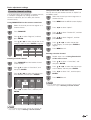
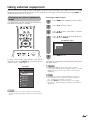
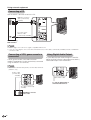
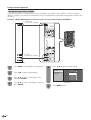
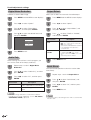
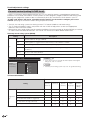
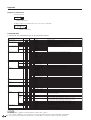
Input Signal (for PC input mode)
Some input signals may have to be registered manually
to display properly.
The pair of input signals (resolutions) in the list below
are not distinguishable when received. In such case,
you have to set the correct signal manually. After
setting once, it will display when the same signal
(resolution) is input again.
1024g768
1360g768
NOTE
• You can only select the “Input Signal” on the Setup menu
when receiving one of the 2 input signals listed above.
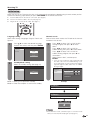
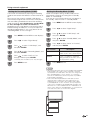
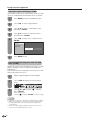
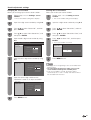
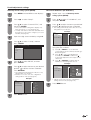
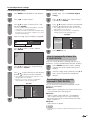
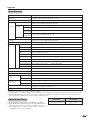
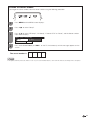
1
2
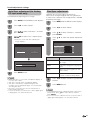
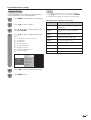
Press MENU and the MENU screen displays.
Press c/d to select “Setup”.
3
Press a/b to select “Input Signal”, and then
press ENTER.
4
Press a/b to select the desired input signal
on the display.
5
Press MENU to exit.
51