1
Touch Board Plus
14
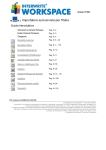
WorkSpace Modes
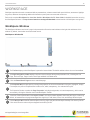
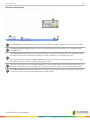
By default, WorkSpace opens in Lesson Mode with the WorkSpace toolbar floating on the desktop.
The WorkSpace toolbar will become transparent if not in use. To reactivate it, click anywhere on the toolbar.
WorkSpace allows you to capture text, graphics, or virtually any image from any application that you can project from your
computer. The software is categorized into "modes," each consisting of different capabilities:
By default, WorkSpace opens in Lesson Mode. While in Lesson Mode, two-way communication is
enabled between interactive devices and the computer. Interact with the computer using a
whiteboard or Mobi tablets.
In Mouse Mode, the internet (PC)/desktop (Mac/Linux) can be accessed using the Mouse tool.
Additionally, select any of the annotation tools while in Mouse Mode to change/return to Lesson
Mode.
By selecting Annotate Over Desktop Mode (PC ONLY), the desktop is turned into a canvas. Use
the Annotation Tools, Page Tools or Capture Tools to write and draw on the desktop.
Multi-User Mode allows two or more participants to interact with Turning Technologies whiteboards
using collaborative (shared) or defined (one person per defined area) space. Multiple Mobi devices
can be displayed on the whiteboard at the same time.
Open and interact with Microsoft Office applications directly from the WorkSpace software in Office
Mode (PC ONLY).
All notes made on the whiteboard can be captured and saved as pages within WorkSpace for
distribution, without the use of the projector in Whiteboard Mode. For Mac and Linux users, a
special “pens” folder is needed to use Whiteboard Mode.
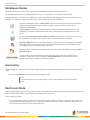
Annotating
Use the WorkSpace tools to write, draw, insert images, highlight, interact with and perform annotations over a blank page or
image.
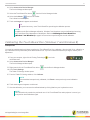
1 Click any annotation tool to begin annotating the page or image.
NOTE
To open a new lesson or access the desktop, click the Mouse Mode icon on the WorkSpace
toolbar.
Multi-User Mode
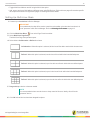
Multi-User Mode allows up to nine participants to interact using collaborative (shared) or defined (one person per defined area)
space. Multiple mobile devices can be displayed on the board at the same time.
From the Multi-User Menu:
l
Set up multiple participants to interact with Turning Technologies products. Define the number of areas for multi-user
use and determine if participants will use a collaborative or defined workspace. In Multi-User Mode, participants can
select objects on any Multi-User layer within their area.
turningtechnologies.com/user-guides