1
DIAGNOSTIC & MAINTENANCE
3
Updating the firmware
Step 1 : Before starting, you need,
A PC with a Web browser.
An Ethernet cable or a switch
The FTP server software which can be downloaded from the « firmware page » of the ETIC «
download area » web server.
Step 2 : Download the release of the firmware from our download area to your PC
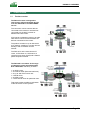
Step 3 : Prepare the PC
Check the Ip address of the PC is compatible with the one of the router.
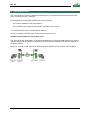
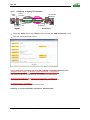
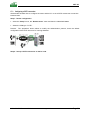
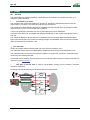
Connect the router to the PC.
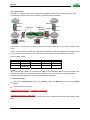
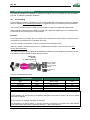
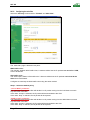
Launch the TFTP server (tftp32.exe) software and select the new release (L026xxx/img) by using the
"Browser" button.
Click on "Show dir" to check the files of the directory : rfsmini.tgz, rootfs.bin, u-boot.bin and uImage.
Step 4 : Update the firmware
Launch the web browser
Enter the IP address of the ETIC product ; the home page of the ETIC configuration server is
displayed.
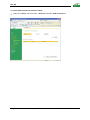
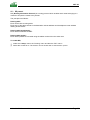
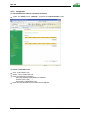
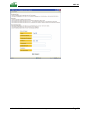
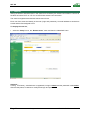
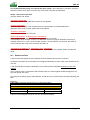
Select the "System" menu and then " firmware Update". In the field "IP address of the TFTP server",
enter the IP address of your PC.
Note : The IP address of the PC is written in the field "Server Interface" in the TFTP server windows.
Click "Save" and then "Update".
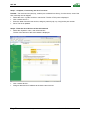
The first file should begin to be downloaded from the PC to the router.
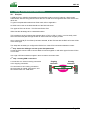
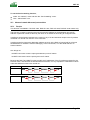
During the operation, the led blinks
When the download is finished, the product automatically reboots.
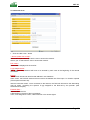
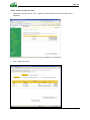
Check the new release has been installed, go to "About" in the administration web page of the IP
product.
Page 86
User guide ref 9020009-01
UMTS GPRS EDGE router ref. RAS-3G