1
Video Connections
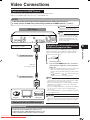
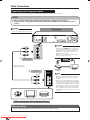
Connecting to the Component Jacks
You can enjoy accurate color reproduction and high quality images through the component jacks.
STEPS
1: Be sure to turn off this Player and the equipment before making any connections.
2: Firmly connect a component video cable (commercially available) to the component jacks (1
and 2).
CAUTION
This Player
• HDMI output and Component Video
output can not be used at the same time.
CAUTION
(Red)
• You need to switch the output to Component
video by pressing HDMI button to enjoy images
via the Component video output. (See page 15.)
• Even when there is no cable connected to the
HDMI video out, switching the output to H-oP
(HDMI Out) is still possible.
When H-oP is selected, there will be no signal
from the Component video out.
(Blue)
(Green)
1
To COMPONENT
VIDEO OUT jacks
VCR
Component video cable
(commercially available)
Connect directly
Blu-ray Disc
Player
To component
2 video input jacks
(Red)
(Blue)
(Green)
COMPONENT IN
PR
(CR)
PB
(CB)
Y
Projector
TV
NOTE
• Connect the Blu-ray disc player to LCD TV
directly. If you playback the image via VCR, the
image may deteriorate due to the copy guard
function.
• When you record the program where copyright
is protected, the copy guard function is activated
automatically; the program can not be recorded
correctly. Also, the playback image via VCR may
deteriorate due to this function. However, this is
not a malfunction. When you watch the program
where copyright is protected, we recommend
that the Blu-ray disc player be connected to LCD
TV directly.
AV receiver
Video equipment with component jacks
After connecting
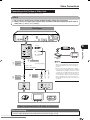
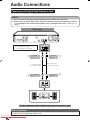
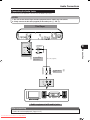
• Connect audio equipment or the audio terminals of the TV. (Pages 18–19)
Downloaded From Disc-Player.com Sharp Manuals
16
LCD TV