1
Data Recovery Using R-Studio
2
70
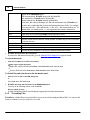
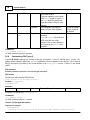
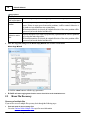
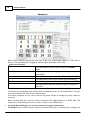
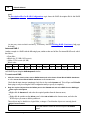
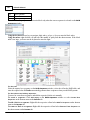
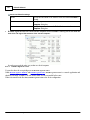
Recover all marked files in a single file recovery step
Go to the Recover Multiple Files topic for more information
3
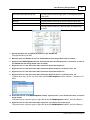
Create file recovery lists to manually edit the list of files to recovery
Go to the File Recovery Lists topic for more information
Memory considerations
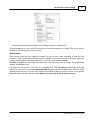
R-Studio stores information about found files in computer memory. If there are too many files, R-Studio may
run out of it. To avoid this, you have two options:
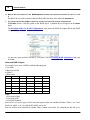
Recover all files
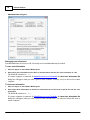
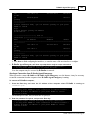
If you want to recover data from an entire file system object (a logical disk, partition, partition image, etc.), you
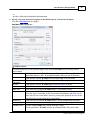
may use the Recover All Files command from the Drive or shortcut menu. Right click the object in the Drives
panel to access the shortcut menu. A Recover dialog box will appear. Select required restore settings, including
file mask. This command restores unlimited number of files without memory restrictions.
View file information in steps
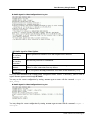
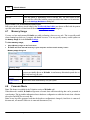
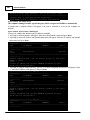
As soon as R-Studio nearly runs out of memory, a Too many files... message appears. You may temporally
stop file listing and browse through found files. Then you can resume file listing. You also may skip this file
section and continue file listing.
In all cases, R-Studio keeps information about the entire file structure.
Find and Mark Multiple Files
Recover Multiple Files
2.3.1
Find and Mark Multiple Files
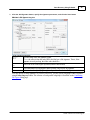
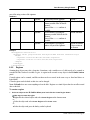
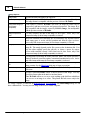
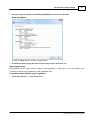
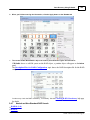
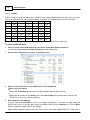
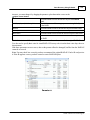
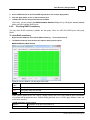
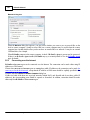
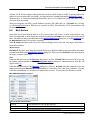
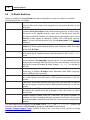
If you need to find and mark many files at once, you may do that in the following ways:
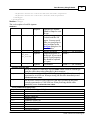
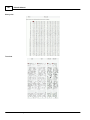
By sorting them by their extensions or creation/modification/accessed time
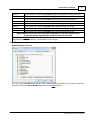
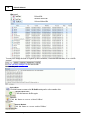
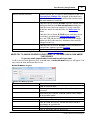
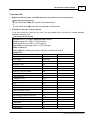
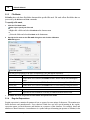
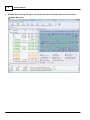
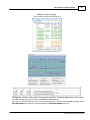
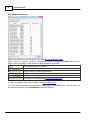
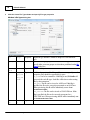
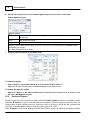
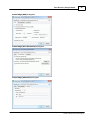
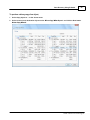
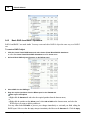
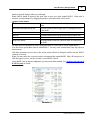
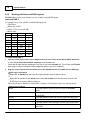
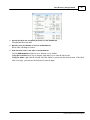
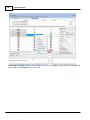
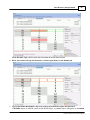
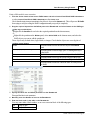
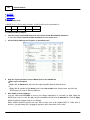
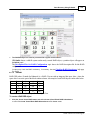
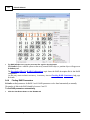
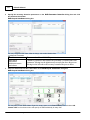
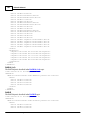
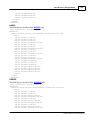
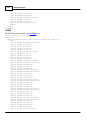
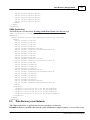
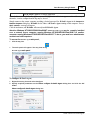
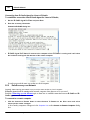
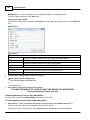
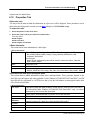
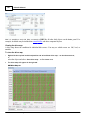
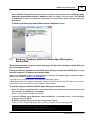
To sort files by their extensions or creation/modification/accessed time,
*
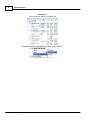
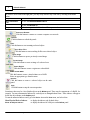
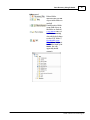
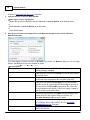
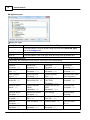
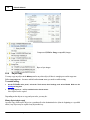
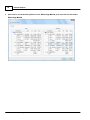
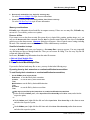
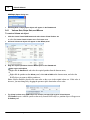
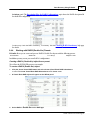
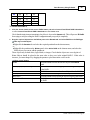
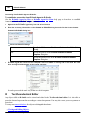
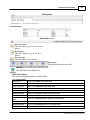
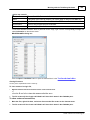
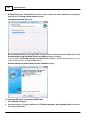
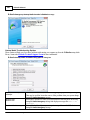
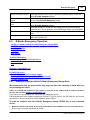
On the Folders panel select the tab
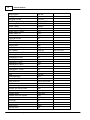
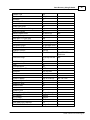
Extensions to sort the files by their extensions
Creation
to
Time
Modificationto
Time
Accessed to
Time
sort the files by their creation time
sort the files by their modification time
sort the files by their accessed time
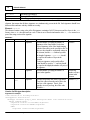
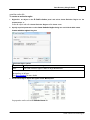
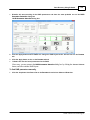
Other ways to sort files by their extensions or creation/modification/accessed time
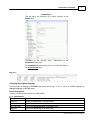
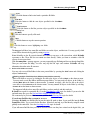
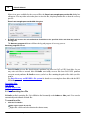
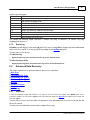
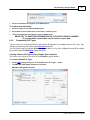
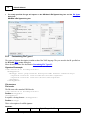
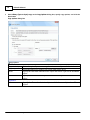
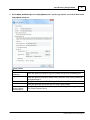
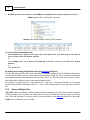
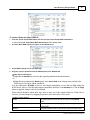
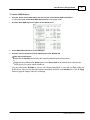
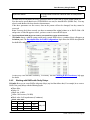
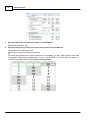
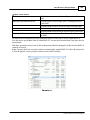
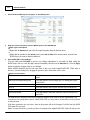
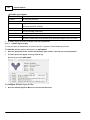
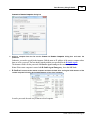
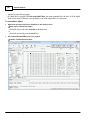
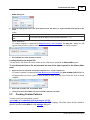
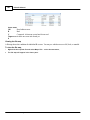
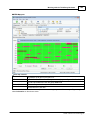
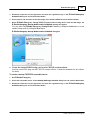
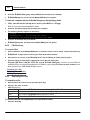
Select the disk on Drives panel, select Open Drive Files Sorted By on the Drive menu, and select the
respective option,
or
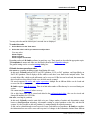
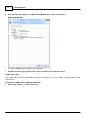
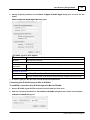
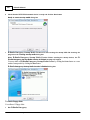
On the Drives panel, right-click the disk and select Open Drive Files Sorted By on the shortcut menu
and select the respective option,
or
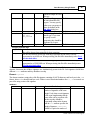
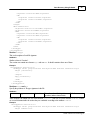
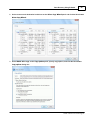
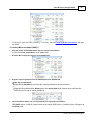
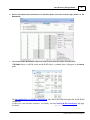
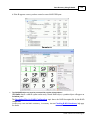
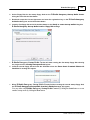
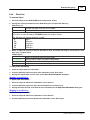
On the Folders panel, right-click the disk letter and select Show Files Sorted By on the shortcut menu
and select the respective option,
© 2002...2013 R-Tools Technology Inc.