1
chapter 4
Installing Pro Tools on Mac
This chapter contains information for Mac systems only. If you are installing Pro Tools on a
Windows computer, see Chapter 3, “Installing
Pro Tools on Windows.”
Before installing this version of Pro Tools,
refer to the Read Me information included
on the Pro Tools Installer disc.
Installation Overview
Installation of the Mbox 2 on a Mac includes the
following steps:
Installing Pro Tools LE
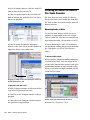
After the Apple System software settings are configured, you are ready to install Pro Tools LE.
To install Pro Tools LE on Mac OS X:
1 Make sure you are logged in as an Administra-
tor for the account where you want to install
Pro Tools. For details on Administrator privileges in Mac OS X, refer to your Apple Mac OS X
documentation.
2 Insert the Pro Tools LE Installer disc in your
CD/DVD drive.
1 “Installing Pro Tools LE” on page 15.
3 On the Installer disc, locate and double-click
2 “Connecting Mbox 2 to the Computer” on
“Install Pro Tools.”
page 16.
4 Follow the on-screen instructions to continue
3 “Launching Pro Tools LE” on page 17.
and accept installation.
4 Configuring your system for improved perfor-
5 Select the install location. For maximum reli-
mance. (See Chapter 5, “Configuring Your
Pro Tools System.”)
ability, install Pro Tools on your startup drive.
6 Click Continue.
5 Making audio connections to the Mbox 2.
(See Chapter 7, “Making Hardware Connections” for details.)
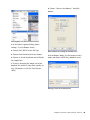
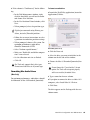
7 Select the Pro Tools application for installa-
tion.
8 You can also select from a list of optional
items to install along with Pro Tools:
Chapter 4: Installing Pro Tools on Mac
15