1
Launching Pro Tools LE
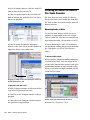
When launching Pro Tools LE the first time, you
are prompted to enter an authorization code to
validate your software.
The Mbox 2 CoreAudio Driver is installed by default when you install Pro Tools.
For information on configuring the
Mbox 2 CoreAudio Driver, see the CoreAudio Drivers Guide.
To authorize Pro Tools LE software:
Standalone Mbox 2 CoreAudio Driver
1 Make sure Mbox 2 is connected to your com-
The Mbox 2 CoreAudio Driver can be installed
as a standalone driver on Mac systems that do
not have Pro Tools software installed. The
standalone version of this driver is available on
the Pro Tools Installer disc (in the Additional
Files Folder).
puter and powered on.
2 Click the Pro Tools LE icon in the Dock (or
double-click the application icon in the
Pro Tools folder inside the Digidesign folder).
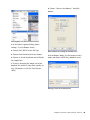
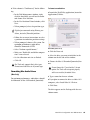
3 Enter the authorization code in the dialog
when prompted (making sure to type it exactly
as printed, and observing any spaces and capitalization), then click Validate.
Your authorization code is located on the inside
front cover of this guide.
Additional Software on the
Pro Tools Installer Disc
The Pro Tools Installer disc provides additional
software for your system, including audio drivers (for playing other audio applications
through your Digidesign hardware) and a
Pro Tools demo session.
Check your Pro Tools Installer disc for additional software and installers.
Mbox 2 CoreAudio Driver
The Mbox 2 CoreAudio Driver is a multi-client,
multichannel sound driver that allows CoreAudio compatible applications to record and
play back through Digidesign hardware.
For information on installing and configuring the standalone version of the Mbox 2
CoreAudio Driver, see the CoreAudio Drivers Guide.
Pro Tools Demo Session
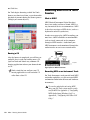
The Pro Tools LE Installer disc includes a demo
session that you can use to verify that your system is working.
The demo session for Pro Tool LE is named “Filtered Dreams.”
Before installing the demo session to your
audio drive, make sure the drive is configured as described in “Formatting an Audio
Drive” on page 64.
To install the demo session:
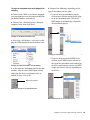
1 Insert the Pro Tools LE Installer disc into your
DVD drive.
2 From your DVD drive, locate and open the Additional Files/LE Demo Session Installer folder.
3 Double-click LE Demo Session Setup.exe.
4 Follow the onscreen instructions.
Chapter 4: Installing Pro Tools on Mac
17