1
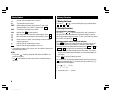
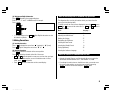
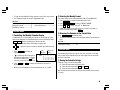
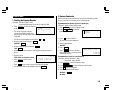
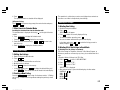
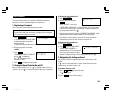
2.Setting the Rate
3. Press
to convert it.
The conversion result is displayed.
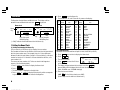
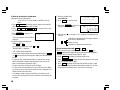
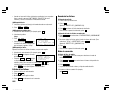
<Example> Set the following rate: $1 = £0.6
2. Press
3. Press 2nd
(or PREV ) to select the conversion display number 1.
EDIT
.
• The result display disappears and the rate display flashes.
4. Enter the rate (up to 10 digits).
CONVERSION
$
£
0.6 ENTER
1
0.6
0.
1
0.6
• Once you have set each rate, you can
perform a consecutive conversion
such as from £ to $, and then from $ to DM.
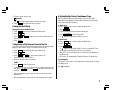
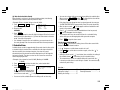
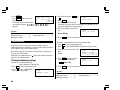
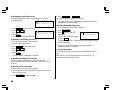
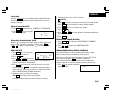
1. Press CALC/CONV once or twice to select the Conversion mode.
NEXT
CONVERSION
$
£
118.8
• The previous conversion result remains on the display, when you switch
from one conversion type to another. Press C•CE to clean the result
and start another conversion.
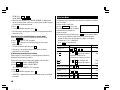
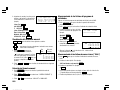
<Example 2> Convert 25°C to °F.
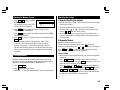
3.Changing the Currency or Unit
1. Press NEXT (or PREV ) to select the unit. (In this example, select the
conversion display number 16, which does not display the rate.)
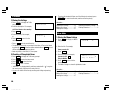
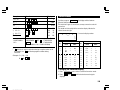
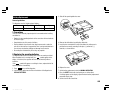
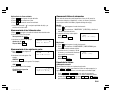
If there is no conversion pattern you want to use, you can change the
currency or unit in the conversion patterns No. 1 to No. 3.
2. Enter the value to be converted.
25
1. Repeat steps 1 to 3 of the above section, “Setting the Rate”.
3. Press
2. Press
,
and
to move the cursor to the currency to be
changed and enter the new currency or unit.
• The conversion result may have a slight calculation error as a result of
rounding off the number. Use the conversion result for reference.
4.Converting Currency/Unit
.
.
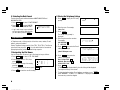
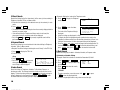
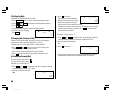
<Example 1> Convert $198 to £.
1. Press NEXT (or PREV ) to select the unit. (In this example, select the
conversion display number 1: $1 = £0.6.)
2. Enter the value to be converted.
198
CONVERSION
$
£
1
0.6
198.
20
YO-515 (E0426E)
16
˚
77.
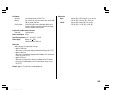
to move the cursor to the rate field and enter the rate.
To convert unit A to unit B, press
To convert unit B to unit A, press
CONVERSION
F
C
˚
• Up to 7 letters can be entered each for unit A and unit B.
3. Press
to convert it.