1
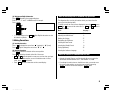
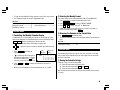
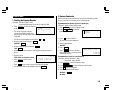
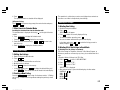
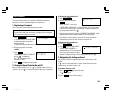
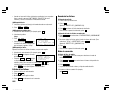
4. Press
Clock Mode
ENTER
to set the Home city.
• Zone numbers 0, 14, and 15 have no city name on the display.
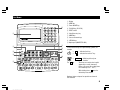
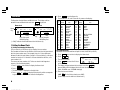
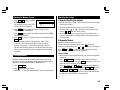
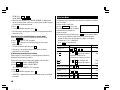
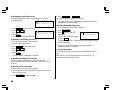
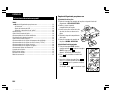
The Organizer has both Home and World clocks. The display switches
between Home and World clock each time CLOCK is pressed.
Home clock
Home
city
World clock
NYC
(+
LON
MON JAN
1,2001
MON JAN
12:00AM
Time
Day of the week/
Month/Day/Year
5:00 )
1,2001
5:00AM
World
city
Time
Day of the week/
Month/Day/Year
“(+ 5:00)” indicates the time difference from the Home city.
1.Setting the Home Clock
(1) Setting and changing the Home city
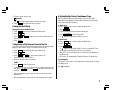
Set your local city as the Home city by selecting its zone number.
Zone numbers are based on the distance of the zones from the international
date line (zone number zero). For example, there is a 13-hour difference
between the date line and London (London is 13 hours behind), so the zone
number for London is 13. Honolulu is 23 hours behind the date line, so its
zone number is 23.
Zone
No.
0
1
2
3
3.3
4
5
6
6.3
7
7.3
8
8.3
9
9.3
Display
AKL
NOU
SYD
ADL
TYO
HKG
BKK
RGN
DAC
DEL
KHI
KBL
DXB
THR
City
AUCKLAND
NOUMEA
SYDNEY
ADELAIDE
TOKYO
HONG KONG
BANGKOK
YANGON
DHAKA
NEW DELHI
KARACHI
KABUL
DUBAI
TEHRAN
Zone
No.
10
11
12
13
14
15
16
17
18
19
20
21
22
23
24
Display
City
MOW
CAI
PAR
LON
MOSCOW
CAIRO
PARIS
LONDON
RIO
CCS
NYC
CHI
DEN
LA
ANC
HNL
MID
RIO DE JANEIRO
CARACAS
NEW YORK
CHICAGO
DENVER
LOS ANGELES
ANCHORAGE
HONOLULU
MIDWAY
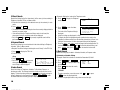
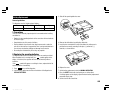
(2) Setting the Clock
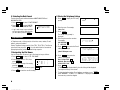
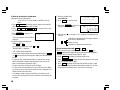
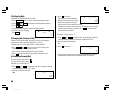
<Example> Set the date and time to April 12, 2001, 10:05 PM (or 22:05).
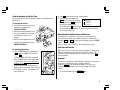
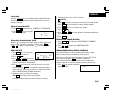
1. Press CLOCK once or twice to display the Home clock.
2. Press
2nd
EDIT
.
• The cursor will flash.
NYC
MON JAN
[ 18.0 ]
1,2001
12:00AM
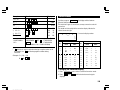
The names and zone numbers of 27 cities are stored in the Organizer's
memory. (See the following table.)
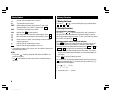
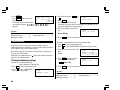
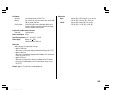
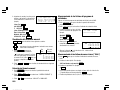
3. Press 12 24 to select the 12-hour
or 24-hour clock.
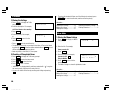
1. Press
CLOCK
2. Press
2nd
• The display switches between the two clocks each time 12 24 is
pressed. AM or PM is displayed for the 12-hour clock (default).
(Note: 12:00PM: noon, 12:00AM: midnight)
once or twice to display the Home clock.
EDIT
.
• The zone number is displayed on the right side.
3. Press NEXT or PREV to display the desired city which corresponds
to your local zone from the cities stored in the Organizer.
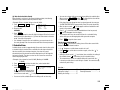
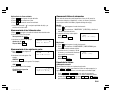
4. Enter the hour and minutes.
1005
PM
(For the 24-hour clock, press 2205)
(Enter 2 digits each for both hour and minutes.)
6
YO-515 (E0426E)