1
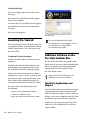
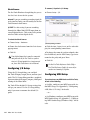
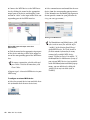
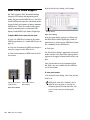
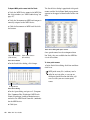
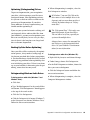
3 Click the More Information arrow to expand
the dialog, then enable the appropriate MIDI
channels (1–16) for the Transmits and Receives
options. (These determine which channels the
device will use to send and receive MIDI.)
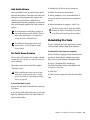
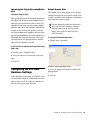
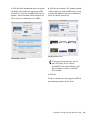
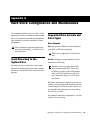
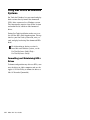
4 Click the device image. The window expands
to show images for various MIDI devices (such
as keyboards, modules, interfaces, and mixers).
Select an icon for your device.
Selecting a device icon
Enabling MIDI channels
To use your own custom icons, you can
place TIFF image files in /Library/
Audio/MIDI Devices/Generic/Images, and
they will appear as choices in the AMS
device window.
5 Click OK.
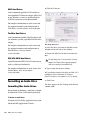
The device names you enter appear as MIDI input and output choices in Pro Tools.
Appendix B: Configuring AMS (Mac OS X Only)
43