1
Introduction
This guide contains installation, configuration, and operating information for the Extron
SMX MultiMatrix Switcher with optional input and output (I/O) boards. It covers operations
using the front panel controls and Simple Instruction Set (SIS™) commands. It also describes
how to load and start up the SMX Control Program that runs on Windows® operating
systems and how to connect to the built-in HTML pages for additional methods of operating
the SMX.
In this guide, the terms “SMX switcher,” “SMX,” and “switcher,” are used interchangeably
to refer to a typical SMX System MultiMatrix Switcher. “Video model” refers to any SMX
switcher that switches only video. “Audio model” refers to any SMX switcher that switches
only audio.
This section contains general information about the SMX switcher and includes:
•
SMX Series Description
•
Definitions
•
Features
SMX Series Description
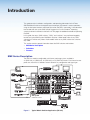
The SMX is a modular, configurable, multi-format card cage system, available in
2U (SMX 200), 3U (SMX 300), 4U (SMX 400), or 5U (SMX 500) frames. Each frame has rear
panel slots into which I/O boards can be inserted in any configuration and signal type.
FOX HDSDI
POWER
12V
0.3A MAX
OPTICAL
MODE
HD/SDI IN
1
1 2
Tx
2
BUFFERED OUTPUTS
Rx
Extron FOX HD-SDI
Transceiver
FOX HDSDI
POWER
12V
0.3A MAX
MODE
HD/SDI IN
OPTICAL
2
1
1
1 2
Tx
Rx
3
2
1
INPUTS
3
4
IN
IN
OUT
OUT
OUT
OUT
OUT
OUT
IN
IN
IN
OUT
IN
IN
OUT
OUT
IN
PLANE ADRESS
OUT
IN
IN
FIBER OPTIC
DIGITAL VIDEO
2
1
RESET
4
3
SDI / HDSDI INPUTS
COMPUTER IN
RS232/RS422
1
5
22
11
8
7
6
PLANE ADRESS
4
3
44
33
55
Data Monitors
4
3
2
8
77
66
SDI / HDSDI OUTPUTS
COMPUTER OUT
1
LINK
2
6
5
ACT
LAN
Compact HDTV
Camera Systems
OUT
OUT
IN
IN
4
3
2
1
FIBER OPTIC
REMOTE
OUTPUTS
PLANE ADRESS
4
3
3
2
2
1
1
Transceiver
HD Camera
4
2
BUFFERED OUTPUTS
Extron FOX HD-SDI
HD-SDI
Camera
Digital Monitors
HDTV Monitors
DVI Equipped PCs
2
1
2
1
8
7
4
3
5
S-VIDEO IN
2
1
Y
4
3
S-VIDEO
C
PCs
2
1
S-VIDEO IN
Y
2
1
8
7
4
3
S-VIDEO OUT
PLANE ADRESS
4
3
6
5
PLANE ADRESS
8
7
6
5
8
7
6
Video Recorders
4
3
C
S-VIDEO OUT
PLANE ADRESS
WB VIDEO
2
1
®
DVD/VCR Combo
4
3
L
1
R
L
2
L
R
3
L
R
5
VIDEO INPUTS
US
LISTED
IT23
I.T.E.
4
R
L
5
R
R
L
7
R
L
8
22
11
8
7
6
6
L
PLANE ADRESS
L
R
1
R
L
2
44
33
R
L
3
55
L
4
R
L
5
R
L
6
R
8
77
66
VIDEO OUTPUTS
R
L
7
R
L
8
Video Monitors
R
PLANE ADRESS
100-240V , 50-60Hz
2.0A MAX.
Extron
SMX System
DVD Player
Video Monitors
MultiMatrix Switcher
Sound Systems
TRANSITION
PROGRAM
FREEZE
1
2
3
4
5
6
LOGO 1
/BLACK
LOGO 2
/BLACK
CUT
PREVIEW
FREEZE
1
2
3
4
5
6
LOGO 1
/BLACK
LOGO 2
/BLACK
PICTURE
ADJUSTMENTS
TAKE
EFFECTS
WIPE
PIP
DISSOLVE
TITLE
ADJUST
BRIGHT
/CONT
DETAIL
CENTER COLOR
ZOOM
SIZE
/TINT
MENU
VOLUME
NEXT
ADJUST
CONFIG
ISS 506
Integration Seamless Switcher
Extron
ISS 506
Main Projection
Display
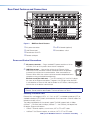
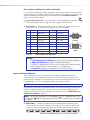
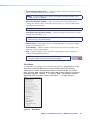
Figure 1.
Typical Matrix Swticher Application (5U Unit)
SMX System MultiMatrix Switcher • Introduction
1