1
Setting the unlock/lock range
Other Viper SmartKey features
Important! Please read and follow these steps carefully.
1. To temporarily disable SmartKey, you can send
an active Lock or Unlock command. This turns off
passive locking/unlocking activity until you are
out of range of the vehicle. At that time SmartKey reengages and passive locking/unlocking
resumes.
2. To turn off SmartKey completely (disable passive
locking/unlocking), tap the Bluetooth icon on the
top left of the main SmartStart user inteface page
and check the pop-up to confirm that SmartKey
is now disabled. Tap the icon again when you
want to re-enable SmartKey, otherwise it will remain disabled indefinitely.
3. You can also turn on the SmartLock feature if you
want to remain in the vicinity of the vehicle without having it lock and unlock repeatedly. When
SmartLock is active, it defers the lock/unlock decision by a fixed period of time. Moving past
the lock and unlock thresholds resets these timers,
preventing the vehicle from locking or unlocking
until you stay outside the threshold long enough
for the timers to expire. Tap the SmartLock button
on the Cars detail page for that vehicle to enable
SmartLock, tap it again to disable SmartLock.
4. Sleep mode is enabled by tapping the Sleep
Mode button on the Cars detail page. This shuts
down the module to prevent it from using any
battery current. Use this if you are parking the vehicle for extended periods of time. You can wake
the module back up when you return by simply
sending a Connect request. For iPhone, tap the
device name on the phone’s Bluetooth device list.
For Android, from either the main SmartStart user
interface page or the Cars tab, press the phone’s
Menu button to pop up a command box in the
app with the Connect button in it. Press this button to restart your SmartKey module.
5. Power Saver Mode is automatically entered after 14 hours of no command activity. This mode
leaves the SmartKey device active so you can
connect with it and send commands, but it reduces the auto-connect polling to lower the amount
of current draw from the battery. The SmartKey
device automatically exits Power Saver Mode
when you return to the vehicle or send it a command.
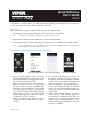
1. Go to the Cars tab, and select the “>” next to
the vehicle name that represents the SmartKey
system you want to set up. You must be in range
of the vehicle and connected via Bluetooth. The
Bluetooth icon on the main UI page appears
when a connection is detected.
2. Press the “Enable SmartKey” button to turn on
passive locking & unlocking, and to access the
SmartKey control page.
3. When the SmartKey control page opens, stand
approximately 10-15 feet from the vehicle, preferably at a slight angle to the driver’s side.
4. Press the Set Range button. This establishes your
current position as the approximate range where
Unlock will occur, and automatically sets the Lock
range several feet further away from the vehicle.
The Unlock/Lock sliders on the SmartKey control
page move to indicate the updated range thresholds.
5. Walk away from the vehicle and check that Lock
occurs within a reasonable distance, and then
walk back to the vehicle to check that Unlock occurs before you have reached the vehicle.
Note: The actual range varies depending on whether
you are holding the phone in your hand or have it
in a pocket, also whether other metal or electronic
devices are close to the phone. These variances tend
to be consistent but you should experiment until you
are comfortable with the programmed range. If you
aren’t sure the range is set correctly, check with your
installer.
2
© 2014 Directed. All rights reserved.