1
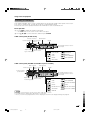
Useful adjustment settings
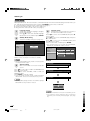
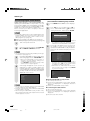
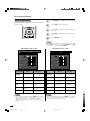
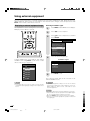
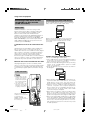
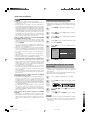
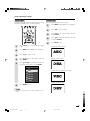
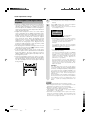
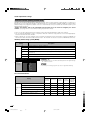
Input signal (for PC input mode)
4
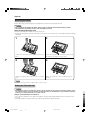
Press a/b to select the desired level, and
then press ENTER.
• Some input signals may have to be registered manually
to display properly.
• The pairs of input signals (resolutions) in the list below
are not distinguishable when received. In such case, you
have to set the correct signal manually. After setting once,
it will display when the same signal (resolution) is input
again.
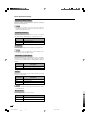
640g400
720g400
640g480
848g480
1024g768
1280g768
NOTE
Off
High
Low
5
Press MENU to exit.
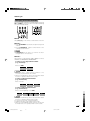
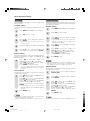
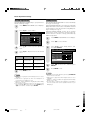
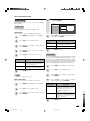
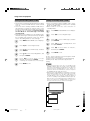
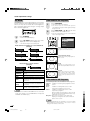
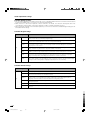
Mosquito Noise Reduction
• You can only select the “Input Signal” on the Setup menu
when receiving one of the 6 input signals listed above.
Reduces fine detail mosquito noise.
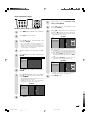
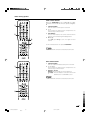
1
Repeat steps 1 and 2 in 3D Noise
Reduction.
2
Press a/b to select “Mosquito Noise
Reduction”, and then press ENTER.
3
Press a/b to select the desired level, and
then press ENTER.
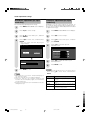
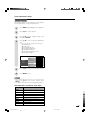
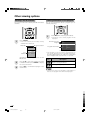
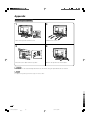
1
Press MENU and the MENU screen displays.
2
Press c/d to select “Setup”.
Selected item
3
Press a/b to select “Input Signal” and then
press ENTER.
Off
High
Low
4
Press a/b to select the desired input signal
on the display.
Example
4
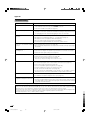
Description
For normal images
For enhanced Mosquito Noise Reduction
For moderate Mosquito Noise Reduction
Press MENU to exit.
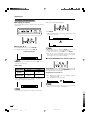
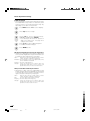
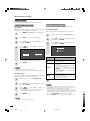
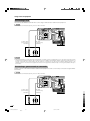
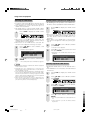
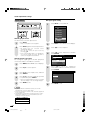
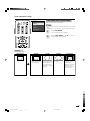
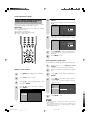
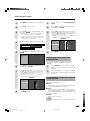
Audio Only
When listening to music from a music program, you can
set the Liquid Crystal display off and enjoy audio only.
640 x 480
848 x 480
5
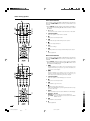
1
Repeat steps 1 and 2 in 3D Noise
Reduction.
2
Press a/b to select “Audio Only”, and then
press ENTER.
3
Press c/d to select “On”, and then press
ENTER.
Press MENU to exit.
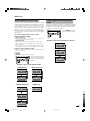
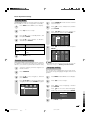
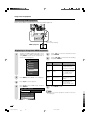
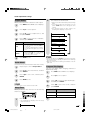
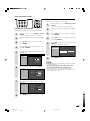
3D Noise Reduction
Produces a clearer video image.
1
Press MENU and the MENU screen displays.
2
Press c/d to select “Option”.
3
Press a/b to select “3D Noise Reduction”,
and then press ENTER.
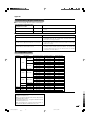
Description
Selected item
On
Audio is output without screen image.
Off
Both screen images and audio are output.
4
Press MENU to exit.
50
LC-57D90U(E)-044-050
50
Black
06.1.12, 2:53 PM