1
Need any help?
Please visit www.bt.com/business/help/mobilebroadband
Xxx
BT Business Mobile Broadband
USB Modem User Guide
ZTE MF823
1
Contents
Contents
Quick Start Set-up / What’s In Your Pack
Minimum System Requirements
Getting Started
Step 1: Insert the SIM into your USB Modem
Step 2: Insert the USB Modem and install the BT Access Manager software
Step 3: Connect to the internet
BT Access Manager
BT Access Manager for Mac
Using BT Business Mobile Broadband Abroad
Your USB Modem
USB Modem indicator lights explained
Safety Information
3
4
5
5
5
7
9
10
11
12
12
13
Need any help? Please visit: www.bt.com/business/help/mobilebroadband
2
Quick Start Set-up
2 Plug the USB Modem
3 Install BT Access Manager
4 Connect to the internet.
card into the
USB Modem.
by following the on-screen
instructions.
into your PC.
Quick Start Set-up / What’s In Your Pack
For more detailed instructions, please see page 5.
1 Insert the SIM
What’s In Your Pack
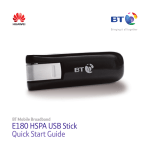
Your USB Modem box
includes your USB Modem
and user guide.
3
Minimum System Requirements
Minimum System Requirements
To use the MF823, your computer must meet the following requirements:
Connectivity
CPU
Memory
Hard disk
Operating system
Display
4
Spare USB port, compatible with USB 2.0 Full Speed
133 MHz or above, 500 MHz or above is recommended
256 MB RAM or more
500 MB or more free space
Microsoft ® Vista, Windows 7, Windows 8 or Mac OS 10.5 and above
Resolution of 800×600 or above, 1024×768 is recommended
Getting Started
We know you’re keen to get started with BT Business Mobile Broadband, so please follow these steps
in the exact order shown below.
Step 1: Insert the SIM into your USB Modem
To get started, you need to insert your SIM card into the USB Modem.
Insert the SIM card with
the BT logo facing up
Getting Started
Remove cover by pulling
up and back
Replace the cover and click
back into place
Step 2: Insert the USB Modem and install the BT Access Manager software
You’ll need to have your laptop switched on before you plug the USB Modem in.
5
i. Insert the USB Modem into a USB port on your laptop.
Getting Started
ii.Follow the on-screen instructions.
If you have AutoPlay disabled
You may not be automatically prompted to install BT Access Manager. You must manually launch
the installer. To do this, go to Start > Computer and double click the BT icon ‘CD Drive (D:) BT AM’.
Please note that the drive letter (D:) may be different.
What is BT Access Manager?
BT Access Manager allows you to connect your laptop to the Internet using Ethernet, Wi-Fi,
including your BT Business Hub, BT Wi-fi*and the BT Mobile Broadband network (4G, HSPA, 3G,
GPRS). *Ethernet and Wi-Fi connections not available on Mac.
6
Step 3: Connect to the internet
You have a choice of how to make this first connection to complete the setup.
i. If you’re in range of a Wi-Fi network, you can connect using Wi-Fi.
Please note: Wi-Fi connections not available on Mac.
Getting Started
ii.If you are out and about in an area with a mobile signal, you can connect to the BT Mobile network.
Either way it will only take a few minutes.
Connect using Wi-Fi (not available on Mac)
1.Make sure you’re in range of a Wi-Fi signal. This could be from
your BT Business Hub (or similar wireless router) or a BT Wi-fi
hotspot, for example. If connecting to a private Wi-Fi signal
ensure the router is switched on and working. Make a note of
the Wireless Network Name (SSID) and Wireless Key. This may
be found on your router.
2.Double click the BT Access Manager icon on your desktop –
when the circular dashboard screen appears, click on the
central button to connect.
7
Connect using the BT Mobile network
1.Make sure you’re in an area which has a mobile signal.
2.PC users: Double click the BT Access Manager icon on your desktop. When BT Access Manager starts
and initialises the USB Modem, click on the Mobile icon
to establish a BT Mobile connection.
If you have AutoPlay disabled
Getting Started
First go to Start > Computer and double click the BT icon ‘CD Drive (D:) BT AM’. Please note that the
drive letter (D:) may be different. Then open BT Access Manager and connect, as above.
Please note: To manually force a connection to the BT Mobile network, click the small green Mobile
icon and select BT Mobile Data.
Mac users: Double click the BT Access Manager icon in the dock. When the dashboard screen
appears, make sure the Default Configuration is BT Mobile and click Connect.
Need any help?
Please visit www.bt.com/business/mobilebroadband for help and support using BT Business
Mobile Broadband.
8
BT Access Manager
Launch the
help guide
Minimize BT Access
Manager to the
System Tray
Switch between
Normal and
Expanded view
Close BT
Access Manager
BT Access Manager
Available
connection
type icons
Connect/
Disconnect
button
Network
Connections
Usage Log
Wi-Fi
Networks
Mobile
Broadband
SMS and
Support
Settings
Scroll to
Settings and
Preferences
9
BT Access Manager for Mac
BT Access Manager for Mac
Connection
Make a connection
to the BT Mobile
Operation
Connection
Statistic
SMS
Phonebook
Tools
Diagnostics
Setup…
PIN Operations
Help
Phonebook
Click to manage
Contact details
SMS
Click to view
Your messages
Statistic
Click to check
your usage
Connect
Click to connect and
Disconnect to the
BT Mobile network
Signal
Strength
Network
Speed
Connection
Status
10
Device
Status
SIM
Status
BT Mobile
network
Using BT Business Mobile Broadband Abroad
Using BT Business Mobile Broadband Abroad
Using abroad
You can use BT Business Mobile Broadband abroad. Please note that the cost of data is significantly
higher than in the UK. For further information, visit www.bt.com/mobilebroadband.
11
Your USB
XxxModem
USB Modem indicator lights explained
Indicator is…
this means…
12
Green
The USB modem has detected a LTE network
Green
Flashing
The USB modem is connected to the LTE network
Blue
The USB modem has detected a 3G/2G network
Blue
Flashing
The USB modem is connected to the 3G/2G network
Red
The USB modem could not connect to a network
Off
The USB modem is removed and not connected
Safety Information
Safety Information
Interference
• Operation of your PC and USB Modem may
interfere with personal medical devices such
• Some electronic devices are susceptible to
as hearing aids and pacemakers.
electromagnetic interference transmitted by the
USB Modem if inadequately shielded, such as
• Please always keep the USB Modem at least
electronic systems of vehicles.
20 centimeters away from such medical devices
when they are in use.
• Do not place this device in the area over an air
bag or in the air bag deployment area. Store the • Power off the USB Modem if necessary.
device safely before driving your vehicle.
• Consult a physician or the manufacturer of the
• If necessary please consult the device or vehicle
medical device before using the USB Modem.
manufacturer before using the USB Modem.
Use in Explosive Environments
Interference with Medical Equipment
Be aware of usage limitations when using a USB
• Switch off your wireless device when requested Modem in places where there may be explosive
to do so in hospitals, clinics or health care
gases or explosive products present. Such areas
facilities. These requests are designed to
include but are not limited to the following:
prevent possible interference with sensitive
• Petrol stations and fuel depots.
medical equipment.
13
• Containers/Vehicles for storing or transporting
fuels or chemical products.
Safety Information
• Areas where the air contains chemical
substances and particles (including granules,
dust, or metal powder).
Safety of Children
• Store the USB Modem out of the reach of small
children, it is not intended to be used as a toy and
may cause injury if used as such.
• Do not allow children to use the USB Modem
without guidance. Small and sharp components
of the wireless device may cause danger to
children or cause suffocation if children swallow
the components.
• Areas indicated with “Power off two way radios”
or similar signs.
Care of your USB Modem
• Please use only original accessories or
• Areas where you are instructed to stop the
accessories that are authorized by the
engine of a vehicle.
manufacturer. Using any unauthorized
• If in doubt do not use the USB Modem.
accessories may affect your USB Modem’s
performance, and violate related national
regulations regarding telecom terminals.
• Areas indicated with “Explosives” signs, e.g.
quarries where radio signals may interfere with
blasting operations.
14
• Do not attempt to disassemble the USB Modem
as this will invalidate your warranty. There are no
user serviceable parts inside and only a qualified
maintainer should undertake repair work.
• The USB Modem is not waterproof, please keep
it dry, free from moisture and store it in a cool
place and away from sunlight.
In Aircraft
• Please power off the USB Modem when onboard
an aircraft. In order to protect the aircrafts
communication and navigations systems from
interference, it is forbidden to use the USB
Modem in flight. Only use the USB Modem
before take off with the crew’s permission and
according to local safety regulations.
• Do not use the USB Modem immediately after
a sudden temperature change. This can cause
the formation of condensation both inside and
outside the USB Modem, therefore do not use it
until it has time to acclimatize and dry.
• Treat the USB Modem carefully. Do not
drop, bend, knock or harshly treat it to avoid
permanent damage.
Environmental Protection
• Observe the local regulations regarding the
disposal of your packaging materials, used
USB Modem and accessories, and use recycling
facilities wherever possible.
Safety Information
• Avoid using the USB Modem near metallic
structures or facilities that can emit
electromagnet waves which may interfere with
the reception of signals.
15
Safety Information
WEEE Approval
• This USB Modem is in compliance with
the essential requirements and other
relevant provisions of the Waste Electrical
and Electronic Equipment Directive
2012/19/EC (WEEE Directive).
RoHS Approval
• This USB Modem is in compliance with the
restriction of the use of certain hazardous
substances in electrical and electronic
equipment Directive 2002/95/EC (RoHS
Directive).
Emergency Calls
• This USB Modem functions through receiving
and transmitting radio signals, and the
connection cannot be guaranteed in all
conditions. In an emergency, you should not
rely solely on the USB Modem for essential
communications.
Specific Absorption Rate (SAR)
• Your USB Modem is a radio transmitter and
receiver. It is designed not to exceed the limits
for exposure to radio waves recommended
by international guidelines. These guidelines
were developed by the independent scientific
Observance of Laws and Regulations
organization ICNIRP and include safety margins
• Observe all applicable laws and regulations when
designed to assure the protection of all persons,
using your USB Modem. Respect the privacy and
regardless of age and health.
legal rights of others.
16
Safety Information
• The guidelines use a unit of measurement known CE Approval (European Union)
as the Specific Absorption Rate, or SAR. The SAR • The USB Modem is approved to be used in the
limit for wireless devices is 2.0 W/kg and the
member states of the EU. The wireless device is
highest SAR value for this device when tested
in compliance with the essential requirements
complied with this limit.
and other relevant provisions of the Radio
and Telecommunications Terminal Equipment
Body-worn Operation
Directive 1999/5/EC (R&TTE Directive).
• To ensure compliance with RF exposure
guidelines the USB Modem must be used with a
minimum of 1.5 cm separation from the body.
Failure to observe these instructions could result
in your RF exposure exceeding the relevant
guideline limits.
17
Offices worldwide
The services described in this publication are subject to availability and may be modified from time to time.
Services and equipment are supplied subject to British Telecommunications plc’s respective standard conditions of contract.
Nothing in this publication forms any part of a contract.
BT and the ‘Connected World’ logo and ‘Bringing it all together’ are trade marks of British Telecommunications plc.
© British Telecommunications plc 2014.
Registered Office: 81 Newgate Street, London EC1A 7AJ.
Registered in England No. 1800000.
No part of this document may be reproduced or transmitted in any form or by any means
without prior written consent of British Telecommunications plc.
PHME: 61611