1
4.3.3.4 SSL protocol checking
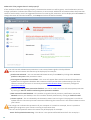
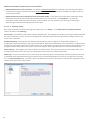
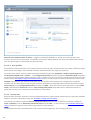
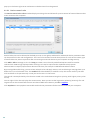
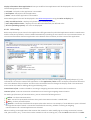
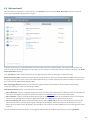
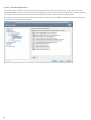
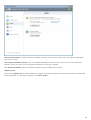
ESET Smart Security enables you to check protocols encapsulated in SSL protocol. You can use various scanning
modes for SSL protected communications using trusted certificates, unknown certificates, or certificates that are
excluded from SSL-protected communication checking.
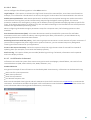
Always scan SSL protocol – Select this option to scan all SSL protected communications except communications
protected by certificates excluded from checking. If a new communication using an unknown, signed certificate is
established, you will not be notified and the communication will automatically be filtered. When you access a
server with an untrusted certificate that is marked as trusted (it is added to the trusted certificates list),
communication to the server is allowed and the content of the communication channel is filtered.
Ask about non-visited sites (exclusions can be set) – If you enter a new SSL protected site (with an unknown
certificate), an action selection dialog is displayed. This mode allows you to create a list of SSL certificates that will
be excluded from scanning.
Do not scan SSL protocol – If selected, the program will not scan communications over SSL.
Apply created exceptions based on certificates – Activates using exclusions specified in excluded and trusted
certificates for scanning SSL communication. This option is available if you select Always scan SSL protocol.
Block encrypted communication utilizing the obsolete protocol SSL v2 – Communication using the earlier version of
the SSL protocol will automatically be blocked.
4.3.3.4.1 Certificates
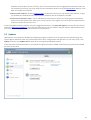
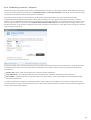
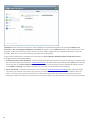
For SSL communication to work properly in your browsers/email clients, it is essential that the root certificate for
ESET be added to the list of known root certificates (publishers). Add the root certificate to known browsers should
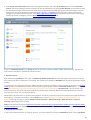
be enabled. Select this option to automatically add the ESET root certificate to the known browsers (for example,
Opera and Firefox). For browsers using the system certification store, the certificate is added automatically (e.g.
Internet Explorer). To apply the certificate to unsupported browsers, click View Certificate > Details > Copy to File...
and then manually import it into the browser.
In some cases, the certificate cannot be verified using the Trusted Root Certification Authorities store (e.g.
VeriSign). This means that the certificate is self-signed by someone (e.g. administrator of a web server or a small
business company) and considering this certificate as trusted is not always a risk. Most large businesses (for
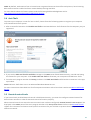
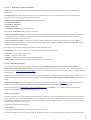
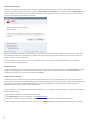
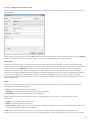
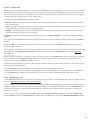
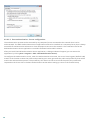
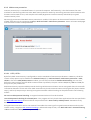
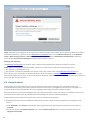
example banks) use a certificate signed by TRCA. If Ask about certificate validity is selected (selected by default),
the user will be prompted to select an action to take when encrypted communication is established. An action
selection dialog will be displayed where you can decide to mark the certificate as trusted or excluded. If the
certificate is not present in the TRCA list, the window is red. If the certificate is on the TRCA list, the window will be
green.
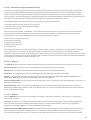
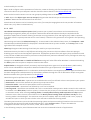
You can select Block communication that uses the certificate to always terminate an encrypted connection to the
site that uses the unverified certificate.
If the certificate is invalid or corrupt, it means that the certificate expired or was incorrectly self-signed. In this case,
we recommend that you block the communication that uses the certificate.
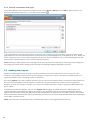
4.3.3.4.1.1 Trusted certificates
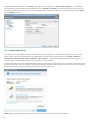
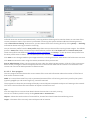
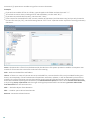
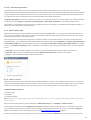
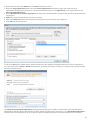
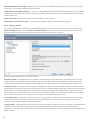
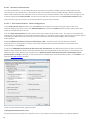
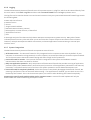
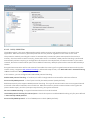
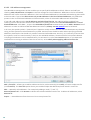
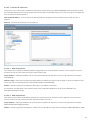
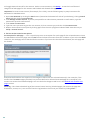
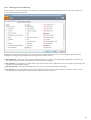
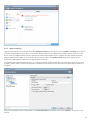
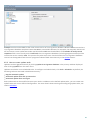
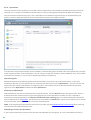
In addition to the integrated Trusted Root Certification Authorities store where ESET Smart Security stores trusted
certificates, you can create a custom list of trusted certificates that can be viewed in Advanced setup (F5) > Web and
email > Protocol filtering > SSL > Certificates > Trusted certificates. ESET Smart Security will check the content of
encrypted communications utilizing certificates in this list.
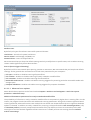
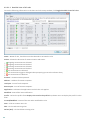
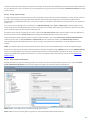
To delete the selected items from the list, click Remove. Click Show (or double-click the certificate) to display
information about the selected certificate.
62