1
Excel® Mobile
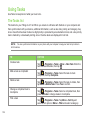
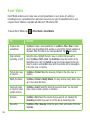
Excel® Mobile enables you to create, view, and edit spreadsheets on your device. Any editing or
formatting done on a spreadsheet file is kept intact even when you open the spreadsheet file on your
computer. Excel® Mobile is compatible with Microsoft® Office Excel 2007.
To launch Excel® Mobile, tap
164
> Office Mobile > Excel Mobile.
TO
DO THIS
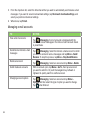
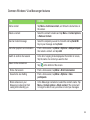
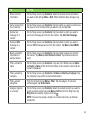
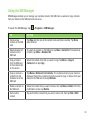
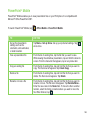
Create a new
spreadsheet
Tap New to create a new spreadsheet; or tap Menu > File > New to create
another new spreadsheet while working on a current file. A blank workbook is
displayed. Enter the data for your new spreadsheet. Tap
when done.
Clear contents,
formatting, or both
Using the stylus, highlight the cells, rows, or columns that you want to
clear. Tap Menu > Edit > Clear. Tap Contents to clear the contents in the
highlighted cell or cells; tap Format to clear the formats applied to the cells,
rows, or columns; and tap All to clear both the contents and formats applied
to the cells, rows, or columns.
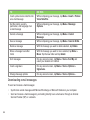
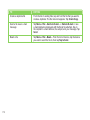
Format cells, rows,
or columns
Tap Menu > Format. Make the necessary formats for the cells, rows, or
columns.
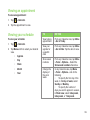
Modify the sheets
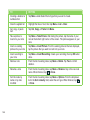
Tap Menu > Format > Modify Sheets. You may rename, insert, delete, move
up or move down the sheet.
Insert cells (rows
or columns), chart,
symbol, function
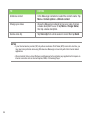
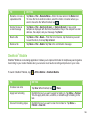
Tap Menu > Insert. Select the item that you want to insert. You may insert
rows, columns, charts, symbols, or functions.
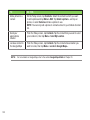
Sort data
Tap Menu > Sort. Select the columns that you want to sort. Deselect the
Ascending checkbox if you want to sort the data in descending order.
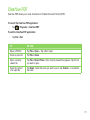
Save a file
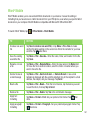
Tap Menu > File > Save As... Enter the name, folder, and location for the file.
Tap Save.