1
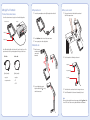
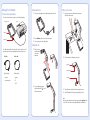
Setting Up Your Presentation
2 Plug in and turn on
1 Connect the document camera
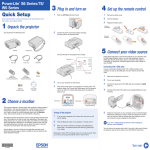
Connect the power adapter as shown. Plug the adapter into a wall outlet.
2
3
Press the
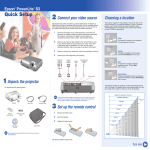
Connect the document camera to a projector or other video display device:
Document Camera
1
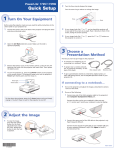
Place your document on the table under the camera head.
Orient it either way as shown.
2
Press the lamp button to illuminate your document.
Projector
S-Video port
Power button to turn on the document camera.
A
VGA port (out)
Turn on your projector or video display device.
A
4 Place your document
1
3 Extend the arm
Use a VGA cable (included) or an S-video cable. Connect the cable to one of the
ports shown above. Check your video equipment for the type of cable it uses.
VGA cable
S-video cable
1
Raise the camera
arm and rotate the
camera head
downward.
3
1
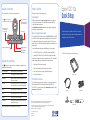
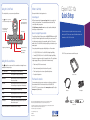
Lamp button
2
Typically used by:
Typically used by:
• projector
• projector
• computer monitor
• TV
Image rotation dial
Focus button
• VCR
2
If you are displaying documents
larger than letter-size (8.5 11 inches),
extend the camera arm.
3
4
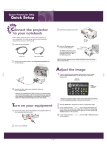
Turn the dial on the camera head to orient the image on the screen.
Press the Focus button. Your document is automatically focused.
Note
When you’re done using the document camera, press and hold the Power button
to turn it off. To store it, disconnect any cables and fold down the camera arm.