1
Using the Control Panel
Where to Get Help
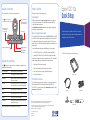
The control panel lets you access commonly used features:
Epson provides these technical support services:
Internet Support
Press to freeze the image.
Press
to view the on-screen menu.
Use the arrow buttons to adjust settings.
Select the image source:
•live camera image
•PC (if connected)
•internal memory
•SD card (if inserted)
Press and hold to save the
image in internal memory.
or on an SD™ card.
Focus the image.
Menu
Source
Slideshow Brightness
Zoom
Freeze/
Memory
Display images in internal memory.
Focus
Enlarge part of the image.
Increase or decrease
image brightness.
Using the On-screen Menu
Visit Epson’s support website at epson.com/support and select your product for
solutions to common problems. You can download documentation, view FAQs,
or e-mail Epson with your questions.
Visit http://www.presentersonline.com to access tips, templates, and training for
developing successful presentations.
Speak to a Support Representative
To use the Epson PrivateLine® Support service, call (800) 637-7661 and enter the PIN
on the Epson PrivateLine Support card that came with your document camera. This
is the fastest way of speaking to a live representative, and it’s free. This service is
available 6 AM to 6 PM, Pacific Time, Monday through Friday, for the duration of your
warranty period.
®
Quick Setup
Follow the instructions in this guide for basic steps on connecting
and using the DC-10s document camera. For additional features and
information, see the DC-10s User’s Guide.
You may also speak with a support specialist by dialing one of these numbers:
•
U.S.: (562) 276-4394, 6 AM to 6 PM, Pacific Time, Monday through Friday.
•
Canada: (905) 709-3839, 6 AM to 6 PM, Pacific Time, Monday through Friday.
The DC-10s document camera comes with these parts:
Days and hours of support are subject to change without notice. Toll or long distance
charges may apply. Before you call, please have this information ready:
Press
to view the on-screen menu. Use the arrow buttons to navigate the menu
and adjust the following settings:
•
Product name (DC-10s document camera)
•
Product serial number (located on the bottom of the product)
Color / Black & White
Displays images as color or black-and-white.
•
Proof of purchase (such as a store receipt) and date of purchase
Invert
Inverts negative film to display positive images.
•
Description of the problem
White Balance
Adjusts the image color based on the lighting in the room
where you’re presenting.
Purchase Accessories
Split Screen
Displays images from two sources at once (for example, the
live camera image and an image stored in internal memory).
Memory
Displays images stored in internal memory.
SD Card
Displays images stored on an SD™ card (if one is inserted).
Language
Changes the on-screen menu language.
AC Frequency
Eliminates flicker when giving presentations in regions with
different electrical systems.
See the User’s Guide for more information about these settings.
Epson DC-10s
You can purchase projectors, screens, carrying cases, or other accessories from an
Epson authorized reseller. To find the nearest reseller, call 800-GO-EPSON
(800-463-7766). Or you can purchase online at www.epsonstore.com (U.S. sales) or
www.epson.ca (Canadian sales).
Document camera
Power adapter
VGA cable
Epson is a registered trademark and Epson Exceed Your Vision is a logomark of Seiko Epson Corporation.
PrivateLine is a registered trademark and Epson Store is a service mark of Epson America, Inc.
General Notice: Other product names used herein are for identification purposes only and may be trademarks of their
respective owners. Epson disclaims any and all rights in those marks.
This information is subject to change without notice.
© 2008 Epson America, Inc. 3/08
CPD-24984
Printed in China
French stickers