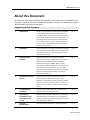
1
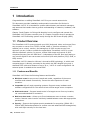
Conducting a Remote Session
Verifying Remote Presence Solutions Information
To exit full screen mode:
1. On the toolbar, click the Restore button
.
The desktop window appears.
Full screen mode can also be activated from the Session Profile box, see
Section 4.4, step 3.
4.5 Verifying Remote Presence Solution
Solutions
Information
You can verify the client, firmware,
irmware, KME (Keyboard/Mouse Emulation firmware), and
Switch file versions installed on your SmartRack 116 IP. This information can assist
system administrators in troubleshooting and support.
To verify Remote Presence Solutions information
information:
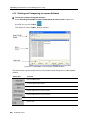
1. On the toolbar, select
> About.
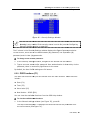
The information screen appears.
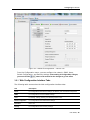
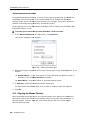
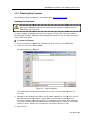
Figure 56 – Remote Presence Solutions Information
4.6 Changing the Video Performance Settings
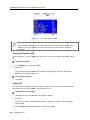
From the toolbar,, you can alter the video performance settings,, by selecting a
different mode or bandwidth
bandwidth.
The mode can be set to:
50 | SmartRack 116 IP