1
DRIVEN BY DICE ELECTRONICS
for selected Nissan/lnfiniti vehicles
Installation Guide/User manual
Made for
~ iPod
CiPhone
2
AUDI O,..OX®
DRIVEN BY DICE ELECTRONICS
Copyrights and Trademarks
Copyright 2012 Audiovox Electronics Corporation
The Audiovox and Audiovox Driven by DICE Electronics logos are trademarks of
Audiovox Electronics Corporation
iPod and iPhone are trademarks of Apple, Inc.
All Trademarks and Logos are the property of their respective owners.
All rights reserved.
Printed in the U.S.A.
AUDIO"l""OX®
3
DHIVEN BY DICE ELECTRONICS
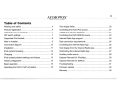
Table of Contents
Warning and safety ......................................................... .4
Text display fields ...............................................................20
Product registration ..........................................................5
Controlling the DUO iPod source ....................................... 21
Silverline DUO kit contents ...............................................6
Repeat and random selection ............................................22
DIP switch settings ..........................................................?
Controlling the DUO SIRIUS source .................................. 23
Supported iPod models ...................................................8
Internet Radio App support ................................................24
Note to Installer ................................................................9
Data connection requirements ...........................................24
Connection diagram ...................................................... 10
Controlling the Internet Radio App ..................................... 25
Installation ...................................................................... 11
Text display from the Internet Radio App ............................ 26
iPod content browsing ................................................... 12
Terminating the Internet Radio App .................................... 27
Charging ....................................................................... 12
Auxiliary audio source ........................................................28
iPod locked/unlocked settings and features .................. 13
Optional Remote Kit: iPod/App ...........................................29
Preset configuration ....................................................... 14
Optional Remote Kit: SIRIUS ............................................. 30
Basic operation .............................................................. 15
Troubleshooting .................................................................31
Operating the DUO in SAT emulation ............................ 16
Firmware update ................................................................34
Warranty .............................................................................35
4
AUDIO~~ox®
DRIV EN BY DICE ELECTRONICS
Warning and safety!
Please read these instructions carefully before proceeding. Failure to follow instructions may result in
improper operation or injury. Neither Audiovox Electronics Corporation nor Apple Inc., its regional offices,
distributors or resellers take any responsibility for any damage or injury as a result of using the integration kit.
-Do not open, disassemble or alter the interface in any way.
- Do not insert anything into the casing.
- Do not cut or try to alter cables in any way and always use the correct connections.
-Only operate unit when stationary or ask passengers to operate it for you.
-Do not allow the Apple iPod/iPhone to distract you from driving.
- Exercise good judgement and keep your eyes on the road at all times.
- Do not expose unit to extreme temperatures, humidity or shock.
- Keep the unit and iPod/iPhone away from fluids.
-Keep away from children!- Interface components may contain small parts, can be broken or disassembled
and components may become loose from vibration and heat. Small components and packaging materials
may be a choking hazard when handled by children.
X
X
5
DRIVEN BY DICE ELECTRONICS
Congratulations on your purchase!
Thank you for purchasing this integration kit. Please review this booklet before operating the unit. This
interface was designed and manufactured to seamlessly integrate with your vehicle's factory audio system.
Product registration
We recommend registering your Audiovox product so you can receive news about important firmware updates
and have unlimited access to our online support system.
To register your Audiovox product, please complete the following steps:
1. Visit http://www.audiovoxproducts.com
2. Look up and save the serial number of the product.
3. Complete the product registration form.
4. Submit the form.
5. Save the registration sheet in a safe place for future reference.
If you are unable to complete the registration via internet, please call Audiovox at 1-800-645-4994.
Prior to installation make sure the module's firmware is up to date to ensure compatibility
with the latest features and enhancements. Please refer to page 34 to update firmware.
6
DRIVEN BY DICE ELECTR O NI CS
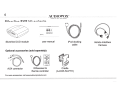
Silverline DUO kit contents
---__
.... .......,_...........
Silverline DUO module
user manual
iPod docking
cable
Optional accessories (sold separately):
AUX connector
IR Receiver &
Remote controller
For more accessories, visit www.audiovoxproducts.com
Cradle
(A-DCR-50-PTH)
Vehicle Interface
Harness
7
DRIVEN BY DICE ELECTRONIC S
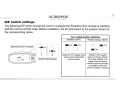
DIP switch settings
The following DIP switch settings are used to configure the Silverline DUO module to interface
with the various vehicle radios. Before installation, set the DIP switch to the position shown for
the corresponding radios.
Car configuration switches
Satellite (SAT)
Silverline DUO module
~~ IOFF
n
~~ON
1
2
ON/OFF Switch Positions
I
!OFF
I
!OFF
Setting for SAT capable radios
without factory SIRIUS/XM
module installed.
Retain factory (SAT)
~ON
I IOFF
Setting for SAT capable
radios with factory SIRIUS/
XM module installed. This
setting retains the factory
satellite module functionality
(compatible harness and
specific installation required)
8
AUDIO~~ox®
DRIVEN BY DICE ELECTRONIC S
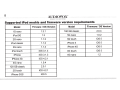
Suppo rted iPod models and firmwa re version require ments
Model
Firmware I OS Version
Model
Firmware I OS Version
1G nano
1.3.1
160 GB classic
2.0.4
iPod SG
1.3
SG nano
1.0.2
2G nano
1.1.3
3G touch
iOSS
iPod classic
1.1.2
iPhone 4
iOSS
3G nano
1.1.3
iPhone 4S
iOSS
iPod touch
iOS 3.1.3
4G touch
iOSS
iPhone
iOS 3.1.3
6G nano
1.2
iPhone 3G
iOS 4.2.1
4G nano
1.0.4
120 GB classic
2.0.1
2G touch
iOS 4.2.1
iPhone 3GS
iOSS
9
DRIVEN BY DICE ELECTRO NICS
Attention installer! Please read the following!
Audiovox strongly recommends that the unit be installed in an easily accessible place!
DO NOT PLACE IT BEHIND THE RADIO AND DO NOT HIDE UNDER CARPET!
Whether the unit is professionally or self installed, put the module where you, the end user can get to it easily
in the future. (Have the installer show you where the interface module is installed.)
Installing the module behind the radio will make it difficult to:
-Add possible future upgrades, changing software, adding new features, improving operation;
-Access the AUX input on the module to attach any audio device;
-Access the DIP switches located on the module;
-Remove the unit in case of failure.
MAKE SURE THAT THE MODULE IS IN AN ACCESSIBLE PLACE!
10
AUDI O''. .OX®
DRIV EN BY DICE ELECT RO NI CS
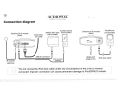
Conne ction diagra m
Silverline DUO module
(front)
0
Vehicle Interface Cable
Auxiliary device
(not included)
radio
SIRIUS SAT
(not included)
__
~
+
~------~
IR receiver
(optional)
SIRIUS connector•
iPod/iPhone
(not included)
0
I
\.._____
Silverline DUO module
(back)
[>
t
AUX connector
(optional)
Update port
(USB to PC)
iPod dock cable*
*Do not connect the iPod dock cable under any circumstance to the SIRIUS module
connector! Improper connection can cause permanent damage to iPod/SIRIUS module.
AUDIO~T"OX®
11
DRIVEN BY DICE ELECTRONICS
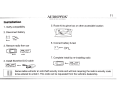
Installation
1. Verify compatibility
5. Route kit to glove box or other accessible location
2. Disconnect battery
6. Connect battery & test
3. Remove radio from car
+--
__,.
7. Complete install by re-installing radio
4. Install Silverline DUO cable
Some radios will enter an anti-theft security mode and will lock requiring the radio's security code
to be entered to unlock it. This code can be requested from the vehicle's dealership.
12
AUDIO,T"OX®
DRIVEN
Y r IUo ElH TR N
>
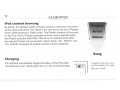
iPod content browsing
By default, the interface creates a Playlist having a name that is the same
as the name of the iPod. This Playlist is the very first on the list of Playlists
shown while browsing in Playlist mode. This Playlist contains all the songs
on the iPod. Once a Playlist is selected an Artist may be selected within
that Playlist using the Artist Mode. Albums by the selected Artist within
the selected Playlist may be selected in Album Mode. "ALL ARTIST" and
"ALL ALBUM" designate all available content in those categories.
~
§•
Album
n
g
m
~
~
Song
Charging
The interface automatically charges the battery of the iPod when
connected and your vehicle ignition key is in the ACC/ON position.
Charging may be shown by an
icon that appears on the upper
t-t---+-- right corner of the iPod screen .
May vary by model.
........,_......
13
AUDIO~~ox®
DHIVEN BY DICE ELECTRONICS
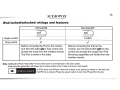
iPod locked/unlocked settings and features
iPod hold ON
iPod hold OFF
Radio control
~
v
iPod control
X
~
Limited
v
Before connecting the iPod to the module,
turn the hold switch ON to fully control and
browse the songs from the wireless remote.
The iPod is locked in this state.
Before connecting the iPod to the
module, turn the hold switch OFF to fully
control and browse the songs from iPod.
Browsing capabilities are limited from the
wireless remote.
Note: Setting the iPod's hold switch must be done prior to connecting it to the dock cable.
iPod nano 6th generation will always be in locked mode since it does not have a lock switch.
a
slide to unlock
For iPod touch and iPhone, when the screen is not active (as shown on the left), the
iPod/iPhone is locked (Press the power button to lock the iPhone/iPod Touch).
14
AUDIO~~ox®
DRIVEN BY DIC E ELECTRONI CS
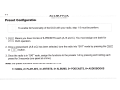
Preset Configur ation
To enable full functionality of the DUO with your radio, step 1-3 must be perform.
1.
Means you have 3-banks of 6-PRESETS each (A, B and C). You must assign one bank for
.....________. DUO operation.
2. Once a preset-bank (A,B or C) has been selected, tune the radio into "SAT" mode by pressing the I RADio
or I sAr I button.
3. Once the radio is in "SAT" mode, assign the functions to the presets 1-6 by pressing and holding each
preset for 3-seconds (one preset at a time).
Note: the preset functions should be as follows for iPod:
1= SONG, 2= PLAYLISTS, 3= ARTISTS, 4= ALBUMS, 5= PODCASTS, 6= AUDIOBOOK S
I
15
DRIVEN BY DICE ELECTRONICS
Basic operatio n
Accessing the DUO as the audio source:
Much like the radio's AM/FM tuner, satellite radio or CD audio sources, the Silverline DUO is integrated to be part
of the vehicle's audio system. To access the DUO source, press the SAT or RADIO button. Pressing this button
repeatedly will cycle through sources present in the vehicle (SAT> DUO).
DUO source selection:
The DUO adds additional audio sources including iPod, SIRIUS Satellite Radio* and auxiliary audio input*. To cycle
between these sources, use the SEEK, TRACK or TUNE buttons within the first 5 seconds of accessing the DUO as
the audio source.
*These sources require addftional parts/accessories/service from Audiovox and/or third parties and can only be selected if devices are connected.
Silverline DUO Interface settings. Presets must be selected withing 5 seconds of selecting the DUO as the audio
source. After 5 seconds the Presets will activate the various browsing features.
Select DISC 1 to apply settings and resume audio playback.
Select DISC 3 to change default volume level; use track up/down to adjust between Min and Max.
Select DISC 4 to enable/disab le scrolling text.
Select DISC 6 to view Silverline DUO serial number and firmware version.
DISC 2 and 5 have no settings available.
16
AUDIO"~ox®
DRIVEN BY DI CE ELECTRONICS
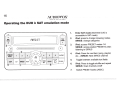
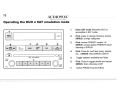
Operat ing the DUO in SAT emulat ion mode
CH
CAT
A~:TI~::T
1.
Enter SAT mode (Silverline DUO is
accessible in SAT mode)
2.
iPod: press to change browsing modes
SIRIUS: change categories
3.
iPod: access PRESET modes 1-6
SIRIUS: access station PRESETS when
listening to SIRIUS
4.
iPod: Press for next item (song, playlist,
etc ... ) SIRIUS: Next SIRIUS channel
8
AUDIO
AUXIN
0
CLOCK
5.
Toggle between available text fields
6.
iPod: Press to toggle shuffle and repeat
SIRIUS: Scan channels on/off
7.
Switch PRESET banks (AlB/C)
17
AUDIO~~ox®
DRIVEN BY DI CE ELEC TRO NI CS
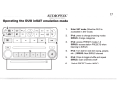
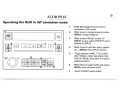
Operating the DUO in SAT emulation mode
I
LOAD
SETIING
DEST
MAP
TRIP
ROUTE
GUIDE
VOICE
~
1.
Enter SAT mode (Silverline DUO is
accessible in SAT mode)
2.
iPod: press to change browsing modes
SIRIUS: change categories
3.
iPod: access PRESET modes 1-6
SIRIUS: access station PRESETS when
listening to SIRIUS
4.
iPod: Turn dial for next item (song, playlist,
etc ... ) SIRIUS: Next SIRIUS channel
5.
iPod: Press to toggle shuffle and repeat
SIRIUS: Scan channels on/off
6.
Switch PRESET banks (AlB/C)
1+1
~
I
0
~-------------------------JGO
18
AUDIO.,""OX®
DHIVEN BY DICE ELECTRONICS
Operating the DUO in SAT emulation mode
IEJ
1.
Enter SAT mode (Silverline DUO is
accessible in SAT mode)
2.
iPod: press to change browsing modes
SIRIUS: change categories
3.
iPod: access PRESET modes 1-6
SIRIUS: access station PRESETS when
listening to SIRIUS
4.
iPod: Press for next item (song, playlist,
etc ... ) SIRIUS: Next SIRIUS channel
5.
Toggle between available text fields
6.
iPod: Press to toggle shuffle and repeat
SIRIUS: Scan channels on/off
CD
REARAV
LOAD
C).
PUSH
I
::o
MP3 I 6CD CHANGER
•
PUSH
AUDIO
aTUNE
TRACK
7.
Switch PRESET banks (AlB/C)
19
AUDIO~~oxQD
DRIVEN BY DICE ELECTRONICS
Operating the DUO in SAT emulation mode
PAUSE
MUTE
1
~C_D_6~~FM__AM~~~~J ~
1.
Enter SAT mode (Silverline DUO is
accessible in SAT mode)
2.
iPod: press to change browsing modes
SIRIUS: change categories
3.
iPod: access PRESET modes 1-6
SIRIUS: access station PRESETS when
listening to SIRIUS
4.
iPod: Press for next item (song, playlist,
etc ... ) SIRIUS: Next SIRIUS channel
5.
Toggle between NAME, TITLE, BASS,
MID, TREBLE, FADE, BALANCE, SSV,
DISPLAY MODE, then press 4. to select
additional options
6.
iPod: Press to toggle shuffle and repeat
SIRIUS: Scan channels on/off
7.
Switch PRESET banks (AlB/C)
r------v----.....-_,. ....-
20
AUDIO~T"OX®
DRIVEN BY DICE ELECTRONICS
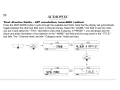
Text display fields - SAT emulation (non-NAV radios)
Press the DISP-MODE button to cycle through the available text fields. Note that the display will automatically
toggle between the other text fields upon a channel change. Select the "-NAME-" text field to see the mode
you are in and select the "-TITLE-" text field to view what is playing. In PRESET 1 you will always see the
album and artist information of your selection in the "-NAME-" text field and the song name in the "-TITLE-"
text field. The "-Channel name-" and the "-Category name-" fields are fixed.
_!_ _________ _
11:53
\---~@)=cH~.;......;.:.==-----j
1
- nAME -
\---~@ffi=CH~--"==-----j
__.
AL]UM I ARTIST
11:53
11:53
sonG nAME
11:53
2 SeC.
2 sec.
+--
- TITLE -
21
AUDIO"'~ox®
DRIVEN BY DICE ELECTRONICS
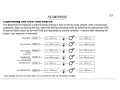
Controlling the DUO iPod source
The Silverline DUO features content browsing making it easy to find by song, playlist, artist, podcast and
audiobook. After connecting the iPod, select the desired browsing mode by selecting the appropriate DISC.
Press the SEEK button or turn the TUNE dial repeatedly to browse contents; 1 second after releasing the
button, your selection is executed.
11--+ I
SATl
Song(1) name
21--+
SAT2
Playlist(l) name
31--+ I
SAT3
Artist(!) name
41--+ I
SAT4
Album(!) name
PoDcAsT MODE* - PRESET
sl--+ I
SATS
PODCAST (1)
AUDIOBOOK MODE*- I PRESET
61--+ I
SAT6
AUDIOBOOK (1)
SONG MODE- I PRESET
PLAYLIST MODE- I PRESET
ARTIST MODE*- I PRESET
(within the
selected Playlist)
ALBUM MODE*- I PRESET
(within the selected
Artist in the selected Playlist)
1
TR
. . . o't\\ --+ I
. . o't\\ --+
i;:
I ljf
TR
TR
TR
TR
TR
TR
,• or
SATl
Song(6) name
,• or
SAT2
Playlist(3) name
SAT3
Art'ist(l2} name
SAT4
Album(8) name
SATS
PODCAST (2)
SAT6
AUDIOBOOK (2)
..... (f --+
I ljl
or
I
... . o't\\ --+ I
I
~~ll!
I
~~[l!
or
· cr
or
--+ I
. . o't\\ --+ I
I ljf
,• or
*Only available when iPod is locked. When iPod is unlocked the radio will only display song titles.
TR
TR
TR
TR
I
22
DRIVEN BY DICE ELECTRONICS
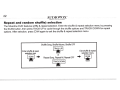
Repeat and random (shuffle) selection
The Silverline DUO features shuffle & repeat selection. Enter the shuffle & repeat selection menu by pressing
the SCAN button, then press TRACK UP to cycle through the shuffle options and TRACK DOWN for repeat
options. After selection, press SCAN again to exit the shuffle & repeat selection menu.
Shuffle Song, Shuffle Albums, Shuffle OFF
Enter shuffle &repeat
selection menu
1*1 ...
1TR;r1
or
Repeat Song, Repeat All, Repeat OFF
TRACKDOWN
Exit shuffle &repeat
selection menu
-+1*1
23
DRIVEN BY DICE ELECTHONICS
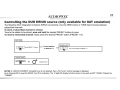
Controlling the DUO SIRIUS source (only available for SAT emulation)
The Silverline DUO integration kit features SIRIUS connectivity. Use the SEEK button or TUNE dial to browse between
subscribed channels.
To store a subscribed channel to memory:
Tune to the station to be stored, press and hold the desired PRESET buttons to save.
To recall a memorized channel: Simply press the desired PRESET button (PRESET 1-6).
Sirius mode
I
~
Common Control
recall PRESET 1-6 stations
_
To store stations
to buttons 1-6
-
Navigation radios
I
~
store current station to PRESET 1-6
I
NOTES: If a SIRIUS CONNECT compatible tuner is not detected, then a "No Tuner" vehicle message is displayed.
Go to Channel 000 to view the SIRIUS Tuner ID for activation. The 12 digit SID display format is shown in two parts as SID "123456-" followed by
"-789ABC".
24
AUDio,~oxao
IHIVIN fiY
ll(l flf(lR)NI
Internet Radio Applicat ion support (iPhone/i Pod touch)
This kit includes support for internet radio streaming apps available on
the iTunes® Store. Thousands of stations can be streamed through data
connections . Supported apps include Livia Car Internet Radio, Pandora,
iHeart Radio and more. Supported features such as text display on screen,
and nexUprevious track functions will vary by app.
To learn more about each app specifically, please visit the website for the
app you need information about.
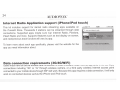
Data connecti on requirem ents (3G/4G/W ifi)
odl AT&T
~
14:49
--* 68 %~
iTunes Store Terms and Conditions...
Users must have an active wireless data connection in order to stream music from an app while in the car. Data
connections including "3G" or "4G" through wireless carriers, or a third party wireless Internet access point
connected to your mobile device through WiFi will work. Because this app requires a data connection, it will only
work on connected devices such as the iPhone and iPod touch.
25
'Rl
N
t
Controlling Internet Radio Apps
NOTE: The following features may not be supported by all apps. For
demonstration purposes the following examples will show the features
for the Livio Car Internet Radio app.
The app must be active on the screen of the device. To do so, simply tap
the app's icon and it will load.
Next/previous TRACK buttons execute application specific features
such as skipping stream or cycling between station presets. DISC/
PRESET (1-6) buttons are associated with station presets when used
with the Livio Car Internet Radio application.
iPhone operating system iOS5 enabled application developers to share
the "now playing" screen information. For example, when using the
Pandora App, you will see artist, album and song information on the
radio's screen . When using an application that doesn't implement this
feature, or running iOS4, only the name of the application will be shown.
Please note that although iOS 4 (4.2.1) is supported on iPhone 3G and
iTouch 2nd generation, applications do not run in the background . As
such, loading the app takes longer than on devices where the app is
present in the background.
26
AUDio,~ox®
DRIVEN BY DI CE ELECTRO NI CS
If your listening experience is interrupted by a call, under most conditions, the app will resume playback at the
end of the call.
Music playback apps running on your iPhone are sent to background automatically when the home button of
the phone is pressed, but the music playback itself is not stopped.
To resume playback of your iPod music library, stop Livia playback by tapping on the screen below the Livia
Radio logo. An icon representing "stop" will show on the main Livia screen. Press the home button to send
the application to the background. (Other apps may need to be terminated manually. Please see next page.)
A few seconds after this, the iPod music playback application will reinitialize itself and become active again if
the iPod was locked when it was connected to the kit. (This is indicated by an Accessory Connected message
being shown when the iPod icon is tapped.)
If the iPod was in unlocked state when it was connected to the kit, press the play button on the iPod application.
Text display from the Internet Radio App
Text that scrolls across the radio's screen is associated with the stream shown on the radio and displays current
song or station information. Stream must be playing before information on the display is updated.
AUDIO~~ox®
27
DRIVEN BY DICE ELEC:THONICS
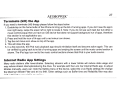
Terminate (kill) the App
If you need to terminate (kill) the app please follow the steps below:
1. Double-tap on the home button of the iPhone to bring up the list of running apps. If you don't see the app's
icon right away, swipe the screen left or right to locate it. Note: If you do not see such task bar but rather a
music control popup then you have an iOS device that does not support background run of apps, therefore
this section is not applicable to you.
2. Press and hold the icon of the app until a red minus icon shows.
3. Tap the red minus icon shown on top of the app.
4. This will close the app.
5. In a few seconds, the iPod music playback app should reinitialize itself and become active again. This can
be verified by going back to the list of running apps and swiping the screen unit the music control section is
shown. The iPod app icon next to the music control sections shows that iPod is your audio source.
Internet Radio App Settings
Many radio stations offer lower bitrates. Selecting streams with a lower bitrate will reduce data usage and
may reduce stream interruptions during the drive. For example with the Livia Car Internet Radio app, to adjust
bitrates manually, users can: Go to the Setting menu of the device, select the Livia Radio settings the change
the Maximum Bitrate Filter and set it to 64K. Other settings such as Buffer time and Reliability filter may also
help in getting a more stable connection.
28
AUDIO~..OX®
D RIVEN BY D ICE ELECTRONI CS
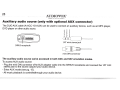
Auxiliary audio source (only with optional AUX connector)
The DUO AUX cable (A-ACC-1 06-AUX) can be used to connect an auxiliary device, such as an MP3 player,
DVD player or other audio source.
_
~
~
~
Q)
d
"0
"0
~
§
~
.2"
E;
tn
e
~
C1l
~
~I~ I ~ I
~--------,
1/8" mini stereo jack
SIRIUS receptacle
o~
m: ;;;~-
mini DIN connector
The auxiliary audio source can be accessed in both CDC and SAT emulation modes.
To access AUX audio source:
-Plug the mini DIN connector of the AUX adapter cable into the SIRIUS receptacle and connect the 1/8" mini
stereo jack to the sound output of your audio device.
- Enter AUX mode (see pg. 15).
-All music playback is controlled through your audio device.
29
DRIVf N BY DIC£ f1 fC TRONIC.. 5
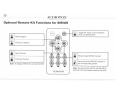
Optional Remote Kit: Functions for iPod/App
r
"\
8
~
iPod: Shuffle SONG (within a PLAYLIST)
I Shuffle ALBUM I Shuffle off
~
iPod: Repeat one I Repeat all I Repeat
off
~
iPod: Next Track
App: Next station/song (App dependant)
i
iPod: Previous Track
App: Prev station/song (App dependant)
~
~
iPod: Skip to the next PLAYLIST
iPod: Skip to the previous PLAYLIST
:::;:_
,,_
8
0
8®8
{a;)
-- 11--
-
--= I:=
0
--
--
800
ARTIST*
I~ I
~
.A_
PLAYLIST
~
== (§)
~
ALBUM
Toggle the audio sources between iPod
and SIRIUS/AUX
Play I Pause
iPod: Skip to the next ALBUM
iPod: Skip to the previous ALBUM
0y 0 0
y
-
-
~
\..
y
-
AUDIO'""OX.
.,
.>'
~
*NexUPrevious ARTIST function is currently not supported.
30
)I
'fN 1''1'
I(
l
ONI(S
Optional Remote Kit: Functions for SIRIUS
Toggle the audio sources between
iPod and SIRIUS/AUX
Next Category
Previous Category
~
~
Next Channel
Recall preset SIRIUS channel
Previous Channel
Save the current SIRIUS channel in
the corresponding preset.
Note: To display SIRIUS 10, go to channel 000.
AUDIOYOX"
Note: Saving presets with the remote will be
different from the presets saved by the radio.
31
AUDIO~~ox~
DHIVEN BY DI CE ELECTRO NI CS
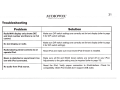
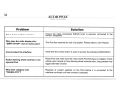
Troubleshooting
Problem
Radio/NAV display only shows DISC
and track number and there is no iPod
control.
Solution
Make sure DIP switch settings are correctly set for text display (refer to page
8 for DIP switch settings).
No text display on radio.
Make sure DIP switch settings are correctly set for text display (refer to page
8 for DIP switch settings).
Radio/steering wheel controls do not
operate iPod.
Reset iPod and make sure most recent iPod firmware is installed.
Music is distorted or sound level is too
low with iPod connected.
Make sure all EQ and BASS boost options are turned off on your iPod.
Adjustments to the gain setting may be required (refer to page 19).
No audio from iPod source.
Reset the iPod. Verify proper connection to iPod/interface. Check for
compatibility. Older iPod models don't support USB audio.
32
AUDIO~T"OX®
DRIVEN BY DICE ELECTRONICS
Problem
Solution
Sirius tuner can't be selected.
Ensure the cable connecting SIRIUS tuner is securely connected to the
correct receptacle.
Why does the radio display show
"EMPTY/STOP" and no music plays?
The iPod has reached the end of a playlist. Please select a new Playlist.
Cannot select the interface.
Verify that the correct button is used to access the interface (RADIO/SAT).
Radio/ steering wheel controls do not
operate iPod.
Reset iPod and make sure the most recent iPod firmware is installed. Check
vehicle user manual on how steering wheel controls work, long presses may
toggle alternate function.
Why does category read
"PRESELCTD"?
Playback of content selected on the iPod before it is connected to the
interface continues until new content is selected.
33
AUDio.,~oxqp
DRIVEN BY D ICE ELECTRONICS
Problem
Solution
Why does the message "iPod
UNLOCKED" display on screen?
When the Silverline DUO is playing iPod mus1c In UNLOCKED mode,
browsing mode information isn't available so the "iPod UNLOCKED"
notification is shown. To view information associated with browsing modes,
ensure the iPod's hold button is set before connecting it to Silverline DUO.
The radio displays channel 99 ("CH99").
Track up/down controls do not work.
Track 99 indicates that the Silverline DUO is in auxiliary audio {AUX) mode.
See page 15 on how to enter/exit this mode.
34
DRIVlN BY DIU f I EC 1HONIC
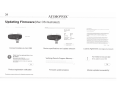
Updati ng Firmw are (Mac OS illustrated )
""
-.....
u...... ...,._..
............
,..,....... t . . ,....flt\• f •l#~ ~ ... -
Sllvertlne DUO
DUOAVW
,..,2.11
DUO
,.-.,....... vu.-.
s.NJ
""'"''*
._.......,.V.nfo~t
24M
lOOtU.M'-61'1
101
_.,..,..
..t•t• flt... ..._....... . , . _
tOU~O"""IWl•
tl.t..' t4 fOI.IOIJI- ..C 1'1:'1~· LCt"'\1 •IW.AU""-"' ' ...l(l.h
tt ..... , ..... , (Of"o Jr,(, ()II 0Tot! lroft IW l ~-.£
"'OCit"-¥ vo.. ...rAU ·oe~
fl'V\(IIt 1~
OO"'"'A(. .-:tllO~ tVIoO'\Cit~ACMi l.tt-. - .._.,.~
..0 .... (,"-(. "NI'o \011..-.ftl:( J11:)(U..U
,._
to~"l"A-Mf
o\(.111'-'"''
Ill~
tOL'-',. ,..
((toltrlA(J
.................
. . . ,. . .-.,.,,.,
. . . "\._. ............ _ ._........ .. "" ..,,.ol
...cY' ..
T-.• """'*•• r...,••.,.. ...., ••, ,.... , ,.,_,• .,.""'..,,..,.....
t•·,.._,...._,.._ ... ...... :co·...-" ........................,.,..
........
r~
~
~
·-- · ---~-··1.-:_
cot'.. , ...... . . ., .......
_ ............. ........,. ...................... ...w,k...t ....lot:t• ",..............,,...
"'·---• f"•("'·~· ......~ •...., •• "-'"."t_,
.. ., . .._, ,.. -~~• ... '-"'"-" ......""" ... '-••-tfll"""
.....- .... '~- ...- ·................, , .............. .....
.. ..t~,._lbo,ooo
......-. ....... ..,.....,_..,.,.. ,...... .............._.,
,...
,..., _ ... "'""'-~ "' _.,,... ,...._ .....
--~ -·--·-- ........ _.,~_,..,_.~
f"h"'t"''...
•'••~No"-'••
"""-··---
, .... ~. ..
~
Connect module via mini USB
•
Device specifications and update selection
.~
Verifying Device's Program Memory...
httoJ/socyCI aydtovox neVaudiO'y'Oxlreg1ster/
UH
~
foHowtng seri1l number when reg•sttnng
XXX12~5678
OK
Product registration notification
The above screen shots are for illustration purposes only.
Firmware update progress
~-~
·- . . -
-
. .<#-.
License Agreement (click Agree to proceed)
Product mu5t be reglst ered befo re It can
be updated
Ple,ue rtgtsltf your product 11t
...... ....
'
•
Your module Is now up to dat e
Devtce updilted to version 4905
\.
OK
Module updated successfully!
35
DRIVEN BY DICE ELECTRONIC S
~AUDIOTO~
12 MONTH LIMITED WARRANTY
AUDIOVOX ELECTRONICS CORP. (the Company) warrants to the original retail purchaser of this product that should this product or any
part thereof, under normal use and conditions, be proven defective in material or workmanship within 12 months from the date of original
purchase, such defect(s) will be repaired or replaced with reconditioned product (at the Company's option) without charge for parts and repair
labor. A game controller, if supplied, is similarly warranted for ninety (90) days.
To obtain repair or replacement within the terms of this Warranty, the product is to be delivered with proof of warranty coverage (e.g. dated
bill of sale), specification of defect(s), transportation prepaid, to the Company at the address shown below.
This Warranty does not extend to the elimination of externally generated static or noise, to correction of antenna problems, to costs incurred
for installation, removal or reinstallation of the product, or to damage to digital memory/media devices, gaming devices, discs, speakers,
accessories, or vehicle electrical systems.
This Warranty does not apply to any product or part thereof which, in the opinion of the Company, has suffered or been
damaged through alteration, improper installation, mishandling, misuse, neglect, accident, or by removal or defacement
of the factory serial number/bar code label(s) . THE EXTENT OF THE COMPANY'S LIABILITY UNDER THIS WARRANTY IS
LIMITED TO THE REPAIR OR REPLACEMENT PROVIDED ABOVE AND , IN NO EVENT, SHALL THE COMPANY'S LIABILITY
EXCEED THE PURCHASE PRICE PAID BY PURCHASER FOR THE PRODUCT.
This Warranty is in lieu of all other express warranties or liabilities. ANY IMPLIED WARRANTIES, INCLUDING ANY IMPLIED
WARRANTY OF MERCHANTABILITY, SHALL BE LIMITED TO THE DURATION OF THIS WRITTEN WARRANTY. ANY ACTION
FOR BREACH OF ANY WARRANTY HEREUNDER INCLUDING ANY IMPLIED WARRANTY OF MERCHANTABILITY MUST BE
BROUGHT WITHIN A PERIOD OF 24 MONTHS FROM DATE OF ORIGINAL PURCHASE . IN NO CASE SHALL THE COMPANY
BE LIABLE FOR ANY CONSEQUENTIAL OR INCIDENTAL DAMAGES FOR BREACH OF THIS OR ANY OTHER WARRANTY.
No person or representative is authorized to assume for the Company any liability other than expressed herein in
connection with the sale of this product.
Some states do not allow limitations on how long an implied warranty lasts or the exclusion or limitation of incidental or consequential damage
so the above limitations or exclusions may not apply to you. This Warranty gives you specific legal rights and you may also have other rights
which vary from state to state.
Audiovox Electronics Corporation, 150 Marcus Blvd., Hauppauge, New York
11788
• 1-800-645-4994
128-9032
36
DRIVEN BY DICE ELECTRONICS
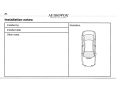
Installation notes:
Installed by:
Installed date:
Other notes:
Illustration:
Nissan/lnfiniti compatible integration
for iPod/iPhone, Internet Radio, SIRIUS and AUX.
www.audiovoxproducts.com
OMA-DU0-1 00-NIS-012012
For Customer Service
Visit Our Website At
www.audiovoxproducts.com
~~~~~ Product Information, Photos,
_ FAQ's, Owner's Manuals
..!:
AUDio,~ox
ELECTRONICS CORP.
SAY£ ENVIRONMENT
PLEASE RECYCLE
150 Marcus Blvd., Hauppauge, New York 11788
©2012 Made in China o Fabrique en Chine o Hecho en China
tCOHOIIISEA L'!IMAONNEIIENT
RECYCLEZ S'L VOUS PlAir
EXCEPTO EL ..-.nE
RECtCL£ POR FAVOR
SAT emulation with non-nav system
Enter SAT mode (Silverline DUO is accessible in SAT mode)
2 iPod: Change browsing modes. SIRIUS : Change categories
3
iPod: Access PRESET modes, SIRIUS: Access station PRESETS
4
iPod: Press for next item such as (song, playlist, etc.), SIRIUS: Next channel
5 Toggle between available TEXT fields
6
iPod: Press to toggle shuffle and repeat, SIRIUS: Scan channels on/off
7 Switch Preset Banks (A I B I C)
Audio Source Selection*:
Press SEEK, TRACK or TUNE within the first 5 seconds of selecting DUO to cycle between iPod/apps > SIRIUS > AUX*
*AUX input requires additional adapter harness (PN: A-ACC-106-AUX)
While running an app on compatible devices, the nexVprevious track may have certain functionality such as skipping songs or changing stations.
Icon Legend
~
press button
~
press button
~ repeatedly
~
a_:,i
press & hold
button
I PR.T1 I
I PRESET2 I
~
I PRESET 3 I
~
I PRESET 4 I
~
I PRESET 5 I
~
SILVER~
00@
IPod I Internet Radio I Satell ite
A-DU0-100-NIS
A-DU0-101 -NIS
A-DU0-102-NIS
A-DU0-103-NIS
Quick Reference Guide
SIRIUS mode
iPod mode
I
PRESET6
~
I
..
.
..
.
.
.
I
songs change
v SEEK/TRACK /'\
~
I
v SEEK/TRACK 1\
~
IPR~
••
playlist change
I
recall PRESET 1-6
station
I
:
1-6 1
store current station
to PRESET 1-6
artist• change
Iv SEEK/TRACK /'\ I
~
I
album change
v SEEK/TRACK/'\
~
I
pod cast"' change
Iv SEEK/TRACK/'\ I
~
audio book• change
I
v SEEK/TRACK/'\
~
I
·These modes only
available when iPod is
AUDI01'"0X"
DRIVtN BY f):( t: H ECTHONi( S
locked.
Please refer to the user manual for operation details. v. 1.0