1
Troubleshooting and Routine Maintenance
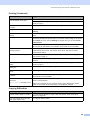
Printing (Continued)
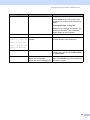
Difficulty
Suggestions
Stains appear on the reverse side
or at the bottom of the page.
Make sure the printer platen is not dirty with ink.
The machine prints dense lines on
the page.
Check Reverse Order in the Basic tab of the printer driver.
The printouts are wrinkled.
In the printer driver Basic tab, click Settings, and uncheck Bi-Directional
Printing.
Cannot perform ‘2 in 1 or 4 in 1’
printing.
Check that the paper size setting in the application and in the printer driver are the
same.
Print speed is too slow.
Try changing the printer driver setting. The highest resolution needs longer data
processing, sending and printing time. Try the other quality settings in the printer
driver Basic tab. Also, click the Settings, and make sure you uncheck Colour
Enhancement.
Make sure you are using the paper support flap. (See Loading paper and other
media on page 7.)
Set the borderless feature off. Borderless printing is slower than normal printing.
(See Printing for Windows® in the Software User's Guide on the CD-ROM.)
Colour Enhancement is not
working properly.
If the image data is not full colour in your application (such as 256 colour), Colour
Enhancement will not work. Use at least 24 bit colour data with the Colour
Enhancement feature.
Machine feeds multiple pages.
Make sure the paper is loaded properly in the paper tray. (See Loading paper and
other media on page 7.)
Check that more than two types of paper are not loaded in the paper tray at any
one time.
Printed pages are not stacked
neatly.
Make sure you are using the paper support flap. (See Loading paper and other
media on page 7.)
Printed pages re-feed and cause a
paper jam.
Make sure you pull out the paper support until it clicks.
Machine does not print from Paint
Brush.
Try setting the Display setting to ‘256 colours’.
Machine does not print from Adobe
Illustrator.
Try to reduce the print resolution. (See Printing for Windows® in the Software
User's Guide on the CD-ROM.)
Machine cannot print full pages of a
document.
Reduce the print resolution. (See Printing for Windows® in the Software User’s
Guide on the CD-ROM.)
Out of memory message occurs.
Reduce the complexity of your document and try again. Reduce the graphic
quality or the number of font sizes within your application software.
Copying Difficulties
Difficulty
Suggestions
Vertical streaks appear on copies.
If you see vertical streaks on copies, clean the scanner. (See Cleaning the
scanner on page 38.)
Poor copy results when using the
ADF. (DCP-540CN only)
Try using the scanner glass.
29