1
!install_ar160205.book
9 ページ
2003年5月26日 月曜日 午後12時9分
INSTALLING THE SOFTWARE
10
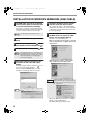
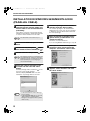
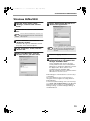
Select the printer port and click the
"Next" button.
14
Select "LPT1" for the printer port.
When "The MFP driver installation is
complete." appears, click the "OK"
button.
The Sharpdesk installer will start.
15
Begin the installation of Sharpdesk (if
"Sharpdesk" was selected in Step 5).
Follow the on-screen instructions.
If the following screen appears, click the
Caution "Skip" button or the "Continue" button as
appropriate to continue the Sharpdesk
installation.
Note
11
If "LPT1" does not appear, another printer or
peripheral device is using LPT1. In this case
continue the installation, and after the
installation is finished, change the port setting
so that the machine can use LPT1. This
procedure is explained in "Another printer is
using the parallel port (when using a parallel
cable)" on page 16.
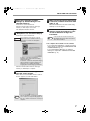
When asked to select the printer
driver to install, select the appropriate
printer driver based on whether or not
the dual function board is installed,
and then click the "Next" button.
If "Skip" is selected, the Sharpdesk
installation will continue without installing
Sharpdesk Imaging.
If "Continue" is selected, Sharpdesk Imaging
will be installed. If Imaging for Windows is
installed on your computer, Sharpdesk
Imaging will overwrite Imaging for Windows.
If the dual function board is not installed, be
sure to select "For standard model".
Click the "Finish" button when the message
informs you that setup is successful.
16
When the "Finish" screen appears,
click the "Close" button.
When "Now connect the MFP interface cable to
the PC." appears, click the "OK" button.
Note
After the installation, a message prompting
you to restart your computer may appear. In
this case, click the "Yes" button to restart your
computer.
If the dual function board is not installed and
Caution you select the printer driver for the dual
function board, printing will not be possible.
12
When the model selection window
appears, select model name of your
machine and click the "Next" button.
For the name of the model that you are using,
see "DIFFERENCES BETWEEN MODELS" in
the Operation Manual.
13
Click the "Yes" button.
17
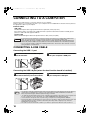
Turn off the power of the machine and
your computer, and connect the
machine to your computer with the
parallel cable. (p. 10)
After connecting the machine to your computer,
turn on the power of the machine and then start
up your computer.
This completes the installation of the software.
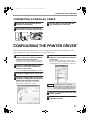
• If you installed the MFP driver, configure the printer
driver settings as explained in "CONFIGURING THE
PRINTER DRIVER" (p. 11).
9





![2 Fare clic sul pulsante [start]](http://vs1.manualzilla.com/store/data/006118559_1-173242b46b2c9da737019e0375b2825a-150x150.png)