1
Configuration
Chapter 2
Chapter 2:
Configuration
Follow the steps in this chapter to use the Gateway’s
web-based utility to configure the Gateway. This chapter
describes each web page in the Utility and each page’s key
functions. The utility can be accessed via a web browser
from a computer connected to the Gateway. For a basic
network setup, most users only have to use the following
screens of the Utility:
The Setup Tab > Basic Setup
The Basic Setup screen is the first screen you see when you
access the web-based utility. This screen allows you to
change the Gateway’s general settings.
•• Basic Setup On the Setup > Basic Setup screen, enter
the Internet connection settings provided by your
Internet Service Provider (ISP).
•• Management On the Administration > Management
screen, change the Gateway’s password from the
default value (admin). Enter a new password in the
Password and Re-enter to confirm fields.
There are six main tabs: Setup, Security, Access Restrictions,
Applications & Gaming, Administration, and Status.
Additional tabs appear after you click a main tab.
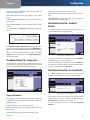
How to Access the Web-Based Utility
To access the web-based utility, launch your web browser,
and enter the Gateway’s default IP address, 192.168.1.1,
in the Address field. Then press Enter.
Internet Explorer Address Bar
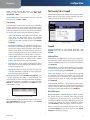
The login screen will ask you for your User name and
Password. Enter admin (the default user name) in the User
Name field, and enter admin (the default password) in the
Password field. Then click OK.
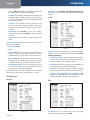
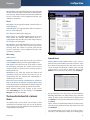
Setup > Basic Setup
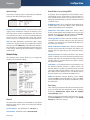
Internet Setup
PVC Connection Select a PVC connection number from
the drop-down menu. Then, select Enable Now to enable
the connection.
Login Screen
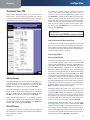
Use the Utility to make changes as needed. When you
have finished making changes to a screen, click Save
Settings to save the changes, or click Cancel Changes to
undo your changes. Help information is available on the
right side of the screen.
SubProduct
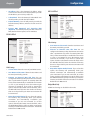
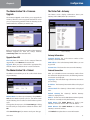
VC Settings Virtual Circuits (VPI and VCI) These fields
consist of two items: VPI (Virtual Path Identifier) and
VCI (Virtual Channel Identifier). Your ISP will provide the
correct settings for these fields.
•• Multiplexing Select LLC or VC , depending on your
ISP.
•• QOS Type Select from the drop-down menu: CBR,
Continuous Bit Rate to specify fixed bandwidth for
voice or data traffic; UBR, Unspecific Bit Rate for
application that are none-time sensitive, such as
2