1
WF310_QG.book Page 41 Wednesday, April 8, 2009 2:14 PM
Scanning Multiple Pages
You can scan a document and save it on your computer in PDF or another format.
With the Automatic Document Feeder, you can scan up to 30 pages at a time.
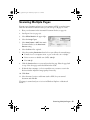
1. Place your document in the Automatic Document Feeder (see page 18).
2. Start Epson Scan (see page 39).
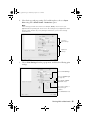
3. Select Office Mode in the upper right.
4. Select the Image Type.
5. Select Auto Detect or ADF (Automatic
Document Feeder) as the Document
Source setting.
6. Select the Size of the originals.
7. Select the scanning Resolution based on how you will use the scanned image:
■
E-mail, view on a computer screen, or post on the web: 96 to 150 dpi
■
Print or convert to editable text (OCR): 300 dpi
■
Fax: 200 dpi
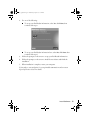
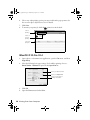
8. Click the Preview button to scan and eject the first page. Place the page back
on top of the other pages and reload them in the feeder.
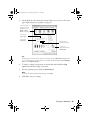
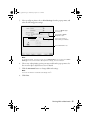
9. If desired, draw a marquee (or box) around the area you want to scan in the
Preview window. Adjust the image quality, if necessary.
10. Click Scan.
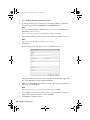
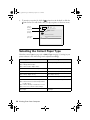
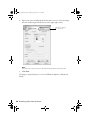
11. Select the name, location, and format (such as PDF) for your scanned
document and click OK.
The image is scanned and you see its icon in Windows Explorer or Macintosh
Finder.
Scanning Multiple Pages 41