1
Quick Start
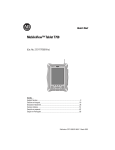
MobileView™ Tablet T750
(Cat. No. 2727-T7P30D1Fxx)
Screen Brightness Screen Contrast
Battery Status LEDs
RF Antenna
MobileView
Stylus
Touch Screen
Program Buttons
Navigational
Arrow Buttons
Next, Previous, Plus and
Minus buttons
Speaker
Start/Enter
Microphone
Notification Indicator LEDs
Inside. . .
Controls and Indicators ........................................................................................ 2
I/O Ports ............................................................................................................... 3
Installing the Battery ........................................................................................... 3
Startup/Power On ................................................................................................ 4
RF Network Configuration ................................................................................... 5
Starting Terminal Services ................................................................................... 8
Shut Down/Suspend ............................................................................................ 9
Cleaning the MobileView Tablet ....................................................................... 10
Specifications/Accessories ............................................................................... 10
For More Information ......................................................................................... 11
Publication 2727-QS004B-EN-P - September 2004
2
MobileView™ Tablet T750
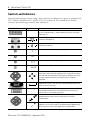
Controls and Indicators
Detailed information about using each control and indicator is given in publication
2727-UM001, MobileView™ Tablet T750 User Manual. The MobileView Tablet
contains the following controls and indicators:
Control/Indicator
Symbol
Description
N/A
Battery Status LEDs: The LEDs indicate the battery charge level.
A fully charged battery is represented by having all five green
indicators lit.
Screen Brightness: Press the buttons with the stylus to increase
or decrease brightness.
Screen Contrast: Press the buttons with the stylus to increase
or decrease contrast.
Opens terminal server client (configurable).
Opens wireless link status (configurable).
Opens on-screen keyboard (configurable).
Opens Windows Explorer (configurable).
Navigational Arrow Buttons: The navigational buttons can
move the current selection up, down, left, or right. Pressing the
left and right arrow buttons simultaneously performs the same
function as pressing the Esc (Escape) key on a computer
keyboard.
Start/Enter Button: Press this button to power up the
MobileView Tablet T750 after it has been powered down or to
enter an active selection.
N/A
Notification LEDs: The LEDs can glow green, yellow or red. They
are programmable and can be used to notify the user of an
event, such as a low battery warning.
Next and Previous Buttons: The next and previous buttons are
programmed to move to the next or previous selection
(configurable).
Plus and Minus Buttons: The plus (+) and minus (-) buttons
operate similar to the same PC keyboard buttons depending on
the context of current active application (configurable).
Publication 2727-QS004B-EN-P - September 2004
MobileView™ Tablet T750
3
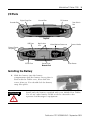
I/O Ports
Digital Gage Port
Infrared Port
RF Antenna
Barcode Port
Foot Switch
Port
Top End
USB Ports
External Power
Receptacle
RS-232 Port
Notification
LEDs
Video/Monitor Connector
Battery Pack
Bottom End
External Audio
Reset Button
Installing the Battery
1. Slide the battery into the battery
compartment until the battery cover plate is
flush with the Tablet case, then slide the
cover plate up. You should feel the battery
snap into place.
ATTENTION
Install only the battery supplied with your MobileView Tablet.
Use of any other battery could result in a hazard to the
operator and damage to equipment.
Publication 2727-QS004B-EN-P - September 2004
4
MobileView™ Tablet T750
2. To close the battery compartment, gently slide
the battery cover-plate up.
Startup/Power On
Press the ENTER button to turn the MobileView Tablet
ON.
If the battery level is sufficient enough, the following
power-up screen should appear.
If power-up screen does not appear, connect the MobileView Tablet to the ac
adapter/charger to operate on ac power and charge the battery.
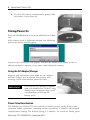
Using the AC Adapter/Charger
Plug the jack end of the cable from the AC adapter
into the charger port as shown. The battery will
recharge when connected to external power.
IMPORTANT
Use only the AC Adapter supplied
with your MobileView Tablet. Using
another type of adapter may cause
a malfunction or damage the
battery pack.
Power Save Reactivation
The MobileView Tablet T750 also includes a battery power saving feature that
suspends Tablet operations, including screen operations, if Tablet is idle beyond
suspend timer setting. The default setting is 5 minutes. To reactivate Tablet, press
Publication 2727-QS004B-EN-P - September 2004
MobileView™ Tablet T750
5
any of the program, navigational, or start/enter buttons. If the AC Adapter/Charger
is connected, tapping the touch screen will also reactivate the Tablet.
RF Network Configuration
IP Address Configuration
The internal Cisco wireless LAN adapter is preconfigured to obtain an IP address
via DHCP. If a specified IP address is desired, perform the following steps.
Remote Communication
Your network configuration affects how you remotely communicate with an
internet, intranet, or between two or more MobileView Tablets. Since there are a
variety of possible network configurations, we recommend you contact your
network administrator or internet service provider (ISP) to help set up remote
communications. The network administrator or ISP should be able to provide the
necessary configuration information, such as the network configuration settings, the
network architecture, and an IP address for the Tablet (if needed with your
installation).
The following is an example of a remote communication setup, using a radio
frequency (RF) network interface card, installed inside the MobileView Tablet. This
installation also requires a properly configured access point for the RF signal.
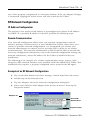
Example of an RF Network Configuration
1. Tap on the Start button and select Settings, Control Panel from the menu.
2. Double-tap on the Network icon.
3. Tap the Adapters tab in the Network Configuration dialog box.
4. Select Cisco Wireless LAN Adapter from the list of drivers, then tap the
Properties button.
Adapters tab
Selected RF
Network Driver
Properties button
Publication 2727-QS004B-EN-P - September 2004
6
MobileView™ Tablet T750
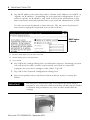
5. Tap the IP address tab and select either “Obtain an IP address via DHCP” or
“Specify an IP address”, depending on your network configuration. If you
select to specify an IP address, you need to fill out the information in the
three text boxes with information from your network administrator or ISP.
Use the on-screen keyboard to enter the text. The on-screen keyboard is
accessed by taping the keyboard icon on the task bar.
DHCP option
selected
(1)
(2)
(3)
(1)
Must be a unique address from all others on the LAN.
(2)
Must be identical to the server subnet mask.
(3)
This is optional.
6. Tap OK in the settings dialog box. A notification appears, informing you that
you will need to either remove and reinstall your card or restart the
computer for your new settings to take effect. Tap OK.
7. Tap OK in the Network Configuration dialog box.
8. Press and quickly release the Reset button with the stylus to restart the
Tablet.
IMPORTANT
Do not press and hold in the reset button for more than a
second or you will start a full reset where all data on the Tablet
is deleted and parameters are reset to their initial default
settings.
Publication 2727-QS004B-EN-P - September 2004
MobileView™ Tablet T750
7
Wireless Adapter Setup
To communicate successfully, the internal Cisco wireless LAN adapter properties
must be set to match your server’s wireless LAN adapter or wireless access points
properties.
To set internal Cisco wireless LAN adapter properties:
1. Tap the Start button on the task bar.
2. Select Programs and then the Wireless Utilities folder.
3. Tap Cisco Setup selection to activate setup window.
4. Enter the appropriate property selections and values. Use the on-screen
keyboard shown above to enter alphanumeric characters where needed.
On-screen keyboard can be accessed by taping the keyboard icon on the
task bar.
Confirming Wireless Link
Once RF network configuration is completed and PC wireless LAN adapter or
wireless access points are enabled, follow the steps below to confirm wireless link.
1. Tap the Start button on the task bar.
2. Select Programs and then the Wireless Utilities folder.
3. Tap the Cisco Link Status selection to activate status window.
Publication 2727-QS004B-EN-P - September 2004
8
MobileView™ Tablet T750
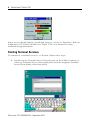
Status screen should indicate overall link status as “Good” or “Excellent”. Refer to
publication 2727-UM001, MobileView Tablet T750 Users Manual for more
troubleshooting information.
Starting Terminal Services
To connect to a terminal server as a CE client, follow these steps:
1. Double tap the Terminal Server Client shortcut on the Tablet’s desktop or
select the Terminal Server Client application from the Programs/Terminal
Server Client folder of the Start menu.
Publication 2727-QS004B-EN-P - September 2004
MobileView™ Tablet T750
9
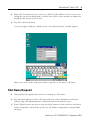
2. Enter the Terminal Server’s name or valid TCP/IP address in the server box
using the on-screen keyboard or select one of the server names or addresses
listing in the recent servers box.
3. Tap the connect button.
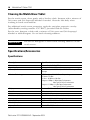
A server logon window, similar to the one shown below, should appear.
Enter your user name and password to operate as an active CE client.
Shut Down/Suspend
1. Close down all applications that are running on CE client.
2. Tap the Start button on the CE client task bar, select Shutdown and then
choose Log Off Administrator to disconnect from terminal server.
3. From Tablet power-up screen, tap the Start button on the task bar and then
select Suspend to shut down power to all Tablet components except RAM
memory.
Publication 2727-QS004B-EN-P - September 2004
10
MobileView™ Tablet T750
Cleaning the MobileView Tablet
For the touch screen, clean gently with a lint-free cloth. Dampen with a mixture of
50% water and 50% Isopropyl Alcohol if needed. Clean the unit daily when
working in harsh environments.
For additional touch screen protection, apply the anti-glare protective overlay
(Allen-Bradley catalog number 2727-TRG7) provided with the Tablet.
For the case, dampen a cloth with a mixture of 50% water and 50% Isopropyl
Alcohol or mild detergent. Use no harsh cleaning additives.
IMPORTANT
Do not use detergents or other harsh cleaning additives on the
touch screen.
Specifications/Accessories
Specifications
Description
Specification
Processor
Hitachi SH-4 RISC (SH-7750)
Operating System
Microsoft Windows CE
Memory
32 MB Flash, 32 MB SDRAM, 32 MB RAM Back-up and File
Storage
Wireless Technology
WiFi Compliant 802.11b Direct Sequencing
Tx Power: 15 dBm
Rx Sens: -83 dBm to -90 dBm
Range at 1 Mbps1: 460m Open Environment
90m Typical Office Environment
Range at 11 Mbps1: 120m Open Environment
30m Typical Office Environment
Display
Passive LCD 7.7 inch 640 x 480 with 256 colors
Touch Screen
7.7 inch analog resistive
Weight
1.36 kg (4 lbs)
Dimensions (LxWxH)
28 cm x 22 cm x 5 cm (11 in x 8.4 in x 2 in)
Battery
Lithium Ion 4000 mAh (8 hour typical operation)
Operating Temperature
+0°C to +45°C (+32°F to +113°F)
Humidity
95% non-condensing
Agency Certification
CE, UL, ETS, FCC, Canadian Interference
Publication 2727-QS004B-EN-P - September 2004
MobileView™ Tablet T750
11
Accessories
Description
Catalog
Number
AC Adapter/Battery Charger with North American Power Cable
with Italian Power Cable
with European Power Cable
with United Kingdom Power Cable
2727-TRA7
2727-TRA7IT
2727-TRA7EU
2727-TRA7UK
Replacement Battery
2727-TRB7
Power Kit with Battery, Single Charging Station, Power Supply, and North American Power
Cable
with Italian Power Cable
with European Power Cable
with United Kingdom Power Cable
2727-TRSP1
Quad Charging Station with Power Supply and North American Power Cables
with Italian and North American Power Cables
with European and North American Power Cables
with United Kingdom and North American Power Cables
2727-TRSP4
2727-TRSP4IT
2727-TRSP4EU
2727-TRSP4UK
Anti-glare Protective Overlay (Qty. 10)
2727-TRG7
Stylus with Tether (Qty. 5)
2727-RY1
Serial Cable for PC Interface
2727-TRC1
2727-TRSP1IT
2727-TRSP1EU
2727-TRSP1UK
For More Information
Related Publications
For
Refer to this Document
A more detailed description on how to use your
MobileView Tablet, accessories, specifications and
standards.
MobileView Tablet T750 User 2727-UM001
Manual
Pub. No.
Instructions on Flash Update procedures for your
MobileView Tablet.
MobileView Tablet T750
Flash Update
2727-GR001
A complete translated version (in FR, DE, IT, ES, and
PT) of this Quick Start.
MobileView Tablet T750
Quick Start
2727-QS001
If you would like to:
• view and download the publication, go to Literature Library at
http://www.rockwellautomation.com/literature
• order printed copies, contact your Allen-Bradley Distributor or
Rockwell Automation Sales Office.
Publication 2727-QS004B-EN-P - September 2004
MobileView is a trademark of Rockwell Automation.
Windows CE is a trademark of Microsoft Corporation.
Publication 2727-QS004B-EN-P - September 2004
Supersedes Publication 2727-QS004A-EN-P - March 2002
PN 41061-272-01(2)
Copyright © 2004 Rockwell Automation, Inc. All rights reserved. Printed in the U.S.A.