1
48
DVI must be connected using the USB cable to a computer that has the Convert
DVI software installed. See “Programming Convert DVI for stand-alone mode”
on page 46 for instructions on changing the Convert DVI stand-alone settings.
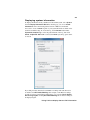
Managing keyboard shortcuts
Convert DVI comes with default keyboard shortcuts for performing specific
actions. You can edit and delete these shortcuts from the Keyboard Shortcuts
dialog box. You can also create, edit, and delete a keyboard shortcut for any
custom region of interest preset in the system. The following steps detail how to
edit, create, and delete keyboard shortcuts.
¦ Note If any of the keyboard shortcuts conflict with other software on your
system, you can either change the shortcut, or disable the keyboard shortcuts as
explained in “Specifying your administrator settings” on page 44.
1 Open the Matrox Convert DVI Control Panel.
2 Click the Admin tab.
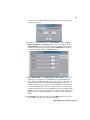
3 Under Keyboard Shortcuts, click Edit Shortcuts.
4 To create, edit, or delete a keyboard shortcut, highlight the corresponding
Action, and then either type the shortcut (up to a maximum of three keys
using SHIFT, CTRL, alphanumeric, and functions keys), or press DELETE on
your keyboard.
5 Click Default at any time to reset the keyboard shortcuts to default settings.
Only the keyboard shortcuts for the Convert DVI actions (Apply, freeze
output, etc.) will be reset to default settings. The keyboard shortcuts for
custom region of interest presets will not be affected.
Chapter 4, Configuring Matrox Convert DVI