1
EPSON EPL-N1200
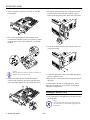
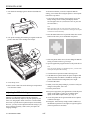
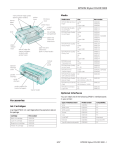
4. Locate the two SIMM slots on the controller board. You
can use either or both RAM slots, but do not use the ROM
slot.
To verify that the SIMM is working properly, print a status
sheet and make sure the correct memory amount is listed
under “Hardware Configurations.”
ROM slot
RAM slots
Using OneTouch Modes
The OneTouch modes give you a quick and easy way to
change the most common settings. There are two OneTouch
modes, each with four settings shown on the top two lines of
the control panel.
Follow these steps to change a setting using OneTouch
modes:
1. Make sure the printer is turned on and the On Line light is
on.
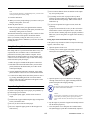
5. Align the SIMM pins marked either 1 or 72 with the pin
position marked on the slot.
2. To change a mode 1 setting, press the SelecType button
until the light next to the Paper Source setting comes on.
Then insert the SIMM at an angle and rotate the top until it
is vertical and clicks into place. (Do not push too hard.)
To change a mode 2 setting, press SelecType until the
light next to the RITech setting comes on.
3. The current values for all four settings appear in the
control panel display above the setting labels. Press the
button beneath the setting you want to change until the
value you want appears in the display. (To move backward
through the options, hold down Alt and the button for the
setting.)
4. To save your changes and exit the OneTouch mode, press
the On Line button.
To save your changes and move to the other OneTouch
mode, press the SelecType button; then make your
changes and press On Line to exit.
6. Follow the steps on page 4 to reinstall the controller board
in the printer.
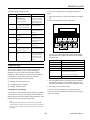
OneTouch Mode Settings
If you ever need to remove a SIMM, pull back the metal
clips on each side of the slot; then grasp the SIMM and pull
it out.
6 - EPSON EPL-N1200
The following table lists the options available for each
OneTouch mode setting. Default settings are shown in bold
type.
1/97