1
38
Appendix A - Configuring Your Controller
AccuTouch Micro Channel Controller (E271-2202)
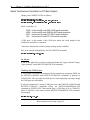
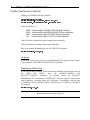
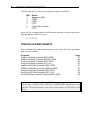
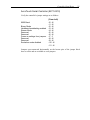
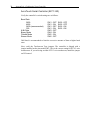
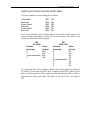
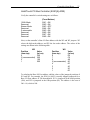
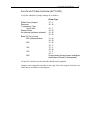
Verify the controller’s jumper settings are as follows:
Default from jumpers
Reserved
Touchscreen Type
AccuTouch
Stream Mode
Reserved
Reserved
Reserved
Reserved
(From Top)
J7 - Y
J6 - N
J5 - Y
J4 - N
J3 - N
J2 - N
J1 - N
J0 - N
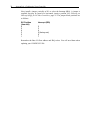
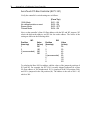
Jumpers cross-connected vertically on the right side of the jumper block have no
effect and are available as extra jumpers.
Controller Installation
Installing controllers in a Micro Channel computer requires several additional
steps. Proceed in order as follows:
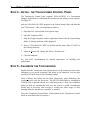
Copy the file @6253.ADF from the MonitorMouse for OS/2 distribution disk to
your Backup Copy of your "IBM PS/2 Reference Disk". If you do not have a
backup of your Reference Disk, boot with the Reference Disk in drive A and
follow the on-screen instructions to create one.
Follow the "Installing an Adapter" instructions in your IBM Personal System/2
Quick Reference. The controller (adapter) may be installed in any available slot.
Power up with your backup copy of the Reference Disk in drive A. Error 165—
Adapter Configuration Error—will appear because you just installed a new adapter.
Press [Enter] on the logo screen, then follow the on-screen instructions to
"Automatically configure the system."
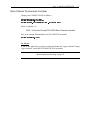
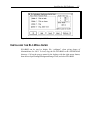
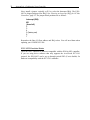
Next, follow the on-screen instructions to "View Configuration" and verify that the
E271-2202 controller was detected. You should see installed in a slot the "Elo
E271-2202 Touchscreen Controller". The Base I/O Port and selected Interrupt
(IRQ) will also be shown. Later, if you have problems, you can "Change
Configuration" of the controller's Base I/O Port and Interrupt.
Quit the program, remove the Reference Disk, and restart the computer. The
system should now boot without any error messages. Continue your MonitorMouse
for OS/2 installation as you would with other controllers.