1
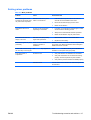
Solving power supply problems
This section presents power supply troubleshooting scenarios.
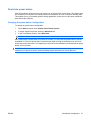
Testing power supply
Before replacing the power supply, use the Built-In Self-Test (BIST) feature to learn if the power supply
still works.
To test the power supply:
1.
Unplug the AC power.
2.
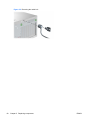
Remove the internal power supply cables from system board (you do not need to remove power
supply from chassis).
3.
Plug in AC power and verify the following:
●
If the green BIST LED on the rear of the workstation is illuminated and the fan is spinning, the
power supply is functional.
●
If the green BIST LED is not illuminated or the fan is not spinning, replace the power supply.
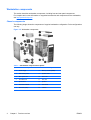
See the Rear panel components section of this service guide to locate the BIST LED on this workstation.
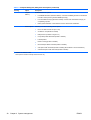
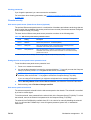
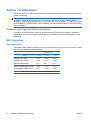
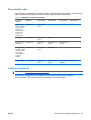
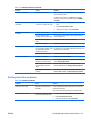
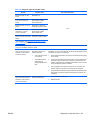
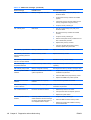
Table 6-2 Power supply problems
Problem
Cause
Solution
Power supply shuts down
intermittently.
Power supply fault.
Replace the power supply.
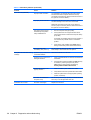
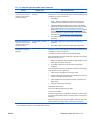
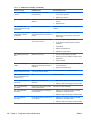
Workstation powers off and the
Power LED flashes red 2 times
(once every second), followed by a
2-second pause.
Processor thermal protection
is activated.
1.
Ensure that the workstation air vents are not blocked.
2.
Open the access panel and press the workstation
power button.
3.
Verify that the system fan is running.
4.
Verify that the processor heatsink fan spins.
A fan might be blocked or not
turning.
OR
The processor heatsink fan
assembly is not properly
attached to the processor.
If the heatsink fan is not spinning, verify that the fan
cable is plugged into the system board connector.
Verify that the fan is properly seated.
5.
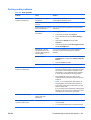
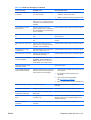
Power LED flashes red (once every
2 seconds).
Power failure (power supply is 1.
overloaded).
Replace the processor heatsink.
Determine whether a device is causing the problem
by performing the following:
a.
Disconnect AC power.
b.
Remove all attached devices.
c.
Power on the workstation.
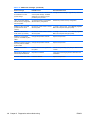
If the system enters the POST, perform the following:
ENWW
a.
Power off the workstation.
b.
Replace one device at a time and repeat this
procedure until a failure occurs.
Troubleshooting scenarios and solutions 119