1
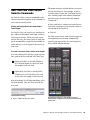
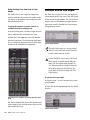
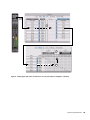
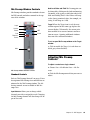
Mic Preamp Window Controls Mic Preamp windows provide standard selectors for PRE controls and other controls in the top area of the window. Input Target Source Phase Pad HPF Insert Phantom Power Gain Level Fader and Field Mic Preamp gain can be changed by clicking on the fader and moving the mouse, or by typing a valid gain value in the field and clicking Enter. Other values will snap to the closest permitted value (for example, entering 10 will snap to +9 dB). Target When the Target icon is red, the next window opened of the same type replaces the current display. When unlit, the current window anchors to its current contents and location on-screen. Opening additional windows does not affect anchored windows. To set an open Mic Preamp window as the Target window: Gain Click to enable the Target (it is red when enabled, gray when disabled). Adjusting Mic Preamp Controls To adjust a control on a single channel: Mic Preamp window standard controls Standard Controls 1 Choose View > Mix Window Views > Mic Preamps. 2 Click the Mic Preamp control that you want to adjust. Refer to “Mic Preamp Controls” on page 61 for a description of Mic Preamp view controls that are mirrored in the Mic Preamp window. The following controls are not available in Mic Preamps view: Input Selector Allows you to change which channel you wish to assign this track. Changing the Mic Preamp channel will also change the input of the track. Chapter 10: PRE Support 63