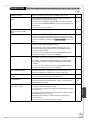
1
Setup Menus
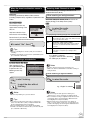
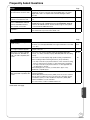
DTSa
Status Messages
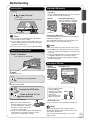
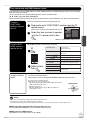
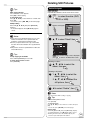
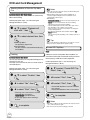
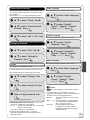
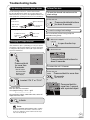
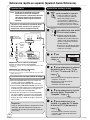
Choose whether to output by “Bitstream”, which processes
DTS signals on other connected equipment, or to convert the
signals to “PCM” (2ch) on the unit before output.
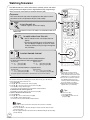
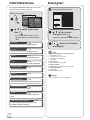
Choose whether to show status messages automatically or not.
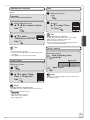
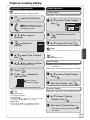
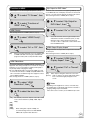
Perform steps 1−3 of “Accessing the Setup Menu” ( 55).
, to select “Display”, then After selecting “Digital Audio Output” ( 61, step 5).
, to select “DTS”, then
, to select “Status
Messages”, then OK
OK
, to select “Automatic” or
“Off”, then OK
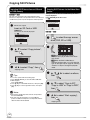
, to select “Bitstream” or
“PCM”, then OK
[Bitstream] When you have connected the unit to equipment
displaying the DTS logo.
[PCM]
When you have connected the unit to equipment
that doesn’t have the DTS logo.
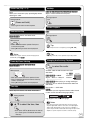
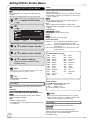
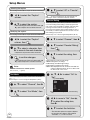
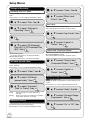
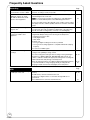
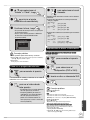
Select Audio Channel For DV Input
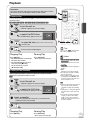
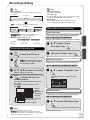
You can select the kind of audio when recording from the unit’s
DV in terminal ( 29).
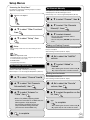
On-screen Language
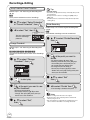
Choose the language for these menus and the on-screen
messages.
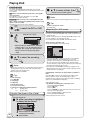
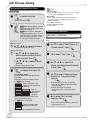
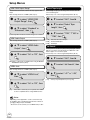
Perform steps 1−3 of “Accessing the Setup Menu” ( 55).
, to select “Display”, then Perform steps 1−3 of “Accessing the Setup Menu” ( 55).
, to select “Audio”, then , to select “On-screen
Language”, then OK
, to select “Select Audio
Channel For DV Input”, then
, to select “English”,
“Español” or “Français”, then
OK
OK
, to select “Stereo 1”,
“Stereo 2” or “Mix”, then OK
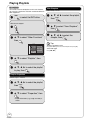
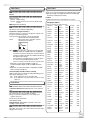
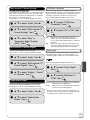
[Stereo 1]
[Stereo 2]
[Mix]
a
Records audio (L1, R1)
Records added audio such as narration (L2, R2)
subsequent to original recording.
Records both Stereo 1 and Stereo 2.
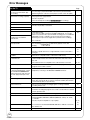
Incorrect settings can cause noise to be output which can
be harmful to your ears and speakers, and audio will not be
recorded properly on media such as mini discs.
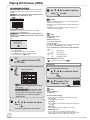
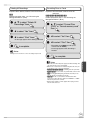
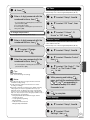
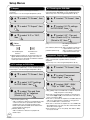
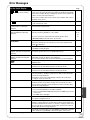
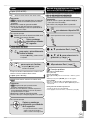
Black Background (Analog)
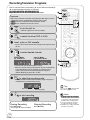
Select whether to show the black (gray) background, normally
shown when TV reception is poor.
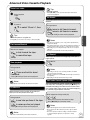
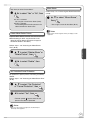
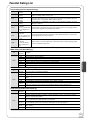
Perform steps 1−3 of “Accessing the Setup Menu” ( 55).
, to select “Display”, then , to select “Black
Background (Analog)”, then
OK
, to select “On” or “Off”, then
OK
62
RQT9056