1
Line Appearances
Line Appearances
Your telephone has a prime line and up to nine line appearances. The prime line is automatically
selected when you go off-hook. It’s the line that rings when someone dials your extension
number. Line appearances are additional lines accessed by using the LINE key.
Note: Line appearances must be programmed by your system administrator.
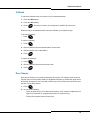
To access a line appearance:
1. Press
to go off-hook.
2. While off-hook, press the LINE key to view the shortcut keys and the assigned extensions
for the line appearances.
There are nine possible line appearances which correspond to the nine line indicators
across the top of the handset display. When a line is in use, the indicator changes to the
line number and a plus sign (+) appears after the shortcut key on the list (emulating a lit LED).
3. Press the LINE key again to display the second screen of the list if more than four line
appearances have been assigned to the handset.
4. To select a line, press the corresponding shortcut key.
You can also use the Up, Select, and Down buttons located on the left side of the handset
to scroll through the displays and activate the line appearances on the list.
5. Press
to exit the list of line appearances.
Feature Programming
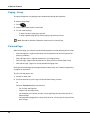
Up to 16 system features are available for programming to your telephone as shortcut keys.
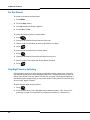
To view the current programming of a shortcut key:
1. Press MENU.
2. Press FCN.
The first four features are displayed in the softkey display area. Each time the FCN key is
pressed, a different set of features is displayed, until all 16 possible features have been
displayed.
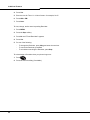
Note: The first four softkeys are programmed as Trans/Conf, Cancel, Message, Redial
and cannot be reprogrammed.
4