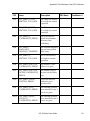
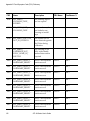
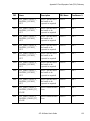
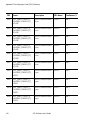
1
ATL M-Series
User’s Guide
6423002-03
Ver. 3, Rel. 0
ATL M-Series User’s Guide, 6423002-03, Ver. 3, Rel. 0, January 2003, Made in USA.
Quantum Corporation provides this publication “as is” without warranty of any kind, either express or
implied, including but not limited to the implied warranties of merchantability or fitness for a particular
purpose. Quantum Corporation may revise this publication from time to time without notice.
COPYRIGHT STATEMENT
© Copyright 2003 by Quantum Corporation. All rights reserved.
Your right to copy this document is limited by copyright law. Making copies or adaptations without prior
written authorization of Quantum Corporation is prohibited by law and constitutes a punishable violation of
the law.
TRADEMARK STATEMENT
StackLink is a trademark of Quantum Corporation.
Other trademarks may be mentioned herein which belong to other companies.
6207947-07cN 111
Contents
Preface
Chapter 1
xiii
Overview
1
Library Capacity ..................................................................................... 1
ATL M1500 Library ......................................................................... 1
ATL M2500 Library ......................................................................... 1
SCSI Configuration................................................................................. 2
Library Scalability .................................................................................. 2
Library Features...................................................................................... 5
Front Panel ........................................................................................ 5
Internal Layout ................................................................................. 8
Back Panel ....................................................................................... 10
Chapter 2
Basic Operations
13
Introduction........................................................................................... 14
Main Screen..................................................................................... 14
GUI Buttons .................................................................................... 17
GUI Icons......................................................................................... 18
ATL M-Series User’s Guide
iii
Contents
Using the Quick View Menu Screen .................................................. 19
Accessing the Quick View Menu Screen .................................... 20
Viewing Library Information ....................................................... 20
Viewing Tape Drive Information ................................................ 22
Viewing Inventory Information................................................... 23
Turning Drive Power On or Off (Quick View Menu Screen).. 24
Moving Tape Cartridges...................................................................... 26
Using the Mailbox ................................................................................ 30
Viewing Mailbox Status ................................................................ 31
Importing and Exporting Cartridges .......................................... 31
Configuring the Mailbox............................................................... 37
Removing the Magazines .................................................................... 38
Removing a Magazine from an ATL M1500 .............................. 38
Removing a Magazine from an ATL M2500 .............................. 41
Viewing Statistics.................................................................................. 46
Accessing the Statistics Menu Screen.......................................... 46
Viewing Library Statistics............................................................. 47
Viewing Drive Statistics ................................................................ 48
Viewing the SCSI History ............................................................. 49
Viewing the Stack Configuration ....................................................... 50
Chapter 3
Changing the Library Configuration
53
Accessing the Configuration Screen .................................................. 53
Setting the Library ID........................................................................... 55
Changing a Tape Drive ID .................................................................. 56
Changing the Terminator Power Setting .......................................... 58
Changing the Emulation Setting ........................................................ 59
Changing the Sync Negotiation Setting ............................................ 60
Changing the Wide Negotiation Setting ........................................... 61
Changing the Serialization Setting..................................................... 62
Changing the Short Labels Setting..................................................... 63
Changing the Illumination Setting..................................................... 64
Changing the Off-Line Time Setting.................................................. 65
Changing the Barcode Scanner Setting ............................................. 66
iv
ATL M-Series User’s Guide
Contents
Changing the Baud Rate Setting ........................................................ 67
Setting the Time .................................................................................... 67
Setting the Date..................................................................................... 68
Changing the Import/Export Setting ................................................ 69
Changing the Auto-Clean Setting ...................................................... 72
Changing the Ignore Host Lock Setting ............................................ 73
Changing the Auto-Import Option.................................................... 74
Chapter 4
Performing Maintenance Operations
77
Accessing the Maintenance Screen .................................................... 77
Cleaning a Tape Drive ......................................................................... 79
Turning Drive Power On or Off (Maintenance Screen).................. 81
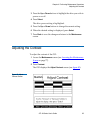
Adjusting the Contrast......................................................................... 83
Chapter 5
Running Diagnostic Programs
85
Accessing the Diagnostics Menu Screen ........................................... 85
Running the Barcode Scanner Test .................................................... 87
Running the Move Medium Test ....................................................... 89
Running the Move Location Test ....................................................... 92
Running the Display Test.................................................................... 95
Chapter 6
Running the Demonstration Programs
97
Accessing the Demo Programs Screen .............................................. 97
Running the Confidence Test Program............................................. 98
Running the Demo 1 Program............................................................ 99
Running the Demo 2 Program.......................................................... 100
Running the Demo 3 Program.......................................................... 101
Running the Demo 4 Program.......................................................... 102
Running the Demo 5 Program.......................................................... 103
Running the Demo 6 Program.......................................................... 104
ATL M-Series User’s Guide
v
Contents
Appendix A
Specifications
105
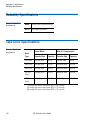
Physical Specifications .......................................................................106
Performance Specifications ............................................................... 108
Reliability Specifications.................................................................... 110
Tape Drive Specifications .................................................................. 110
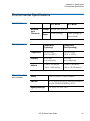
Environmental Specifications ........................................................... 111
Appendix B
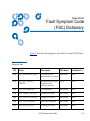
Fault Symptom Code (FSC) Dictionary
113
Appendix C
DLTtape Cartridge Maintenance
161
Handling DLTtape Cartridges.......................................................... 161
Visual Inspection of DLTtape Cartridges ....................................... 162
When To Visually Inspect a DLTtape Cartridge ..................... 162
Visual Inspection Procedure....................................................... 163
Appendix D
Regulatory Statements
167
Glossary
199
Index
201
vi
ATL M-Series User’s Guide
Figures
Figure 1
ATL M1500 Front Panel ..................................................... 5
Figure 2
ATL M2500 Front Panel ..................................................... 6
Figure 3
ATL M1500 Internal Layout .............................................. 8
Figure 4
ATL M2500 Internal Layout .............................................. 9
Figure 5
ATL M1500 Back Panel .................................................... 10
Figure 6
ATL M2500 Back Panel .................................................... 11
Figure 7
Sample Main Screen, Stand-alone ATL M1500 ............ 15
Figure 8
Sample Main Screen, ATL M1500 in a Multiple
Library Stack...................................................................... 16
Figure 9
ATL M2500 Library Levels .............................................. 16
Figure 10 Sample Main Screen, ATL M2500................................... 17
Figure 11 Using the GUI Buttons ..................................................... 17
Figure 12 Quick View Menu Screen ................................................ 20
Figure 13 Sample Library Information Screen ............................... 21
Figure 14 Sample Drive Information Screen .................................. 22
Figure 15 Sample Inventory Screen ................................................. 23
ATL M-Series User’s Guide
vii
Figures
Figure 16 Sample Tape Drive Power Screen .................................. 24
Figure 17 Sample Drive Power Screen ............................................ 25
Figure 18 Menu Screen ...................................................................... 26
Figure 19 Sample Move Cartridge FROM Screen.......................... 27
Figure 20 Sample Move Cartridge TO Screen................................ 28
Figure 21 Sample Confirm Move Cartridge Screen....................... 29
Figure 22 Sample Mailbox Screen .................................................... 30
Figure 23 Mailbox - OPEN Screen.................................................... 32
Figure 24 Sample Release Magazines Screen ................................. 39
Figure 25 Magazine Release Button................................................. 40
Figure 26 Release Magazines Screen ............................................... 41
Figure 27 Removing the Level 2 Left Magazine ............................ 43
Figure 28 Release Latch ..................................................................... 44
Figure 29 Removing the Level 1 Left Magazine ............................ 45
Figure 30 Service Menu Screen......................................................... 46
Figure 31 Statistics Menu Screen...................................................... 47
Figure 32 Sample Library Statistics Screen ..................................... 47
Figure 33 Sample Drive Statistics Screen ........................................ 49
Figure 34 Sample SCSI History Screen............................................ 50
Figure 35 Sample Stack Configuration Screen ............................... 51
Figure 36 Menu Screen ...................................................................... 54
Figure 37 Configuration Screen........................................................ 54
Figure 38 ATL M2500 Drive Numbering ........................................ 56
Figure 39 Service Menu Screen......................................................... 78
Figure 40 Maintenance Screen .......................................................... 78
Figure 41 Sample Select Cleaning Cartridge Screen ..................... 79
Figure 42 Sample Select Tape Drive Screen.................................... 80
viii
ATL M-Series User’s Guide
Figures
Figure 43 Sample Tape Drive Power Screen .................................. 81
Figure 44 Drive Power Screen .......................................................... 82
Figure 45 Adjust Contrast Screen..................................................... 83
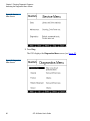
Figure 46 Service Menu Screen......................................................... 86
Figure 47 Diagnostics Menu Screen................................................. 86
Figure 48 Diags: General Screen....................................................... 87
Figure 49 Diag: Barcode Screen........................................................ 88
Figure 50 Sample Move Cartridge FROM Screen.......................... 89
Figure 51 Sample Move Cartridge TO Screen................................ 90
Figure 52 Sample Confirm Move Cartridge Screen ...................... 91
Figure 53 Diag: Move Medium Screen............................................ 91
Figure 54 Sample Diag: Move-Location Screen ............................. 93
Figure 55 Diag: Move Location Screen............................................ 94
Figure 56 Demo Programs Screen.................................................... 98
Figure 57 Location of the Reel Locks and the Hub...................... 163
Figure 58 Opening the Tape Cartridge Door ............................... 164
Figure 59 Write Protect Switch....................................................... 165
Figure 60 Declaration of Conformity, ATL M1500...................... 196
Figure 61 Declaration of Conformity, ATL M2500...................... 197
ATL M-Series User’s Guide
ix
Figures
x
ATL M-Series User’s Guide
Tables
Table 1
Capacity, ATL M1500 Multiple Library Stack ................ 3
Table 2
Capacity, ATL M2500 Multiple Library Stack ................ 4
Table 3
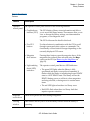
Front Panel Features........................................................... 7
Table 4
GUI Icons ........................................................................... 18
Table 5
Import/Export Settings.................................................... 70
Table 6
Unit Dimensions/Weight .............................................. 106
Table 7
Capacities ......................................................................... 106
Table 8
Performance Specifications ........................................... 108
Table 9
Library Performance....................................................... 108
Table 10
Reliability Specifications................................................ 110
Table 11
Tape Drive Specifications .............................................. 110
Table 12
Power................................................................................ 111
Table 13
Climate ............................................................................. 111
Table 14
Compliance and Certification ....................................... 111
Table 15
Fault Symptom Codes.................................................... 113
ATL M-Series User’s Guide
xi
Tables
xii
ATL M-Series User’s Guide
Preface
Audience
This document is written for operators of the ATL M1500 and
ATL M2500 libraries.
Purpose
This document explains how to use the ATL M1500 and
ATL M2500 libraries.
Document
Organization
This document is organized as follows:
•
Chapter 1, Overview, provides an overview of the
ATL M-Series libraries.
•
Chapter 2, Basic Operations, introduces the library GUI screens
and explains how to use them to perform basic library
operations such as moving tape cartridges within the library,
removing the tape cartridge magazines, and viewing library
information.
•
Chapter 3, Changing the Library Configuration, explains how
to change the library configuration using the GUI
Configuration screen.
ATL M-Series User’s Guide
xiii
Preface
•
Chapter 4, Performing Maintenance Operations, explains how
to perform library maintenance operations using the GUI
Maintenance screen.
•
Chapter 5, Running Diagnostic Programs, explains how to use
the library’s built in diagnostic programs.
•
Chapter 6, Running the Demonstration Programs, explains
how to run the library demonstration programs.
•
Appendix A, Specifications, lists the specifications for the
ATL M-Series libraries.
•
Appendix B, Fault Symptom Code (FSC) Dictionary, lists the
fault symptom codes (FSCs) for the ATL M-Series libraries.
•
Appendix C, DLTtape Cartridge Maintenance, provides
guidelines for handling DLT cartridges and visually inspecting
them if necessary.
•
Appendix D, Regulatory Statements, provides regulatory
information for the ATL M-Series libraries.
This document concludes with a glossary and a detailed index.
Notational
Conventions
This document uses the following conventions:
Note:
xiv
Notes emphasize important information related to the
main topic.
Tech Tip:
Tech Tips provide technical information that may be
helpful in performing the procedure.
Caution:
Cautions indicate potential hazards to equipment
and are included to prevent damage to equipment.
Warning:
Warnings indicate potential hazards to personal
safety and are included to prevent injury.
ATL M-Series User’s Guide
Preface
This manual uses the following:
Related
Documents
•
Right side of the library — Refers to the right side as you face
the component being described.
•
Left side of the library — Refers to the left side as you face the
component being described.
Documents related to the ATL M-Series libraries are shown below.
0
ATL M-Series Documentation
Document No.
Title
Description
6421002
ATL M1500 Unpacking
Instructions
This document explains
how to remove the
ATL M1500 library from
the shipping carton.
6423000
ATL M2500 Unpacking
Instructions
This document explains
how to remove the
ATL M2500 library from
the shipping carton.
6423001
ATL M-Series Installation
Guide
This document explains
how to install an
ATL M-Series library.
6421011
ATL M1500 Regulatory
Statements
This document provides
regulatory information
for the ATL M1500
library.
6423004
ATL M2500 Regulatory
Statements
This document provides
regulatory information
for the ATL M2500
library.
ATL M-Series User’s Guide
xv
Preface
Refer to the appropriate product manuals for information about
your tape drive and cartridges.
SCSI-2 Specification
0
The SCSI-2 communications specification is the proposed
American National Standard for information systems, dated
March 9, 1990. Copies may be obtained from:
Global Engineering Documents
15 Inverness Way, East
Englewood, CO 80112
(800) 854-7179 or (303) 397-2740
Contacts
Quantum company contacts are listed below.
Quantum Corporation
0
To order documentation on the ATL M-Series libraries or other
products contact:
Quantum
P.O. Box 57100
Irvine, CA 92619-7100
(949) 856-7800
(800) 284-5101
Technical Publications
To comment on existing documentation send e-mail to:
[email protected]
xvi
ATL M-Series User’s Guide
0
Preface
0
Web Site
Visit the Quantum web site at:
http://www.quantum.com
0
Customer Support
The Customer Support Department provides a 24-hour help desk
that can be reached at:
North/South America:
(949) 725-2100 or
(800) 284-5101
Asia/Pacific Rim:
(International Code)
+61 7 3839 0988
Europe/Middle East/Africa: (International Code)
+44 (0) 1256 848748
Send faxes for the Customer Support Department to:
North/South America:
(949) 725-2176
Asia/Pacific Rim:
(International Code)
+61 7 3839 0955
Europe/Middle East/Africa: (International Code) +
+44 (0) 1256 848777
Send e-mail for the Customer Support Department to:
North/South America:
[email protected]
Asia/Pacific Rim:
[email protected]
Europe/Middle East/Africa: [email protected]
ATL M-Series User’s Guide
xvii
Preface
xviii
ATL M-Series User’s Guide
Chapter 1
1
Overview
This chapter provides an overview of the ATL M-Series libraries
and their features.
Library Capacity
ATL M1500
Library
ATL M2500
Library
1
1
1
The ATL M1500 library can contain up to two tape drives and up
to 21 DLT/SDLT cartridges or 25 LTO cartridges. The cartridges
are stored in two independently removable cartridge magazines
and one fixed cartridge slot.
The ATL M2500 library can contain:
•
Up to five tape drives and up to 84 DLT/SDLT cartridges or
100 LTO cartridges
•
Six tape drives and up to 73 DLT/SDLT cartridges or 87 LTO
cartridges
ATL M-Series User’s Guide
1
Chapter 1 Overview
SCSI Configuration
The cartridges are stored in up to eight independently removable
cartridge magazines and up to four fixed cartridge slots.
SCSI Configuration
1
The ATL M1500 and ATL M2500 library modules come configured
for LVD SCSI. One SCSI bus is provided for the library robotics
and for each tape drive installed. These SCSI buses are SCSI-2 fast/
wide (8/16 bit), Ultra SCSI, Ultra 2 SCSI, or Ultra 3 SCSI,
depending on the drives installed.
Library Scalability
1
The ATL M1500 and ATL M2500 library modules can be used as
stand-alone libraries, or can be combined with other ATL M1500
and ATL M2500 library modules and a StackLink mechanism in a
standard 19-inch rack to form a larger library system (called a
multiple library stack). The multiple library stack appears as a
single large capacity library to the host.
The StackLink mechanism connects the library modules in the
multiple library stack and transports cartridges from module to
module. Each tape drive has access to all the tape cartridges in the
stack.
Once the StackLink mechanism is installed in the rack, you can add
library modules simply by sliding them into place and making the
necessary electrical connections.
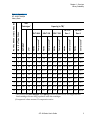
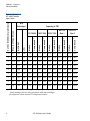
Table 1 lists the capacities of all the sizes of multiple library stack
you can create using ATL M1500 library modules. Table 2 lists the
capacities of all the sizes of multiple library stack you can create
using ATL M2500 library modules. You can obtain different
capacities by combining ATL M1500 and ATL M2500 library
modules in a multiple library stack.
2
ATL M-Series User’s Guide
Chapter 1 Overview
Library Scalability
Table 1 Capacity,
ATL M1500 Multiple
Library Stack
# of ATL M1500 Library Modules
Max. # of Tape Drives
DLT/SDLT
LTO
Native
Compressed†
Native
Compressed†
Native
Compressed†
Native
Compressed†
Native
Compressed†
# of
Cartridges*
1
2
21
25
0.8
1.7
2.3
4.6
3.4
6.7
2.5
5.0
5.0
10.0
2
4
42
50
1.7
3.4
4.6
9.2
6.7
13.4
5.0
10.0
10.0
20.0
3
6
63
75
2.5
5.0
6.9
13.9
10.1
20.2
7.5
15.0
15.0
30.0
4
8
84
100
3.4
6.7
9.2
18.5
13.4
26.9
10.0
20.0
20.0
40.0
5
10
105
125
4.2
8.4
11.6
23.1
16.8
33.6
12.5
25.0
25.0
50.0
6
12
126
150
5.0
10.1
13.9
27.7
20.2
40.3
15.0
30.0
30.0
60.0
7
14
147
175
5.9
11.8
16.2
32.3
23.5
47.0
17.5
35.0
35.0
70.0
8
16
168
200
6.7
13.4
18.5
37.0
26.9
53.8
20.0
40.0
40.0
80.0
9
18
189
225
7.6
15.1
20.8
41.6
30.2
60.5
22.5
45.0
45.0
90.0
10
20
210
250
8.4
16.8
23.1
46.2
33.6
67.2
25.0
50.0
50.0
100.0
Capacity (in TB)*
DLT 8000
SDLT 220
SDLT 320
HP LTO
Gen 1
HP LTO
Gen 2
* The values in the # of Cartridges and Capacity columns assume that all the magazines and
fixed cartridge slots are fully populated with data cartridges.
† Compressed values assume 2:1 compression ratios.
ATL M-Series User’s Guide
3
Chapter 1 Overview
Library Scalability
# of ATL M2500 Library Modules
Max. # of Tape Drives
DLT/SDLT
LTO
Native
Compressed†
Native
Compressed†
Native
Compressed†
Native
Compressed†
Native
Compressed†
Table 2 Capacity,
ATL M2500 Multiple
Library Stack
1
0-5
84
100
3.4
6.7
9.2
18.5
13.4
26.9
10.0
20.0
20.0
40.0
1
6
73
87
2.9
5.8
8.0
16.1
11.7
23.4
8.7
17.4
17.4
34.8
2
0-10
168
200
6.7
13.4
18.5
37.0
26.9
53.8
20.0
40.0
40.0
80.0
2
11
157
187
6.3
12.6
17.3
34.5
25.1
50.2
18.7
37.4
37.4
74.8
2
12
146
174
5.8
11.7
16.1
32.1
23.4
46.7
17.4
34.8
34.8
69.6
3
0-15
252
300
10.1
20.2
27.7
55.4
40.3
80.6
30.0
60.0
60.0
120.0
3
16
241
287
9.6
19.3
26.5
53.0
38.6
77.1
28.7
57.4
57.4
114.8
3
17
230
274
9.2
18.4
25.3
50.6
36.8
73.6
27.4
54.8
54.8
109.6
3
18
219
261
8.8
17.5
24.1
48.2
35.0
70.1
26.1
52.2
52.2
104.4
# of
Cartridges*
Capacity (in TB)*
DLT 8000
SDLT 220
SDLT 320
HP LTO
Gen 1
HP LTO
Gen 2
* The values in the # of Cartridges and Capacity columns assume that all the magazines and
fixed cartridge slots are fully populated with data cartridges.
† Compressed values assume 2:1 compression ratios.
4
ATL M-Series User’s Guide
Chapter 1 Overview
Library Features
Library Features
Front Panel
1
1
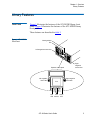
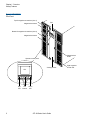
Figure 1 illustrates the features of the ATL M1500 library front
panel. Figure 2 illustrates the features of the ATL M2500 library
front panel.
These features are described in table 3.
Figure 1 ATL M1500
Front Panel
Viewing window
GUI
Left magazine access door
Right
magazine
access door
Operator control panel
Left magazine
door button
GUI
Red
LED
Right magazine
door button
GUI Green
buttons LED
ATL M-Series User’s Guide
5
Chapter 1 Overview
Library Features
Figure 2 ATL M2500
Front Panel
Top left magazine access door (door 1)
Magazine door button
GUI
Bottom left magazine access door (door 2)
Magazine door button
Magazine door
button
Operator control panel
Viewing window
GUI
Red
LED
6
GUI
buttons
Green
LED
ATL M-Series User’s Guide
Right magazine
access door
Chapter 1 Overview
Library Features
Table 3 Front Panel
Features
Feature
Description
Operator
control panel
The operator control panel consists of the following elements:
• Graphical user
interface (GUI)
The GUI displays library status information and allows
you to access the library menus. These menus allow you to
view or change the library settings, run demonstration
programs, or run diagnostic tests.
The GUI is discussed in detail in this book.
• Five GUI
buttons
Use these buttons in combination with the GUI to scroll
through screens and select options or commands. The
functionality of these buttons changes depending on the
currently displayed GUI screen.
• Magazine
door buttons
Pressing these buttons opens the magazine doors, if the
magazines have already been released using the Mags
option on the GUI (see Removing the Magazines on
page 38).
• Light emitting
diode (LED)
indicators
The operator control panel has two LED indicators:
• The green LED lights when the library is fully
operational and ready to accept host commands. It
flashes while the library is transitioning from a READY
state to a NOT READY state. The library will not be
READY during power-on self-tests, when magazines
are being released, or during access to certain menu
items.
• The red LED lights when there is a library error.
• Both LEDs flash when there is a library fault that
requires operator attention.
Magazine
access doors
These doors protect the data cartridge magazines.
Viewing
window
This window allows you to view the library robotics while the library is
operating.
ATL M-Series User’s Guide
7
Chapter 1 Overview
Library Features
Internal Layout
1
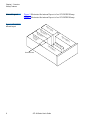
Figure 3 illustrates the internal layout of an ATL M1500 library.
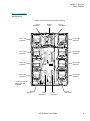
Figure 4 illustrates the internal layout of an ATL M2500 library.
Figure 3 ATL M1500
Internal Layout
Po
w
Ta
p
E le
Ta
p
ed
ct
mo ronic
du
s
le
riv
e
ed
riv
er
su
pp
ly
e2
Rig
h
1
Ro
Le
ft m
Fixed drive slot
8
ATL M-Series User’s Guide
ag
az
i ne
bo
ti c
ha
nd
tm
ag
az
i ne
Chapter 1 Overview
Library Features
Figure 4 ATL M2500
Internal Layout
(Library shown with front bezel and doors removed)
Level 1
tape drive 1
Robotic
hand
Level 1
tape drive 2
Level 1 left
magazine*
Level 1 right
magazine
Level 2 left
magazine*
Level 2 right
magazine
Level 3 left
magazine*
Level 3 right
magazine
Level 4 left
magazine*
Level 4 right
magazine
*There is a fixed slot
behind each left
magazine.
Level 2
tape drive 1
Level 3
tape drive 1
Level 3
tape drive 2
ATL M-Series User’s Guide
Level 2
tape drive 2
9
Chapter 1 Overview
Library Features
Each cartridge magazine holds 10 DLT/SDLT cartridges or 12 LTO
cartridges. The bins in the left magazines are numbered from 1
through 10 (or 12 in LTO libraries) from front to back. The bins in
the right magazines are numbered from 1 through 10 (or 12 in LTO
libraries) from back to front.
The ATL M1500 has one fixed cartridge slot behind the left
magazine. The ATL M2500 has four fixed cartridge slots, one
behind each left magazine. The fixed cartridge slots can be used as
additional data cartridge bins, or can be used to hold cleaning
tapes, which can be moved to a tape drive when cleaning is
required.
A bar code reader is attached to the library’s robotic hand. This bar
code reader automatically identifies the cartridges in the library, if
the cartridges are fitted with acceptable bar code labels.
Back Panel
Figure 5 ATL M1500
Back Panel
1
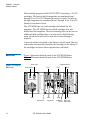
Figure 5 illustrates the back panel of the ATL M1500 library.
Figure 6 illustrates the back panel of the ATL M2500 library.
Power inlet
Power switch
Diagnostics port
Vent
Vent
SCSI
Electronics
module
Power supply
Vent
SCSI
Tape drive 2
10
Tape drive 1
ATL M-Series User’s Guide
SCSI
Interlibrary
control
SCSI
StackLink
motor drive
Chapter 1 Overview
Library Features
Figure 6 ATL M2500
Back Panel
Interlibrary control
Diagnostics port
Vents
Electronics
module
SCSI
Vent
SCSI
Tape
drive
Tape
drive
StackLink
motor
drive
Vents
Power
inlet
Power
switch
Vent
Power
outlets
SCSI
Vent
Tape
drive
Tape
drive
Vents
Power
inlets
Power
switch
Vent
SCSI
Tape
drive
Tape
drive
ATL M-Series User’s Guide
11
Chapter 1 Overview
Library Features
12
ATL M-Series User’s Guide
Chapter 2
2
Basic Operations
This chapter introduces the library GUI screens and explains how
to use them to perform the following basic library operations:
•
Viewing library information (see Using the Quick View Menu
Screen on page 19)
•
Moving tape cartridges within the library (see Moving Tape
Cartridges on page 26)
•
Using the mailbox (see Using the Mailbox on page 30)
•
Removing the tape cartridge magazines (see Removing the
Magazines on page 38)
•
View library, drive and SCSI statistics (see Viewing Statistics on
page 46)
•
Viewing the configuration of the entire library and stack, if the
library is part of a multiple library stack (see Viewing the Stack
Configuration on page 50)
ATL M-Series User’s Guide
13
Chapter 2 Basic Operations
Introduction
Introduction
2
Before using the GUI to perform library functions, familiarize
yourself with the:
Main Screen
•
Main screen
•
GUI buttons
•
GUI icons
2 The first screen the GUI displays after library initialization is the
main screen. This screen displays library status and provides
inventory information for the cartridge magazines, the fixed
slot(s), the drives, and the robotic hand. It also provides access to
the library menus. It updates in real time as cartridges move
within the library.
The main screen appears somewhat different depending on
whether the library is an:
•
ATL M1500 stand-alone library
•
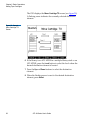
ATL M1500 library in a multiple library stack
•
ATL M2500 library
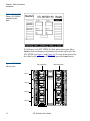
If the library is a stand-alone ATL M1500, the main screen appears
as shown in figure 7.
14
ATL M-Series User’s Guide
Chapter 2 Basic Operations
Introduction
Figure 7 Sample Main
Screen, Stand-alone
ATL M1500
If the library is an ATL M1500 and is part of a multiple library
stack, the main screen displays the level of the ATL M1500 module
and provides an additional button, the Stack button (see figure 8).
Note:
In a multiple library stack, each ATL M1500 library
module is considered one “level” of the library. Each
ATL M2500 library module is considered four levels of
the library (see figure 9). Levels are numbered from top
to bottom, starting with 1.
ATL M-Series User’s Guide
15
Chapter 2 Basic Operations
Introduction
Figure 8 Sample Main
Screen, ATL M1500 in
a Multiple Library
Stack
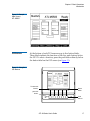
If the library is an ATL M2500, the first main screen provides a
Level button and displays information about the top level of the
ATL M2500 (see figure 9 and figure 10). To view main screens for
the other levels within the ATL M2500, press the Level button.
Figure 9 ATL M2500
Library Levels
Left magazines
Level 1
Level 2
Level 3
Level 4
16
ATL M-Series User’s Guide
Right magazines
Chapter 2 Basic Operations
Introduction
Figure 10 Sample
Main Screen,
ATL M2500
GUI Buttons
2 At the bottom of each GUI screen are up to five button labels.
These labels indicate the functions of the five push buttons below
the GUI. To select a function, press the push button directly below
the button label on the GUI screen (see figure 11).
Figure 11 Using the
GUI Buttons
To select this
function,
Button
labels
press this
button:
Push
buttons
ATL M-Series User’s Guide
17
Chapter 2 Basic Operations
Introduction
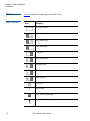
GUI Icons
Table 4 GUI Icons
2 Table 4 explains the meaning of each GUI icon.
Icon
Meaning
No tape present
Tape loading
Tape unloading
Tape unloaded
Tape idle
Tape rewinding
Locating data
Reading data
Writing data
Power on
!
Drive fault
Tape is write-protected
Drive needs cleaning
18
ATL M-Series User’s Guide
Chapter 2 Basic Operations
Using the Quick View Menu Screen
Icon
Meaning
Slot empty
Slot occupied
Slot occupied - no label or bad bar code
1 slot mailbox - NOT SCSI import/export element
1 slot mailbox and SCSI import/export element
Using the Quick View Menu Screen
2
The Quick View Menu screen allows you to view information about
the library, drives, and inventory without placing the library in a
NOT READY state.
Note:
The Quick View Menu screen allows you to view the
current library configuration only; you cannot make any
changes to the configuration.
ATL M-Series User’s Guide
19
Chapter 2 Basic Operations
Using the Quick View Menu Screen
Accessing the
Quick View Menu
Screen
2
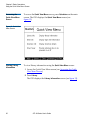
To access the Quick View Menu screen, press Quickview on the main
screen. The GUI displays the Quick View Menu screen (see
figure 12).
Figure 12 Quick View
Menu Screen
Viewing Library
Information
2
To view library information using the Quick View Menu screen:
1 Access the Quick View Menu screen (see Accessing the Quick
View Menu Screen).
2 Press Library.
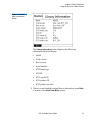
The GUI displays the Library Information screen (see figure 13).
20
ATL M-Series User’s Guide
Chapter 2 Basic Operations
Using the Quick View Menu Screen
Figure 13 Sample
Library Information
Screen
The Library Information screen displays the following
information about the library:
•
Model
•
Code version
•
Boot version
•
Serial number
•
SCSI board type
•
SCSI ID
•
SCSI vendor ID
•
SCSI product ID
•
SCSI product revision
3 When you are finished viewing library information, press Back
to return to the Quick View Menu screen.
ATL M-Series User’s Guide
21
Chapter 2 Basic Operations
Using the Quick View Menu Screen
Viewing Tape Drive
Information
2
To view tape drive information using the Quick View Menu screen:
1 Access the Quick View Menu screen (see Accessing the Quick
View Menu Screen).
2 Press Drive.
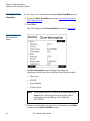
The GUI displays the Drive Information screen (see figure 14).
Figure 14 Sample
Drive Information
Screen
The Drive Information screen displays the following
information about each drive installed in the library module:
•
Drive type
•
SCSI ID
•
Serial number
•
Code revision
Note:
If the library is an ATL M2500, this screen displays a
Level button. Pressing this button displays drive
information for each library level within the
ATL M2500.
3 When you are finished viewing drive information, press Back
to return to the Quick View Menu screen.
22
ATL M-Series User’s Guide
Chapter 2 Basic Operations
Using the Quick View Menu Screen
Viewing Inventory
Information
2
To view inventory information using the Quick View Menu screen:
1 Access the Quick View Menu screen (see Accessing the Quick
View Menu Screen).
2 Press Inventory.
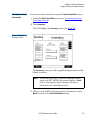
The GUI displays the Inventory screen (see figure 15).
Figure 15 Sample
Inventory Screen
The Inventory screen provides a graphical representation of the
library inventory.
Note:
If the library is an ATL M1500 in a multiple library
stack or an ATL M2500, this screen displays a Level
button. Pressing this button displays inventory
information for other library levels.
3 When you are finished viewing inventory information, press
Back to return to the Quick View Menu screen.
ATL M-Series User’s Guide
23
Chapter 2 Basic Operations
Using the Quick View Menu Screen
Turning Drive Power
On or Off (Quick
View Menu Screen)2
The Drive Power option allows you to turn drive power on or off
from the GUI. Use this option to turn off drive power when you are
hot-swapping a tape drive.
Note:
This option is available on both the Quick View Menu
screen and the Maintenance screen. To access this option
on the Maintenance screen, refer to Turning Drive Power
On or Off (Maintenance Screen) on page 81.
Turning Drive Power On or Off in an ATL M1500 Library
To turn drive power on or off in an ATL M1500 library:
1 Access the Quick View Menu screen (see Accessing the Quick
View Menu Screen on page 20).
2 Press Drv Pwr.
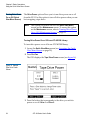
The GUI displays the Tape Drive Power screen (see figure 16).
Figure 16 Sample
Tape Drive Power
Screen
3 Press the button that corresponds to the drive you wish to
power on or off: Drive 1 or Drive 2.
24
ATL M-Series User’s Guide
2
Chapter 2 Basic Operations
Using the Quick View Menu Screen
The GUI displays the currently selected setting in the tape
drive box at the top of the screen.
4 Press Apply to save the change and return to the Quick View
Menu screen.
To return to the Quick View Menu screen without changing the
power state of the drive, press Cancel.
Turning Drive Power On or Off in an ATL M2500 Library
2
To turn drive power on or off in an ATL M2500 library:
1 Access the Quick View Menu screen (see Accessing the Quick
View Menu Screen on page 20).
2 Press Drv Pwr.
The GUI displays the Drive Power screen (see figure 17).
Figure 17 Sample
Drive Power Screen
3 Press the Up or Down buttons to highlight the drive you wish to
power on or off.
ATL M-Series User’s Guide
25
Chapter 2 Basic Operations
Moving Tape Cartridges
4 Press Select.
The drive power setting is highlighted.
5 Press the Up or Down buttons to change the current setting.
6 When the desired setting is displayed, press Select.
To exit this screen without changing the drive power setting,
press Cancel.
7 Press Back to save the change and return to the Quick View
Menu screen.
Moving Tape Cartridges
To move tape cartridges within the library:
1 On the main screen, press Menu.
The GUI displays the Menu screen (see figure 18).
Figure 18 Menu
Screen
2 Press Move.
26
ATL M-Series User’s Guide
2
Chapter 2 Basic Operations
Moving Tape Cartridges
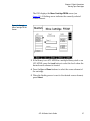
The GUI displays the Move Cartridge FROM screen (see
figure 19). A flashing arrow indicates the currently selected
source element.
Figure 19 Sample
Move Cartridge FROM
Screen
3 If the library is an ATL M1500 in a multiple library stack or an
ATL M2500, press the Level button to select the level where the
desired source element is located.
4 Press the Up and Down buttons to select the source element of
the cartridge.
5 When the flashing arrow is next to the desired source element,
press Select.
ATL M-Series User’s Guide
27
Chapter 2 Basic Operations
Moving Tape Cartridges
The GUI displays the Move Cartridge TO screen (see figure 20).
A flashing arrow indicates the currently selected destination
element.
Figure 20 Sample
Move Cartridge TO
Screen
6 If the library is an ATL M1500 in a multiple library stack or an
ATL M2500, press the Level button to select the level where the
desired destination element is located.
7 Press the Up and Down buttons to select the destination
element.
8 When the flashing arrow is next to the desired destination
element, press Select.
28
ATL M-Series User’s Guide
Chapter 2 Basic Operations
Moving Tape Cartridges
The GUI displays the Confirm Move Cartridge screen (see
figure 21).
Figure 21 Sample
Confirm Move
Cartridge Screen
9 Verify that the GUI displays the correct source and destination
elements, then press Confirm.
To cancel the cartridge move, press Cancel.
The GUI displays the message Moving cartridge... Please wait.
After the cartridge move is complete, the GUI displays the
Move Cartridge FROM screen again.
10 Press Back to return to the Menu screen.
11 Press Main to return to the main screen.
ATL M-Series User’s Guide
29
Chapter 2 Basic Operations
Using the Mailbox
Using the Mailbox
2
Using the Mailbox screen, you can:
•
View mailbox status
•
Import and export cartridges
•
Change the size of the mailbox by changing the setting of the
Import/Export option
To access the Mailbox screen, press Mailbox on the main screen. The
GUI displays the Mailbox screen (see figure 22).
Figure 22 Sample
Mailbox Screen
30
ATL M-Series User’s Guide
Chapter 2 Basic Operations
Using the Mailbox
Viewing Mailbox
Status
2
The Mailbox screen displays the following information:
•
The current setting of the Import/Export option (see Changing
the Import/Export Setting on page 69 for more information
about the available settings)
•
Whether the mailbox is open or closed
•
Whether the mailbox is occupied
•
The bar code number of the cartridge, if the mailbox is
occupied
Note:
If the Import/Export option is set to None, the Mailbox
screen does not display any “Status” or “Tape”
information.
If the Import/Export option is set to 10-Slot (or
12-Slot for LTO), the Mailbox screen does not
display any “Status: Occupied” or “Tape”
information.
Importing and
Exporting
Cartridges
The procedure for importing and exporting cartridges varies
depending on the setting of the Import/Export option (see
2 Changing the Import/Export Setting on page 69).
•
To import and export cartridges when the Import/Export option
is set to manual access port (MAP), see Importing a Cartridge in
MAP Mode and Exporting a Cartridge in MAP Mode.
•
To import and export cartridges when the Import/Export option
is set to 10-Slot (or 12-Slot in LTO libraries), see Importing
Cartridges in 10-Slot or 12-Slot Mode and Exporting Cartridges
in 10-Slot or 12-Slot Mode.
•
To import and export cartridges when the Import/Export option
is set to 1-Slot, see Importing a Cartridge in 1-Slot Mode and
Exporting a Cartridge in 1-Slot Mode.
ATL M-Series User’s Guide
31
Chapter 2 Basic Operations
Using the Mailbox
Importing a Cartridge in MAP Mode
2
To import a cartridge in MAP mode:
1 On the main screen, press Mailbox.
The GUI displays the Mailbox screen (see figure 22).
2 Press Open.
The GUI displays the Mailbox - OPEN screen (see figure 23).
Figure 23 Mailbox OPEN Screen
3 Press the button next to the top left magazine access door and
open the door.
4 Pull the magazine forward until it stops.
5 Remove the data cartridge (if any) from the mailbox.
6 Insert the cartridge you wish to import into the mailbox.
7 Reinsert the magazine into the library.
8 Close the magazine access door.
9 On the Mailbox - OPEN screen, press Re-Lock.
The library locks the magazine access door and inventories the
mailbox.
32
ATL M-Series User’s Guide
Chapter 2 Basic Operations
Using the Mailbox
10 Use the Move command on the Mailbox screen to move the
imported cartridge to another data element.
11 If you removed a data cartridge from the mailbox, replace it:
a
Repeat steps 1 through 4 to open the mailbox again.
b
Reinsert the data cartridge you removed in step 5 into the
mailbox.
c
Reinsert the magazine into the library.
d
Close the magazine access door.
e
On the Mailbox screen, press Re-Lock.
The magazine access door locks.
2
Exporting a Cartridge in MAP Mode
To export a cartridge in MAP mode:
1 If there is currently a data cartridge in the mailbox, remove it:
a
On the main screen, press Mailbox.
The GUI displays the Mailbox screen (see figure 22).
b
Press Open.
The GUI displays the Mailbox - OPEN screen (see figure 23).
c
Press the button next to the top left magazine access door
and open the door.
d
Pull the magazine forward until it stops.
e
Remove the data cartridge from the mailbox.
f
Reinsert the magazine into the library.
g
Close the magazine access door.
h
On the Mailbox - OPEN screen, press Re-Lock.
The library locks the magazine access door and inventories the
mailbox.
ATL M-Series User’s Guide
33
Chapter 2 Basic Operations
Using the Mailbox
2 Use the Move command on the Mailbox screen to move the
cartridge you wish to export to the mailbox.
3 Repeat steps 1a through 1d to open the mailbox again.
4 Remove the exported cartridge from the mailbox.
5 Reinsert the data cartridge you removed in step 1e (if any) into
the mailbox.
6 Reinsert the magazine into the library.
7 Close the magazine access door.
8 On the Mailbox - OPEN screen, press Re-Lock.
The library locks the magazine access door and inventories the
mailbox.
Importing Cartridges in 10-Slot or 12-Slot Mode
To import cartridges in 10-slot or 12-slot mode:
1 On the main screen, press Mailbox.
The GUI displays the Mailbox screen (see figure 22).
2 Press Open.
The GUI displays the Mailbox - OPEN screen (see figure 23).
3 Press the button next to the top left magazine access door and
open the door.
4 Pull the magazine out of the library.
5 Insert the cartridges you wish to import into the magazine.
6 Reinsert the magazine into the library.
7 Close the magazine access door.
8 On the Mailbox - OPEN screen, press Re-Lock.
The library locks the magazine access door and the cartridges
are moved under control of the host software to the desired
locations.
34
ATL M-Series User’s Guide
2
Chapter 2 Basic Operations
Using the Mailbox
2
Exporting Cartridges in 10-Slot or 12-Slot Mode
To export cartridges in 10-slot or 12-slot mode:
1 Use the backup software to export cartridges to the top left
magazine.
2 On the main screen, press Mailbox.
The GUI displays the Mailbox screen (see figure 22).
3 Press Open.
The GUI displays the Mailbox - OPEN screen (see figure 23).
4 Press the button next to the top left magazine access door and
open the door.
5 Pull the magazine out of the library.
6 Remove the cartridges from the magazine.
7 Reinsert the magazine into the library.
8 Close the magazine access door.
9 On the Mailbox - OPEN screen, press Re-Lock.
The library locks the magazine access door.
2
Importing a Cartridge in 1-Slot Mode
To import a cartridge in 1-slot mode:
1 On the main screen, press Mailbox.
The GUI displays the Mailbox screen (see figure 22).
2 Press Open.
The GUI displays the Mailbox - OPEN screen (see figure 23).
3 Press the button next to the top left magazine access door and
open the door.
4 Pull the magazine forward until it stops.
5 Insert the cartridge you wish to import into the mailbox.
ATL M-Series User’s Guide
35
Chapter 2 Basic Operations
Using the Mailbox
6 Reinsert the magazine into the library.
7 Close the magazine access door.
8 On the Mailbox - OPEN screen, press Re-Lock.
The library locks the magazine access door and the cartridge is
moved under control of the host software to the desired
location.
Exporting a Cartridge in 1-Slot Mode
2
To export a cartridge in 1-slot mode:
1 Use the backup software to export a cartridge to the first slot of
the top left magazine.
2 On the main screen, press Mailbox.
The GUI displays the Mailbox screen (see figure 22).
3 Press Open.
The GUI displays the Mailbox - OPEN screen (see figure 23).
4 Press the button next to the top left magazine access door and
open the door.
5 Pull the magazine forward until it stops.
6 Remove the exported cartridge from the magazine.
7 Reinsert the magazine into the library.
8 Close the magazine access door.
9 On the Mailbox - OPEN screen, press Re-Lock.
The library locks the magazine access door.
36
ATL M-Series User’s Guide
Chapter 2 Basic Operations
Using the Mailbox
Configuring the
Mailbox
By default, the Import/Export option is set to MAP. To change this
2 setting:
1 On the main screen, press Mailbox.
The GUI displays the Mailbox screen (see figure 22).
2 On the Mailbox screen, press Config.
The GUI displays the Configuration screen, with the Import/
Export option highlighted.
3 Use the Up and Down buttons to select the desired Import/
Export setting. The available settings are None, 1-Slot,
10-Slot (or 12-Slot in LTO libraries), and MAP.
Note:
The default setting is MAP. For more information
about these settings, see Changing the Import/
Export Setting on page 69.
4 Press Select.
5 Press Main to return to the main screen.
Caution:
Note:
If you do not return to the main screen after
changing this setting, your change will not be
saved to NVRAM.
You must reboot the library before this setting will
take effect.
ATL M-Series User’s Guide
37
Chapter 2 Basic Operations
Removing the Magazines
Removing the Magazines
2
To remove a magazine from an ATL M1500 library, see Removing a
Magazine from an ATL M1500.
To remove a magazine from an ATL M2500 library, see Removing a
Magazine from an ATL M2500.
Removing a
Magazine from an
ATL M1500
2
The method for removing the magazines differs depending on
whether the ATL M1500 library is powered up or down:
•
To remove a magazine from the ATL M1500 library when it is
powered up, see Removing a Magazine When the ATL M1500
Library Is Powered Up.
•
To remove a magazine from the ATL M1500 library when it is
powered down, see Removing a Magazine When the
ATL M1500 Library Is Powered Down.
Removing a Magazine When the ATL M1500 Library Is Powered Up 2
The magazines are locked in place during normal library
operation. To remove one of these magazines, you must first
release the magazine using the GUI.
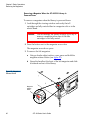
To remove the left or right magazine when the ATL M1500 library
is powered up:
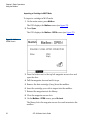
1 On the main screen, press Mags.
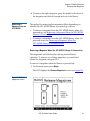
The GUI displays the Release Magazines screen (see figure 24).
38
ATL M-Series User’s Guide
Chapter 2 Basic Operations
Removing the Magazines
Figure 24 Sample
Release Magazines
Screen
2 Press the button corresponding to the magazine you want to
release:
•
To release both magazines, press Both.
•
To release the left magazine, press Left.
•
To release the right magazine, press Right.
The GUI indicates that the magazine or magazines have been
released.
3 Press the button next to the desired magazine access door and
open the door.
4 Grasp the handle at the front of the magazine and pull it
forward and out of the library.
5 When you are finished adding or removing cartridges from the
magazine, replace it in the library and close the magazine door.
6 On the Release Magazines screen, press Re-Lock.
The library locks the magazine access doors and inventories
the magazines. When the inventory is complete, the GUI
displays the main screen.
ATL M-Series User’s Guide
39
Chapter 2 Basic Operations
Removing the Magazines
Removing a Magazine When the ATL M1500 Library Is
Powered Down
2
To remove a magazine when the library is powered down:
1 Look through the viewing window and verify that all
cartridges are fully seated either in a magazine slot or in the
robotic hand.
Caution:
You can damage the library severely if you try to
remove a magazine when one of the data
cartridges is not fully seated.
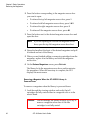
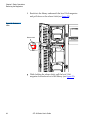
2 Press the button next to the magazine access door.
The magazine access door opens.
3 To remove the left magazine:
a
Using a slender object such as a pen, press and hold the
magazine release button (see figure 25).
b
Grasp the handle at the front of the left magazine and slide
it forward and out of the library.
Figure 25 Magazine
Release Button
Magazine
release
button
40
ATL M-Series User’s Guide
Chapter 2 Basic Operations
Removing the Magazines
4 To remove the right magazine, grasp the handle at the front of
the magazine and slide it forward and out of the library.
Removing a
Magazine from an
ATL M2500
2
The method for removing the magazines differs depending on
whether the ATL M2500 library is powered up or down:
•
To remove a magazine from the ATL M2500 library when it is
powered up, see Removing a Magazine When the ATL M2500
Library Is Powered Up.
•
To remove a magazine from the ATL M2500 library when it is
powered down, see Removing a Magazine When the
ATL M2500 Library Is Powered Down.
Removing a Magazine When the ATL M2500 Library Is Powered Up 2
The magazines are locked in place during normal library
operation. To remove one of these magazines, you must first
release the magazine using the GUI.
To remove a magazine when the library is powered up:
1 On the main screen, press Mags.
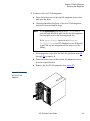
The GUI displays the Release Magazines screen (see figure 26).
Figure 26 Release
Magazines Screen
ATL M-Series User’s Guide
41
Chapter 2 Basic Operations
Removing the Magazines
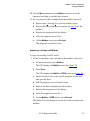
2 Press the button corresponding to the magazine access door
you want to open:
•
To release the top left magazine access door, press 1.
•
To release both left magazine access doors, press 1 & 2.
•
To release the right magazine access door, press 3.
•
To release all the magazine access doors, press All.
3 Press the button next to the desired magazine access door and
open the door.
Note:
If you are opening the bottom left magazine access
door, open the top left magazine access door first.
4 Grasp the handle at the front of the desired magazine and pull
it forward and out of the library.
5 When you are finished adding or removing cartridges from the
magazine, replace it in the library and close the magazine
access door.
6 On the Release Magazines screen, press Re-Lock.
The library locks the magazine access doors and inventories
the magazines. When the inventory is complete, the GUI
displays the main screen.
Removing a Magazine When the ATL M2500 Library Is
Powered Down
To remove a magazine when the library is powered down:
1 Look through the viewing window and verify that all
cartridges are fully seated either in a magazine slot or in the
robotic hand.
Caution:
42
You can damage the library severely if you try to
remove a magazine when one of the data
cartridges is not fully seated.
ATL M-Series User’s Guide
2
Chapter 2 Basic Operations
Removing the Magazines
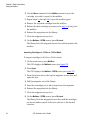
2 To remove the level 1 left magazine:
a
Press the button next to the top left magazine access door
and open the door.
b
Grasp the handle at the front of the level 1 left magazine
and pull it forward until it stops.
Note:
If the Import/Export option is set to 1-Slot or MAP,
you will only be able to pull out the top left magazine
far enough to access the first magazine slot.
If the Import/Export option is set to None or
10-Slot (12-Slot for LTO libraries) you will be able
to pull the top left magazine all the way out of the
library.
c
If the magazine stops after the first slot, perform steps 2d
through 2h to remove it.
d
Press the button next to the bottom left magazine access
door and open the door.
e
Remove the level 2 left magazine (see figure 27).
Figure 27 Removing
the Level 2 Left
Magazine
ATL M-Series User’s Guide
43
Chapter 2 Basic Operations
Removing the Magazines
f
Reach into the library underneath the level 1 left magazine
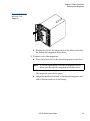
and pull down on the release latch (see figure 28).
Figure 28 Release
Latch
Release latch
g
44
While holding the release latch, pull the level 1 left
magazine forward and out of the library (see figure 29).
ATL M-Series User’s Guide
Chapter 2 Basic Operations
Removing the Magazines
Figure 29 Removing
the Level 1 Left
Magazine
h
Reinsert the level 2 left magazine into the library and close
the bottom left magazine access door.
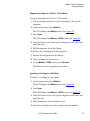
3 To remove any other magazine:
Press the button next to the desired magazine access door.
a
Note:
If you are opening the bottom left magazine access
door, open the top left magazine access door first.
The magazine access door opens.
b
Grasp the handle at the front of the desired magazine and
slide it forward and out of the library.
ATL M-Series User’s Guide
45
Chapter 2 Basic Operations
Viewing Statistics
Viewing Statistics
2
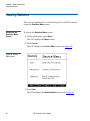
This section explains how to view library, drive, and SCSI statistics
using the Statistics Menu screen.
Accessing the
Statistics Menu
Screen
To access the Statistics Menu screen:
2
1 On the main screen, press Menu.
The GUI displays the Menu screen.
2 Press Service.
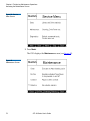
The GUI displays the Service Menu screen (see figure 30).
Figure 30 Service
Menu Screen
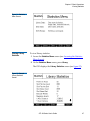
3 Press Stats.
The GUI displays the Statistics Menu screen (see figure 31).
46
ATL M-Series User’s Guide
Chapter 2 Basic Operations
Viewing Statistics
Figure 31 Statistics
Menu Screen
Viewing Library
Statistics
2
To view library statistics:
1 Access the Statistics Menu screen (see Accessing the Statistics
Menu Screen).
2 On the Statistics Menu screen, press Library.
The GUI displays the Library Statistics screen (see figure 32).
Figure 32 Sample
Library Statistics
Screen
ATL M-Series User’s Guide
47
Chapter 2 Basic Operations
Viewing Statistics
This screen lists the following library statistics:
•
Power On Hours
•
Slot Fetches Good
•
Slot Fetches Bad
•
Slot Stows Good
•
Slot Stows Bad
•
Barcode Retries
•
Magazine Inserts
•
X Axis Distance
•
Y Axis Distance
•
Z Axis Distance
•
Theta Distance
•
Picker Distance
•
Elevator Distance
3 Press the Up and Down buttons to scroll through the list.
4 When you have finished viewing the library statistics, press
Back to return to the Statistics Menu screen, or press Main to
return to the main screen.
Viewing Drive
Statistics
2
To view drive statistics:
1 Access the Statistics Menu screen (see Accessing the Statistics
Menu Screen).
2 On the Statistics Menu screen, press Drive.
The GUI displays the Drive Statistics screen (see figure 33).
48
ATL M-Series User’s Guide
Chapter 2 Basic Operations
Viewing Statistics
Figure 33 Sample
Drive Statistics Screen
This screen lists the following drive statistics:
•
Drive Fetches Good
•
Drive Fetches Bad
•
Drive Stows Good
•
Drive Stows Bad
3 When you have finished viewing the drive statistics, press
Back to return to the Statistics Menu screen, or press Main to
return to the main screen.
Viewing the SCSI
History
2
To view a list of the SCSI commands run on the library:
1 Access the Statistics Menu screen (see Accessing the Statistics
Menu Screen).
2 On the Statistics Menu screen, press SCSI.
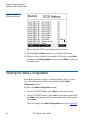
The GUI displays the SCSI History screen (see figure 34).
ATL M-Series User’s Guide
49
Chapter 2 Basic Operations
Viewing the Stack Configuration
Figure 34 Sample
SCSI History Screen
This screen lists SCSI commands by date and time.
3 Press the Up and Down buttons to scroll through the list.
4 When you have finished viewing the SCSI history, press Back
to return to the Statistics Menu screen, or press Main to return to
the main screen.
Viewing the Stack Configuration
2
If the library module is part of a multiple library stack, you can
view the configuration of the entire stack using the Stack
Configuration screen.
To access the Stack Configuration screen:
•
On an ATL M1500 library, press Stack on the main screen.
•
On an ATL M2500 library, press Level on the main screen until
the Stack button appears at the lower right corner of the screen.
Press Stack.
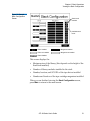
The GUI displays the Stack Configuration screen (see figure 35).
50
ATL M-Series User’s Guide
Chapter 2 Basic Operations
Viewing the Stack Configuration
Figure 35 Sample
Stack Configuration
Screen
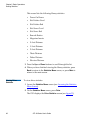
Stack levels
installed
Available stack
levels
= Drive installed
= Magazine installed
= Drive not installed
= Magazine not installed
= Drive disabled
This screen displays the:
•
Maximum size of the library (this depends on the height of the
StackLink installed)
•
Number of library modules installed in the stack
•
Number, location, and SCSI IDs of the tape drives installed
•
Number and location of the tape cartridge magazines installed
When you are finished viewing the Stack Configuration screen,
press Main to return to the main screen.
ATL M-Series User’s Guide
51
Chapter 2 Basic Operations
Viewing the Stack Configuration
52
ATL M-Series User’s Guide
Chapter 3
3
Changing the Library
Configuration
This chapter explains how to change the library configuration
using the GUI Configuration screen.
Accessing the Configuration Screen
3
To access the Configuration screen:
1 On the main screen, press Menu.
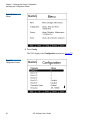
The GUI displays the Menu screen (see figure 36).
ATL M-Series User’s Guide
53
Chapter 3 Changing the Library Configuration
Accessing the Configuration Screen
Figure 36 Menu
Screen
2 Press Config.
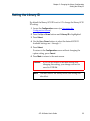
The GUI displays the Configuration screen (see figure 37).
Figure 37
Configuration Screen
54
ATL M-Series User’s Guide
Chapter 3 Changing the Library Configuration
Setting the Library ID
Setting the Library ID
3
By default the library SCSI ID is set to 0. To change the library SCSI
ID setting:
1 Access the Configuration screen (see Accessing the
Configuration Screen).
2 Press the Up or Down buttons until Library ID is highlighted.
3 Press Select.
4 Use the Up or Down buttons to select the desired SCSI ID.
Available settings are 0 through 15.
5 Press Select.
To return to the Configuration screen without changing the
option setting, press Cancel.
6 Press Main to return to the main screen.
Caution:
Note:
If you do not return to the main screen after
changing this setting, your change will not be
saved to NVRAM.
You must reboot the library before this setting will
take effect.
ATL M-Series User’s Guide
55
Chapter 3 Changing the Library Configuration
Changing a Tape Drive ID
Changing a Tape Drive ID
3
By default, the ATL M1500 tape drive SCSI IDs are set as follows:
•
Drive 1 ID = 1
•
Drive 2 ID = 2
The ATL M2500 tape drive SCSI IDs are set as follows:
•
Drive 1 ID = 1
•
Drive 2 ID = 2
•
Drive 3 ID = 3
•
Drive 4 ID = 4
•
Drive 5 ID = 15
•
Drive 6 ID = 14
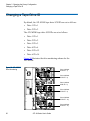
Figure 38 illustrates the drive numbering scheme for the
ATL M2500.
Figure 38 ATL M2500
Drive Numbering
Drive 1 (default
SCSI ID = 1)
Drive 2 (default
SCSI ID = 2)
Drive 3 (default
SCSI ID = 3)
Drive 4 (default
SCSI ID = 4)
Drive 5 (default
SCSI ID = 15)
Drive 6 (default
SCSI ID = 14)
56
ATL M-Series User’s Guide
Chapter 3 Changing the Library Configuration
Changing a Tape Drive ID
To change a tape drive SCSI ID:
1 Access the Configuration screen (see Accessing the
Configuration Screen).
2 Press the Up or Down buttons until the desired drive ID (for
example, Drive 1 ID) is highlighted.
3 Press Select.
4 Use the Up or Down buttons to select the desired SCSI ID.
Available settings are 0 through 15 and Disabled.
Caution:
Set the drive SCSI ID to Disabled only if the
drive is not installed in the library.
5 Press Select.
To return to the Configuration screen without changing the
option setting, press Cancel.
6 If desired, repeat steps 2 through 5 to set the SCSI ID for
another tape drive.
7 Press Main to return to the main screen.
Caution:
Note:
If you do not return to the main screen after
changing this setting, your change will not be
saved to NVRAM.
You must reboot the library before this setting will
take effect.
ATL M-Series User’s Guide
57
Chapter 3 Changing the Library Configuration
Changing the Terminator Power Setting
Changing the Terminator Power Setting
3
The Terminator Power option controls whether the library robotics
provide terminator power.
To enable or disable robotics terminator power:
1 Access the Configuration screen (see Accessing the
Configuration Screen).
2 Press the Up or Down buttons until Terminator Power is
highlighted.
3 Press Select.
4 Use the Up or Down buttons to select the desired Terminator
Power setting. Available settings are Enabled and Disabled.
Note:
The default setting is Enabled.
5 Press Select.
To return to the Configuration screen without changing the
option setting, press Cancel.
6 Press Main to return to the main screen.
Caution:
Note:
58
If you do not return to the main screen after
changing this setting, your change will not be
saved to NVRAM.
You must reboot the library before this setting will
take effect.
ATL M-Series User’s Guide
Chapter 3 Changing the Library Configuration
Changing the Emulation Setting
Changing the Emulation Setting
3
The Emulation option allows you to set the library to act as either a
Quantum ATL library or an M4 Data library.
To set the emulation:
1 Access the Configuration screen (see Accessing the
Configuration Screen on page 53).
2 Press the Up or Down buttons until Emulation is highlighted.
3 Press Select.
4 Use the Up or Down buttons to select the desired Emulation
setting. The available settings are ATL M2500, ATL 1500, and
M4 Data.
Note:
The default setting for the ATL M1500 is M4 Data; the
default setting for the ATL M2500 is ATL M2500.
5 Press Select.
To return to the Configuration screen without changing the
option setting, press Cancel.
6 Press Main to return to the main screen.
Caution:
Note:
If you do not return to the main screen after
changing this setting, your change will not be
saved to NVRAM.
You must reboot the library before this setting will
take effect.
ATL M-Series User’s Guide
59
Chapter 3 Changing the Library Configuration
Changing the Sync Negotiation Setting
Changing the Sync Negotiation Setting
The Sync Negotiation option controls whether the library robotics
negotiates synchronous data transfer mode. Normally, this
negotiation is performed by the host.
Note:
This option does not enable or disable synchronous data
transfers; it only controls the ability of the library to
negotiate for such transfers.
To enable or disable Sync Negotiation:
1 Access the Configuration screen (see Accessing the
Configuration Screen on page 53).
2 Press the Up or Down buttons until Sync Negotiation is
highlighted.
3 Press Select.
4 Use the Up or Down buttons to select the desired Sync
Negotiation setting. The available settings are Enabled and
Disabled.
Note:
The default setting is Enabled.
5 Press Select.
To return to the Configuration screen without changing the
option setting, press Cancel.
6 Press Main to return to the main screen.
Caution:
60
If you do not return to the main screen after
changing this setting, your change will not be
saved to NVRAM.
ATL M-Series User’s Guide
3
Chapter 3 Changing the Library Configuration
Changing the Wide Negotiation Setting
Changing the Wide Negotiation Setting
3
The Wide Negotiation option controls whether the library robotics
negotiates wide data transfer mode. Normally, this negotiation is
performed by the host.
Note:
This option does not enable or disable wide data
transfers; it only controls the ability of the library to
negotiate for such transfers.
To enable or disable Wide Negotiation:
1 Access the Configuration screen (see Accessing the
Configuration Screen on page 53).
2 Press the Up or Down buttons until Wide Negotiation is
highlighted.
3 Press Select.
4 Use the Up or Down buttons to select the desired Wide
Negotiation setting. The available settings are Enabled and
Disabled.
Note:
The default setting is Enabled.
5 Press Select.
To return to the Configuration screen without changing the
option setting, press Cancel.
6 Press Main to return to the main screen.
Caution:
If you do not return to the main screen after
changing this setting, your change will not be
saved to NVRAM.
ATL M-Series User’s Guide
61
Chapter 3 Changing the Library Configuration
Changing the Serialization Setting
Changing the Serialization Setting
3
The Serialization option controls how the library returns the tape
drive serial number when a Read Element Status is requested.
When Serialization is set to On, the tape drive serial number is
returned in a format compatible with Quantum ATL Prism
products. When Serialization is set to Off, the tape drive serial
number is returned in a vendor unique format. This setting is only
valid when Emulation is set to ATL M2500 or ATL 1500 (see
Changing the Emulation Setting on page 59).
To enable or disable drive serialization:
1 Access the Configuration screen (see Accessing the
Configuration Screen on page 53).
2 Press the Up or Down buttons until Serialization is highlighted.
3 Press Select.
4 Use the Up or Down buttons to select the desired Serialization
setting. The available settings are Enabled and Disabled.
Note:
The default setting is Disabled.
5 Press Select.
To return to the Configuration screen without changing the
option setting, press Cancel.
6 Press Main to return to the main screen.
Caution:
62
If you do not return to the main screen after
changing this setting, your change will not be
saved to NVRAM.
ATL M-Series User’s Guide
Chapter 3 Changing the Library Configuration
Changing the Short Labels Setting
Changing the Short Labels Setting
3
The Short Labels option controls how many bar code label
characters are returned when the host issues a Read Element
Status command. When Short Labels is set to:
•
Off, all of the bar code label characters are returned
•
On, only the first six characters of the bar code label are
returned
To enable or disable Short Labels:
1 Access the Configuration screen (see Accessing the
Configuration Screen on page 53).
2 Press the Up or Down buttons until Short Labels is highlighted.
3 Press Select.
4 Use the Up or Down buttons to select the desired Short Labels
setting. The available settings are Enabled and Disabled.
Note:
The default setting is Disabled.
5 Press Select.
6 To return to the Configuration screen without changing the
option setting, press Cancel.
7 Press Main to return to the main screen.
Caution:
If you do not return to the main screen after
changing this setting, your change will not be
saved to NVRAM.
ATL M-Series User’s Guide
63
Chapter 3 Changing the Library Configuration
Changing the Illumination Setting
Changing the Illumination Setting
3
The Illumination option allows you to turn the interior illumination
of the library on or off. This illumination allows you to view the
robotics easily through the viewing window.
To enable or disable Illumination:
1 Access the Configuration screen (see Accessing the
Configuration Screen on page 53).
2 Press the Up or Down buttons until Illumination is highlighted.
3 Press Select.
4 Use the Up or Down buttons to select the desired Illumination
setting. The available settings are Enabled and Disabled.
Note:
The default setting is Enabled.
5 Press Select.
To return to the Configuration screen without changing the
option setting, press Cancel.
6 Press Main to return to the main screen.
Caution:
64
If you do not return to the main screen after
changing this setting, your change will not be
saved to NVRAM.
ATL M-Series User’s Guide
Chapter 3 Changing the Library Configuration
Changing the Off-Line Time Setting
Changing the Off-Line Time Setting
3
When you access the Menu screen using the GUI, the library
becomes NOT READY and will not respond to any SCSI
commands issued. If you leave the library unattended in menu
mode, the library goes back to a READY state after a pre-set
time-out, controlled by the Off-Line Time option. You can set this
time-out to any value from 1 to 99 minutes, or turn it off.
To set the Off-Line Time:
1 Access the Configuration screen (see Accessing the
Configuration Screen on page 53).
2 Press the Up or Down buttons until Off-Line Time is highlighted.
3 Press Select.
4 Use the Up or Down buttons to select the desired Off-Line Time
setting. The available settings are 1 through 99 and Disabled.
Note:
The default setting is Disabled.
5 Press Select.
To return to the Configuration screen without changing the
option setting, press Cancel.
6 Press Main to return to the main screen.
Caution:
If you do not return to the main screen after
changing this setting, your change will not be
saved to NVRAM.
ATL M-Series User’s Guide
65
Chapter 3 Changing the Library Configuration
Changing the Barcode Scanner Setting
Changing the Barcode Scanner Setting
3
The Barcode Scanner option controls whether the bar code scanner
is enabled or disabled. When the scanner is enabled, the library
attempts to detect a bar code on all tape cartridge labels. If the
correct bar code labels are not used, or if some cartridges are not
labeled, scanning time may be greatly increased. Therefore, it is
recommended that you disable the Barcode Scanner option if you
do not intend to use compatible bar code labels.
To enable or disable the Barcode Scanner option:
1 Access the Configuration screen (see Accessing the
Configuration Screen on page 53).
2 Press the Up or Down buttons until Barcode Scanner is
highlighted.
3 Press Select.
4 Use the Up or Down buttons to select the desired Barcode
Scanner setting. The available settings are Enabled and
Disabled.
Note:
The default setting is Enabled.
5 Press Select.
To return to the Configuration screen without changing the
option setting, press Cancel.
6 Press Main to return to the main screen.
Caution:
Note:
66
If you do not return to the main screen after
changing this setting, your change will not be
saved to NVRAM.
You must reboot the library before this setting will
take effect.
ATL M-Series User’s Guide
Chapter 3 Changing the Library Configuration
Changing the Baud Rate Setting
Changing the Baud Rate Setting
3
The Baud Rate option controls the baud rate setting of the serial
diagnostics port. You can set the baud rate to any standard rate
between 1200 baud and 38400 baud.
To set the Baud Rate:
1 Access the Configuration screen (see Accessing the
Configuration Screen on page 53).
2 Press the Up or Down buttons until Baud Rate is highlighted.
3 Press Select.
4 Use the Up or Down buttons to select the desired Baud Rate
setting. The available settings are 38400, 19200, 9600, 4800,
2400, and 1200.
5 Press Select.
To return to the Configuration screen without changing the
option setting, press Cancel.
6 Press Main to return to the main screen.
Caution:
If you do not return to the main screen after
changing this setting, your change will not be
saved to NVRAM.
Setting the Time
3
To set the time:
1 Access the Configuration screen (see Accessing the
Configuration Screen on page 53).
2 Press the Up or Down buttons until Time is highlighted.
3 Press Select.
ATL M-Series User’s Guide
67
Chapter 3 Changing the Library Configuration
Setting the Date
The hour setting is highlighted.
4 Use the Up or Down buttons to select the correct hour setting.
5 Press Select.
The minute setting is highlighted.
6 Use the Up or Down buttons to select the correct minute setting.
7 Press Select.
The seconds setting is highlighted.
8 Use the Up or Down buttons to select the correct seconds
setting.
9 Press Select.
10 Press Main to return to the main screen.
Caution:
If you do not return to the main screen after
changing this setting, your change will not be
saved to NVRAM.
Setting the Date
3
To set the date:
1 Access the Configuration screen (see Accessing the
Configuration Screen on page 53).
2 Press the Up or Down buttons until Date is highlighted.
3 Press Select.
The day setting is highlighted.
4 Use the Up or Down buttons to select the correct day of the
month.
5 Press Select.
The month setting is highlighted.
68
ATL M-Series User’s Guide
Chapter 3 Changing the Library Configuration
Changing the Import/Export Setting
6 Use the Up or Down buttons to select the correct month.
7 Press Select.
The year setting is highlighted.
8 Use the Up or Down buttons to select the correct year.
9 Press Select.
10 Press Main to return to the main screen.
Caution:
If you do not return to the main screen after
changing this setting, your change will not be
saved to NVRAM.
Changing the Import/Export Setting
3
The Import/Export option controls whether the host recognizes the
slots of the top left magazine as import/export elements or as
storage elements:
•
Import/export elements are used to move cartridges in and out
of the library under host control. Because these elements are
used exclusively for importing and exporting cartridges, they
are left empty during normal library operation, reducing the
storage capacity of the library.
•
Storage elements are used to store data cartridges. Using
storage elements to import and export cartridges can be risky
since these operations are not controlled by the host.
Table 5 describes each of the possible settings for the Import/Export
option.
ATL M-Series User’s Guide
69
Chapter 3 Changing the Library Configuration
Changing the Import/Export Setting
Table 5 Import/Export
Settings
Import/Export
Setting
Description
When manual access port (MAP) is selected, you can
use the first slot in the top left magazine to import
and export cartridges from the library. The host
views the MAP as a storage element; therefore, after
using the MAP to import a cartridge, you must
replace the data cartridge that was originally stored
there.
MAP
For information about importing and exporting
cartridges when MAP is selected, see Importing a
Cartridge in MAP Mode on page 32 and Exporting a
Cartridge in MAP Mode on page 33.
10-Slot (or
12-Slot in
LTO libraries)
When this setting is selected, all slots in the top left
magazine are configured as import/export elements.
They cannot be used for storage.
For more information about importing and exporting
cartridges when 10-Slot (or 12-Slot) is selected,
see Importing Cartridges in 10-Slot or 12-Slot Mode
on page 34 and Exporting Cartridges in 10-Slot or
12-Slot Mode on page 35.
1-Slot
When this setting is selected, the first slot in the top
left magazine is configured as an import/export
element. It cannot be used for storage.
For more information about importing and exporting
cartridges when 1-Slot is selected, see Importing a
Cartridge in 1-Slot Mode on page 35 and Exporting a
Cartridge in 1-Slot Mode on page 36.
None
70
When this setting is selected, the top left magazine is
used as a 10- or 12-cartridge storage element and
behaves in exactly the same way as the other
magazines.
ATL M-Series User’s Guide
Chapter 3 Changing the Library Configuration
Changing the Import/Export Setting
To select the Import/Export setting:
Caution:
Changing this setting may cause the host(s) to fail to
recognize the library. If you change this setting, be
aware that you will have to reconfigure your backup
software for the new library configuration.
1 Access the Configuration screen (see Accessing the
Configuration Screen on page 53).
2 Press the Up or Down buttons until Import/Export is
highlighted.
3 Press Select.
4 Use the Up or Down buttons to select the desired Import/Export
setting. The available settings are None, 1-Slot, 10-Slot (or
12-Slot in LTO libraries), and MAP.
Note:
The default setting is MAP.
5 Press Select.
To return to the Configuration screen without changing the
option setting, press Cancel.
6 Press Main to return to the main screen.
Caution:
Note:
If you do not return to the main screen after
changing this setting, your change will not be
saved to NVRAM.
You must reboot the library before this setting will
take effect.
ATL M-Series User’s Guide
71
Chapter 3 Changing the Library Configuration
Changing the Auto-Clean Setting
Changing the Auto-Clean Setting
To enable or disable Auto-Clean:
1 Access the Configuration screen (see Accessing the
Configuration Screen on page 53).
2 Press the Up or Down buttons until Auto-Clean is highlighted.
3 Press Select.
4 Use the Up or Down buttons to select the desired Auto-Clean
setting. The available settings are Enabled or Disabled.
Note:
The default setting is Disabled.
5 Press Select.
To return to the Configuration screen without changing the
option setting, press Cancel.
6 Press Main to return to the main screen.
Caution:
Note:
72
If you do not return to the main screen after
changing this setting, your change will not be
saved to NVRAM.
You must reboot the library before this setting will
take effect.
ATL M-Series User’s Guide
3
Chapter 3 Changing the Library Configuration
Changing the Ignore Host Lock Setting
Changing the Ignore Host Lock Setting
3
The Ignore Host Lock option controls whether the library can
release the mailbox when the host has issued a SCSI command to
lock the media:
•
Enabling this option allows you to release the mailbox even
when the host has issued a SCSI command to lock the media.
•
Disabling this option causes the library to display an error
message when you try to release the mailbox when the host has
locked the media.
To change the Ignore Host Lock setting:
1 Access the Configuration screen (see Accessing the
Configuration Screen on page 53).
2 Press the Up or Down buttons until Ignore Host Lock is
highlighted.
3 Press Select.
4 Use the Up or Down buttons to select the desired Ignore Host
Lock setting. The available settings are Enabled or Disabled.
Note:
The default setting is Disabled.
5 Press Select.
To return to the Configuration screen without changing the
option setting, press Cancel.
6 Press Main to return to the main screen.
Caution:
Note:
If you do not return to the main screen after
changing this setting, your change will not be
saved to NVRAM.
You must reboot the library before this setting will
take effect.
ATL M-Series User’s Guide
73
Chapter 3 Changing the Library Configuration
Changing the Auto-Import Option
Changing the Auto-Import Option
3
The Auto-Import option controls how cartridges are moved from
the import/export slots of the mailbox to the magazine slots:
•
Enabling this option causes the library to move any cartridges
in the import/export slots to the first (lowest element address)
free magazine slots automatically. The move is performed
automatically (without need for host commands) at both
power-up and whenever the import/export magazine is
inserted.
•
Disabling this option removes the above capability; the host
software must issue SCSI commands to move cartridges from
the import/export slots to the required magazine slots.
To change the Auto-Import setting:
1 Access the Configuration screen (see Accessing the
Configuration Screen on page 53).
2 Press the Up or Down buttons until Auto-Import is highlighted.
3 Press Select.
4 Use the Up or Down buttons to select the desired Auto-Import
setting. The available settings are Enabled or Disabled.
Note:
74
The default setting is Disabled.
ATL M-Series User’s Guide
Chapter 3 Changing the Library Configuration
Changing the Auto-Import Option
5 Press Select.
To return to the Configuration screen without changing the
option setting, press Cancel.
6 Press Main to return to the main screen.
Caution:
Note:
If you do not return to the main screen after
changing this setting, your change will not be
saved to NVRAM.
You must reboot the library before this setting will
take effect.
ATL M-Series User’s Guide
75
Chapter 3 Changing the Library Configuration
Changing the Auto-Import Option
76
ATL M-Series User’s Guide
Chapter 4
4
Performing Maintenance
Operations
This chapter explains how to perform library maintenance
operations using the Maintenance screen.
Accessing the Maintenance Screen
4
To access the Maintenance screen:
1 On the main screen, press Menu.
The GUI displays the Menu screen.
2 Press Service.
The GUI displays the Service Menu screen (see figure 39).
ATL M-Series User’s Guide
77
Chapter 4 Performing Maintenance Operations
Accessing the Maintenance Screen
Figure 39 Service
Menu Screen
3 Press Maint.
The GUI displays the Maintenance screen (see figure 40).
Figure 40
Maintenance Screen
78
ATL M-Series User’s Guide
Chapter 4 Performing Maintenance Operations
Cleaning a Tape Drive
Cleaning a Tape Drive
4
To clean a tape drive:
1 Access the Maintenance screen (see Accessing the Maintenance
Screen).
2 Press Clean.
The GUI displays the Select Cleaning Cartridge screen (see
figure 41). A flashing arrow indicates the currently selected
source element.
Figure 41 Sample
Select Cleaning
Cartridge Screen
3 If the library is an ATL M1500 in a multiple library stack or an
ATL M2500, press the Level button to select the level where the
cleaning cartridge is located.
4 Press the Up and Down buttons to select the source element that
contains the cleaning cartridge.
5 When the flashing arrow is next to the source element that
contains the cleaning cartridge, press Select.
The GUI displays the Select Tape Drive screen (see figure 42). A
flashing arrow indicates the currently selected drive.
ATL M-Series User’s Guide
79
Chapter 4 Performing Maintenance Operations
Cleaning a Tape Drive
Figure 42 Sample
Select Tape Drive
Screen
6 If the library is an ATL M1500 in a multiple library stack or an
ATL M2500, press the Level button to select the level where the
drive that requires cleaning is located.
7 Press Drive 1 or Drive 2.
To cancel the operation, press Cancel.
8 Press Select.
The GUI displays the message Cleaning in progress. When the
cleaning is done, the GUI displays the Select Cleaning
Cartridge screen again.
9 Press Back to return to the Maintenance screen.
80
ATL M-Series User’s Guide
Chapter 4 Performing Maintenance Operations
Turning Drive Power On or Off (Maintenance Screen)
Turning Drive Power On or Off (Maintenance Screen) 4
The Drive Power option allows you to turn drive power on or off
from the GUI. Use this option to turn off drive power when you are
hot-swapping a tape drive.
Note:
This option is available on both the Maintenance screen
and the Quick View Menu screen. To access this option on
the Quick View Menu screen, refer to Turning Drive
Power On or Off (Quick View Menu Screen) on page 24.
Turning Drive Power On or Off in an ATL M1500 Library
4
To turn drive power on or off in an ATL M1500 library:
1 Access the Maintenance screen (see Accessing the Maintenance
Screen on page 77).
2 Press Drv Pwr.
The GUI displays the Tape Drive Power screen (see figure 43).
Figure 43 Sample
Tape Drive Power
Screen
ATL M-Series User’s Guide
81
Chapter 4 Performing Maintenance Operations
Turning Drive Power On or Off (Maintenance Screen)
3 Press the button that corresponds to the drive you wish to
power on or off: Drive 1 or Drive 2.
The GUI displays the currently selected setting in the tape
drive box at the top of the screen.
4 Press Apply to save the change and return to the Quick View
Menu screen.
To return to the Quick View Menu screen without changing the
power state of the drive, press Cancel.
Turning Drive Power On or Off in an ATL M2500 Library
4
To turn drive power on or off in an ATL M2500 library:
1 Access the Maintenance screen (see Accessing the Maintenance
Screen on page 77).
2 Press Drv Pwr.
The GUI displays the Drive Power screen (see figure 44).
Figure 44 Drive
Power Screen
82
ATL M-Series User’s Guide
Chapter 4 Performing Maintenance Operations
Adjusting the Contrast
3 Press the Up or Down buttons to highlight the drive you wish to
power on or off.
4 Press Select.
The drive power setting is highlighted.
5 Press the Up or Down buttons to change the current setting.
6 When the desired setting is displayed, press Select.
7 Press Back to save the change and return to the Maintenance
screen.
Adjusting the Contrast
4
To adjust the contrast of the GUI:
1 Access the Maintenance screen (see Accessing the Maintenance
Screen on page 77).
2 Press Contrast.
The GUI displays the Adjust Contrast screen (see figure 45).
Figure 45 Adjust
Contrast Screen
ATL M-Series User’s Guide
83
Chapter 4 Performing Maintenance Operations
Adjusting the Contrast
3 Press Increase or Decrease to adjust the contrast as desired.
4 When the desired contrast is selected, press Select.
To return to the Maintenance screen without changing the
contrast, press Cancel.
84
ATL M-Series User’s Guide
Chapter 5
5
Running Diagnostic
Programs
This chapter explains how to use the diagnostic programs that are
available to all users through the Diagnostics Menu screen.
Note:
This chapter does not describe the diagnostic programs
that require a service key. Programs that require a service
key are for authorized field service engineers only.
Accessing the Diagnostics Menu Screen
5
To access the Diagnostics Menu screen:
1 On the main screen, press Menu.
The GUI displays the Menu screen.
2 Press Service.
The GUI displays the Service Menu screen.
ATL M-Series User’s Guide
85
Chapter 5 Running Diagnostic Programs
Accessing the Diagnostics Menu Screen
Figure 46 Service
Menu Screen
3 Press Diag.
The GUI displays the Diagnostics Menu screen (see figure 47).
Figure 47 Diagnostics
Menu Screen
86
ATL M-Series User’s Guide
Chapter 5 Running Diagnostic Programs
Running the Barcode Scanner Test
Running the Barcode Scanner Test
5
The Barcode Scanner test causes the bar code scanner to do a
complete inventory of the library, scanning each magazine location
for the presence of a valid bar code label.
To run the Barcode Scanner test:
1 Access the Diagnostics Menu screen (see Accessing the
Diagnostics Menu Screen).
2 Press the Up and Down buttons to select General.
3 Press Select.
The GUI displays the Diags: General screen (see figure 48).
Figure 48 Diags:
General Screen
4 Press the Up and Down buttons to select Barcode Scanner.
5 Press Select.
The GUI displays the Diag: Barcode screen, which prompts you
to set the cycle count (see figure 49). The rightmost number is
highlighted.
ATL M-Series User’s Guide
87
Chapter 5 Running Diagnostic Programs
Running the Barcode Scanner Test
Figure 49 Diag:
Barcode Screen
6 Press the Up and Down buttons to change the highlighted
number.
7 Press Left to move the highlight to the next number.
8 Repeat steps 6 and 7 as necessary until the desired cycle count
number is displayed.
Note:
Setting the cycle count to 0000 causes the test to run
continuously.
9 Press Right until the cursor is all the way to the right and the
Select button appears.
10 Press Select to set the cycle count, or press Cancel to return to
the Diags: General screen without running the Barcode Scanner
test.
The test starts and the GUI displays a Running Diag screen. The
test stops automatically after completing the selected number
of cycles. When the test is complete, the GUI displays a screen
indicating the test status.
To abort the test before it completes the selected number of
cycles, press Stop.
11 Press Back to return to the Diags: General screen.
88
ATL M-Series User’s Guide
Chapter 5 Running Diagnostic Programs
Running the Move Medium Test
Running the Move Medium Test
5
The Move Medium test simulates the movements performed when
a SCSI Move Medium command is received via the SCSI interface.
To run the Move Medium test:
1 Access the Diagnostics Menu screen (see Accessing the
Diagnostics Menu Screen on page 85).
2 Press the Up and Down buttons to select General.
3 Press Select.
The GUI displays the Diags: General screen (see figure 48).
4 Press the Up or Down buttons to select Move Medium.
5 Press Select.
The GUI displays the Move Cartridge FROM screen (see
figure 50). A flashing arrow indicates the currently selected
source element.
Figure 50 Sample
Move Cartridge FROM
Screen
6 If the library is an ATL M1500 in a multiple library stack or an
ATL M2500, press the Level button to select the level where the
desired source element is located.
ATL M-Series User’s Guide
89
Chapter 5 Running Diagnostic Programs
Running the Move Medium Test
7 Press the Up and Down buttons to select the source element of
the cartridge.
8 When the flashing arrow is next to the desired source element,
press Select.
The GUI displays the Move Cartridge TO screen (see figure 51).
A flashing arrow indicates the currently selected destination
element.
Figure 51 Sample
Move Cartridge TO
Screen
9 If the library is an ATL M1500 in a multiple library stack or an
ATL M2500, press the Level button to select the level where the
desired destination element is located.
10 Press the Up and Down buttons to select the destination
element for the cartridge.
11 When the flashing arrow is next to the desired destination
element, press Select.
The GUI displays the Confirm Move Cartridge screen (see
figure 52).
90
ATL M-Series User’s Guide
Chapter 5 Running Diagnostic Programs
Running the Move Medium Test
Figure 52 Sample
Confirm Move
Cartridge Screen
12 Verify that the GUI displays the correct source and destination
elements, then press Confirm.
The GUI displays the Diag: Move Medium screen, which
prompts you to set the cycle count (see figure 53). The
rightmost number is highlighted.
Figure 53 Diag: Move
Medium Screen
13 Press the Up and Down buttons to change the highlighted
number.
ATL M-Series User’s Guide
91
Chapter 5 Running Diagnostic Programs
Running the Move Location Test
14 Press Left to move the highlight to the next number.
15 Repeat steps 13 and 14 as necessary until the desired cycle
count number is displayed.
Note:
Setting the cycle count to 0000 causes the test to run
continuously.
16 Press Right until the cursor is all the way to the right and the
Select button appears.
17 Press Select to set the cycle count, or press Cancel to return to
the Diags: General screen without running the Move Medium
test.
The test starts and the GUI displays a Running Diag screen. The
test stops automatically after completing the selected number
of cycles. When the test is complete, the GUI displays a screen
indicating the test status.
To abort the test before it completes the selected number of
cycles, press Stop.
18 Press Back.
The GUI displays the cycle count screen.
19 Press Cancel, then Back to return to the Diags: General screen.
Running the Move Location Test
5
The Move Location test is similar to the Move Medium test, except
that no cartridges are actually moved.
When the Move Location test is cycled once, the robotic hand is
moved from its current location to the destination location.
When the Move Location test is cycled more than once, the robotic
hand is repeatedly moved between the destination location and a
home location, and will return to the home location at the end of
92
ATL M-Series User’s Guide
Chapter 5 Running Diagnostic Programs
Running the Move Location Test
the selected number of test cycles. The home location depends on
whether the destination is a tape drive or a magazine slot:
•
If the destination is a tape drive, the home location is slot 1 of
the level 1 left magazine.
•
If the destination is a magazine slot, the home location is the
first installed tape drive.
To run the Move Location test:
1 Access the Diagnostics Menu screen (see Accessing the
Diagnostics Menu Screen on page 85).
2 Press the Up and Down buttons to select General.
3 Press Select.
The GUI displays the Diags: General screen (see figure 48 on
page 87).
4 Press the Up or Down buttons to select Move Location.
5 Press Select.
The GUI displays the Diag: Move-Location screen (see
figure 54).
Figure 54 Sample
Diag: Move-Location
Screen
ATL M-Series User’s Guide
93
Chapter 5 Running Diagnostic Programs
Running the Move Location Test
6 Press the Up and Down buttons to select the destination for the
robotic hand.
7 Press Select.
The GUI displays the Diag: Move Location screen, which
prompts you to set the cycle count (see figure 55). The
rightmost number is highlighted.
Figure 55 Diag: Move
Location Screen
8 Press the Up and Down buttons to change the highlighted
number.
9 Press Left to move the highlight to the next number.
10 Repeat steps 8 and 9 as necessary until the desired cycle count
number is displayed.
Note:
Setting the cycle count to 0000 causes the test to run
continuously.
11 Press Right until the cursor is all the way to the right and the
Select button appears.
12 Press Select to set the cycle count, or press Cancel to return to
the Diags: General screen without running the Move Location
test.
94
ATL M-Series User’s Guide
Chapter 5 Running Diagnostic Programs
Running the Display Test
The test starts and the GUI displays a Running Diag screen. The
test stops automatically after completing the selected number
of cycles. When the test is complete, the GUI displays a screen
indicating the test status.
To abort the test before it completes the selected number of
cycles, press Stop.
13 Press Back.
The GUI displays the cycle count screen.
14 Press Cancel, then Back to return to the Diags: General screen.
Running the Display Test
5
The Display Test allows you to verify that the GUI has no missing
pixels and that the two status indicators on the library front panel
work correctly.
To run the Display Test:
1 Access the Diagnostics Menu screen (see Accessing the
Diagnostics Menu Screen on page 85).
2 Press the Up and Down buttons to select General.
3 Press Select.
The GUI displays the Diags: General screen (see figure 48 on
page 87).
4 Press the Up and Down buttons to select Display Test.
5 Press Select.
The test starts. The GUI goes dark momentarily, and both of the
status indicators flash. This test lasts approximately three
seconds.
ATL M-Series User’s Guide
95
Chapter 5 Running Diagnostic Programs
Running the Display Test
96
ATL M-Series User’s Guide
Chapter 6
Running the
Demonstration Programs
6
The ATL M-Series libraries provide several built-in demonstration
programs and a confidence test you can use to check whether the
robotics are functioning properly. You can access these programs
through the Demo Programs screen.
Caution:
Do not use backup tapes to run these programs.
These programs move cartridges around the library;
the cartridges will not be in the same position when
the program ends.
Accessing the Demo Programs Screen
6
To access the Demo Programs screen:
1 On the main screen, press Menu.
The GUI displays the Menu screen.
2 Press Demo.
The GUI displays the Demo Programs screen (see figure 56).
ATL M-Series User’s Guide
97
Chapter 6 Running the Demonstration Programs
Running the Confidence Test Program
Figure 56 Demo
Programs Screen
Running the Confidence Test Program
The Confidence Test program moves a data cartridge to each tape
drive, each magazine, and the fixed slot. The test ends
automatically when the cartridge has been placed in all tape
drives, magazines, and fixed slots in the library.
To run the Confidence Test program:
1 Load a single data cartridge into the top left magazine.
Note:
Leave all the other magazine slots empty.
2 Access the Demo Programs screen (see Accessing the Demo
Programs Screen).
3 Press the Up or Down buttons to select Confidence Test.
4 Press Select.
The Confidence Test program ends automatically when
complete.
98
ATL M-Series User’s Guide
6
Chapter 6 Running the Demonstration Programs
Running the Demo 1 Program
Running the Demo 1 Program
6
The Demo 1 program causes the robot to pick a randomly selected
cartridge from its magazine slot and place it in another randomly
selected magazine slot.
To run the Demo 1 program:
1 Verify that at least one magazine is installed in the library and
that at least one cartridge is present.
2 Access the Demo Programs screen (see Accessing the Demo
Programs Screen).
3 Press the Up or Down buttons to select Demo 1.
4 Press Select.
The Demo 1 program starts. This program continues until you
press the Stop button.
5 If desired, include the drives or the fixed slot in the test:
a
If the library is an ATL M1500 in a multiple library stack or
an ATL M2500, press the Level button to select the level
where the desired drive or fixed slot is located.
b
Press Drive 1 or Drive 2 to include a drive.
c
Press Fixed to include the fixed slot.
6 To stop the program, press Stop.
The GUI displays a status screen listing the demonstration
program number, the number of cycles completed, and the
status of the test: pass or fail.
7 Press Back to return to the Demo Programs screen.
ATL M-Series User’s Guide
99
Chapter 6 Running the Demonstration Programs
Running the Demo 2 Program
Running the Demo 2 Program
6
The Demo 2 program causes the robot to pick a cartridge from the
first occupied magazine slot and place it in the next vacant
magazine slot. The robot then moves to the next occupied slot and
repeats the process.
To run the Demo 2 program:
1 Verify that at least one magazine is installed in the library and
that at least one cartridge is present.
2 Access the Demo Programs screen (see Accessing the Demo
Programs Screen).
3 Press the Up or Down buttons to select Demo 2.
4 Press Select.
The Demo 2 program starts. This program continues until you
press the Stop button.
5 If desired, include the drives or the fixed slot in the test:
a
If the library is an ATL M1500 in a multiple library stack or
an ATL M2500, press the Level button to select the level
where the desired drive or fixed slot is located.
b
Press Drive 1 or Drive 2 to include a drive.
c
Press Fixed to include the fixed slot.
6 To stop the program, press Stop.
The GUI displays a status screen listing the demonstration
program number, the number of cycles completed, and the
status of the test: pass or fail.
7 Press Back to return to the Demo Programs screen.
100
ATL M-Series User’s Guide
Chapter 6 Running the Demonstration Programs
Running the Demo 3 Program
Running the Demo 3 Program
6
The Demo 3 program causes the robot to pick a cartridge from a
randomly selected occupied magazine slot and place it back in the
same slot. The robot then moves to another randomly selected
occupied slot and repeats the process.
To run the Demo 3 program:
1 Verify that at least one magazine is installed in the library and
that at least one cartridge is present.
2 Access the Demo Programs screen (see Accessing the Demo
Programs Screen).
3 Press the Up or Down buttons to select Demo 3.
4 Press Select.
The Demo 3 program starts. This program continues until you
press the Stop button.
5 If desired, include the drives or the fixed slot in the test:
a
If the library is an ATL M1500 in a multiple library stack or
an ATL M2500, press the Level button to select the level
where the desired drive or fixed slot is located.
b
Press Drive 1 or Drive 2 to include a drive.
c
Press Fixed to include the fixed slot.
6 To stop the program, press Stop.
The GUI displays a status screen listing the demonstration
program number, the number of cycles completed, and the
status of the test: pass or fail.
7 Press Back to return to the Demo Programs screen.
ATL M-Series User’s Guide
101
Chapter 6 Running the Demonstration Programs
Running the Demo 4 Program
Running the Demo 4 Program
6
The Demo 4 program causes the robot to pick a randomly selected
cartridge from its magazine slot and place it in another randomly
selected magazine slot.
Note:
This program is for multiple library stacks only.
To run the Demo 4 program:
1 Verify that at least:
•
Two library modules are installed in the stack
•
One magazine is installed in each library module
•
One cartridge is present
2 Access the Demo Programs screen (see Accessing the Demo
Programs Screen on page 97).
3 Press the Up or Down buttons to select Demo 4.
4 Press Select.
The Demo 4 program starts. This program continues until you
press the Stop button.
5 To stop the program, press Stop.
The GUI displays a status screen listing the demonstration
program number, the number of cycles completed, and the
status of the test: pass or fail.
6 Press Back to return to the Demo Programs screen.
102
ATL M-Series User’s Guide
Chapter 6 Running the Demonstration Programs
Running the Demo 5 Program
Running the Demo 5 Program
6
The Demo 5 program causes the robot to pick a randomly selected
cartridge from its magazine slot and place it in another magazine
slot on another level of the stacked library. This test maximizes the
use of the StackLink.
Note:
This program is for multiple library stacks only.
To run the Demo 5 program:
1 Verify that at least:
•
Two library modules are installed in the stack
•
One magazine is installed in each library module
•
One cartridge is present
2 Access the Demo Programs screen (see Accessing the Demo
Programs Screen on page 97).
3 Press the Up or Down buttons to select Demo 5.
4 Press Select.
The Demo 5 program starts. This program continues until you
press the Stop button.
5 To stop the program, press Stop.
The GUI displays a status screen listing the demonstration
program number, the number of cycles completed, and the
status of the test: pass or fail.
6 Press Back to return to the Demo Programs screen.
ATL M-Series User’s Guide
103
Chapter 6 Running the Demonstration Programs
Running the Demo 6 Program
Running the Demo 6 Program
The Demo 6 program causes the X, Y, and Theta axes to move
randomly.
To run the Demo 6 program:
1 Access the Demo Programs screen (see Accessing the Demo
Programs Screen on page 97).
2 Press the Up or Down buttons to select Demo 6.
3 Press Select.
The Demo 6 program starts.
4 To stop the program, press Stop.
The GUI displays a status screen listing the demonstration
program number, the number of cycles completed, and the
status of the test: pass or fail.
5 Press Back to return to the Demo Programs screen.
104
ATL M-Series User’s Guide
6
Appendix A
A
Specifications
This appendix lists the following specifications for the
ATL M-Series libraries:
•
Physical
•
Performance
•
Reliability
•
Environmental
•
Tape drive
ATL M-Series User’s Guide
105
Appendix A Specifications
Physical Specifications
Physical Specifications
Table 6 Unit
Dimensions/Weight
1
ATL M1500
ATL M2500
Width
19 in. (482 mm)
19 in. (482 mm)
Depth
28.6 in. (726 mm)
28.6 in. (726 mm)
Height
6.9 in. (176 mm)
23.4 in. (595 mm)
Weight
65 lbs. (29 kg) with 2 drives,
2 magazines, and 0
cartridges installed
198 lbs. (90 kg) with 5
drives, 8 magazines, and 0
cartridges installed
205 lbs. (93 kg) with 6
drives, 7 magazines, and 0
cartridges installed
Table 7 Capacities
106
ATL M1500
ATL M2500
Number of Tape
Drives
Up to 2
Up to 6
Type of Tape Drives
DLT 8000, SDLT 220, SDLT 320, HP LTO
Gen 1, or HP LTO Gen 2
Number of Tape
Cartridges
Up to 20 DLT or
SDLT tape cartridges
(excluding the fixed
slot)
Up to 80 DLT or
SDLT tape cartridges
(excluding the fixed
slots)
Up to 24 LTO
cartridges (excluding
the fixed slot)
Up to 96 LTO tape
cartridges (excluding
the fixed slots)
ATL M-Series User’s Guide
Appendix A Specifications
Physical Specifications
ATL M1500
Type of Tape
Cartridges
ATL M2500
For use with:
• DLT 8000 drives: DLTtape III or DLTtape IV
• SDLT 220 drives: DLTtape IV* or Super
DLTtape 1
• SDLT 320 drives: Super DLTtape 1
• HP LTO Gen 1 drives: LTO Ultrium
cartridges
• HP LTO Gen 2 drives: LTO and LTO-2
Ultrium cartridges
Number of
Magazines
Up to 2
Up to 8
Magazine Capacity
Each magazine holds up to 10 DLT or SDLT
tape cartridges or up to 12 LTO tape cartridges
Manual Access
Facility
Yes
Yes
Cleaning Cartridge/
Extra Data Slots
1
4
Robot Mounted Bar
Code Reader
Yes
Yes
StackLink
Scalability
Yes
Yes
* SDLT read only
ATL M-Series User’s Guide
107
Appendix A Specifications
Performance Specifications
Performance Specifications
Table 8 Performance
Specifications
Average Swap Time
1
ATL M1500
ATL M2500
Less than 10 seconds
Less than 11 seconds
ATL M1500
Table 9 Library
Performance
108
Data Capacity
(Excluding
Fixed Slots)*
Maximum Data
Capacity
(Including
Fixed Slots)*
Maximum
Data
Throughput
DLT 8000
1.6 TB
1.7 TB
86.4 GB/hr
LVD SCSI-2 Fast/Wide
SDLT 220
4.4 TB
4.6 TB
158.5 GB/hr
LVD Ultra SCSI
SDLT 320
6.4 TB
6.7 TB
230.4 GB/hr
LVD Ultra 2 SCSI
HP LTO
Gen 1
4.8 TB
5 TB
216 GB/hr
LVD Ultra 2 SCSI
HP LTO
Gen 2
9.6 TB
10 TB
432 GB/hr
LVD Ultra 3 SCSI
ATL M-Series User’s Guide
Host Interfaces
ATL M2500 (6 drives)
ATL M2500 (5 drives)
Appendix A Specifications
Performance Specifications
Data Capacity
(Excluding
Fixed Slots)*
Maximum Data
Capacity
(Including
Fixed Slots)*
Maximum
Data
Throughput
DLT 8000
6.4 TB
6.7 TB
216 GB/hr
LVD SCSI-2 Fast/Wide
SDLT 220
17.6 TB
18.5 TB
396 GB/hr
LVD Ultra SCSI
SDLT 320
25.6 TB
26.9 TB
576 GB/hr
LVD Ultra 2 SCSI
HP LTO
Gen 1
19.2 TB
20 TB
540 GB/hr
LVD Ultra 2 SCSI
HP LTO
Gen 2
38.4 TB
40 TB
1080 GB/hr
LVD Ultra 3 SCSI
DLT 8000
5.6 TB
5.8 TB
259.2 GB/hr
LVD SCSI-2 Fast/Wide
SDLT 220
15.4 TB
16.1 TB
475.2 GB/hr
LVD Ultra SCSI
SDLT 320
22.4 TB
23.4 TB
691.2 GB/hr
LVD Ultra 2 SCSI
HP LTO
Gen 1
16.8 TB
17.4 TB
648 GB/hr
LVD Ultra 2 SCSI
HP LTO
Gen 2
33.6 TB
34.8 TB
1296 GB/hr
LVD Ultra 3 SCSI
Host Interfaces
* Assuming 2:1 compression ratios
ATL M-Series User’s Guide
109
Appendix A Specifications
Reliability Specifications
Reliability Specifications
Table 10 Reliability
Specifications
1
MSBF
Swap cycles 1,000,000 swaps
MTTR
Less than 20 minutes
Tape Drive Specifications
Table 11 Tape Drive
Specifications
1
Native Mode
With 2:1 Compression
Drive
Type
Transfer Rate
Capacity
Transfer Rate
Capacity
DLT 8000*
360 MB/min.
40 GB
720 MB/min.
80 GB
SDLT 220†
660 MB/min.
110 GB
1320 MB/min.
220 GB
SDLT 320‡
960 MB/min.
160 GB
1920 MB/min.
320 GB
HP LTO
Gen 1
900 MB/min.
100 GB
1800 MB/min.
200 GB
HP LTO
Gen 2
1800 MB/min.
200 GB.
3600 MB/min.
400 GB
* Average file access time (from BOT) = 60 seconds
† Average file access time (from BOT) = 70 seconds
‡ Average file access time (from BOT) = 70 seconds
110
ATL M-Series User’s Guide
Appendix A Specifications
Environmental Specifications
Environmental Specifications
Table 12 Power
ATL M1500
Electrical
Input
Tolerances
Table 13 Climate
Table 14 Compliance
and Certification
1
ATL M2500
Voltage
88-264 VAC, 47-63 Hz
Power
110W (average)
300W (average) (6
drives fitted)
Temperature
(Operating)
Temperature
(Non-Operating)
Temperature
+50°F to 104°F
(+10°C to +40°C)
-22°F to +122°F
(-30°C to +50°F)
Humidity
20% to 80%
non-condensing
5% to 90%
non-condensing
Altitude
-1,000 to +10,000 feet
(-300 to +3,000 meters)
-1,000 to +36,000 feet
(-300 to +11,000 meters)
Safety
CSA C22.2 950, UL 1950, EN 60950
EMC/RFI
FCC CFR 47-15J (level A), EN55022 (CISPR 22)
level B, EN55024 (CISPR 24), VCCI
Agency Markings
CE, VCCI, UL, FCC, CSA
ATL M-Series User’s Guide
111
Appendix A Specifications
Environmental Specifications
112
ATL M-Series User’s Guide
Appendix B
B
Fault Symptom Code
(FSC) Dictionary
Table 15 lists the fault symptom codes (FSCs) for the ATL M-Series
libraries.
Table 15 Fault
Symptom Codes
FSC
Name
Description
FRU Name
Confidence %
0001
FSC_DIVIDE_BY_ZERO
A divide by zero
exception has occurred
Microcode
100%
0002
FSC_BUS_PARITY_
ERROR
A parity error has been
detected on the
address/data bus
N/A
100%
0003
FSC_NO_MEMORY
Out of memory
Microcode
100%
0004
FSC_FLSBUF_CALLED
_flsbuf was called
Microcode
100%
0005
FSC_GETBUF_CALLED
_getbuf was called
Microcode
100%
0006
FSC_STACK_ERROR
Stack was exhausted
Microcode
100%
0007
FSC_FLOAT_TRAP
Floating point trap
Microcode
100%
ATL M-Series User’s Guide
113
Appendix B Fault Symptom Code (FSC) Dictionary
FSC
Name
Description
FRU Name
Confidence %
0008
FSC_BAD_FREE
Free() called on bad
memory block
Microcode
100%
0009
FSC_BAD_REALLOC
Realloc() called on bad
memory block
Microcode
100%
000A
FSC_HAND_CV
Hand CV check found
hand disconnected
Microcode
100%
000B
FSC_SERVO_CV
Servo CV check found
servo board
disconnected
Microcode
100%
000C
FSC_X_AXIS_CV
X axis CV check found
X axis disconnected
Microcode
100%
000D
FSC_Y_AXIS_CV
Y axis CV check found
Y axis disconnected
Microcode
100%
000E
FSC_Z_AXIS_CV
Z axis CV check found
Z axis disconnected
Microcode
100%
000F
FSC_FP_CV
FP CV check found
front panel
disconnected
Microcode
100%
0010
FSC_BAD_FREE_
TRAILER
Free() found corrupted
memory block trailer
Microcode
100%
0011
FSC_BAD_REALLOC_
TRAILER
Realloc() found
corrupted memory
block trailer
Microcode
100%
0012
FSC_NVR_OVERFLOW
NVR capacity
exceeded
Microcode
100%
0013
FSC_BAD_MALLOC_
BLOCK_HDR
Heap consistency
check found
corruption
Microcode
100%
114
ATL M-Series User’s Guide
Appendix B Fault Symptom Code (FSC) Dictionary
FSC
Name
Description
FRU Name
Confidence %
0014
FSC_BAD_MALLOC_
BLOCK_TRAILER
Heap consistency
check found
corruption
Microcode
100%
0015
FSC_WATCHDOG_
ERROR
An unexpected nonmaskable interrupt has
occurred
Microcode
100%
0016
FSC_MALLOC_
REQUEST_TOO_BIG
Size passed to malloc
too large
Microcode
100%
0017
FSC_CALLOC_
REQUEST_TOO_BIG
Size passed to calloc
too large
Microcode
100%
0018
FSC_REALLOC_
REQUEST_TOO_BIG
Size passed to realloc
too large
Microcode
100%
0019
FSC_EXCEPTION_3
Breakpoint instruction
executed
Microcode
100%
001A
FSC_EXCEPTION_1
Debug exception
occurred
Microcode
100%
001B
FSC_NULL_POINTER_
WRITE
Code attempted to
write to address 0
Microcode
100%
001C
FSC_EXECUTE_AT_0
Code attempted to
execute at address 0
Microcode
100%
001D
FSC_NULL_POINTER_
WRITE_NEAR
Code attempted to
write to address 0
Microcode
100%
001E
FSC_EXECUTE_AT_0_
NEAR
Code attempted to
execute at address 0
Microcode
100%
001F
FSC_UNSUPPORTED_
SYSTEM_BOARD
Old system boards are
no longer supported
Microcode
100%
0020
FSC_NO_OSTIMER_
INTERRUPT
OS timer interrupt
should have occurred,
but hasn't
Microcode
100%
ATL M-Series User’s Guide
115
Appendix B Fault Symptom Code (FSC) Dictionary
FSC
Name
Description
FRU Name
Confidence %
1000
FSC_FPGA_INIT_
STUCK_HI
FPGA INIT pin was
detected as being high
when it should have
been low
System
100%
1001
FSC_FPGA_INIT_NOT_
HI
FPGA INIT pin was
detected as being low
when it should have
been high
System
100%
1002
FSC_FPGA_DONE_
STUCK_HI
FPGA DONE pin was
detected as being high
when it should have
been low
System
100%
1003
FSC_FPGA_DONE_NOT_
HI
FPGA DONE pin was
detected as being low
when it should have
been high
System
100%
2000
FSC_DLT_INIT_FAILED
DLT initialization
failed
Microcode
100%
2001
FSC_DRIVE_TIMEOUT_1
Drive time out waiting
for status (drive 1)
Drive
100%
2002
FSC_DRIVE_TIMEOUT_2
Drive time out waiting
for status (drive 2)
Drive
100%
2003
FSC_DRIVE_TIMEOUT_3
Drive time out waiting
for status (drive 3)
Drive
100%
2004
FSC_DRIVE_TIMEOUT_4
Drive time out waiting
for status (drive 4)
Drive
100%
2005
FSC_DRIVE_TIMEOUT_5
Drive time out waiting
for status (drive 5)
Drive
100%
2006
FSC_DRIVE_TIMEOUT_6
Drive time out waiting
for status (drive 6)
Drive
100%
116
ATL M-Series User’s Guide
Appendix B Fault Symptom Code (FSC) Dictionary
FSC
Name
Description
FRU Name
Confidence %
2007
FSC_DRIVE_TIMEOUT_7
Drive time out waiting
for status (drive 7)
Drive
100%
2008
FSC_DRIVE_TIMEOUT_8
Drive time out waiting
for status (drive 8)
Drive
100%
2009
FSC_DRIVE_OLD_
SYSTEM_BOARD
Requires newer
version of system
board
System
100%
200A
FSC_DRIVE_NOT_
PRESENT_1
Drive caddy not
present (drive 1)
Drive
100%
200B
FSC_DRIVE_NOT_
PRESENT_2
Drive caddy not
present (drive 2)
Drive
100%
200C
FSC_DRIVE_NOT_
PRESENT_3
Drive caddy not
present (drive 3)
Drive
100%
200D
FSC_DRIVE_NOT_
PRESENT_4
Drive caddy not
present (drive 4)
Drive
100%
200E
FSC_DRIVE_NOT_
PRESENT_5
Drive caddy not
present (drive 5)
Drive
100%
200F
FSC_DRIVE_NOT_
PRESENT_6
Drive caddy not
present (drive 6)
Drive
100%
2010
FSC_DRIVE_NOT_
PRESENT_7
Drive caddy not
present (drive 7)
Drive
100%
2011
FSC_DRIVE_NOT_
PRESENT_8
Drive caddy not
present (drive 8)
Drive
100%
2012
FSC_INVALID_STUFF_
BYTE_1
Invalid byte received
from drive 1
Drive
100%
2013
FSC_INVALID_STUFF_
BYTE_2
Invalid byte received
from drive 2
Drive
100%
2014
FSC_INVALID_STUFF_
BYTE_3
Invalid byte received
from drive 3
Drive
100%
ATL M-Series User’s Guide
117
Appendix B Fault Symptom Code (FSC) Dictionary
FSC
Name
Description
FRU Name
Confidence %
2015
FSC_INVALID_STUFF_
BYTE_4
Invalid byte received
from drive 4
Drive
100%
2016
FSC_INVALID_STUFF_
BYTE_5
Invalid byte received
from drive 5
Drive
100%
2017
FSC_INVALID_STUFF_
BYTE_6
Invalid byte received
from drive 6
Drive
100%
2018
FSC_INVALID_STUFF_
BYTE_7
Invalid byte received
from drive 7
Drive
100%
2019
FSC_INVALID_STUFF_
BYTE_8
Invalid byte received
from drive 8
Drive
100%
201A
FSC_INVALID_PACKET_
1
Invalid packet received
from drive 1
Drive
100%
201B
FSC_INVALID_PACKET_
2
Invalid packet received
from drive 2
Drive
100%
201C
FSC_INVALID_PACKET_
3
Invalid packet received
from drive 3
Drive
100%
201D
FSC_INVALID_PACKET_
4
Invalid packet received
from drive 4
Drive
100%
201E
FSC_INVALID_PACKET_
5
Invalid packet received
from drive 5
Drive
100%
201F
FSC_INVALID_PACKET_
6
Invalid packet received
from drive 6
Drive
100%
2020
FSC_INVALID_PACKET_
7
Invalid packet received
from drive 7
Drive
100%
2021
FSC_INVALID_PACKET_
8
Invalid packet received
from drive 8
Drive
100%
2022
FSC_NOT_
IMPLEMENTED
The requested function
is not implemented in
the drive type
Drive
100%
118
ATL M-Series User’s Guide
Appendix B Fault Symptom Code (FSC) Dictionary
FSC
Name
Description
FRU Name
Confidence %
2023
FSC_DRIVE_NO_
RESOURCE
Couldn't get
semaphore from OS
Microcode
100%
2024
FSC_COMMAND_
FAILED_1
Response packet
received from drive 1
indicates command
failed
Drive
100%
2025
FSC_COMMAND_
FAILED_2
Response packet
received from drive 2
indicates command
failed
Drive
100%
2026
FSC_COMMAND_
FAILED_3
Response packet
received from drive 3
indicates command
failed
Drive
100%
2027
FSC_COMMAND_
FAILED_4
Response packet
received from drive 4
indicates command
failed
Drive
100%
2028
FSC_COMMAND_
FAILED_5
Response packet
received from drive 5
indicates command
failed
Drive
100%
2029
FSC_COMMAND_
FAILED_6
Response packet
received from drive 6
indicates command
failed
Drive
100%
202A
FSC_COMMAND_
FAILED_7
Response packet
received from drive 7
indicates command
failed
Drive
100%
ATL M-Series User’s Guide
119
Appendix B Fault Symptom Code (FSC) Dictionary
FSC
Name
Description
FRU Name
Confidence %
202B
FSC_COMMAND_
FAILED_8
Response packet
received from drive 8
indicates command
failed
Drive
100%
202C
FSC_SEAGATE_SCSI_
CMD_ERROR_1
Response packet
received from drive 1
indicates command
failed
Drive
100%
202D
FSC_SEAGATE_SCSI_
CMD_ERROR_2
Response packet
received from drive 2
indicates command
failed
Drive
100%
202E
FSC_SEAGATE_SCSI_
CMD_ERROR_3
Response packet
received from drive 3
indicates command
failed
Drive
100%
202F
FSC_SEAGATE_SCSI_
CMD_ERROR_4
Response packet
received from drive 4
indicates command
failed
Drive
100%
2030
FSC_SEAGATE_SCSI_
CMD_ERROR_5
Response packet
received from drive 5
indicates command
failed
Drive
100%
2031
FSC_SEAGATE_SCSI_
CMD_ERROR_6
Response packet
received from drive 6
indicates command
failed
Drive
100%
2032
FSC_SEAGATE_SCSI_
CMD_ERROR_7
Response packet
received from drive 7
indicates command
failed
Drive
100%
120
ATL M-Series User’s Guide
Appendix B Fault Symptom Code (FSC) Dictionary
FSC
Name
Description
FRU Name
Confidence %
2033
FSC_SEAGATE_SCSI_
CMD_ERROR_8
Response packet
received from drive 8
indicates command
failed
Drive
100%
2034
FSC_HP_BUSY_1
Response packet
received from drive 1
indicates drive busy
Drive
100%
2035
FSC_HP_BUSY_2
Response packet
received from drive 2
indicates drive busy
Drive
100%
2036
FSC_HP_BUSY_3
Response packet
received from drive 3
indicates drive busy
Drive
100%
2037
FSC_HP_BUSY_4
Response packet
received from drive 4
indicates drive busy
Drive
100%
2038
FSC_HP_BUSY_5
Response packet
received from drive 5
indicates drive busy
Drive
100%
2039
FSC_HP_BUSY_6
Response packet
received from drive 6
indicates drive busy
Drive
100%
203A
FSC_HP_BUSY_7
Response packet
received from drive 7
indicates drive busy
Drive
100%
203B
FSC_HP_BUSY_8
Response packet
received from drive 8
indicates drive busy
Drive
100%
2100
FSC_I2C_FAILED_INIT
I2C interface failed to
initialize
Microcode
100%
2101
FSC_I2C_TIMEOUT_
BUS_BUSY
Timed out waiting for
I2C bus to go not busy
I2C
100%
ATL M-Series User’s Guide
121
Appendix B Fault Symptom Code (FSC) Dictionary
FSC
Name
Description
FRU Name
Confidence %
2102
FSC_I2C_NO_
ACKNOWLEDGEMENT
No acknowledge
received from slave
I2C
100%
2103
FSC_I2C_UNABLE_TO_
SEND_MESSAGE
Exceeded retry limit
while trying to send
message
I2C
100%
2104
FSC_I2C_NO_
RESPONSE_FROM_
HARDWARE
Expected response
from hardware was not
received
I2C
100%
2105
FSC_I2C_UNKNOWN_
MESSAGE_
DESTINATION
Message received from
I2C bus but destination
is unknown
I2C
100%
2106
FSC_I2C_MESSAGE_
TOO_BIG
Message to send over
I2C bus is too big (see
path)
I2C
100%
2107
FSC_I2C_RCV_
MESSAGE_TOO_BIG
Message received over
I2C bus is too big
I2C
100%
2108
FSC_I2C_MAILBOX_
FULL
I2C mailbox is full
I2C
100%
2109
FSC_I2C_INVALID_RCV_
ADDRESS
Receiver address in I2C
message incorrect
I2C
100%
210A
FSC_I2C_STUCK_
INTERRUPT
Pending interrupt
status not reset
I2C
100%
2200
FSC_UI_NO_RESOURCE
UI task initialization
failed
Microcode
100%
2201
FSC_UI_QUEUE_FULL
UI queue full
Microcode
100%
2202
FSC_UI_ACTION_
IMPOSSIBLE
The UI is not in the
correct state to perform
the requested action
Microcode
100%
122
ATL M-Series User’s Guide
Appendix B Fault Symptom Code (FSC) Dictionary
FSC
Name
Description
FRU Name
Confidence %
2301
FSC_BARCODE_
TIMEOUT
Timed out waiting for
data from barcode
reader
Hand
100%
2302
FSC_BARCODE_
READER_NOT_
INSTALLED
Did not detect barcode
reader
Hand
100%
2303
FSC_BARCODE_NO_
READ
Barcode reader did not
find a barcode
Microcode
100%
2400
FSC_LIBRARY_NO_
RESOURCE
Librarian task
initialization failed
Microcode
100%
2401
FSC_LIBRARIAN_BAD_
MESSAGE
Librarian task received
an unknown or
unexpected message
2402
FSC_LIBRARIAN_
QUEUE_FULL
Librarian queue full
Microcode
100%
2403
FSC_LIBRARIAN_SRC_
EMPTY
Source is empty
Microcode
100%
2404
FSC_LIBRARIAN_DEST_
FULL
Destination is full
Microcode
100%
2405
FSC_LIBRARIAN_BAD_
ELEMENT
Element address
supplied is invalid
Microcode
100%
2406
FSC_LIBRARIAN_
SERVO_INIT_FAILED
Servo initialization not
complete (Librarian
unsure of Servo status)
Microcode
100%
2407
FSC_LIBRARIAN_
SERVO_DISABLED
Servo turned off due to
failure (Librarian
unsure of Servo status)
Microcode
100%
2408
FSC_LIBRARIAN_DEST_
ABSENT
Destination slot not
present (magazine or
drive removed)
Microcode
100%
ATL M-Series User’s Guide
123
Appendix B Fault Symptom Code (FSC) Dictionary
FSC
Name
Description
FRU Name
Confidence %
2409
FSC_LIBRARIAN_MAG_
REMOVED
Magazine removed
when door was shut
Microcode
100%
240A
FSC_LIBRARIAN_MAG_
INSERTED
Magazine inserted
when no access to it
Microcode
100%
240B
FSC_LIBRARIAN_NO_
FREE_SLOTS
Demo stopped; no slot
available for cartridge
destination
Microcode
100%
240C
FSC_LIBRARIAN_NO_
CARTRIDGES
Sequence stopped; no
cartridge available to
perform requested
action
Microcode
100%
240D
FSC_LIBRARIAN_
ROGUE_CARTRIDGE
Librarian uncertain of
cartridge origin
Microcode
100%
240E
FSC_LIBRARIAN_
CARTRIDGE_IN_
SHUTTLE
Manual intervention
required to remove
cartridge from the
shuttle
Microcode
100%
240F
FSC_LIBRARIAN_
ACTION_IMPOSSIBLE_
CARTRIDGE_IN_HAND
The requested move
can not be performed
Microcode
100%
2410
FSC_LIBRARIAN_
ACTION_IMPOSSIBLE_
CARTRIDGE_IN_
SHUTTLE
The requested move
can not be performed
Microcode
100%
2411
FSC_LIBRARIAN_NO_
CLEANING_TAPES
Auto-clean can not be
performed as there are
no cleaning tapes
Microcode
100%
2412
FSC_LIBRARIAN_
CLEANING_TAPES_IN_
USE
Auto-clean can not be
performed as all the
cleaning tapes are in
use
Microcode
100%
124
ATL M-Series User’s Guide
Appendix B Fault Symptom Code (FSC) Dictionary
FSC
Name
Description
FRU Name
Confidence %
2413
FSC_LIBRARIAN_SRC_
ABSENT
Source slot not present
(magazine or drive
removed)
Microcode
100%
2414
FSC_LIBRARIAN_NO_
START_SLOT
Demo unable to select
random start slot (try
re-running demo)
Microcode
100%
2415
FSC_LIBRARIAN_
AUTOCLEAN_IN_
PROGRESS
Move medium
attempted to drive that
is being auto cleaned
Microcode
100%
2416
FSC_LIBRARIAN_BAD_
MESSAGE_PARAMETER
Bad parameter in
Librarian message
Microcode
100%
2417
FSC_LIBRARIAN_
DEDICATED_CLEANER
Fixed slot reserved for
dedicated cleaner; not
for general use
Microcode
100%
2418
FSC_LIBRARIAN_
ROBOT_NOT_READY
Requested action can
not be performed;
robot is busy or in use
Microcode
100%
2419
FSC_LIBRARIAN_
ILLEGAL_MAG_
INSERTED
Magazine 5 present in
6 drive, 7 magazine
configuration
Microcode
100%
241A
FSC_LIBRARIAN_NON_
HOMOGENOUS_STACK
Stack contains
modules configured
for different media to
stack-master
Microcode
100%
2500
FSC_SCSI_NO_
RESOURCE
SCSI task initialization
failed
Microcode
100%
2501
FSC_SCSI_BAD_
MESSAGE
SCSI task received a
bad message
Microcode
100%
2502
FSC_SCSI_QUEUE_FULL
SCSI queue full
Microcode
100%
2503
FSC_SCSI_NO_FAS366
FAS366 not detected
Servo/SCSI
100%
ATL M-Series User’s Guide
125
Appendix B Fault Symptom Code (FSC) Dictionary
FSC
Name
Description
FRU Name
Confidence %
2504
FSC_SCSI_INVALID_
PAGE_CODE
Bad page code in send
diagnostic
Host
100%
2600
FSC_SERVO_NO_
RESOURCE
SERVO task
initialization failed
Microcode
100%
2601
FSC_SERVO_QUEUE_
FULL
SERVO queue full
Microcode
100%
2602
FSC_SERVO_X_AXIS_
NOT_IN_POSITION
The X axis failed to get
to its target position
2603
FSC_SERVO_Y_AXIS_
NOT_IN_POSITION
The Y axis failed to get
to its target position
2604
FSC_SERVO_THETA_
AXIS_NOT_IN_
POSITION
The THETA axis failed
to get to its target
position
2605
FSC_SERVO_PICKER_
AXIS_NOT_IN_
POSITION
The PICKER axis failed
to get to its target
position
2606
FSC_SERVO_SHUTTLE_
AXIS_NOT_IN_
POSITION
The Shuttle axis failed
to get to its target
position
2607
FSC_SERVO_Z_AXIS_
NOT_IN_POSITION
The Z axis failed to get
to its target position
2608
FSC_SERVO_X_TACHO_
COUNTER_FAILURE
The X axis tacho
counter failed to clear
at power-on
System PWA
100%
2609
FSC_SERVO_Y_TACHO_
COUNTER_FAILURE
The Y axis tacho
counter failed to clear
at power-on
System PWA
100%
260A
FSC_SERVO_THETA_
TACHO_COUNTER_
FAILURE
The Theta axis tacho
counter failed to clear
at power-on
Hand PWA
80%
System PWA
20%
126
ATL M-Series User’s Guide
Appendix B Fault Symptom Code (FSC) Dictionary
FSC
Name
Description
FRU Name
Confidence %
260B
FSC_SERVO_PICKER_
TACHO_COUNTER_
FAILURE
The Picker axis tacho
counter failed to clear
at power-on
Hand PWA
80%
System PWA
20%
FSC_SERVO_SHUTTLE_
TACHO_COUNTER_
FAILURE
The Shuttle axis tacho
counter failed to clear
at power-on
Hand PWA
80%
System PWA
20%
FSC_SERVO_Z_TACHO_
COUNTER_FAILURE
The Z axis tacho
counter failed to clear
at power-on
Hand PWA
80%
System PWA
20%
260E
FSC_SERVO_UNABLE_
TO_MOVE_HAND
The hand could not be
returned to the XY
center during
power-on
260F
FSC_SERVO_INVALID_
COMMAND_CODE_
RECEIVED
The Servo task has
received an invalid
command code
Microcode
100%
2610
FSC_SERVO_FAILED_
TO_GET_CARTRIDGE
The pick action
'completed' with no
cartridge detected in
the hand
2611
FSC_SERVO_FAILED_
TO_OFFLOAD_
CARTRIDGE
The put action
'completed' with the
cartridge still in the
hand
2612
FSC_SERVO_
CARTRIDGE_IN_THE_
HAND
Requested action can't
be carried out with a
cartridge in the hand
2613
FSC_SERVO_NO_
CARTRIDGE_IN_THE_
HAND
Requested action can't
be carried out without
a cartridge in the hand
2614
FSC_SERVO_AXIS_NOT_
INITIALIZED
Command cannot be
executed without first
initializing the axis
260C
260D
ATL M-Series User’s Guide
127
Appendix B Fault Symptom Code (FSC) Dictionary
FSC
Name
Description
2615
FSC_SERVO_NVR_
THETA_DATA_INVALID
Theta NVR data has
been corrupted, or not
yet initialized
2616
FSC_SERVO_NVR_
FRICTION_DATA_
INVALID
Axis friction NVR data
has been corrupted, or
not yet initialized
2617
FSC_SERVO_NVR_
OFFSET_DATA_INVALID
Axis offset NVR data
has been corrupted
2618
FSC_SERVO_NVR_
BUILD_DATA_INVALID
The build level NVR
data has been
corrupted, or not
initialized
2619
FSC_SERVO_NVR_
DATA_INVALID
An error has been
detected in the servo
NVR
261A
FSC_SERVO_SOURCE_
EMPTY
The pick action
'completed' with no
cartridge detected in
the hand
261B
FSC_SERVO_HAND_
SENSOR_FAILURE
The pick action
'completed' with no
cartridge detected in
the hand
261C
FSC_SERVO_PICKER_
UNABLE_TO_ENGAGE
The pick action
'completed' with no
cartridge detected in
the hand
261D
FSC_SERVO_PICKER_
AXIS_JAMMED
The Picker will not
move in either
direction
261E
FSC_SERVO_PICK_
ACTION_STALLED
The Picker could not
get the cartridge to its
required position
128
ATL M-Series User’s Guide
FRU Name
Confidence %
Appendix B Fault Symptom Code (FSC) Dictionary
FSC
Name
Description
261F
FSC_SERVO_SHUTTLE_
SENSOR_FAILURE
The box's shuttle
sensor was not
detected during shuttle
calibration
2620
FSC_SERVO_NVR_
SHUTTLE_DATA_
INVALID
Shuttle NVR data has
been corrupted, or not
yet initialized
2621
FSC_SERVO_X_AXIS_
JAMMED
The X axis cannot be
moved properly in
either direction
2622
FSC_SERVO_FAILED_
TO_RAISE_DRIVE_HUB
The drive hub could
not be raised into
position on cartridge
load
2623
FSC_SERVO_
CARTRIDGE_STILL_
LATCHED
The cartridge is still
being retained by the
drive
2624
FSC_SERVO_CLEANER_
SLOT_NOT_
ACCESSIBLE
The (NVR spec'd) XY
build does not provide
access to the cleaner
slot
2625
FSC_SERVO_SHUTTLE_
NOT_CALIBRATED
The shuttle's vertical
position is still
unknown
2626
FSC_SERVO_THETA_
CALIBRATION_ERROR
The Theta angles are
out of specification
after calibration
attempt
2627
FSC_SERVO_X_
CALIBRATION_ERROR
The X axis did not
travel the minimum
distance when
calibrating
ATL M-Series User’s Guide
FRU Name
Confidence %
XY
50%
NVR
50%
129
Appendix B Fault Symptom Code (FSC) Dictionary
FSC
Name
Description
2628
FSC_SERVO_Y_
CALIBRATION_ERROR
The Y axis did not
travel the minimum
distance when
calibrating
2629
FSC_SERVO_PICKER_
JAM_RECOVERED
Picker jam occurring,
being recovered, but
retry now exhausted
262A
FSC_SERVO_THETA_
SENSOR_0_FAILURE
The Theta sensor
closest to the RH
magazine failed to
switch
262B
FSC_SERVO_THETA_
SENSOR_1_FAILURE
The Theta sensor
closest to the LH
magazine failed to
switch
262C
FSC_SERVO_X_AXIS_
SENSOR_FAILURE
The X axis sensor could
not be detected
changing state
262D
FSC_SERVO_Y_AXIS_
SENSOR_FAILURE
The Y axis sensor could
not be detected
changing state
262E
FSC_SERVO_PICKER_
CALIBRATION_ERROR
The Picker axis did not
travel the minimum
distance when
calibrating
262F
FSC_SERVO_X_
FRICTION_TOO_HIGH
The X axis friction is
too high for normal
operation
2630
FSC_SERVO_Y_
FRICTION_TOO_HIGH
The Y axis friction is
too high for normal
operation
130
ATL M-Series User’s Guide
FRU Name
Confidence %
Appendix B Fault Symptom Code (FSC) Dictionary
FSC
Name
Description
2631
FSC_SERVO_THETA_
FRICTION_TOO_HIGH
The Theta axis friction
is too high for normal
operation
2632
FSC_SERVO_PICKER_
FRICTION_TOO_HIGH
The Picker axis friction
is too high for normal
operation
2633
FSC_SERVO_Z_
CALIBRATION_ERROR
The Z axis did not
travel the minimum
distance when
calibrating
2634
FSC_SERVO_
MAGAZINE_
PARTIALLY_INSERTED
The inserted magazine
has not been pushed
fully home
2635
FSC_SERVO_Z_
FRICTION_TOO_HIGH
The Z axis friction is
too high for normal
operation
2636
FSC_SERVO_SHUTTLE_
CALIBRATION_ERROR
The shuttle's X axis
offset is too great
2637
FSC_SERVO_SHUTTLE_
PICKER_CALIBRATION_
ERROR
The shuttle is set too
far back on the Picker
axis
2638
FSC_SERVO_GROSS_
POSITION_ERROR
One of the axes has
suffered a gross
position error
2639
FSC_SERVO_SLOT_
CALIBRATION_ERROR
The cartridge position
error detected on the Y
axis is too great
263A
FSC_SERVO_DRIVE_
FXD_SLOT_
CALIBRATION_ERROR
The cartridge position
error detected on the X
axis is too great
ATL M-Series User’s Guide
FRU Name
Confidence %
131
Appendix B Fault Symptom Code (FSC) Dictionary
FSC
Name
Description
FRU Name
Confidence %
263B
FSC_SERVO_
CLEANING_TAPE_
EXPIRED
The cleaning tape in
use has expired
263C
FSC_SERVO_NOT_
CLEANING_TAPE
The auto-clean cycle
has loaded a noncleaning or invalid
tape
263D
FSC_SERVO_SHUTTLE_
NOT_IN_POSITION
The shuttle has not
been detected opposite
the Picker during
calibration
263E
FSC_SERVO_
CARTRIDGE_NOT_
FULLY_HOME_IN_
SHUTTLE
The cartridge is not
fully in the shuttle,
manual intervention
required
2680
FSC_SERVO_DRIVE_1_
HARDWARE_ERROR
Drive 1 has reported a
hardware error
Drive 1
100%
2681
FSC_SERVO_DRIVE_2_
HARDWARE_ERROR
Drive 2 has reported a
hardware error
Drive 2
100%
2682
FSC_SERVO_DRIVE_3_
HARDWARE_ERROR
Drive 3 has reported a
hardware error
Drive 3
100%
2683
FSC_SERVO_DRIVE_4_
HARDWARE_ERROR
Drive 4 has reported a
hardware error
Drive 4
100%
2684
FSC_SERVO_DRIVE_5_
HARDWARE_ERROR
Drive 5 has reported a
hardware error
Drive 5
100%
2685
FSC_SERVO_DRIVE_6_
HARDWARE_ERROR
Drive 6 has reported a
hardware error
Drive 6
100%
2686
FSC_SERVO_DRIVE_7_
HARDWARE_ERROR
Drive 7 has reported a
hardware error
Drive 7
100%
2687
FSC_SERVO_DRIVE_8_
HARDWARE_ERROR
Drive 8 has reported a
hardware error
Drive 8
100%
132
ATL M-Series User’s Guide
Appendix B Fault Symptom Code (FSC) Dictionary
FSC
Name
Description
FRU Name
Confidence %
2688
FSC_SERVO_DRIVE_1_
HANDLE_LOCKED_
OUT
Drive 1 will not allow
the handle to be
operated as required
Drive 1
100%
2689
FSC_SERVO_DRIVE_2_
HANDLE_LOCKED_
OUT
Drive 2 will not allow
the handle to be
operated as required
Drive 2
100%
268A
FSC_SERVO_DRIVE_3_
HANDLE_LOCKED_
OUT
Drive 3 will not allow
the handle to be
operated as required
Drive 3
100%
268B
FSC_SERVO_DRIVE_4_
HANDLE_LOCKED_
OUT
Drive 4 will not allow
the handle to be
operated as required
Drive 4
100%
268C
FSC_SERVO_DRIVE_5_
HANDLE_LOCKED_
OUT
Drive 5 will not allow
the handle to be
operated as required
Drive 5
100%
268D
FSC_SERVO_DRIVE_6_
HANDLE_LOCKED_
OUT
Drive 6 will not allow
the handle to be
operated as required
Drive 6
100%
268E
FSC_SERVO_DRIVE_7_
HANDLE_LOCKED_
OUT
Drive 7 will not allow
the handle to be
operated as required
Drive 7
100%
268F
FSC_SERVO_DRIVE_8_
HANDLE_LOCKED_
OUT
Drive 8 will not allow
the handle to be
operated as required
Drive 8
100%
2690
FSC_SERVO_DRIVE_1_
HANDLE_FAILED_TO_
CLOSE
Drive 1 handle failed to
close
Drive 1
100%
2691
FSC_SERVO_DRIVE_2_
HANDLE_FAILED_TO_
CLOSE
Drive 2 handle failed to
close
Drive 2
100%
ATL M-Series User’s Guide
133
Appendix B Fault Symptom Code (FSC) Dictionary
FSC
Name
Description
FRU Name
Confidence %
2692
FSC_SERVO_DRIVE_3_
HANDLE_FAILED_TO_
CLOSE
Drive 3 handle failed to
close
Drive 3
100%
2693
FSC_SERVO_DRIVE_4_
HANDLE_FAILED_TO_
CLOSE
Drive 4 handle failed to
close
Drive 4
100%
2694
FSC_SERVO_DRIVE_5_
HANDLE_FAILED_TO_
CLOSE
Drive 5 handle failed to
close
Drive 5
100%
2695
FSC_SERVO_DRIVE_6_
HANDLE_FAILED_TO_
CLOSE
Drive 6 handle failed to
close
Drive 6
100%
2696
FSC_SERVO_DRIVE_7_
HANDLE_FAILED_TO_
CLOSE
Drive 7 handle failed to
close
Drive 7
100%
2697
FSC_SERVO_DRIVE_8_
HANDLE_FAILED_TO_
CLOSE
Drive 8 handle failed to
close
Drive 8
100%
2698
FSC_SERVO_DRIVE_1_
HANDLE_FAILED_TO_
OPEN
Drive 1 handle failed to
open
Drive 1
100%
2699
FSC_SERVO_DRIVE_2_
HANDLE_FAILED_TO_
OPEN
Drive 2 handle failed to
open
Drive 2
100%
269A
FSC_SERVO_DRIVE_3_
HANDLE_FAILED_TO_
OPEN
Drive 3 handle failed to
open
Drive 3
100%
269B
FSC_SERVO_DRIVE_4_
HANDLE_FAILED_TO_
OPEN
Drive 4 handle failed to
open
Drive 4
100%
134
ATL M-Series User’s Guide
Appendix B Fault Symptom Code (FSC) Dictionary
FSC
Name
Description
FRU Name
Confidence %
269C
FSC_SERVO_DRIVE_5_
HANDLE_FAILED_TO_
OPEN
Drive 5 handle failed to
open
Drive 5
100%
269D
FSC_SERVO_DRIVE_6_
HANDLE_FAILED_TO_
OPEN
Drive 6 handle failed to
open
Drive 6
100%
269E
FSC_SERVO_DRIVE_7_
HANDLE_FAILED_TO_
OPEN
Drive 7 handle failed to
open
Drive 7
100%
269F
FSC_SERVO_DRIVE_8_
HANDLE_FAILED_TO_
OPEN
Drive 8 handle failed to
open
Drive 8
100%
26A0
FSC_SERVO_DRIVE_1_
IN_FLUX
Drive 1 is indicating 'in
flux', i.e. not ready for
commands
Drive 1
100%
26A1
FSC_SERVO_DRIVE_2_
IN_FLUX
Drive 2 is indicating 'in
flux', i.e. not ready for
commands
Drive 2
100%
26A2
FSC_SERVO_DRIVE_3_
IN_FLUX
Drive 3 is indicating 'in
flux', i.e. not ready for
commands
Drive 3
100%
26A3
FSC_SERVO_DRIVE_4_
IN_FLUX
Drive 4 is indicating 'in
flux', i.e. not ready for
commands
Drive 4
100%
26A4
FSC_SERVO_DRIVE_5_
IN_FLUX
Drive 5 is indicating 'in
flux', i.e. not ready for
commands
Drive 5
100%
26A5
FSC_SERVO_DRIVE_6_
IN_FLUX
Drive 6 is indicating 'in
flux', i.e. not ready for
commands
Drive 6
100%
ATL M-Series User’s Guide
135
Appendix B Fault Symptom Code (FSC) Dictionary
FSC
Name
Description
FRU Name
Confidence %
26A6
FSC_SERVO_DRIVE_7_
IN_FLUX
Drive 7 is indicating 'in
flux', i.e. not ready for
commands
Drive 7
100%
26A7
FSC_SERVO_DRIVE_8_
IN_FLUX
Drive 8 is indicating 'in
flux', i.e. not ready for
commands
Drive 8
100%
26A8
FSC_SERVO_DRIVE_1_
HANDLE_CLOSED_
MISMATCH
Drive 1 is indicating its
handle is closed,
should have been open
Drive 1
50%
Microcode
50%
FSC_SERVO_DRIVE_2_
HANDLE_CLOSED_
MISMATCH
Drive 2 is indicating its
handle is closed,
should have been open
Drive 2
50%
Microcode
50%
FSC_SERVO_DRIVE_3_
HANDLE_CLOSED_
MISMATCH
Drive 3 is indicating its
handle is closed,
should have been open
Drive 3
50%
Microcode
50%
FSC_SERVO_DRIVE_4_
HANDLE_CLOSED_
MISMATCH
Drive 4 is indicating its
handle is closed,
should have been open
Drive 4
50%
Microcode
50%
FSC_SERVO_DRIVE_5_
HANDLE_CLOSED_
MISMATCH
Drive 5 is indicating its
handle is closed,
should have been open
Drive 5
50%
Microcode
50%
FSC_SERVO_DRIVE_6_
HANDLE_CLOSED_
MISMATCH
Drive 6 is indicating its
handle is closed,
should have been open
Drive 6
50%
Microcode
50%
FSC_SERVO_DRIVE_7_
HANDLE_CLOSED_
MISMATCH
Drive 7 is indicating its
handle is closed,
should have been open
Drive 7
50%
Microcode
50%
FSC_SERVO_DRIVE_8_
HANDLE_CLOSED_
MISMATCH
Drive 8 is indicating its
handle is closed,
should have been open
Drive 8
50%
Microcode
50%
26A9
26AA
26AB
26AC
26AD
26AE
26AF
136
ATL M-Series User’s Guide
Appendix B Fault Symptom Code (FSC) Dictionary
FSC
Name
Description
FRU Name
Confidence %
26B0
FSC_SERVO_DRIVE_1_
HANDLE_OPEN_
MISMATCH
Drive 1 is indicating its
handle is open, should
have been closed
Drive 1
50%
Microcode
50%
FSC_SERVO_DRIVE_2_
HANDLE_OPEN_
MISMATCH
Drive 2 is indicating its
handle is open, should
have been closed
Drive 2
50%
Microcode
50%
FSC_SERVO_DRIVE_3_
HANDLE_OPEN_
MISMATCH
Drive 3 is indicating its
handle is open, should
have been closed
Drive 3
50%
Microcode
50%
FSC_SERVO_DRIVE_4_
HANDLE_OPEN_
MISMATCH
Drive 4 is indicating its
handle is open, should
have been closed
Drive 4
50%
Microcode
50%
FSC_SERVO_DRIVE_5_
HANDLE_OPEN_
MISMATCH
Drive 5 is indicating its
handle is open, should
have been closed
Drive 5
50%
Microcode
50%
FSC_SERVO_DRIVE_6_
HANDLE_OPEN_
MISMATCH
Drive 6 is indicating its
handle is open, should
have been closed
Drive 6
50%
Microcode
50%
FSC_SERVO_DRIVE_7_
HANDLE_OPEN_
MISMATCH
Drive 7 is indicating its
handle is open, should
have been closed
Drive 7
50%
Microcode
50%
FSC_SERVO_DRIVE_8_
HANDLE_OPEN_
MISMATCH
Drive 8 is indicating its
handle is open, should
have been closed
Drive 8
50%
Microcode
50%
FSC_SERVO_DRIVE_1_
HAS_NO_CARTRIDGE
Drive 1 has no
cartridge to unload
Drive 1
50%
Microcode
50%
FSC_SERVO_DRIVE_2_
HAS_NO_CARTRIDGE
Drive 2 has no
cartridge to unload
Drive 2
50%
Microcode
50%
FSC_SERVO_DRIVE_3_
HAS_NO_CARTRIDGE
Drive 3 has no
cartridge to unload
Drive 3
50%
Microcode
50%
26B1
26B2
26B3
26B4
26B5
26B6
26B7
26B8
26B9
26BA
ATL M-Series User’s Guide
137
Appendix B Fault Symptom Code (FSC) Dictionary
FSC
Name
Description
FRU Name
Confidence %
26BB
FSC_SERVO_DRIVE_4_
HAS_NO_CARTRIDGE
Drive 4 has no
cartridge to unload
Drive 4
50%
Microcode
50%
FSC_SERVO_DRIVE_5_
HAS_NO_CARTRIDGE
Drive 5 has no
cartridge to unload
Drive 5
50%
Microcode
50%
FSC_SERVO_DRIVE_6_
HAS_NO_CARTRIDGE
Drive 6 has no
cartridge to unload
Drive 6
50%
Microcode
50%
FSC_SERVO_DRIVE_7_
HAS_NO_CARTRIDGE
Drive 7 has no
cartridge to unload
Drive 7
50%
Microcode
50%
FSC_SERVO_DRIVE_8_
HAS_NO_CARTRIDGE
Drive 8 has no
cartridge to unload
Drive 8
50%
Microcode
50%
FSC_SERVO_DRIVE_1_
HAS_NOT_
RESPONDED_TO_
UNLOAD
Drive 1 has not
responded to multiple
requests to unload
Drive 1
50%
Microcode
50%
FSC_SERVO_DRIVE_2_
HAS_NOT_
RESPONDED_TO_
UNLOAD
Drive 2 has not
responded to multiple
requests to unload
Drive 2
50%
Microcode
50%
FSC_SERVO_DRIVE_3_
HAS_NOT_
RESPONDED_TO_
UNLOAD
Drive 3 has not
responded to multiple
requests to unload
Drive 3
50%
Microcode
50%
FSC_SERVO_DRIVE_4_
HAS_NOT_
RESPONDED_TO_
UNLOAD
Drive 4 has not
responded to multiple
requests to unload
Drive 4
50%
Microcode
50%
FSC_SERVO_DRIVE_5_
HAS_NOT_
RESPONDED_TO_
UNLOAD
Drive 5 has not
responded to multiple
requests to unload
Drive 5
50%
Microcode
50%
26BC
26BD
26BE
26BF
26C0
26C1
26C2
26C3
26C4
138
ATL M-Series User’s Guide
Appendix B Fault Symptom Code (FSC) Dictionary
FSC
Name
Description
FRU Name
Confidence %
26C5
FSC_SERVO_DRIVE_6_
HAS_NOT_
RESPONDED_TO_
UNLOAD
Drive 6 has not
responded to multiple
requests to unload
Drive 6
50%
Microcode
50%
FSC_SERVO_DRIVE_7_
HAS_NOT_
RESPONDED_TO_
UNLOAD
Drive 7 has not
responded to multiple
requests to unload
Drive 7
50%
Microcode
50%
FSC_SERVO_DRIVE_8_
HAS_NOT_
RESPONDED_TO_
UNLOAD
Drive 8 has not
responded to multiple
requests to unload
Drive 8
50%
Microcode
50%
FSC_SERVO_DRIVE_1_
HAS_REJECTED_THE_
CARTRIDGE
Drive 1 has rejected the
cartridge, cannot be
loaded
Drive 1
50%
Microcode
50%
FSC_SERVO_DRIVE_2_
HAS_REJECTED_THE_
CARTRIDGE
Drive 2 has rejected the
cartridge, cannot be
loaded
Drive 2
50%
Microcode
50%
FSC_SERVO_DRIVE_3_
HAS_REJECTED_THE_
CARTRIDGE
Drive 3 has rejected the
cartridge, cannot be
loaded
Drive 3
50%
Microcode
50%
FSC_SERVO_DRIVE_4_
HAS_REJECTED_THE_
CARTRIDGE
Drive 4 has rejected the
cartridge, cannot be
loaded
Drive 4
50%
Microcode
50%
FSC_SERVO_DRIVE_5_
HAS_REJECTED_THE_
CARTRIDGE
Drive 5 has rejected the
cartridge, cannot be
loaded
Drive 5
50%
Microcode
50%
FSC_SERVO_DRIVE_6_
HAS_REJECTED_THE_
CARTRIDGE
Drive 6 has rejected the
cartridge, cannot be
loaded
Drive 6
50%
Microcode
50%
FSC_SERVO_DRIVE_7_
HAS_REJECTED_THE_
CARTRIDGE
Drive 7 has rejected the
cartridge, cannot be
loaded
Drive 7
50%
Microcode
50%
26C6
26C7
26C8
26C9
26CA
26CB
26CC
26CD
26CE
ATL M-Series User’s Guide
139
Appendix B Fault Symptom Code (FSC) Dictionary
FSC
Name
Description
FRU Name
Confidence %
26CF
FSC_SERVO_DRIVE_8_
HAS_REJECTED_THE_
CARTRIDGE
Drive 8 has rejected the
cartridge, cannot be
loaded
Drive 8
50%
Microcode
50%
FSC_SERVO_DRIVE_1_
HAS_FAILED_TO_LOAD
Drive 1 has failed to
load the tape
successfully
Drive 1
50%
Microcode
50%
FSC_SERVO_DRIVE_2_
HAS_FAILED_TO_LOAD
Drive 2 has failed to
load the tape
successfully
Drive 2
50%
Microcode
50%
FSC_SERVO_DRIVE_3_
HAS_FAILED_TO_LOAD
Drive 3 has failed to
load the tape
successfully
Drive 3
50%
Microcode
50%
FSC_SERVO_DRIVE_4_
HAS_FAILED_TO_LOAD
Drive 4 has failed to
load the tape
successfully
Drive 4
50%
Microcode
50%
FSC_SERVO_DRIVE_5_
HAS_FAILED_TO_LOAD
Drive 5 has failed to
load the tape
successfully
Drive 5
50%
Microcode
50%
FSC_SERVO_DRIVE_6_
HAS_FAILED_TO_LOAD
Drive 6 has failed to
load the tape
successfully
Drive 6
50%
Microcode
50%
FSC_SERVO_DRIVE_7_
HAS_FAILED_TO_LOAD
Drive 7 has failed to
load the tape
successfully
Drive 7
50%
Microcode
50%
FSC_SERVO_DRIVE_8_
HAS_FAILED_TO_LOAD
Drive 8 has failed to
load the tape
successfully
Drive 8
50%
Microcode
50%
FSC_SERVO_DRIVE_1_
ACCESSED_WHEN_
NOT_FITTED
Attempt to initialize
Drive 1 before it has
become available
Drive 1
50%
Microcode
50%
26D0
26D1
26D2
26D3
26D4
26D5
26D6
26D7
26D8
140
ATL M-Series User’s Guide
Appendix B Fault Symptom Code (FSC) Dictionary
FSC
Name
Description
FRU Name
Confidence %
26D9
FSC_SERVO_DRIVE_2_
ACCESSED_WHEN_
NOT_FITTED
Attempt to initialize
Drive 2 before it has
become available
Drive 2
50%
Microcode
50%
FSC_SERVO_DRIVE_3_
ACCESSED_WHEN_
NOT_FITTED
Attempt to initialize
Drive 3 before it has
become available
Drive 3
50%
Microcode
50%
FSC_SERVO_DRIVE_4_
ACCESSED_WHEN_
NOT_FITTED
Attempt to initialize
Drive 4 before it has
become available
Drive 4
50%
Microcode
50%
FSC_SERVO_DRIVE_5_
ACCESSED_WHEN_
NOT_FITTED
Attempt to initialize
Drive 5 before it has
become available
Drive 5
50%
Microcode
50%
FSC_SERVO_DRIVE_6_
ACCESSED_WHEN_
NOT_FITTED
Attempt to initialize
Drive 6 before it has
become available
Drive 6
50%
Microcode
50%
FSC_SERVO_DRIVE_7_
ACCESSED_WHEN_
NOT_FITTED
Attempt to initialize
Drive 7 before it has
become available
Drive 7
50%
Microcode
50%
FSC_SERVO_DRIVE_8_
ACCESSED_WHEN_
NOT_FITTED
Attempt to initialize
Drive 8 before it has
become available
Drive 8
50%
Microcode
50%
2700
FSC_DIAG_NO_
RESOURCE
PCDIAG task
initialization failed
Microcode
100%
2701
FSC_DIAG_BAD_
MESSAGE
Unknown or bad
diagnostic message
2702
FSC_DIAG_STACK_
TERMINATED
Current diagnostic
stack has terminated
2703
FSC_DIAG_QUEUE_
FULL
PCDIAG queue full
Microcode
100%
26DA
26DB
26DC
26DD
26DE
26DF
ATL M-Series User’s Guide
141
Appendix B Fault Symptom Code (FSC) Dictionary
FSC
Name
Description
FRU Name
Confidence %
2704
FSC_DIAG_EMPTY_
INITIATOR_LIST
Diagnostic command
failure; initiator task
unknown
Microcode
100%
2800
FSC_EVENT_NO_
RESOURCE
EVENT LOG task
initialization failed
Microcode
100%
2801
FSC_EVENT_NVR_TOO_
SMALL
NVR space allocated to
event log is too small.
See path for required
space and change in
system.
Microcode
100%
2802
FSC_EVENT_BAD_
RETRY_LEVEL
Event logger received
bad retry level
definition
Microcode
100%
2803
FSC_EVENT_BAD_
MAGIC
Magic number in event
log is bad (log
corrupted?)
Microcode
100%
2900
FSC_STACK_CONTROL_
NO_RESOURCE
Stack Controller task
initialization failed
Microcode
100%
2901
FSC_STACK_CONTROL_
QUEUE_FULL
Stack Controller queue
is full
Microcode
100%
2902
FSC_STACK_CONTROL_
BAD_MESSAGE
Stack Controller task
received an unknown
or unexpected message
2A00
FSC_SHUTTLE_QUEUE_
FULL
Shuttle queue is full
Microcode
100%
4000
INFO_SCSI_INVALID_
LUN
SCSI command
received for invalid
LUN
Status only
100%
4001
INFO_SCSI_
UNKNOWN_ASC
An ASC/ASCQ was
used without updating
error log logging
Status only
100%
142
ATL M-Series User’s Guide
Appendix B Fault Symptom Code (FSC) Dictionary
FSC
Name
Description
FRU Name
Confidence %
4002
INFO_SCSI_ILLEGAL_
COMMAND
Illegal SCSI command
received
Status only
100%
4003
INFO_SCSI_TARGET_
BUSY
Command received,
but library is busy
Status only
100%
4004
INFO_SCSI_DEFERRED_
ERROR
Deferred error is
pending
Status only
100%
4005
INFO_SCSI_
ATTENTION_RESET
Unit attention - due to
reset
Status only
100%
4006
INFO_SCSI_
ATTENTION_MODE_
PARMS
Unit attention - due to
mode parameters
changed
Status only
100%
4007
INFO_SCSI_
ATTENTION_MEDIUM_
CHANGE
Unit attention - due to
medium changed
Status only
100%
4008
INFO_SCSI_INVALID_
FIELD_IN_CDB
SCSI command had
invalid field in CDB
Status only
100%
4009
INFO_SCSI_
PARAMETER_LIST_
LENGTH_ERROR
SCSI command had
parameter list length
error
Status only
100%
400A
INFO_SCSI_INVALID_
FIELD_IN_PARAMETER_
LIST
SCSI command had
invalid field in
parameter list
Status only
100%
400B
INFO_SCSI_
PARAMETER_VALUE_
INVALID
SCSI command had
invalid parameter
value
Status only
100%
400C
INFO_SCSI_
MECHANICAL_ERROR
SCSI command failed
due to servo problem
Status only
100%
400D
INFO_SCSI_NO_SENSE
No sense available
Status only
100%
400E
INFO_SCSI_CLEANER_
CARTRIDGE
Cleaner cartridge fitted
Status only
100%
ATL M-Series User’s Guide
143
Appendix B Fault Symptom Code (FSC) Dictionary
FSC
Name
Description
FRU Name
Confidence %
400F
INFO_SCSI_MEDIUM_
DESTINATION_
ELEMENT_FULL
Move medium
destination full
Status only
100%
4010
INFO_SCSI_MEDIUM_
SOURCE_ELEMENT_
EMPTY
Move medium source
empty
Status only
100%
4011
INFO_SCSI_SAVING_
PARAMETERS_NOT_
SUPPORTED
Saving parameters is
not supported
Status only
100%
4012
INFO_SCSI_BAD_
ELEMENT
Illegal element number
Status only
100%
4013
INFO_SCSI_
CARTRIDGE_IN_HAND
Can't complete
command while
cartridge in hand
Status only
100%
4014
INFO_SCSI_LOGICAL_
UNIT_HAS_NOT_SELF_
CONFIGURED_YET
Power on
configuration not yet
finished
Status only
100%
4015
INFO_SCSI_LOGICAL_
UNIT_IS_IN_PROCESS_
OF_BECOMING_READY
Library will be ready
soon, check back later
Status only
100%
4016
INFO_SCSI_LOGICAL_
UNIT_NOT_READY_
CAUSE_NOT_
REPORTABLE
Library not ready,
reason unknown
Status only
100%
4017
INFO_SCSI_DOOR_
OPEN
Door is open
Status only
100%
4018
INFO_SCSI_IMPORT_
EXPORT_OPEN
Import export is open
Status only
100%
4019
INFO_SCSI_IN_MENU
Operator panel is in
menu mode
Status only
100%
144
ATL M-Series User’s Guide
Appendix B Fault Symptom Code (FSC) Dictionary
FSC
Name
Description
FRU Name
Confidence %
401A
INFO_SCSI_IMPORT_
OR_EXPORT_ELEMENT_
ACCESSED
Import/export has
been accessed
Status only
100%
401B
INFO_SCSI_
RESERVATION_
CONFLICT
Command failed due
to reservation conflict
Status only
100%
401C
INFO_SCSI_BUS_RESET
SCSI bus reset received
Status only
100%
401D
INFO_SCSI_BUS_
DEVICE_RESET
SCSI bus device reset
message received
Status only
100%
401E
INFO_SCSI_ABORT
SCSI abort message
received
Status only
100%
401F
INFO_SCSI_MESSAGE_
PARITY_ERROR
SCSI message parity
error received
Status only
100%
4020
INFO_SCSI_INITIATOR_
DETECTED_ERROR
SCSI initiator detected
error received
Status only
100%
4100
INFO_PCDIAG_TIME_
SET
Time was set via serial
port
Status only
100%
4101
INFO_PCDIAG_
REMOTE_TIME_SYNC
Time set via
synchronization
command
Status only
100%
4102
INFO_PCDIAG_TIME_
SYNC
Synchronize clock
command issued
Status only
100%
4103
INFO_PCDIAG_REBOOT
Library is rebooting
Status only
100%
4104
INFO_PCDIAG_ENTER_
BOOT
Library entering boot
mode
Status only
100%
4105
INFO_PCDIAG_
STARTED
Library has just started
Status only
100%
ATL M-Series User’s Guide
145
Appendix B Fault Symptom Code (FSC) Dictionary
FSC
Name
Description
FRU Name
Confidence %
4106
INFO_PCDIAG_
REMOTE_ACK_
TIMEOUT
Time out waiting for
remote ACK
Status only
100%
4107
INFO_PCDIAG_
REMOTE_RESPONSE_
TIMEOUT
Time out waiting for
remote RESPONSE
Status only
100%
4108
INFO_PCDIAG_RECVD_
REMOTE_TIMEOUT
Remote machine sent
time out message
Status only
100%
4200
INFO_SYSTEM_NVR_
CORRUPT
NVR CRC invalid,
contents probably
corrupt
Status only
100%
4400
INFO_LIBRARIAN_
ROBOT_PAUSED
Robot paused for
operator safety
(robotics accessible by
operator)
Status only
100%
4401
INFO_LIBRARIAN_
DOOR_1_OPEN
Door 1 open (left door)
Status only
100%
4402
INFO_LIBRARIAN_
DOOR_2_OPEN
Door 2 open (right
door)
Status only
100%
4405
INFO_LIBRARIAN_
DOOR_1_CLOSED
Door 1 closed (left
door)
Status only
100%
4406
INFO_LIBRARIAN_
DOOR_2_CLOSED
Door 2 closed (right
door)
Status only
100%
4407
INFO_LIBRARIAN_
DOOR_3_CLOSED
Door 3 closed
Status only
100%
4408
INFO_LIBRARIAN_
DOOR_4_CLOSED
Door 4 closed
Status only
100%
4409
INFO_LIBRARIAN_
MAG_1_REMOVED
Magazine 1 has been
removed (left
magazine)
Status only
100%
146
ATL M-Series User’s Guide
Appendix B Fault Symptom Code (FSC) Dictionary
FSC
Name
Description
FRU Name
Confidence %
440A
INFO_LIBRARIAN_
MAG_2_REMOVED
Magazine 2 has been
removed (right
magazine)
Status only
100%
440B
INFO_LIBRARIAN_
MAG_3_REMOVED
Magazine 3 has been
removed (left
magazine)
Status only
100%
440C
INFO_LIBRARIAN_
MAG_4_REMOVED
Magazine 4 has been
removed (right
magazine)
Status only
100%
440D
INFO_LIBRARIAN_
MAG_5_REMOVED
Magazine 5 has been
removed (left
magazine)
Status only
100%
440E
INFO_LIBRARIAN_
MAG_6_REMOVED
Magazine 6 has been
removed (right
magazine)
Status only
100%
440F
INFO_LIBRARIAN_
MAG_7_REMOVED
Magazine 7 has been
removed (left
magazine)
Status only
100%
4410
INFO_LIBRARIAN_
MAG_8_REMOVED
Magazine 8 has been
removed (right
magazine)
Status only
100%
4411
INFO_LIBRARIAN_
MAG_9_REMOVED
Magazine 9 has been
removed (left
magazine)
Status only
100%
4412
INFO_LIBRARIAN_
MAG_10_REMOVED
Magazine 10 has been
removed (right
magazine)
Status only
100%
4413
INFO_LIBRARIAN_
MAG_1_INSERTED
Magazine 1 has been
inserted (left
magazine)
Status only
100%
ATL M-Series User’s Guide
147
Appendix B Fault Symptom Code (FSC) Dictionary
FSC
Name
Description
FRU Name
Confidence %
4414
INFO_LIBRARIAN_
MAG_2_INSERTED
Magazine 2 has been
inserted (right
magazine)
Status only
100%
4415
INFO_LIBRARIAN_
MAG_3_INSERTED
Magazine 3 has been
inserted (left
magazine)
Status only
100%
4416
INFO_LIBRARIAN_
MAG_4_INSERTED
Magazine 4 has been
inserted (left
magazine)
Status only
100%
4417
INFO_LIBRARIAN_
MAG_5_INSERTED
Magazine 5 has been
inserted (left
magazine)
Status only
100%
4418
INFO_LIBRARIAN_
MAG_6_INSERTED
Magazine 6 has been
inserted (left
magazine)
Status only
100%
4419
INFO_LIBRARIAN_
MAG_7_INSERTED
Magazine 7 has been
inserted (left
magazine)
Status only
100%
441A
INFO_LIBRARIAN_
MAG_8_INSERTED
Magazine 8 has been
inserted (left
magazine)
Status only
100%
441B
INFO_LIBRARIAN_
MAG_9_INSERTED
Magazine 9 has been
inserted (left
magazine)
Status only
100%
441C
INFO_LIBRARIAN_
MAG_10_INSERTED
Magazine 10 has been
inserted (left
magazine)
Status only
100%
441D
INFO_LIBRARIAN_
MAG_1_ABSENT
Magazine 1 absent at
power-up (left
magazine)
Status only
100%
148
ATL M-Series User’s Guide
Appendix B Fault Symptom Code (FSC) Dictionary
FSC
Name
Description
FRU Name
Confidence %
441E
INFO_LIBRARIAN_
MAG_2_ABSENT
Magazine 2 absent at
power-up (right
magazine)
Status only
100%
441F
INFO_LIBRARIAN_
MAG_3_ABSENT
Magazine 3 absent at
power-up (left
magazine)
Status only
100%
4420
INFO_LIBRARIAN_
MAG_4_ABSENT
Magazine 4 absent at
power-up (left
magazine)
Status only
100%
4421
INFO_LIBRARIAN_
MAG_5_ABSENT
Magazine 5 absent at
power-up (left
magazine)
Status only
100%
4422
INFO_LIBRARIAN_
MAG_6_ABSENT
Magazine 6 absent at
power-up (left
magazine)
Status only
100%
4423
INFO_LIBRARIAN_
MAG_7_ABSENT
Magazine 7 absent at
power-up (left
magazine)
Status only
100%
4424
INFO_LIBRARIAN_
MAG_8_ABSENT
Magazine 8 absent at
power-up (left
magazine)
Status only
100%
4425
INFO_LIBRARIAN_
MAG_9_ABSENT
Magazine 9 absent at
power-up (left
magazine)
Status only
100%
4426
INFO_LIBRARIAN_
MAG_10_ABSENT
Magazine 10 absent at
power-up (left
magazine)
Status only
100%
4427
INFO_LIBRARIAN_
READY
Library Ready
Status only
100%
4428
INFO_LIBRARIAN_
NOT_READY
Library Not-Ready
Status only
100%
ATL M-Series User’s Guide
149
Appendix B Fault Symptom Code (FSC) Dictionary
FSC
Name
Description
FRU Name
Confidence %
4429
INFO_LIBRARIAN_
DRIVE_1_REMOVED
Drive 1 removed
Status only
100%
442A
INFO_LIBRARIAN_
DRIVE_2_REMOVED
Drive 2 removed
Status only
100%
442B
INFO_LIBRARIAN_
DRIVE_3_REMOVED
Drive 3 removed
Status only
100%
442C
INFO_LIBRARIAN_
DRIVE_4_REMOVED
Drive 4 removed
Status only
100%
442D
INFO_LIBRARIAN_
DRIVE_5_REMOVED
Drive 5 removed
Status only
100%
442E
INFO_LIBRARIAN_
DRIVE_6_REMOVED
Drive 6 removed
Status only
100%
442F
INFO_LIBRARIAN_
DRIVE_7_REMOVED
Drive 7 removed
Status only
100%
4430
INFO_LIBRARIAN_
DRIVE_8_REMOVED
Drive 8 removed
Status only
100%
4434
INFO_LIBRARIAN_
DRIVE_1_INSERTED
Drive 1 inserted
Status only
100%
4435
INFO_LIBRARIAN_
DRIVE_2_INSERTED
Drive 2 inserted
Status only
100%
4436
INFO_LIBRARIAN_
DRIVE_3_INSERTED
Drive 3 inserted
Status only
100%
4437
INFO_LIBRARIAN_
DRIVE_4_INSERTED
Drive 4 inserted
Status only
100%
4438
INFO_LIBRARIAN_
DRIVE_5_INSERTED
Drive 5 inserted
Status only
100%
4439
INFO_LIBRARIAN_
DRIVE_6_INSERTED
Drive 6 inserted
Status only
100%
150
ATL M-Series User’s Guide
Appendix B Fault Symptom Code (FSC) Dictionary
FSC
Name
Description
FRU Name
Confidence %
443A
INFO_LIBRARIAN_
DRIVE_7_INSERTED
Drive 7 inserted
Status only
100%
443B
INFO_LIBRARIAN_
DRIVE_8_INSERTED
Drive 8 inserted
Status only
100%
443E
INFO_LIBRARIAN_
DRIVE_1_ABSENT
Drive 1 absent at
power-on
Status only
100%
443F
INFO_LIBRARIAN_
DRIVE_2_ABSENT
Drive 2 absent at
power-on
Status only
100%
4440
INFO_LIBRARIAN_
DRIVE_3_ABSENT
Drive 3 absent at
power-on
Status only
100%
4441
INFO_LIBRARIAN_
DRIVE_4_ABSENT
Drive 4 absent at
power-on
Status only
100%
4442
INFO_LIBRARIAN_
DRIVE_5_ABSENT
Drive 5 absent at
power-on
Status only
100%
4443
INFO_LIBRARIAN_
DRIVE_6_ABSENT
Drive 6 absent at
power-on
Status only
100%
4444
INFO_LIBRARIAN_
DRIVE_7_ABSENT
Drive 7 absent at
power-on
Status only
100%
4445
INFO_LIBRARIAN_
DRIVE_8_ABSENT
Drive 8 absent at
power-on
Status only
100%
4448
INFO_LIBRARIAN_
DRIVE_1_ON
Drive 1 has powered
up
Status only
100%
4449
INFO_LIBRARIAN_
DRIVE_2_ON
Drive 2 has powered
up
Status only
100%
444A
INFO_LIBRARIAN_
DRIVE_3_ON
Drive 3 has powered
up
Status only
100%
444B
INFO_LIBRARIAN_
DRIVE_4_ON
Drive 4 has powered
up
Status only
100%
ATL M-Series User’s Guide
151
Appendix B Fault Symptom Code (FSC) Dictionary
FSC
Name
Description
FRU Name
Confidence %
444C
INFO_LIBRARIAN_
DRIVE_5_ON
Drive 5 has powered
up
Status only
100%
444D
INFO_LIBRARIAN_
DRIVE_6_ON
Drive 6 has powered
up
Status only
100%
444E
INFO_LIBRARIAN_
DRIVE_7_ON
Drive 7 has powered
up
Status only
100%
444F
INFO_LIBRARIAN_
DRIVE_8_ON
Drive 8 has powered
up
Status only
100%
4452
INFO_LIBRARIAN_
DRIVE_1_OFF
Drive 1 has powered
down
Status only
100%
4453
INFO_LIBRARIAN_
DRIVE_2_OFF
Drive 2 has powered
down
Status only
100%
4454
INFO_LIBRARIAN_
DRIVE_3_OFF
Drive 3 has powered
down
Status only
100%
4455
INFO_LIBRARIAN_
DRIVE_4_OFF
Drive 4 has powered
down
Status only
100%
4456
INFO_LIBRARIAN_
DRIVE_5_OFF
Drive 5 has powered
down
Status only
100%
4457
INFO_LIBRARIAN_
DRIVE_6_OFF
Drive 6 has powered
down
Status only
100%
4458
INFO_LIBRARIAN_
DRIVE_7_OFF
Drive 7 has powered
down
Status only
100%
4459
INFO_LIBRARIAN_
DRIVE_8_OFF
Drive 8 has powered
down
Status only
100%
445C
INFO_LIBRARIAN_
DRIVE_1_AUTO_
CLEAN_REQ
Drive 1 requesting
auto-clean
Status only
100%
152
ATL M-Series User’s Guide
Appendix B Fault Symptom Code (FSC) Dictionary
FSC
Name
Description
FRU Name
Confidence %
445D
INFO_LIBRARIAN_
DRIVE_2_AUTO_
CLEAN_REQ
Drive 2 requesting
auto-clean
Status only
100%
445E
INFO_LIBRARIAN_
DRIVE_3_AUTO_
CLEAN_REQ
Drive 3 requesting
auto-clean
Status only
100%
445F
INFO_LIBRARIAN_
DRIVE_4_AUTO_
CLEAN_REQ
Drive 4 requesting
auto-clean
Status only
100%
4460
INFO_LIBRARIAN_
DRIVE_5_AUTO_
CLEAN_REQ
Drive 5 requesting
auto-clean
Status only
100%
4461
INFO_LIBRARIAN_
DRIVE_6_AUTO_
CLEAN_REQ
Drive 6 requesting
auto-clean
Status only
100%
4462
INFO_LIBRARIAN_
DRIVE_7_AUTO_
CLEAN_REQ
Drive 7 requesting
auto-clean
Status only
100%
4463
INFO_LIBRARIAN_
DRIVE_8_AUTO_
CLEAN_REQ
Drive 8 requesting
auto-clean
Status only
100%
4466
INFO_LIBRARIAN_
CLEAN_DRIVE_1
Cleaning cycle started
on Drive 1
Status only
100%
4467
INFO_LIBRARIAN_
CLEAN_DRIVE_2
Cleaning cycle started
on Drive 2
Status only
100%
4468
INFO_LIBRARIAN_
CLEAN_DRIVE_3
Cleaning cycle started
on Drive 3
Status only
100%
4469
INFO_LIBRARIAN_
CLEAN_DRIVE_4
Cleaning cycle started
on Drive 4
Status only
100%
446A
INFO_LIBRARIAN_
CLEAN_DRIVE_5
Cleaning cycle started
on Drive 5
Status only
100%
ATL M-Series User’s Guide
153
Appendix B Fault Symptom Code (FSC) Dictionary
FSC
Name
Description
FRU Name
Confidence %
446B
INFO_LIBRARIAN_
CLEAN_DRIVE_6
Cleaning cycle started
on Drive 6
Status only
100%
446C
INFO_LIBRARIAN_
CLEAN_DRIVE_7
Cleaning cycle started
on Drive 7
Status only
100%
446D
INFO_LIBRARIAN_
CLEAN_DRIVE_8
Cleaning cycle started
on Drive 8
Status only
100%
4470
INFO_LIBRARIAN_
CLEANING_TAPE_
EXPIRED
Cleaning tape expired
Status only
100%
4471
INFO_LIBRARIAN_
NOT_CLEANING_TAPE
Drive clean attempted
with a non-cleaning
tape
Status only
100%
4472
INFO_LIBRARIAN_
DRIVE_1_CLEAN_
COMPLETE
Drive 1 has been
cleaned successfully
Status only
100%
4473
INFO_LIBRARIAN_
DRIVE_2_CLEAN_
COMPLETE
Drive 2 has been
cleaned successfully
Status only
100%
4474
INFO_LIBRARIAN_
DRIVE_3_CLEAN_
COMPLETE
Drive 3 has been
cleaned successfully
Status only
100%
4475
INFO_LIBRARIAN_
DRIVE_4_CLEAN_
COMPLETE
Drive 4 has been
cleaned successfully
Status only
100%
4476
INFO_LIBRARIAN_
DRIVE_5_CLEAN_
COMPLETE
Drive 5 has been
cleaned successfully
Status only
100%
4477
INFO_LIBRARIAN_
DRIVE_6_CLEAN_
COMPLETE
Drive 6 has been
cleaned successfully
Status only
100%
154
ATL M-Series User’s Guide
Appendix B Fault Symptom Code (FSC) Dictionary
FSC
Name
Description
FRU Name
Confidence %
4478
INFO_LIBRARIAN_
DRIVE_7_CLEAN_
COMPLETE
Drive 7 has been
cleaned successfully
Status only
100%
4479
INFO_LIBRARIAN_
DRIVE_8_CLEAN_
COMPLETE
Drive 8 has been
cleaned successfully
Status only
100%
447C
INFO_LIBRARIAN_
DRIVE_1_CLEAN_
UNSUCCESSFUL
Drive 1 is still
requesting cleaning
after being cleaned
Status only
100%
447D
INFO_LIBRARIAN_
DRIVE_2_CLEAN_
UNSUCCESSFUL
Drive 2 is still
requesting cleaning
after being cleaned
Status only
100%
447E
INFO_LIBRARIAN_
DRIVE_3_CLEAN_
UNSUCCESSFUL
Drive 3 is still
requesting cleaning
after being cleaned
Status only
100%
447F
INFO_LIBRARIAN_
DRIVE_4_CLEAN_
UNSUCCESSFUL
Drive 4 is still
requesting cleaning
after being cleaned
Status only
100%
4480
INFO_LIBRARIAN_
DRIVE_5_CLEAN_
UNSUCCESSFUL
Drive 5 is still
requesting cleaning
after being cleaned
Status only
100%
4481
INFO_LIBRARIAN_
DRIVE_6_CLEAN_
UNSUCCESSFUL
Drive 6 is still
requesting cleaning
after being cleaned
Status only
100%
4482
INFO_LIBRARIAN_
DRIVE_7_CLEAN_
UNSUCCESSFUL
Drive 7 is still
requesting cleaning
after being cleaned
Status only
100%
4483
INFO_LIBRARIAN_
DRIVE_8_CLEAN_
UNSUCCESSFUL
Drive 8 is still
requesting cleaning
after being cleaned
Status only
100%
ATL M-Series User’s Guide
155
Appendix B Fault Symptom Code (FSC) Dictionary
FSC
Name
Description
FRU Name
Confidence %
4486
INFO_LIBRARIAN_
LEVEL_1_REMOVED
Module at level 1 in
stack has been
powered down/
disconnected
Status only
100%
4487
INFO_LIBRARIAN_
LEVEL_2_REMOVED
Module at level 2 in
stack has been
powered down/
disconnected
Status only
100%
4488
INFO_LIBRARIAN_
LEVEL_3_REMOVED
Module at level 3 in
stack has been
powered down/
disconnected
Status only
100%
4489
INFO_LIBRARIAN_
LEVEL_4_REMOVED
Module at level 4 in
stack has been
powered down/
disconnected
Status only
100%
448A
INFO_LIBRARIAN_
LEVEL_5_REMOVED
Module at level 5 in
stack has been
powered down/
disconnected
Status only
100%
448B
INFO_LIBRARIAN_
LEVEL_6_REMOVED
Module at level 6 in
stack has been
powered down/
disconnected
Status only
100%
448C
INFO_LIBRARIAN_
LEVEL_7_REMOVED
Module at level 7 in
stack has been
powered down/
disconnected
Status only
100%
448D
INFO_LIBRARIAN_
LEVEL_8_REMOVED
Module at level 8 in
stack has been
powered down/
disconnected
Status only
100%
156
ATL M-Series User’s Guide
Appendix B Fault Symptom Code (FSC) Dictionary
FSC
Name
Description
FRU Name
Confidence %
448E
INFO_LIBRARIAN_
LEVEL_9_REMOVED
Module at level 9 in
stack has been
powered down/
disconnected
Status only
100%
448F
INFO_LIBRARIAN_
LEVEL_10_REMOVED
Module at level 10 in
stack has been
powered down/
disconnected
Status only
100%
4490
INFO_LIBRARIAN_
LEVEL_11_REMOVED
Module at level 11 in
stack has been
powered down/
disconnected
Status only
100%
4491
INFO_LIBRARIAN_
LEVEL_12_REMOVED
Module at level 12 in
stack has been
powered down/
disconnected
Status only
100%
4492
INFO_LIBRARIAN_
MODULE_ADDED_TO_
STACK
New module has
joined stack
Status only
100%
4493
INFO_LIBRARIAN_
LEVEL_1_FITTED
Level 1 fitted in stack
Status only
100%
4494
INFO_LIBRARIAN_
LEVEL_2_FITTED
Level 2 fitted in stack
Status only
100%
4495
INFO_LIBRARIAN_
LEVEL_3_FITTED
Level 3 fitted in stack
Status only
100%
4496
INFO_LIBRARIAN_
LEVEL_4_FITTED
Level 4 fitted in stack
Status only
100%
4497
INFO_LIBRARIAN_
LEVEL_5_FITTED
Level 5 fitted in stack
Status only
100%
4498
INFO_LIBRARIAN_
LEVEL_6_FITTED
Level 6 fitted in stack
Status only
100%
ATL M-Series User’s Guide
157
Appendix B Fault Symptom Code (FSC) Dictionary
FSC
Name
Description
FRU Name
Confidence %
4499
INFO_LIBRARIAN_
LEVEL_7_FITTED
Level 7 fitted in stack
Status only
100%
449A
INFO_LIBRARIAN_
LEVEL_8_FITTED
Level 8 fitted in stack
Status only
100%
449B
INFO_LIBRARIAN_
LEVEL_9_FITTED
Level 9 fitted in stack
Status only
100%
449C
INFO_LIBRARIAN_
LEVEL_10_FITTED
Level 10 fitted in stack
Status only
100%
449D
INFO_LIBRARIAN_
LEVEL_11_FITTED
Level 11 fitted in stack
Status only
100%
449E
INFO_LIBRARIAN_
LEVEL_12_FITTED
Level 12 fitted in stack
Status only
100%
449F
INFO_LIBRARIAN_
LEVEL_1_NOT_FITTED
Level 1 not fitted in
stack
Status only
100%
44A0
INFO_LIBRARIAN_
LEVEL_2_NOT_FITTED
Level 2 not fitted in
stack
Status only
100%
44A1
INFO_LIBRARIAN_
LEVEL_3_NOT_FITTED
Level 3 not fitted in
stack
Status only
100%
44A2
INFO_LIBRARIAN_
LEVEL_4_NOT_FITTED
Level 4 not fitted in
stack
Status only
100%
44A3
INFO_LIBRARIAN_
LEVEL_5_NOT_FITTED
Level 5 not fitted in
stack
Status only
100%
44A4
INFO_LIBRARIAN_
LEVEL_6_NOT_FITTED
Level 6 not fitted in
stack
Status only
100%
44A5
INFO_LIBRARIAN_
LEVEL_7_NOT_FITTED
Level 7 not fitted in
stack
Status only
100%
44A6
INFO_LIBRARIAN_
LEVEL_8_NOT_FITTED
Level 8 not fitted in
stack
Status only
100%
158
ATL M-Series User’s Guide
Appendix B Fault Symptom Code (FSC) Dictionary
FSC
Name
Description
FRU Name
Confidence %
44A7
INFO_LIBRARIAN_
LEVEL_9_NOT_FITTED
Level 9 not fitted in
stack
Status only
100%
44A8
INFO_LIBRARIAN_
LEVEL_10_NOT_FITTED
Level 10 not fitted in
stack
Status only
100%
44A9
INFO_LIBRARIAN_
LEVEL_11_NOT_FITTED
Level 11 not fitted in
stack
Status only
100%
44AA
INFO_LIBRARIAN_
LEVEL_12_NOT_FITTED
Level 12 not fitted in
stack
Status only
100%
4600
FSC_SERVO_POWER_
ON_INITIALISATION_
COMPLETE
The library's power-on
initialization sequence
has completed
4680
FSC_SERVO_DRIVE_1_
RELOAD_NECESSARY
Drive 1 has rejected the
cartridge, a reload is
underway
Drive 1
100%
4681
FSC_SERVO_DRIVE_2_
RELOAD_NECESSARY
Drive 2 has rejected the
cartridge, a reload is
underway
Drive 2
100%
4682
FSC_SERVO_DRIVE_3_
RELOAD_NECESSARY
Drive 3 has rejected the
cartridge, a reload is
underway
Drive 3
100%
4683
FSC_SERVO_DRIVE_4_
RELOAD_NECESSARY
Drive 4 has rejected the
cartridge, a reload is
underway
Drive 4
100%
4684
FSC_SERVO_DRIVE_5_
RELOAD_NECESSARY
Drive 5 has rejected the
cartridge, a reload is
underway
Drive 5
100%
4685
FSC_SERVO_DRIVE_6_
RELOAD_NECESSARY
Drive 6 has rejected the
cartridge, a reload is
underway
Drive 6
100%
ATL M-Series User’s Guide
159
Appendix B Fault Symptom Code (FSC) Dictionary
FSC
Name
Description
FRU Name
Confidence %
4686
FSC_SERVO_DRIVE_7_
RELOAD_NECESSARY
Drive 7 has rejected the
cartridge, a reload is
underway
Drive 7
100%
4687
FSC_SERVO_DRIVE_8_
RELOAD_NECESSARY
Drive 8 has rejected the
cartridge, a reload is
underway
Drive 8
100%
4900
INFO_STACK_MASTER
This unit has become
the stack-master
(shuttle controller)
Status only
100%
4901
INFO_STACK_SLAVE
This unit has changed
from stack-master to
slave module
Status only
100%
4902
INFO_STACK_MASTER_
DEAD
The stack-master is no
longer polling this unit
Status only
100%
160
ATL M-Series User’s Guide
Appendix C
C
DLTtape Cartridge
Maintenance
This appendix provides guidelines for handling DLT cartridges
and visually inspecting cartridges if necessary.
Handling DLTtape Cartridges
3
•
Always keep each tape cartridge in its protective plastic case
when it is not in the library.
•
When carrying tape cartridges in their cases, always orient the
cases so that the grooves in the cases interlock. This prevents
the cases from slipping apart and falling.
•
Never stack more than five cartridges on top of each other.
•
Always observe the proper environmental conditions for the
storage of tape cartridges. Refer to the cartridge reference card
supplied with each cartridge.
•
When placing tape cartridges in archival storage, make sure
you stand each tape cartridge vertically.
ATL M-Series User’s Guide
161
Appendix C DLTtape Cartridge Maintenance
Visual Inspection of DLTtape Cartridges
•
Avoid placing tape cartridges near any sources of high
intensity magnetic fields, such as computer monitors or electric
motors.
•
Never apply adhesive labels or POST-IT notes to the top, side,
or bottom of your DLTtape cartridge. Only use the user slidein type label provided with each cartridge and slide it over the
label slot on the cartridge.
•
Do not carry cartridges loosely in a box or any other container.
Allowing cartridges to bang together exposes them to
unnecessary physical shock.
•
Do not touch or allow direct contact with tape or tape leader.
Dust or natural skin oils can contaminate the tape and impact
tape performance.
•
Do not expose the tape cartridge to moisture or direct sunlight.
•
Do not insert a dropped or damaged cartridge into a DLTtape
drive without, at the very least, a thorough visual inspection
(see Visual Inspection of DLTtape Cartridges). A dropped
cartridge may have dislodged, loosened, or damaged internal
components.
Visual Inspection of DLTtape Cartridges
When To Visually
Inspect a DLTtape
Cartridge
3
162
It is important to visually inspect a DLTtape cartridge under the
following circumstances:
•
Whenever you change or load a new tape cartridge
•
If the tape cartridge has been dropped or subjected to a
physical shock
•
If a DLTtape drive becomes inoperable after loading the tape
cartridge
•
If you receive a shipment of tape cartridges that shows any
sign of being damaged
ATL M-Series User’s Guide
3
Appendix C DLTtape Cartridge Maintenance
Visual Inspection of DLTtape Cartridges
Visual Inspection
Procedure
3
To visually inspect a DLTtape cartridge:
1 Check the cartridge for any obvious cracks or other physical
damage.
2 Gently shake the tape cartridge. Listen for any rattling of loose
pieces inside the cartridge.
Caution:
If you hear anything loose inside the cartridge,
do not use the cartridge.
3 Locate the reel lock openings (see figure 57) and verify that you
can see the reel locks.
The reel locks are small plastic tabs near the center of the reel
lock openings. They can be broken if the cartridge is dropped.
Caution:
Figure 57 Location of
the Reel Locks and
the Hub
If the reel locks are not visible, do not use the
cartridge.
Reel lock
opening
Springloaded hub
Reel lock
opening
4 Verify that the spring-loaded hub (see figure 57) is centered
within the circular opening in the tape cartridge.
ATL M-Series User’s Guide
163
Appendix C DLTtape Cartridge Maintenance
Visual Inspection of DLTtape Cartridges
5 Gently press the hub, then release it. Make sure the hub springs
back into place and is still centered within its circular opening.
6 Open the tape cartridge door (see figure 58):
a
Gently press up on the tab at the right side of the tape
cartridge door.
b
Swing the door open.
Figure 58 Opening
the Tape Cartridge
Door
Tape
cartridge
door
Tab
7 Verify that:
•
The tape is wound tightly on the reel
•
The tape leader loop is sticking up about an eighth of an
inch
•
The tape leader loop is not bent or torn
Caution:
If any of the above conditions are not met, do not
use the cartridge.
8 Check for proper operation of the tape cartridge’s write-protect
switch (see figure 59).
164
ATL M-Series User’s Guide
Appendix C DLTtape Cartridge Maintenance
Visual Inspection of DLTtape Cartridges
The switch should snap back and forth, and the orange tab
should be visible when the switch is in the write-protected
position.
Figure 59 Write
Protect Switch
Write-protect
switch
ATL M-Series User’s Guide
165
Appendix C DLTtape Cartridge Maintenance
Visual Inspection of DLTtape Cartridges
166
ATL M-Series User’s Guide
Appendix D
D
Regulatory Statements
This appendix provides the regulatory statements for the
ATL M-Series libraries, in the following languages:
•
English (page 168)
•
Deutsch (seite 170)
•
Español (página 173)
•
Français (page 176)
•
Italiano (pagina 179)
•
Svenska (sidan 182)
•
(Simplified Chinese) (185)
•
(Traditional Chinese) (188)
•
(Japanese) (190)
•
(Korean) (193)
ATL M-Series User’s Guide
167
Appendix D Regulatory Statements
English
English
4
FCC Statement
4
This equipment has been tested and found to comply with the
limits for a Class A digital device, pursuant to Part 15 of the FCC
Rules. These limits are designed to provide reasonable protection
against harmful interference when the equipment is operated in a
commercial environment. This equipment generates, uses, and can
radiate radio frequency energy and, if not installed and used in
accordance with the instruction manual, may cause harmful
interference to radio communications.
Any changes or modifications made to this equipment may void
the user's authority to operate this equipment.
Operation of this equipment in a residential area may cause
interference in which case the user at his own expense will be
required to take whatever measures may be required to correct the
interference.
This device complies with Part 15 of the FCC Rules. Operation is
subject to the following conditions:
1 This device may not cause harmful interference, and
2 This device must accept any interference received, including
interference that may cause undesired operation.
Taiwan Statement
4
!" #$%&'()*+
,-.
168
ATL M-Series User’s Guide
Appendix D Regulatory Statements
English
Industry Canada (Digital Apparatus)
4
Reference: Interference-Causing Equipment Standard, ICES-003,
Issue 2
This Class A digital apparatus meets all requirements of the
Canadian Interference-Causing Equipment Regulations.
CISPR-22
Warning!
4
This is a Class A product. In a domestic environment this product
may cause radio interference in which case the user may be
required to take adequate measures.
Notice for USA and CANADA Only
4
If shipped to USA, use the UL LISTED power cord specified below
for 100-120 V operation. If shipped to Canada, use the CSA
CERTIFIED power cord specified below for 100-120V operation.
Plug Cap
Parallel blade with ground pin (NEMA 515P configuration)
Cord
Type: SJT, three 16 AWG (1.5 mm2) or
18 AWG (1.0 mm2) wires
Length
Maximum 15 feet (4.5m)
Rating
Minimum 10 A, 125 V
Laser Statement
4
CAUTION: With all panels and enclosures in place, this product is
rated as a Class I laser product. The bar code scanner inside this
product, however, is a Class II laser. Avoid exposure to the laser
light emitted from the bar code scanner. Do not stare into the beam.
ATL M-Series User’s Guide
169
Appendix D Regulatory Statements
Deutsch
CAUTION: Use of controls or adjustments or performance of
procedures other than those specified herein may result in
hazardous exposure.
Library Battery Statement
4
CAUTION: This product contains a Lithium battery. The
nonvolatile RAM, Dallas Semiconductor DS1743-100, contains a
Lithium battery. Lithium may be considered a hazardous material.
Dispose of this battery in accordance with local, state, and federal
laws.
MC300 Battery Statement
4
CAUTION: Danger of explosion if battery is incorrectly replaced.
Replace only with the same or equivalent type recommended by
the manufacturer. Dispose of used batteries according to the
manufacturer’s instructions.
Deutsch
4
Regelungen der FCC
4
Nach Tests wurde festgelegt, dass dieses Gerät den digitalen
Geräten der Klasse A entspricht und den Vorschriften in Abschnitt
15 der Regelungen der FCC unterliegt. Durch diese Vorschriften
wird ein angemessener Schutz vor schädlichen Strahlungen
gewährleistet, wenn dieses Gerät in einer kommerziellen
Umgebung betrieben wird. Von den Geräten wird
Hochfrequenzenergie erzeugt, genutzt und abgestrahlt, die bei
170
ATL M-Series User’s Guide
Appendix D Regulatory Statements
Deutsch
einer im Widerspruch zu diesem Handbuch stehenden Installation
oder Nutzung Funkstörungen erzeugen kann.
Änderungen und Modifikationen an diesem Gerät können zum
Erlöschen der Betriebserlaubnis für dieses Gerät führen.
Der Betrieb dieses Geräts in Wohngegenden kann zu
Empfangsstörungen führen, die der Verursacher auf eigene Kosten
beheben muss.
Dieses Gerät erfüllt die Vorschriften in Abschnitt 15 der
Regelungen der FCC. Der Betrieb unterliegt den folgenden
Bedingungen:
1 Das Gerät darf keine schädlichen Störungen hervorrufen und
2 Das Gerät muss alle eingehenden Störungen aufnehmen,
einschließlich Störungen, die einen unerwünschten Betrieb
verursachen können.
Regelungen für Taiwan
4
!" #$%&'()*+
,-.
Industry Canada (Digital-Apparate)
4
Referenz: Norm für störungsverursachende Geräte, ICES-003,
Ausgabe 2
Dieses Digitalgerät der Klasse A erfüllt alle Anforderungen der
kanadischen Vorschriften bezüglich störungsverursachender
Geräte (Canadian Interference-Causing Equipment Regulations).
ATL M-Series User’s Guide
171
Appendix D Regulatory Statements
Deutsch
CISPR-22
Warnung!
4
Dies ist ein Produkt der Klasse A. Dieses Produkt kann in
Wohngegenden Funkstörungen verursachen, die vom Verursacher
durch angemessene Maßnahmen behoben werden müssen.
Hinweis nur für USA und KANADA
4
Wenn dieses Produkt in die USA geliefert wird, muss das
nachstehend für einen 100-120-Volt-Betrieb spezifizierte und von
UL zugelassene Netzkabel verwendet werden. Wenn dieses
Produkt nach Kanada geliefert wird, muss das nachstehend für
einen 100-120-Volt-Betrieb spezifizierte und von CSA zugelassene
Netzkabel verwendet werden.
Steckerausführung
Parallele Steckzungen mit Erdungsstift
(NEMA 5-15P-Konfiguration)
Kabel
Typ: SJT, drei 16 AWG (1,5 mm2)- oder
18 AWG (1,0 mm2)-Leiter
Länge
Max. 15 Fuß (4,5 m)
Nennleistung
Min. 10 A, 125 V
Laser-Erklärung
4
VORSICHT: Wenn alle Abdeckungen und Gehäuseteile korrekt
angebracht sind, handelt es um ein Produkt der Laserklasse 1. Der
Strichcodescanner in diesem Produkt ist jedoch ein Laser Klasse II.
Vermeiden Sie die Aussetzung an die von dem Strichcodescanner
ausgehenden Strahlen. Blicken Sie nicht direkt in den Strahl.
VORSICHT: Die unsachgemäße Verwendung von
Bedienelementen oder Einstellungen bzw. die Ausführung von
Arbeitsschritten, die nicht in der mit dem Gerät gelieferten
Dokumentation beschrieben sind, können dazu führen, dass
gesundheitsschädigende Strahlungen freigesetzt werden.
172
ATL M-Series User’s Guide
Appendix D Regulatory Statements
Español
Hinweis zur Bibliotheksbatterie
4
VORSICHT: Dieses Produkt enthält eine Lithium-Batterie. Das
nichtflüchtige RAM, Dallas Semiconductor DS1743-100, enthält
eine Lithium-Batterie. Lithium ist eventuell als gefährliches
Material zu betrachten. Die Entsorgung dieser Batterie muss unter
Einhaltung aller lokalen, regionalen und bundesweiten Gesetze
und Vorschriften erfolgen.
Hinweise zur MC300-Batterie
4
VORSICHT: Bei unsachgemäßem Austauschen der Batterie
besteht Explosionsgefahr. Ersetzen Sie die Batterie nur mit dem
gleichen oder einem gleichwertigen, vom Hersteller empfohlenen
Typ. Bei der Entsorgung dieser Batterie müssen die Anweisungen
des Herstellers beachtet werden.
Español
4
Declaración FCC
4
Este equipo ha sido sometido a prueba y ha demostrado cumplir
con los límites de un dispositivo digital de Clase A, conforme a la
Parte 15 de las Normas FCC. Estos límites están diseñados para
proporcionar una protección razonable contra las interferencias
perjudiciales cuando el equipo funciona en un entorno comercial.
Este equipo genera, usa y puede emitir energía de radiofrecuencia
y, si no se instala ni se usa de acuerdo con el manual de
instrucciones, puede provocar interferencias perjudiciales para las
comunicaciones de radio.
ATL M-Series User’s Guide
173
Appendix D Regulatory Statements
Español
Cualesquiera cambios o modificaciones realizados a este equipo
pueden anular la autoridad del usuario para utilizar este equipo.
El uso de este equipo en un área residencial puede provocar
interferencias, en cuyo caso será el usuario quien tenga que correr
con los gastos de las medidas que puedan ser necesarias para
corregir las interferencias.
Este dispositivo cumple con la Parte 15 de las Normas FCC. El
funcionamiento está sujeto a las siguientes condiciones:
1 Este dispositivo no debe causar interferencias perjudiciales, y
2 Este dispositivo debe aceptar cualquier interferencia que
reciba, incluidas aquéllas que puedan provocar un
funcionamiento no deseado.
Declaración para Taiwán
4
!" #$%&'()*+
,-.
Industria de Canadá (Aparato digital)
4
Referencia: Interference-Causing Equipment Standard (Estándar para
equipos que causan interferencia), ICES-003, Issue 2 (Tema 2)
Este aparato digital de Clase A cumple todos los requisitos de la
normativa canadiense sobre equipos que causan interferencia.
Advertencia
CISPR-22
174
4
Éste es un producto de Clase A. En un entorno doméstico, este
producto puede causar interferencias de radio, en cuyo caso puede
ser necesario que el usuario tome medidas adecuadas.
ATL M-Series User’s Guide
Appendix D Regulatory Statements
Español
Aviso sólo para EE.UU. y CANADÁ
4
Si el producto se ha fabricado para EE.UU., utilice el cable de
alimentación UL LISTED que se especifica más adelante para el
funcionamiento a 100-120 V. Si el producto se ha fabricado para
Canadá, utilice el cable de alimentación CSA CERTIFIED que se
especifica más adelante para el funcionamiento a 100-120 V.
Enchufe
Cuchilla paralela con patilla de conexión a
tierra (configuración NEMA 5-15P)
Cable Tipo
SJT, tres cables 16 AWG (1,5 mm2) ó
18 AWG (1,0 mm2)
Longitud
Máxima de 15 pies (4,5m)
Clasificación
Máximo 10 A, 125 V
Declaración sobre láser
4
PRECAUCIÓN: Con todos los paneles y cubiertas en su sitio, este
producto se clasifica como un producto láser de Clase I. Sin
embargo, el lector de código de barras que hay en el interior de este
producto es un láser de Clase II. Evite la exposición a la luz del
láser que emite el lector de código de barras. No mire fijamente el
rayo.
PRECAUCIÓN: El uso de controles o ajustes o la realización de
procedimientos distintos de los que se especifican en este manual
pueden provocar una exposición peligrosa.
ATL M-Series User’s Guide
175
Appendix D Regulatory Statements
Français
Declaración sobre la batería de la biblioteca
4
PRECAUCIÓN: Este producto contiene una batería de litio. La
memoria RAM no volátil, Dallas Semiconductor DS1743-100,
contiene una batería de litio. El litio puede ser considerado un
material peligroso. Deseche la batería conforme a la norma vigente
de aplicación local, del estado y federal.
Declaración sobre la batería MC300
4
PRECAUCIÓN: Peligro de explosión si la batería se cambia de
forma incorrecta. Reemplace la batería únicamente por el mismo
tipo o un tipo equivalente recomendado por el fabricante. Deseche
las baterías usadas de acuerdo con las instrucciones del fabricante.
Français
4
Déclaration de la FCC
4
Cet équipement a été testé et s'est révélé conforme aux limites d'un
appareil numérique de Classe A, conformément à l'alinéa 15 de la
réglementation de la FCC. Ces limites sont conçues pour fournir
une protection adéquate contre les perturbations nuisibles lorsque
l'équipement fonctionne dans un environnement commercial. Cet
équipement génère, utilise et peut émettre une énergie à fréquence
radio et risque, s'il n'est pas installé et utilisé conformément au
manuel d'instruction, de créer des perturbations nuisibles aux
services de radiocommunication.
Tout changement ou modification apporté à cet équipement risque
d'annuler le droit d'utiliser l'équipement.
176
ATL M-Series User’s Guide
Appendix D Regulatory Statements
Français
L'utilisation de cet équipement dans une zone résidentielle risque
de créer des perturbations auxquelles l'utilisateur devra remédier à
ses propres frais.
Cet appareil est conforme à l'alinéa 15 de la réglementation de la
FCC. Le fonctionnement de cet équipement est soumis aux
conditions suivantes :
1 Cet appareil ne peut générer de perturbations nuisibles et
2 Cet appareil doit accepter les perturbations reçues, notamment
les perturbations qui risquent de générer un fonctionnement
non souhaité.
Réglementation de Taïwan
4
!" #$%&'()*+
,-.
Industrie Canada (Appareil numérique)
4
Référence : Norme sur le matériel brouilleur, NMB-003, numéro 2
Cet appareil numérique de Classe A satisfait à toutes les exigences
des réglementations canadiennes sur le matériel brouilleur.
Avertissement
CISPR-22 !
4
Ceci est un produit de Classe A. Dans un environnement
résidentiel, ce produit risque de générer des perturbations radio
auxquelles l'utilisateur doit peut-être remédier.
ATL M-Series User’s Guide
177
Appendix D Regulatory Statements
Français
Avis pour les États-Unis et le Canada uniquement
4
En cas d'envoi aux États-Unis, utilisez le câble d'alimentation
CLASSÉ UL spécifié ci-dessous pour un fonctionnement à 100-120
V. En cas d'envoi au Canada, utilisez le câble d'alimentation
CERTIFIÉ CSA spécifié ci-dessous pour un fonctionnement à 100120 V.
Fiche
Broche parallèle avec broche de mise à la
terre (configuration NEMA 5-15P)
Cordon
Type : SJT, trois fils 16 AWG (1,5 mm2) ou
18 AWG (1,0 mm2)
Longueur
15 pieds (4,5 m) au maximum
Courant nominal
10 A au minimum, 125 V
Réglementation relative au laser
4
ATTENTION : Avec tous les panneaux et enceintes en place, ce
produit est classé comme un produit laser de Classe I. Le lecteur de
codes-barres à l'intérieur de ce produit est, cependant, un laser de
Classe II. Évitez toute exposition à la lumière laser émise par le
lecteur de codes-barres. Ne fixez pas le faisceau des yeux.
ATTENTION : L'utilisation de commandes ou de réglages ou
l'exécution de procédures autres que celles spécifiées ici peuvent
entraîner une exposition dangereuse.
178
ATL M-Series User’s Guide
Appendix D Regulatory Statements
Italiano
Réglementation relative à la pile de la bibliothèque
4
ATTENTION : Ce produit comporte une batterie au lithium. La
mémoire RAM non-volatile, Dallas Semiconductor DS1743-100,
comporte une pile au lithium. Le lithium peut être considéré
comme un matériau dangereux. Mettez cette batterie au rebut
conformément aux lois locales, nationales et fédérales.
Conformité de la pile MC300
4
ATTENTION : Il existe un risque d'explosion si la pile n'est pas
correctement remplacée. Remplacez la batterie par une batterie du
même modèle ou d'un modèle équivalent, selon les
recommandation du fabricant. Pour vous débarrasser de la pile
usagée, suivez les consignes du fabricant.
Italiano
4
Dichiarazione FCC
4
Questa apparecchiatura è stata provata e trovata conforme ai limiti
per i dispositivi digitali di Classe A, relativi alla Parte 15 delle
norme FCC. Questi limiti sono concepiti per garantire un livello
ragionevole di protezione da interferenze dannose quando
l'apparecchiatura viene azionata in un ambiente commerciale.
Questa apparecchiatura genera, utilizza e può irradiare energia a
radiofrequenza e, se non installata e utilizzata secondo il manuale
di istruzioni, potrebbe causare interferenze dannose alle
comunicazioni radio.
ATL M-Series User’s Guide
179
Appendix D Regulatory Statements
Italiano
Eventuali cambiamenti o modifiche apportati a questa
apparecchiatura potrebbero invalidare il diritto dell'utente ad
utilizzare questa apparecchiatura.
Il funzionamento dell'apparecchiatura in una zona residenziale
potrebbe causare interferenze, nel qual caso l'utente dovrà a
proprie spese prendere i dovuti provvedimenti per eliminare le
interferenze.
Questo dispositivo è conforme alla Parte 15 delle norme FCC. Il
funzionamento è soggetto alle seguenti condizioni:
1 Questo dispositivo non può causare interferenze dannose e
2 Questo dispositivo deve accettare eventuali interferenze
ricevute, incluse le interferenze causate da funzionamento
indesiderato.
Dichiarazione per Taiwan
4
!" #$%&'()*+
,-.
Industry Canada (apparati digitali)
4
Riferimento: Interference-Causing Equipment Standard, ICES-003, 2.
edizione
Questo dispositivo digitale di Classe A è conforme a tutti i requisiti
dei regolamenti canadesi per apparecchiature che causano
interferenze.
180
ATL M-Series User’s Guide
Appendix D Regulatory Statements
Italiano
Avvertenza CISPR22!
4
Questo è un prodotto di Classe A. In un ambiente domestico
questo prodotto potrebbe causare interferenze radio; in tal caso
l'utente dovrà adottare tutti i dovuti provvedimenti.
Avviso esclusivamente per Stati Uniti e Canada
4
Se il prodotto viene spedito negli Stati Uniti, utilizzare il cavo di
alimentazione elencato UL, specificato di seguito per il
funzionamento a 100-120 V. Se il prodotto viene spedito in Canada,
utilizzare il cavo di alimentazione certificato CSA, specificato di
seguito per il funzionamento a 100-120 V.
Cappuccio della spinaLama parallela con perno di terra
(configurazione NEMA 5-15P)
Cavo:
Tipo: SJT, tre fili da 16 AWG (1,5 mm2) o
18 AWG (1,0 mm2)
Lunghezza
Massima di 15 piedi (4,5 m)
Portata
Minima di 10 A, 125 V
Dichiarazione sui dispositivi laser
4
ATTENZIONE: Con tutti i pannelli e le custodie in posizione,
questo prodotto è classificato come prodotto laser di Classe I. Lo
scanner per codici a barre all'interno del prodotto è invece un
dispositivo laser di Classe II. Evitare l'esposizione ai raggi laser
emessi dallo scanner per codici a barre. Non guardare fisso nel
fascio di luce.
ATTENZIONE: L'utilizzo di comandi, regolazioni o procedure
diversi da quelli specificati in questa sede potrebbe causare livelli
di esposizione pericolosi.
ATL M-Series User’s Guide
181
Appendix D Regulatory Statements
Svenska
Dichiarazione sulla batteria della libreria
4
ATTENZIONE: Questo prodotto contiene una batteria al litio. La
RAM non volatile, di tipo Dallas Semiconductor DS1743-100,
contiene una batteria al litio. Il litio potrebbe essere considerato un
materiale pericoloso. Smaltire la batteria secondo quanto previsto
dalle leggi locali, regionali e nazionali.
Dichiarazione sulla batteria MC300
4
ATTENZIONE: Qualora la batteria venga sostituita in modo non
corretto, esiste il pericolo di esplosione. Sostituire solo con lo stesso
tipo di batteria o con un tipo equivalente consigliato dal
produttore. Smaltire le batterie utilizzate secondo le istruzioni del
produttore.
Svenska
4
FCC-meddelande
4
Utrustningen har testats och befunnits uppfylla gränserna för en
klass A digital enhet i enlighet med del 15 i FCC-reglerna.
Gränserna är utformade att tillhandahålla rimligt skydd mot
störningar när utrustningen används i en kommersiell miljö.
Utrustningen alstrar, använder och kan utstråla radiofrekvent
energi och kan, om den ej installeras och används i enlighet med
instruktionshandboken, orsaka störningar i radiokommunikation.
Eventuella ändringar eller modifikationer av utrustningen kan
ogiltigförklara användarens rätt att använda utrustningen.
182
ATL M-Series User’s Guide
Appendix D Regulatory Statements
Svenska
Användning av utrustningen i bostadsområden kan orsaka
störningar och i sådana fall måste användaren bekosta de åtgärder
som krävs för att åtgärda störningarna.
Enheten uppfyller del 15 i FCC-reglerna. Användningen
underkastas följande villkor:
1 Enheten får inte orsaka störningar och
2 enheten måste tåla mottagna störningar, inklusive störningar
som kan orsaka oönskad funktion.
Meddelande för Taiwan
4
!" #$%&'()*+
,-.
Kanada (digital utrustning)
4
Hänvisning: Standard för störningsalstrande utrustning, ICES-003,
utgåva 2
Denna klass A för digital utrustning uppfyller alla krav i de
kanadensiska föreskrifterna för störningsalstrande utrustning.
CISPR-22
Varning!
4
Detta är en klass A produkt. I en hemmiljö kan denna produkt
orsaka radiostörningar, i vilket fall det kan krävas att användaren
vidtar lämpliga åtgärder.
ATL M-Series User’s Guide
183
Appendix D Regulatory Statements
Svenska
Meddelande för USA och KANADA enbart
4
Om utrustningen levereras i USA, använd den UL-listade
nätsladden som specificeras nedan för användning med 100-120 V.
Om utrustningen levereras i Kanada, använd den CSA-certifierade
nätsladden som specificeras nedan för användning med 100-120 V.
Kontaktkåpa
Parallellt blad med jordstift
(NEMA 5-15P-konfiguration)
Sladd
Typ: SJT, tre 1,5 mm2 (16 AWG) eller
1,0 mm2 (18 AWG) ledare
Längd
Maximalt 15 fot (4,5 m)
Märkvärde
Minimalt 10 A, 125 V
Lasermeddelande
4
FÖRSIKTIGHET: Med alla paneler och luckor på plats
klassificeras denna produkt som en laserprodukt klass 1.
Streckkodsläsaren inuti produkten är klassificerad som en
laserprodukt klass II. Undvik kontakt med streckkodsläsarens
laserstråle. Titta inte in i strålen.
FÖRSIKTIGHET: Användning av kontroller, justeringar eller
utförande av rutiner andra än de som anges i detta dokument kan
leda till farlig exponering för strålning.
Meddelande om biblioteksbatteri
4
FÖRSIKTIGHET: Produkten innehåller ett litiumbatteri. Det ickeflyktiga RAM-minnet, Dallas halvledare DS1743-100, innehåller ett
litiumbatteri. Litium anses som riskavfall. Kasta batteriet i enlighet
med lokala och nationella lagar.
184
ATL M-Series User’s Guide
Appendix D Regulatory Statements
Simplified Chinese
Meddelande om MC300-batteri
4
FÖRSIKTIGHET: Det finns risk för explosion om batteriet inte
byts på rätt sätt. Byt enbart till samma eller likvärdig batterityp
som rekommenderas av tillverkaren. Kasta förbrukade batterier i
enlighet med tillverkarens anvisningar.
Simplified Chinese
FCC
4
4
1
2
ATL M-Series User’s Guide
185
Appendix D Regulatory Statements
Simplified Chinese
4
!" #$%&'()*+
,-.
4
CISPR-22
4
4
mp
186
ATL M-Series User’s Guide
Appendix D Regulatory Statements
Simplified Chinese
4
4
4
4
MC300
4
4
ATL M-Series User’s Guide
187
Appendix D Regulatory Statements
Traditional Chinese
Traditional Chinese
FCC
4
4
1
2
4
!" #$%&'()*+
,-.
188
ATL M-Series User’s Guide
Appendix D Regulatory Statements
Traditional Chinese
4
CISPR-22
4
4
4
4
ATL M-Series User’s Guide
189
Appendix D Regulatory Statements
Japanese
4
4
MC300
4
4
Japanese
4
FCC
190
4
ATL M-Series User’s Guide
Appendix D Regulatory Statements
Japanese
1
2
4
!" #$%&'()*+
,-.
Industry Canada
CISPR-22
4
4
ATL M-Series User’s Guide
191
Appendix D Regulatory Statements
Japanese
4
4
4
4
4
192
ATL M-Series User’s Guide
Appendix D Regulatory Statements
Korean
MC300
4
4
Korean
4
FCC
4
1
2
ATL M-Series User’s Guide
193
Appendix D Regulatory Statements
Korean
4
!" #$%&'()*+
,-.
4
CISPR-22
4
4
194
ATL M-Series User’s Guide
Appendix D Regulatory Statements
Korean
4
Class 1
4
4
4
MC300
4
4
ATL M-Series User’s Guide
195
Appendix D Regulatory Statements
Declaration of Conformity
Declaration of Conformity
Figure 60 Declaration
of Conformity,
ATL M1500
196
ATL M-Series User’s Guide
4
Appendix D Regulatory Statements
Declaration of Conformity
Figure 61 Declaration
of Conformity,
ATL M2500
ATL M-Series User’s Guide
197
Appendix D Regulatory Statements
Declaration of Conformity
198
ATL M-Series User’s Guide
Glossary
B
back panel The panel at the back of the library that contains the
power switch and connectors for attaching external cabling to the
library.
bar code label The identification label on cartridges.
bar code scanner A laser device that is mounted on the robotic
hand and reads the cartridge bar code labels.
C
calibration The software measurements and configuration
required for successful operation of the library.
F
FCC Class A Standard established by the U.S. Federal
Communications Commission governing electromagnetic
emissions.
FSE Field service engineer
G
GUI Graphical user interface. The panel on the front of the ATL
M-Series libraries that provides the user interface.
H
host computer The computer that issues SCSI commands to
control the library robotics.
ATL M-Series User’s Guide
199
Glossary
M
MTBF Mean Time Between Failures
MTTR Mean Time To Repair
N
NVRAM Nonvolatile random access memory
O
on-line Ready for communications with a host
P
pick The act of removing a cartridge from one location in
preparation for placing it in another location.
place The act of placing a cartridge in a location after it has been
picked from another location.
PROM Programmable read-only memory
R
RAM Random access memory
S
SCSI Small Computer System Interface. A communications
standard for attaching peripheral equipment to small computers.
T
tape drive The mechanism that reads data from, and writes data
to, a tape.
U
200
UL Underwriters Laboratories
ATL M-Series User’s Guide
Index
A
C
Auto-Clean option, turning on or
off 72
Cartridge magazines,
removing 38–45
Auto-Import option, turning on or
off 74–75
Cartridges
handling 161–162
importing and exporting 31–37
inspecting for damage 162–165
B
moving 26–29
Cleaning a tape drive 79–80
Back panel 10
Confidence test 98–99
Bar code scanner, enabling or
disabling 66
Configuration screen, accessing 53
Barcode Scanner test, running 87–88
Configuration, library,
changing 53–75
Baud rate, setting 67
Contrast, GUI, adjusting 83–84
ATL M-Series User’s Guide
201
Index
D
G
Date, setting 68–69
GUI
contrast, adjusting 83–84
Demonstration programs,
running 97–104
overview 14–19
Diagnostic tests, running 85–95
Barcode Scanner test 87–88
Display test 95
Move Location test 92–95
Move Medium test 89–92
I
Diagnostics Menu screen, accessing 85
Ignore Host Lock option, turning on
or off 73
Display test 95
Illumination, turning on or off 64
Drive
Import/Export option, setting 69–71
cleaning 79–80
Importing tape cartridges 31–37
information, viewing 22
Information, viewing
power, turning on or off
using Quick View Menu
screen 24–26
using the Maintenance
screen 81–83
serialization, turning on or off 62
statistics, viewing 48
drive 22
inventory 23
library 20–21
Inventory information, viewing 23
L
Library
E
configuration, changing 53–75
features 5–11
Emulation, setting 59
back panel 10
front panel 5
information, viewing 20–21
Exporting tape cartridges 31–37
statistics, viewing 47
F
Fault symptom codes
see FSCs
Front panel 5
FSCs 113–157
M
Magazines, removing 38–45
Maintenance screen, accessing 77
Manual access port (MAP) 70
202
ATL M-Series User’s Guide
Index
Move Location test, running 92–95
Move Medium test, running 89–92
T
Tape cartridges
handling 161–162
O
importing and exporting 31–37
inspecting for damage 162–165
Off-line time, setting 65
moving 26–29
Tape drive, cleaning 79–80
Terminator power
Q
turning on or off 58
Quick View Menu screen 19–26
Time, setting 67–68
W
S
SCSI history, viewing 49
Wide negotiation, turning on or off 61
SCSI IDs, setting
library 55
tape drive 56–57
Serialization, turning on or off 62
Short Labels option, turning on
or off 63
Statistics, library, viewing 46–50
Sync negotiation, turning on or off 60
ATL M-Series User’s Guide
203
Index
204
ATL M-Series User’s Guide