1
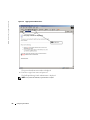
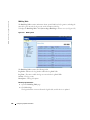
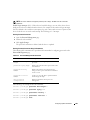
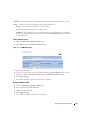
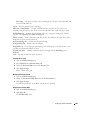
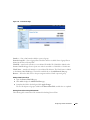
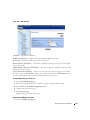
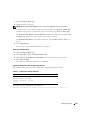
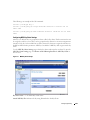
NOTE: The user is notified to change the password prior to expiry. The Web users do not see this
notification.
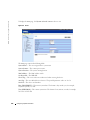
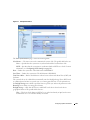
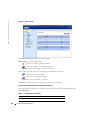
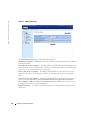
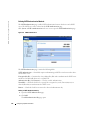
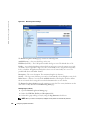
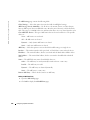
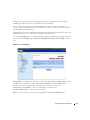
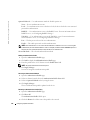
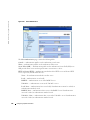
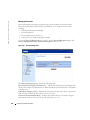
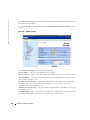
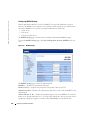
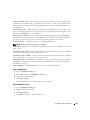
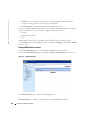
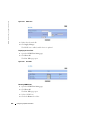
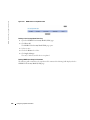
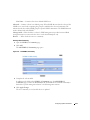
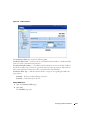
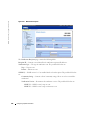
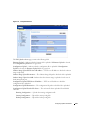
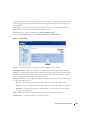
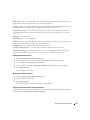
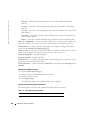
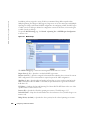
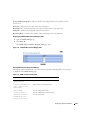
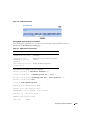
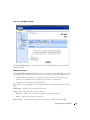
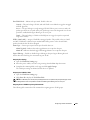
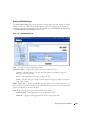
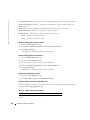
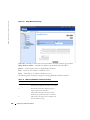
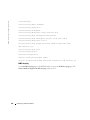
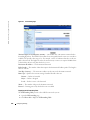
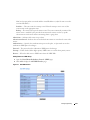
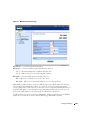
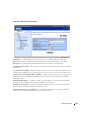
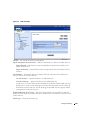
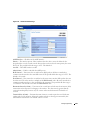
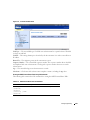
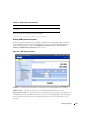
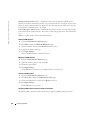
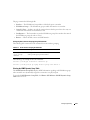
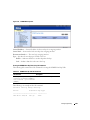
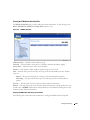
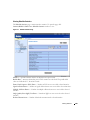
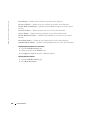
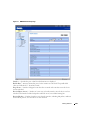
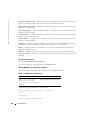
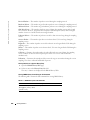
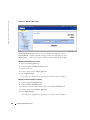
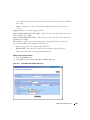
Enable Login Attempts (1-5)— When selected, enables locking a user out of the device when a
faulty password is used a defined number of times. For example, if the number of login attempts
has been defined as five and the user attempts to log on five times with an incorrect password, the
device locks the user out on the sixth attempt. The field range is 1-5 attempts.
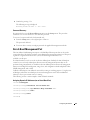
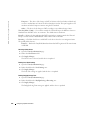
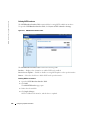
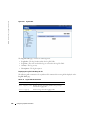
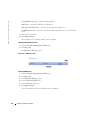
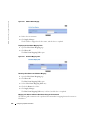
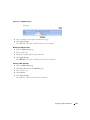
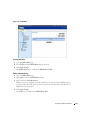
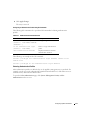
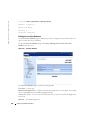
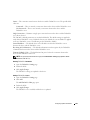
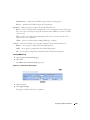
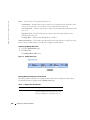
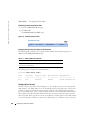
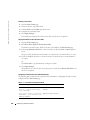
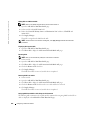
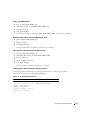
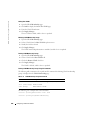
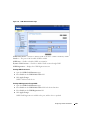
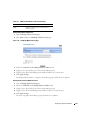
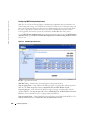
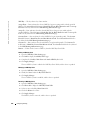
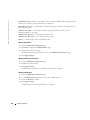
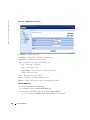
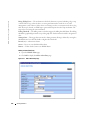
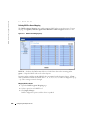
Defining Password Constraints
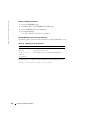
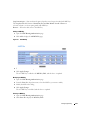
1
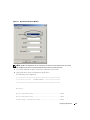
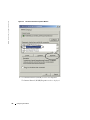
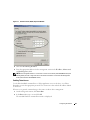
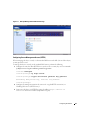
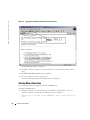
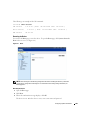
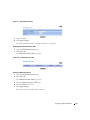
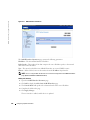
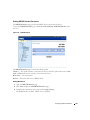
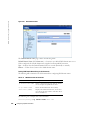
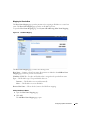
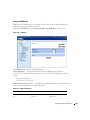
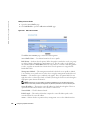
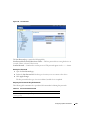
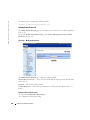
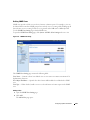
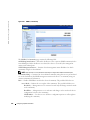
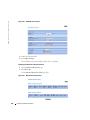
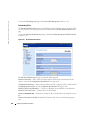
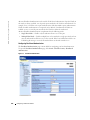
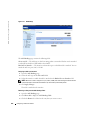
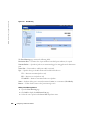
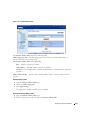
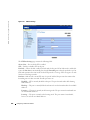
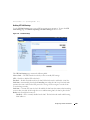
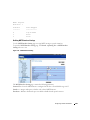
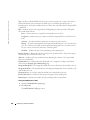
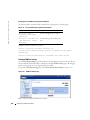
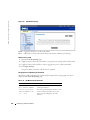
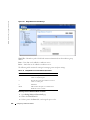
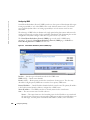
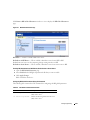
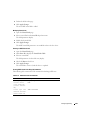
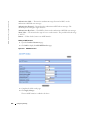
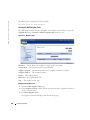
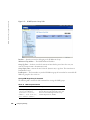
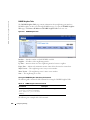
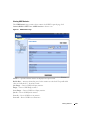
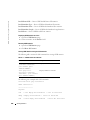
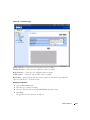
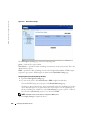
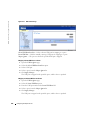
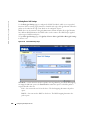
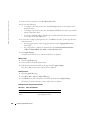
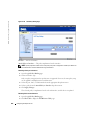
Open the Password Management page.
2
Define the relevant fields.
3
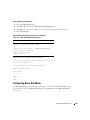
Click Apply Changes.
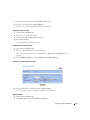
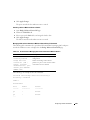
The password constraints are defined, and the device is updated.
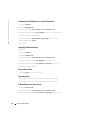
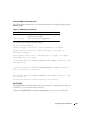
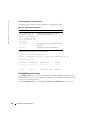
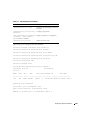
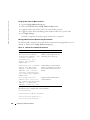
Defining Password Constraints Using CLI Commands
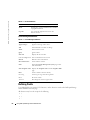
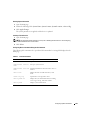
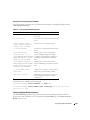
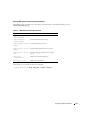
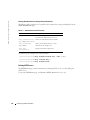
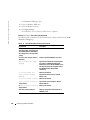
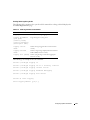
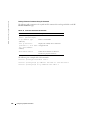
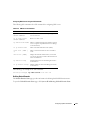
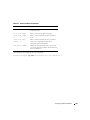
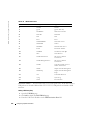
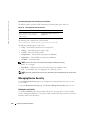
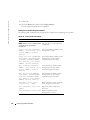
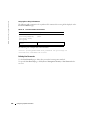
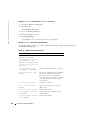
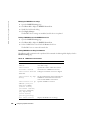
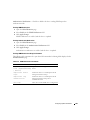
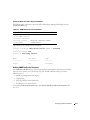
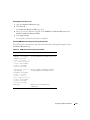
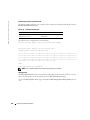
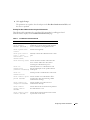
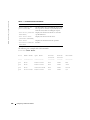
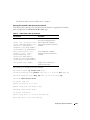
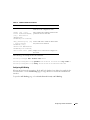
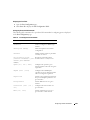
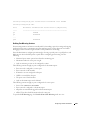
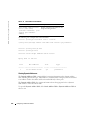
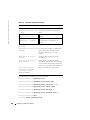
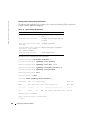
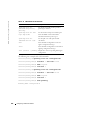
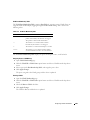
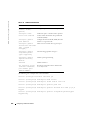
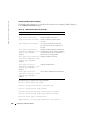
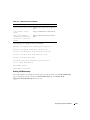
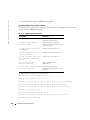
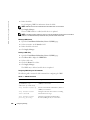
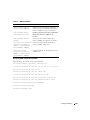
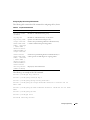
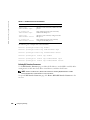
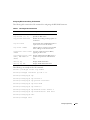
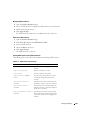
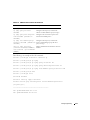
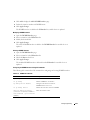
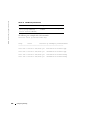
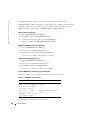
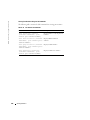
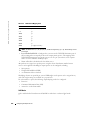
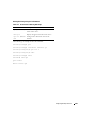
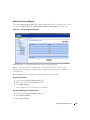
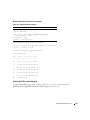
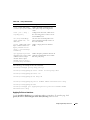
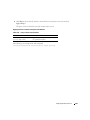
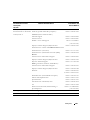
The following table summarizes the equivalent CLI commands for configuring passwords on the
Password Management page.
Table 6-33.
Password Management CLI Commands
CLI Command
Description
password min-length
length
Defines minimum length required for
passwords.
passwords aging days
Defines the expiration time of passwords in the
local database.
passwords history
number
Defines the number of required password
changes before a password in the local database
can be re-used
passwords lock-out
number
Locks a user account after a specified number
of failed login attempts.
show password
configuration
Displays information about password
management.
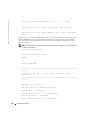
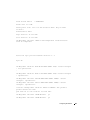
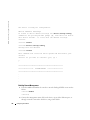
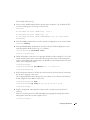
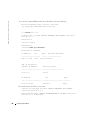
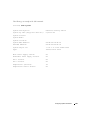
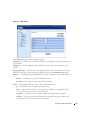
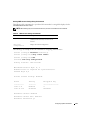
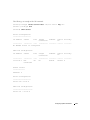
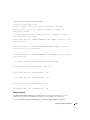
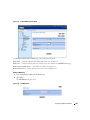
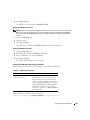
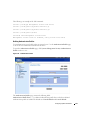
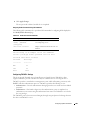
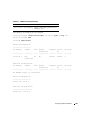
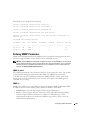
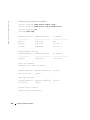
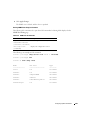
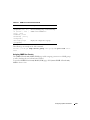
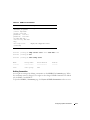
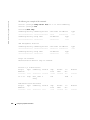
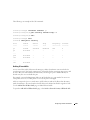
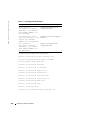
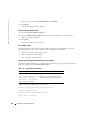
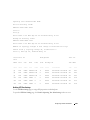
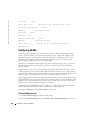
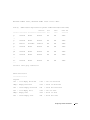
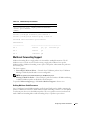
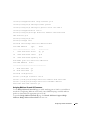
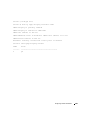
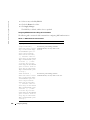
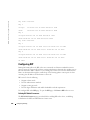
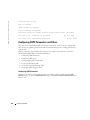
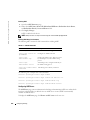
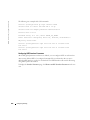
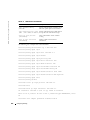
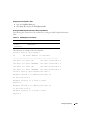
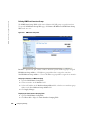
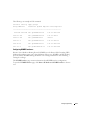
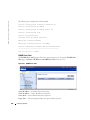
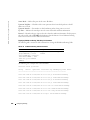
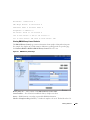
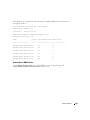
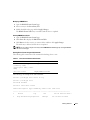
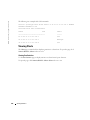
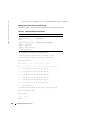
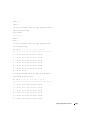
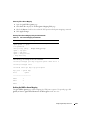
The following is an example of the CLI commands:
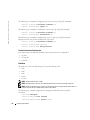
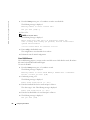
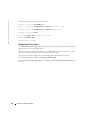
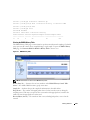
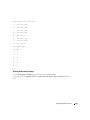
Console (config)# password min-length 8
Console (config)# password aging 120
Console (config)# passwords history 2
Console (config)# passwords lock-out 3
Console (config)# exit
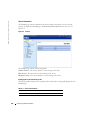
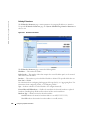
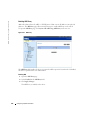
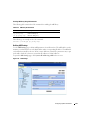
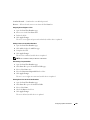
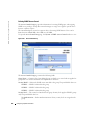
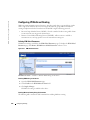
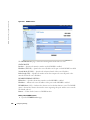
Configuring System Information
183