1
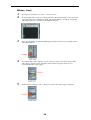
M3 Editor (stand-alone version) setup
1
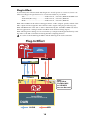
Use a FireWire cable to connect the M3’s FireWire connector to the FireWire (IEEE
1394) connector of your computer.
2
Start up the M3 Editor and verify that it’s operating correctly.
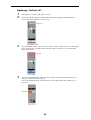
Windows
Starting up the M3 Editor
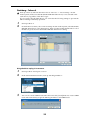
Navigate to the “KORG” folder -> “M3” folder, and double-click the “M3 Editor.exe”
icon.
The “KORG” folder is in the location you selected during installation. By default it’s in
the “Program Files” folder.
Alternatively, you can start up the editor by clicking the taskbar [Start] button -> [All
Programs] and then pointing to “KORG”-“M3”-“M3 Editor.”
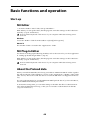
Mac OS X
Starting up the M3 Editor
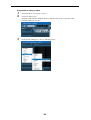
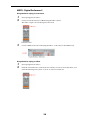
Navigate to the “Applications” folder - “KORG” folder - “M3” folder, and doubleclick the “M3 Editor” icon.
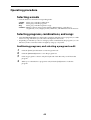
3
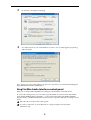
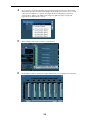
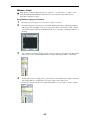
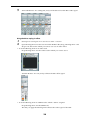
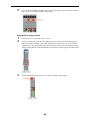
From the system menu, choose “Preferences.”
The preferences dialog box will show “Audio settings.”
Note: The preference settings dialog box be displayed automatically at start-up the first time
you start up, or if for some reason the preference settings have been cleared or the computer’s
system settings have changed.
Audio settings
1
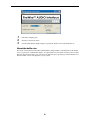
Select the audio driver in “device type” or “device.”
Windows
ASIO: The ASIO driver will be used. Since the ASIO driver allows the latency to be minimized, it will provide the best performance. If an ASIO driver is installed, we recommend
that you use this setting.
DirectSound: DirectSound will be used. If no ASIO driver is installed in your computer, we
recommend that you use this setting.
MME: MME (Multi Media Extension) will be used.
MME has greater latency than other settings, so we recommend that you use a setting
other than MME.
Mac
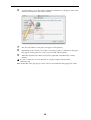
If an audio interface is installed in your computer, you’ll be able to select the driver of that
audio interface. If no audio interface is installed, “internal audio” will be your only choice.
13