1
If you are using other Broadband Internet connections and need more
information on how to configure NetPassage 18A, please refer to the User’s
Manual on the Product CD.
Alternatively, launch your
web browser ( or Netscape).
At the Address field, key in
http://192.168.168.1.
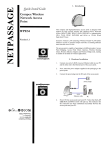
8. Schematic Overview of the NetPassage 18A
The default password is preentered in the field provided.
Just click on the LOGIN!
button to access the main
page of NetPassage 18
Management. The factory
default
password
is
‘password’.
2.
To configure NetPassage
18A for Internet connection,
go to the Configuration
menu.
3.
Click on WAN Setup.
4.
When the page opens, press
the Change button.
Although the illustrations feature NetPassage 18 1A11US, 1A13EU, 1B11US, 1B13EU,
the panel components are similar for all models in the NetPassage 18A series.
Top View
12
If your ISP uses a PPPoE
connection ( for most DSL users),
5.
Front View
Select PPP over Ethernet
from the list. Click on Apply.
12
11
6.
7.
8.
Enter the name that you use
to log on:
[email protected],
as Username.
Key in the Password. The
Service Name is optional.
Click on Save.
Label
This basic input is sufficient to allow your
NetPassage NP18A to gain access to
broadband
internet.
For
further
information on how to configure the rest
of the PPPoE setup parameters, please
refer to the User’s Manual found on the
Product CD.
Indicator
Power (LED)
WAN
LED)
(Link/Activity
WLAN (1), (2)
(Link/Activity LED)
1, 2, 3, 4
(Link/Activity/
LEDs)
Speed
Go to the System Tools
menu. Reboot NetPassage
18A to allow the new
parameters to take effect.
Note on Broadband Internet accounts
1. For Singapore SingNet Broadband subscribers
WAN Type: PPP over Ethernet (PPPoE)
Username Format: <username>@singnet.com
DIAG (LED)
Reset (Push Button)
2. For Singapore Pacific Internet Broadband subscribers
WAN Type: PPP over Ethernet (PPPoE)
Username Format: <username>@pacific.net.sg
3. For Germany T-DSL & T-Online subscribers
WAN Type: PPP over Ethernet (PPPoE)
Username Format:
<Connection ID><T-Online Number>#[email protected]
DC Jack
The <Connection ID> and <T-Online Number> are provided by
German Telecom
4. For Australia Optus@Home subscribers
WAN Type: Dynamic IP
DHCP Client ID: Set as Router’s Identity
1, 2, 3, 4 (RJ45 Ports)
Description
Steady Green:
Power has been turned on
•
Steady GREEN:
The WAN connection is ON
•
Flashing GREEN:
Data transmission at WAN connection
•
Steady GREEN:
At least one wireless link is present
•
Flashing GREEN:
Activity is detected in the wireless
network.
These LEDs reflect the status of the
integrated Fast Ethernet Switch.
•
Steady GREEN:
There is a connectivity link of 100Mbps
•
Flashing GREEN:
100Mbps data transmission is detected at
the port concerned
•
Steady AMBER:
There is a connectivity link of 10Mbps
•
Flashing AMBER:
10Mbps data transmission is detected at
the port concerned
This LED is reserved for diagnostic
purposes.
•
Push for less than 3 seconds:
Reboot the router
•
Push and hold for 5 seconds:
Reset password to its default: “password”
•
Push and hold for between 8
seconds and 10 seconds:
Reset all settings to factory default
including password.
•
Push and hold for more than 10
seconds:
Reset cancelled.
Direct Current Jack.
If using power adapter to supply power to
the unit, attach the power adapter to the
main electrical supply and connect the
power plug into the DC Jak of the
NetPassage NP18A.
Integrated 4-port 10/100Mbps Switch