1
No
t fo
rC
om
me
rci
al
U
se
5. On the phone, check the text in the text message and edit if
necessary (see “Editing ticks and characters” on page 14).
Press Y E S to confirm the text message.
6. Do one of the following depending on your choice in step 3.
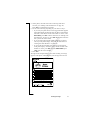
• If you used your phone book, a list of suggested names appears
in the phone display (the first time, this may take several minutes).
Select the correct name. If none of the names is correct, select
Find contact, press Y E S . Edit the characters (see “Editing ticks
and characters” on page 14), press YES. Repeat this instruction
until you find the correct name.
• If you wrote the whole phone number, make sure it appears
correctly in the phone display. If not, edit the characters (see
“Editing ticks and characters” on page 14).
• If you left the To field empty, the numbers last used appear
in the phone display. Select the correct number. If none of the
numbers is correct, press N O and select Enter number, press
Y E S . Enter the correct number.
7. Press Y E S .
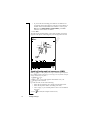
The light on the Chatpen flashes yellow while sending. A message
appears on the phone, confirming that your message has been sent.
Sending messages
13