1
FTOS Release Notes for the
E-Series TeraScale
FTOS Version 8.4.2.8, October 2012
www.dell.com | support.dell.com
2
Table of Contents
How To Use This Document . . . . . . . . . . . . . . . . . . . . . . . . . . . . . . . . . . . . . . . . . . . . . . .3
New Hardware Features . . . . . . . . . . . . . . . . . . . . . . . . . . . . . . . . . . . . . . . . . . . . . . . . . .3
E-Series TeraScale Supported Hardware . . . . . . . . . . . . . . . . . . . . . . . . . . . . . . . . . . . . .3
Compact Flash Drives . . . . . . . . . . . . . . . . . . . . . . . . . . . . . . . . . . . . . . . . . . . . . . . . .6
Default CLI Syntax or Behavior Changes . . . . . . . . . . . . . . . . . . . . . . . . . . . . . . . . . . . . .6
\New FTOS Version 8.4.2.8 Information . . . . . . . . . . . . . . . . . . . . . . . . . . . . . . . . . . . . . .7
New FTOS Version 8.4.2.8 New Features . . . . . . . . . . . . . . . . . . . . . . . . . . . . . . . . . . . . .7
E-Series Software Upgrade Procedures . . . . . . . . . . . . . . . . . . . . . . . . . . . . . . . . . . . . . .7
Upgrade Command Changes . . . . . . . . . . . . . . . . . . . . . . . . . . . . . . . . . . . . . . . . . . .8
Upgrading FTOS 6.5 to Version 8.4.2.8 on E-Series TeraScale . . . . . . . . . . . . . .8
Important Points to Remember . . . . . . . . . . . . . . . . . . . . . . . . . . . . . . . . . . . . . . . . . .8
Upgrade the FTOS Image . . . . . . . . . . . . . . . . . . . . . . . . . . . . . . . . . . . . . . . . . . . . . . . . .9
Required to Upgrade this FTOS Version . . . . . . . . . . . . . . . . . . . . . . . . . . . . . . . . . . .9
Upgrade FTOS Image on a Single RPM . . . . . . . . . . . . . . . . . . . . . . . . . . . . . . . . . . .9
Upgrade FTOS Image on a Dual RPM . . . . . . . . . . . . . . . . . . . . . . . . . . . . . . . . . . .10
Stop a Boot Loop . . . . . . . . . . . . . . . . . . . . . . . . . . . . . . . . . . . . . . . . . . . . . . . . . . . 11
Upgrade the Boot Code . . . . . . . . . . . . . . . . . . . . . . . . . . . . . . . . . . . . . . . . . . . . . . . . . .12
Boot Code Upgrade Options . . . . . . . . . . . . . . . . . . . . . . . . . . . . . . . . . . . . . . . . . . .15
Upgrade the FPGAs . . . . . . . . . . . . . . . . . . . . . . . . . . . . . . . . . . . . . . . . . . . . . . . . . . . .16
FPGA Upgrade options . . . . . . . . . . . . . . . . . . . . . . . . . . . . . . . . . . . . . . . . . . . . . . .16
Upgrade FPGAs on an E-Series TeraScale . . . . . . . . . . . . . . . . . . . . . . . . . . . . . . .16
Verify that an FPGA Upgrade is Required . . . . . . . . . . . . . . . . . . . . . . . . . . . . . .16
Configure Cache Boot . . . . . . . . . . . . . . . . . . . . . . . . . . . . . . . . . . . . . . . . . . . . . . . . . . .18
Cache Boot Pre-requisites . . . . . . . . . . . . . . . . . . . . . . . . . . . . . . . . . . . . . . . . . . . .18
Select a Cache Boot Image . . . . . . . . . . . . . . . . . . . . . . . . . . . . . . . . . . . . . . . . . . .19
Save the Running-Configuration . . . . . . . . . . . . . . . . . . . . . . . . . . . . . . . . . . . . . . . .21
Reload the Chassis . . . . . . . . . . . . . . . . . . . . . . . . . . . . . . . . . . . . . . . . . . . . . . . . . .22
Documentation Errata . . . . . . . . . . . . . . . . . . . . . . . . . . . . . . . . . . . . . . . . . . . . . . . . . . .22
Caveats . . . . . . . . . . . . . . . . . . . . . . . . . . . . . . . . . . . . . . . . . . . . . . . . . . . . . . . . . . . . . . 23
Caveat Definitions . . . . . . . . . . . . . . . . . . . . . . . . . . . . . . . . . . . . . . . . . . . . . . . . . . .23
Resolved TeraScale Hardware Caveats . . . . . . . . . . . . . . . . . . . . . . . . . . . . . . . . . . . . .23
Open TeraScale Hardware Caveats . . . . . . . . . . . . . . . . . . . . . . . . . . . . . . . . . . . . . . . .24
Deferred TeraScale Software Caveats . . . . . . . . . . . . . . . . . . . . . . . . . . . . . . . . . . . . . .24
Resolved E-Series TeraScale 8.4.2.8 Software Caveats . . . . . . . . . . . . . . . . . . . . . . . . .24
Open E-Series TeraScale Version 8.4.2.8 Software Caveats . . . . . . . . . . . . . . . . . . . . .36
Technical Support . . . . . . . . . . . . . . . . . . . . . . . . . . . . . . . . . . . . . . . . . . . . . . . . . . . . . .36
Accessing iSupport Services . . . . . . . . . . . . . . . . . . . . . . . . . . . . . . . . . . . . . . . . . . .36
Contacting the Technical Assistance Center . . . . . . . . . . . . . . . . . . . . . . . . . . . . . . .37
Requesting a Hardware Replacement . . . . . . . . . . . . . . . . . . . . . . . . . . . . . . . . . . .37
MIBS . . . . . . . . . . . . . . . . . . . . . . . . . . . . . . . . . . . . . . . . . . . . . . . . . . . . . . . . . . . . . 39
|
FTOS Release Notes for the E-Series TeraScale, FTOS Version 8.4.2.8, October 2012
For more information on hardware and software features, commands, and capabilities, refer to the
documents on the Dell Force10 website https://www.force10networks.com.
How To Use This Document
This document contains information on open and resolved caveats, and operational information specific to
the Dell Force10 OS (FTOS™) software. This FTOS version supports the E-Series TeraScale platform.
Caveats are unexpected or incorrect behavior, and are listed in order of Problem Report (PR) number
within the appropriate sections.
New Hardware Features
None
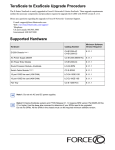
E-Series TeraScale Supported Hardware
Hardware
Catalog Number
Minimum Software
Version Required
E300 Chassis
CH-E300
5.1.1.0
DC PEM
CC-E300-PWR-DC
6.2.1.1
AC Power Supply
CC-E300-PWR-AC
5.1.1.0
AC Power Supply 1200W
CC-E300-1200W-AC
6.2.1.1
Route Processor Module—TeraScale
LC-EF3-RPM
6.2.1.1*
Switch Fabric Module
CC-E-SFM
5.1.1.0
Switch Fabric Module
CC-E-SFM3
6.5.1.3**
E600 Chassis
CH-E600
3.1.1.2
AC Power Supply 1100W
CC-E600-PWR-AC
3.1.1.2
AC Power Supply 2500W
CC-E600-2500W-AC
6.1.1.1
DC PEM
CC-E600-PWR-DC
3.1.4.2
Route Processor Module—TeraScale
LC-EF-RPM
6.2.1.1*
Switch Fabric Module
CC-E-SFM
3.1.1.2
FTOS Release Notes for the E-Series TeraScale, FTOS Version 8.4.2.8, October 2012 | 3
www.dell.com | support.dell.com
Hardware
Catalog Number
Minimum Software
Version Required
Switch Fabric Module
CC-E-SFM3
6.5.1.3**
E600i Chassis
CH-E600i
6.5.1.3
AC Power Supply 2500W
CC-E600-2500W-AC2
6.5.1.3
DC PEM
CC-E600-PWR-DC
6.5.1.3
Route Processor Module—TeraScale
LC-EF-RPM
6.5.1.3
Switch Fabric Module
CC-E-SFM3
6.5.1.3
E1200 Chassis
CH-E1200
2.1.5.8
DC PEM
CC-E1200-PWR-DC
2.1.5.8
Route Processor Module—TeraScale
LC-EF-RPM
6.2.1.1*
Switch Fabric Module
CC-E-SFM
2.1.5.8
Switch Fabric Module
CC-E-SFM3
6.5.1.3**
E1200i Chassis
CH-E1200
7.6.1.0
AC Power Supply 2800W
CC-E1200I-2800W-AC
7.6.1.0
DC Power Entry Module
CH-E1200I-DC
7.7.1.0
Route Processor Module—TeraScale
LC-EF-RPM
7.6.1.0
Switch Fabric Module
CC-E-SFM3
7.6.1.0
Fan Tray
CC-E-1200I-Fan
7.6.1.0
* Applies on newer version RPMs.
** Do not mix SFMs. Chassis must have the same type SFMs running the required minimum software version.
*** Do not mix AC and DC power supplies.
Catalog Number
Card
Indicator
Minimum
Software
Version
Required
2-Port 10-Gigabit Ethernet LAN/WAN PHY
LC-EF3-10GE-2P
EXW2PF3
6.2.1.3*
2-Port 10-Gigabit Ethernet LAN/WAN PHY
LC-EG3-10GE-2P
EXW2PG3
7.6.1.0
Line Cards
E300 Line Cards
4
|
FTOS Release Notes for the E-Series TeraScale, FTOS Version 8.4.2.8, October 2012
Line Cards
Catalog Number
Card
Indicator
Minimum
Software
Version
Required
8-Port 10-Gigabit Ethernet LAN/WAN PHY
LC-EF3-10GE-8P
EXW8PF3
6.5.1.3
8-Port 10-Gigabit Ethernet Dual CAM LAN/WAN PHY
LC-EG3-10GE-8P
EXW8PG3
7.6.1.0
24-Port Gigabit Ethernet with SFP
LC-EF3-1GE-24P
E24PF3
6.2.1.3*
24-Port Gigabit Ethernet Dual CAM with SFP
LC-EG3-1GE-24P
E24PG3
7.6.1.0
48-Port 10/100/1000 BASE-T with RJ-45
LC-EF3-GE-48T
E48TF3
6.2.1.3*
4-Port 10-Gigabit Ethernet LAN/WAN PHY
LC-EG-10GE-4P
EXW4PG
7.4.1.0
4-port OC-48c/OC-12c/OC-3c POS
LC-EG-OC48-4P
S48P4G
7.4.1.0
4-Port 10-Gigabit Ethernet LAN/WAN PHY
LC-EF-10GE-4P
EXW4PF
6.5.1.3
16-Port 10-Gigabit Ethernet LAN/WAN PHY
LC-EF-10GE-16P
EXW16PF
6.5.1.3
48-Port Gigabit Ethernet with SFP
LC-EG-1GE-48P
E48PG
7.4.1.0
48-Port Gigabit Ethernet with SFP
LC-EF-1GE-48P
E48PF
6.5.1.3
48-Port 10/100/1000 BASE-T with RJ-45 Interface
LC-EF-GE-48T
E48TF
6.5.1.3
48-Port 10/100/1000 Base-T High Density
LC-EF-GE-48T1
E48TF1
6.5.1.3
90-Port 10/100/1000 BASE-T Ethernet
LC-EF-GE-90M
E90MF
6.5.1.3
4-Port 10-Gigabit Ethernet LAN/WAN PHY
LC-EG-10GE-4P
EXW4PG
7.4.1.0
4-port OC-48c/OC-12c/OC-3c POS
LC-EG-OC48-4P
S48P4G
7.4.1.0
4-Port 10-Gigabit Ethernet LAN/WAN PHY
LC-EF-10GE-4P
EXW4PF
6.1.2.4*
or 6.2.1.1*
16-Port 10-Gigabit Ethernet LAN/WAN PHY
LC-EF-10GE-16P
EXW16PF
6.5.1.1
16-Port 10-Gigabit Ethernet LAN/WAN PHY Dual CAM
LC-EG-10GE-16P
EXW16PG
7.6.1.0
48-Port Gigabit Ethernet with SFP
LC-EG-1GE-48P
E48PG
7.4.1.0
48-Port Gigabit Ethernet with SFP
LC-EF-1GE-48P
E48PF
6.1.2.4*
or 6.2.1.1*
48-Port 10/100/1000 BASE-T with RJ-45 Interface
LC-EF-GE-48T
E48TF
6.1.2.4*
or 6.2.1.1*
E600i Line Cards
E600, E1200, and E1200i Line Cards
FTOS Release Notes for the E-Series TeraScale, FTOS Version 8.4.2.8, October 2012 | 5
www.dell.com | support.dell.com
Line Cards
Catalog Number
Card
Indicator
Minimum
Software
Version
Required
48-Port 10/100/1000 Base-T High Density
LC-EF-GE-48T1
E48TF1
6.2.1.3
48-Port 10/100/1000 BASE-T with RJ-45 Interface
LC-EG-GE-48T
E48TG
7.6.1.0
90-Port 10/100/1000 BASE-T Ethernet
LC-EF-GE-90M
E90MF
6.2.1.1
* Applies on newer version RPMs
Compact Flash Drives
E-Series supports a compact flash as an interface for the flash drive using Dell Force10-approved drives.
The slot0 parameter are supported on E-Series platform with the copy or upgrade command. FTOS
supports the following vendors’ compact flash drives.
•
•
Netlist
Wintec
Default CLI Syntax or Behavior Changes
Deprecated command: Starting in FTOS 8.4.2.1, when VRF microcode is loaded on an E-Series ExaScale
or TeraScale router, the ip vrf {default-vlan | vrf-name} command is deprecated. It is replaced by the ip vrf
vrf-name vrf-id command that includes a vrf-id (Range: 1 to 14; default is 0).
The new ip vrf vrf-name vrf-id command is not backwards compatible.
The ip vrf-vlan-block, start-vlan-id default-vrf, and start-vlan-id vlan-start-id commands are also deprecated.
To avoid problems with VRF configuration when upgrading from FTOS 8.4.2.0 to a newer FTOS release
(8.4.2.1 or later), use the following procedure:
1. Copy the current running-config to a file in flash.
2. Delete the startup-config file and reload it with the newer FTOS release (for example, FTOS 8.4.2.1).
The chassis will come up with no configuration.
3. After the chassis comes up with no configuration at all, enter the following command for each VRF:
ip vrf vrf-name vrf-id
For example, if your VRFs are named Red, Orange and Yellow, you would enter the following
commands:
ip vrf Red 1
ip vrf Orange 2
6
|
FTOS Release Notes for the E-Series TeraScale, FTOS Version 8.4.2.8, October 2012
ip vrf Yellow 3
4. Copy the file (the file onto which running configuration was copied onto before the reload) into the
running configuration.
\New FTOS Version 8.4.2.8 Information
FTOS Version 8.4.2.8 incorporates software branding changes, support for PPID codes in the software, and
includes some PR resolutions (Resolved E-Series TeraScale 8.4.2.8 Software Caveats). No new features
have been introduced in this release.
New FTOS Version 8.4.2.8 New Features
None.
E-Series Software Upgrade Procedures
E-Series systems are shipped with an FTOS image already loaded. With the following procedures, you can
upgrade your current FTOS image to the latest FTOS image. This section also includes the procedures for
upgrading the FPGA and the Boot Code.
To complete the upgrade successfully, perform the following procedures in the following order. Steps
required, or not required, for this release are identified.
1. Upgrade the FTOS image. - Required
•
•
•
Important Points to Remember
Upgrade FTOS Image on a Single RPM
Upgrade FTOS Image on a Dual RPM
2. Upgrade the Boot Code. - Verify boot code version before proceeding
•
Upgrade the Boot Code
3. Upgrade the FPGA.- Verify FPGA version before proceeding
•
Upgrade FPGAs on an E-Series TeraScale
The following procedures are not specific to this FTOS release.
•
Configure Cache Boot
Note: For clarity, these procedures assume RPM 0 is the primary RPM and RPM 1 is the secondary RPM.
FTOS Release Notes for the E-Series TeraScale, FTOS Version 8.4.2.8, October 2012 | 7
www.dell.com | support.dell.com
Upgrade Command Changes
This section describes any changes or additions to the upgrade commands occurring in this FTOS version.
None
Upgrading FTOS 6.5 to Version 8.4.2.8 on E-Series TeraScale
•
•
To avoid losing port channel configurations, remove any sFlow configuration assigned to
individual interfaces on port channels. The sFlow configurations can be replaced following the
upgrade.
When upgrading an E1200 system on FTOS 6.5 to an E1200i system on Version 8.4.2.8, Dell
Force10 recommends that you upgrade your RPMs and linecards to 7.6.1.0 while still in the E1200
chassis. Install the upgraded RPMs and linecards into the E1200i chassis, then upgrade to Version
8.4.2.8.
Important Points to Remember
Warning: Follow the upgrade procedures carefully. This FTOS version requires the following bootcode
versions for a successful software upgrade:
•
•
•
•
8
|
E-Series TeraScale Version 2.4.23 for Control Processors
E-Series TeraScale Version 2.3.2.1 for Line cards
When upgrading from an earlier release, the configured cam-profile will take effect immediately.
When downgrading from this version to a version prior to Version 8.4.2.8, Dell Force10 recommends
configuring the default cam-profile or ensuring that the cam-profile configured is supported by the
release you are downgrading to, before beginning the downgrade.
FTOS Release Notes for the E-Series TeraScale, FTOS Version 8.4.2.8, October 2012
Upgrade the FTOS Image
Required to Upgrade this FTOS Version
•
•
•
Upgrade FTOS Image on a Single RPM
Upgrade FTOS Image on a Dual RPM
Stop a Boot Loop
Upgrade FTOS Image on a Single RPM
To copy a new FTOS image to a chassis with only one RPM, follow the procedure below. The FTOS image
is labeled FTOS-EF-w.x.y.z.bin; w, x, y, and z are replaced by the current release numbers, for example
FTOS-EH-Version 8.4.2.8.bin.
Step
1
2
Command Syntax
Command Mode
Purpose
show rpm
EXEC Privilege
View the current RPM status.
copy file-url flash://filepath boot-image
EXEC Privilege
Copy the new FTOS image onto the
RPM (internal flash) and update the
boot variables with the new image.
Where file-url is the location of the source file.
For example:
ftp://userid:password@hostlocation/filepath
scp://userid:password@location/filepath
3
write memory
EXEC Privilege
Commit the changes made to the
bootvar configuration to the
startup-configuration file.
4
show bootvar
EXEC Privilege
View configuration of system images
to ensure you have the correct version
copied for loading.
This command only displays
information found on the NVRAM.
Note: The show bootvar command displays the files that will be loaded with the next reload. For
example: PRIMARY IMAGE FILE = flash://FTOS-EH-Version 8.4.2.8.bin. If you do not see the FTOS
version you copied, check that the source path is correct and repeat this procedure from Step 1.
5
reload
EXEC Privilege
Reboot the system and load the new
FTOS image.
FTOS Release Notes for the E-Series TeraScale, FTOS Version 8.4.2.8, October 2012 | 9
www.dell.com | support.dell.com
Upgrade FTOS Image on a Dual RPM
To copy a new FTOS image and change boot parameters in a chassis with both a Primary RPM and
Secondary RPM, follow the procedure below.The FTOS image is labeled FTOS-EF-w.x.y.z.bin; w, x, y,
and z are replaced by the current release numbers, for example FTOS-EH-Version 8.4.2.8.bin.
Warning: Both RPMs must contain the same software version.
Step
Command Syntax
Command Mode
Purpose
1
show rpm
EXEC Privilege
View the current RPM status.
2
copy file-url rpm0flash://filepath
file-url is the location of the source file. For
EXEC Privilege
Copy the FTOS image FROM the
source (file-url) TO RPM0’s flash.
example:
ftp://userid:password@hostlocation/filepath
scp://userid:password@location/filepath
usbflash:[usbflash://]filepath)
Note: usbflash: supported on
E-Series ExaScale only.
3
copy rpm0flash://<filename> rpm1flash:
EXEC Privilege
Copy the file from RPM0 to
RPM1’s flash.
4
boot system rpm0 primary flash://
<filename>
boot system rpm1 primary flash://
<filename>
CONFIGURATION
Change the boot variables for both
RPMs
5
write memory
EXEC Privilege
Commit the changes made in the
bootvar configuration to the
startup-configuration file.
6
show bootvar
EXEC Privilege
Verify that the boot variable is set
for the image you specified in Step
1.
7
Note: The show bootvar command displays the files that will be loaded with the next reload. For example:
PRIMARY IMAGE FILE = flash://FTOS-EH-Version 8.4.2.8.bin. If you do not see the FTOS version you
copied, check that the source path is correct and repeat this procedure from Step 1.
8
reload
EXEC Privilege
Reboot the system; both RPMs
have the new FTOS image loaded.
Note: For clarity, these procedures assume RPM 0 is the primary RPM and RPM 1 is the secondary RPM.
10
|
FTOS Release Notes for the E-Series TeraScale, FTOS Version 8.4.2.8, October 2012
Stop a Boot Loop
If the system cannot locate the FTOS file you specified during the reload process (if you enter an incorrect
file name or location) the system will enter a “boot loop.” This means that the system continues to try to
locate the file and cannot. Enter the BOOT USER mode to correct the issue.
Step
1
Command
Mode
Command Syntax
Ctrl+Shift+6
Purpose
Abort bootup by sending the break signal
when prompted and enter BOOT USER
mode
Note: Enter the break sequence when prompted by the software (Figure 1-1)
Figure 1-1.
Entering BOOT_USER mode
Type "go 0x00040004" to enter the Force10 BLI shell
You can use U-boot native networking facilities
============================================================
Hit any key to stop autoboot:
0
2
show bootvar
BOOT_USER
View the saved boot configuration.
Double check that the files listed are
valid and that the locations are correct.
3
boot change {primary | secondary | default}
BOOT_USER
After you enter the keywords, you are
prompted for a response.
Enter a new file name or press ENTER
to accept the current parameter.
Enter . (period) to clear a field.
Enter - (dash) to edit a field above the
current cursor position.
Enter one of the following parameters:
The primary boot parameter is used in the first
attempt to boot the system.
The secondary boot parameter is used if the
primary file is not available.
The default boot parameter is used if the
secondary boot file is not available.
4
reload
Note: If you enter a new file name that
extends beyond 80 characters, do not
use the BACKSPACE key to correct
typos. If you make a mistake, you must
re-enter the file name.
BOOT_USER
Reload the software and boot the system.
FTOS Release Notes for the E-Series TeraScale, FTOS Version 8.4.2.8, October 2012 | 11
www.dell.com | support.dell.com
Upgrade the Boot Code
Might be required. Verify boot code before proceeding.
Boot code can be upgraded from the currently running FTOS image, or it can be loaded from the flash.
Dell Force10 recommends that you only upgrade your boot code from the version currently running on
your system. The other options are presented here for your information.
This version requires the following bootcode versions for a successful software upgrade. The boot code
changes include support for software branding changes. It is not required to support the FTOS upgrade to
8.4.2.8.
•
•
E-Series TeraScale Version 2.4.2.4 for Control Processors
E-Series TeraScale Version 2.3.2.1 for Line cards
Use the show os-version command to view the boot code versions that are included with the currently
running FTOS image (Figure 1-2).
Caution: DO NOT downgrade the factory installed boot code unless instructed to do so by Dell Force10
technical support.
Figure 1-2.
View the Current Boot Code
Force10#show os-version
RELEASE IMAGE INFORMATION :
--------------------------------------------------------------------Platform
E-Series:
Size
8.4.2.8
28118381
EF
Version
ReleaseTime
Dec
1 2008 02:01:03
TARGET IMAGE INFORMATION :
--------------------------------------------------------------------Type
Version
Target
checksum
runtime
8.4.2.8
Control Processor
passed
runtime
8.4.2.8
Route Processor
passed
runtime
8.4.2.8
Terascale Linecard
passed
runtime
8.4.2.8
FPGA
passed
FPGA IMAGE INFORMATION :
--------------------------------------------------------------------Card
FPGA Name
Version
Release Date
SFM
SFM FPGA
0.0
Dec 01 2008
BOOT IMAGE INFORMATION :
---------------------------------------------------------------------
12
|
Type
Version
Target
checksum
boot flash
2.4.2.2
Control Processor
passed
FTOS Release Notes for the E-Series TeraScale, FTOS Version 8.4.2.8, October 2012
Step
1
Task
Command
Command Mode
Upgrade the boot code using one of the following
keywords:
• The all keyword upgrades the entire system
(primary RPM and all line cards).
RECOMMENDED
You must still complete the remainder of this
procedure.
• The linecard slot number keywords
upgrades the identified line card
• The linecard all keywords upgrade all the
linecards in the chassis.
• The rpm keyword upgrades the RPM you are
logged into. If you have dual RPMs, proceed to
step 2. If you have a single RPM, proceed to
Step 5.
• The booted keyword indicates the image
already booted and running on the system.
upgrade bootflash-image {all |
linecard [all] | rpm} booted
EXEC Privilege
Caution: The upgrade process takes approximately 10 minutes.Do not reset or remove the component
you are upgrading during the upgrade process.
Steps 2 through 4 are not required if you have only one RPM installed.
2
telnet-peer-rpm or
ssh-peer-rpm
Log in to the standby RPM.
EXEC Privilege
Note: You do not need to perform Step 2 if you have a console connection to the peer RPM. If you do
have a console connection to the peer RPM, perform the next steps via that console connection.
3
Upgrade the boot code on the standby RPM using
the keyword rpm.
The booted keyword indicates the image already
booted and running on the system.
upgrade bootflash-image rpm
booted
EXEC Privilege
4
Exit the Telnet session, if necessary.
exit
EXEC Privilege
5
The boot code upgrade is now complete and the new
boot code loads during the next power-cycle of the
RPM or system.
You can also reset the RPM immediately to see if
the boot code downloaded successfully.If so
desired, immediately reset the RPMs or linecards
using the reset command.
reset rpm hard or
reload
EXEC Privilege
Note: If individual linecards or RPMs are being upgraded, then use the reset {rpm | linecard} hard
command. If upgrading all the linecards and RPMs, in use the chassis reload command to save time.
6
Verify that the upgrade is successful, as shown in
Figure 1-3 for RPMs and Figure 1-4 for line cards.
show {rpm | linecard}
EXEC Privilege
FTOS Release Notes for the E-Series TeraScale, FTOS Version 8.4.2.8, October 2012 | 13
www.dell.com | support.dell.com
Figure 1-3.
View the Boot Code Version on an RPM
Force10#show rpm 1
-- RPM card 1 -Status
: active
Next Boot
: online
Card Type
: RPM - Route Processor Module (LC-EF3-RPM)
Hardware Rev : 2.2i
Num Ports
: 1
Up Time
: 1 day, 3 hr, 33 min
Last Restart : reset by user
FTOS Version : 8.4.2.8
Jumbo Capable : yes
CP Boot Flash : A: 2.4.1.1
B: 2.4.1.1
[booted]
RP1 Boot Flash: A: 2.4.1.1
B: 2.4.1.1
[booted]
RP2 Boot Flash: A: 2.4.1.1
B: 2.4.1.1
[booted]
CP Mem Size
: 536870912 bytes
RP1 Mem Size : 1073741824 bytes
RP2 Mem Size : 1073741824 bytes
MMC Mem Size : 520962048 bytes
External MMC : n/a
Temperature
: 35C
Power Status : PEM1: absent or down
PEM3: up
Voltage
: ok
Serial Number : FX000008679
Figure 1-4.
View the Boot Code Version on Line Card
Force10#show linecard 4
-- Line card
Status
Next Boot
Required Type
Current Type
Hardware Rev
Num Ports
Up Time
FTOS Version
Jumbo Capable
Boot Flash
Memory Size
Temperature
Power Status
Voltage
Serial Number
Part Number
14
|
4
:
:
:
:
:
:
:
:
:
:
:
:
:
:
:
:
-online
online
E24PF3 - 24-port GE line card with SFP optics (EF3)
E24PF3 - 24-port GE line card with SFP optics (EF3)
Base - 1.0 PP0 - 1.1 PP1 - n/a
24
1 day, 3 hr, 33 min
8.4.2.8
yes
A: 2.3.0.5 [booted]
B: 2.3.0.5
268435456 bytes
33C
PEM1: absent or down
PEM3: up
ok
0017291
7520014202 Rev 02
FTOS Release Notes for the E-Series TeraScale, FTOS Version 8.4.2.8, October 2012
Boot Code Upgrade Options
Although Dell Force10 recommends the procedures detailed in this document, you may need to use a file
that does not reside in the booted FTOS image. FTOS boot code files can be accessed through ftp as well
as from a flash or slot0.
This documents recommend using the command: upgrade bootflash-image {all | linecard [all] | rpm} booted.
To implement one the other supported methods, replace the booted keyword with one of the following.
•
flash: System image file URL ([flash://filename)
upgrade bootflash-image {all | linecard [all] | rpm} flash://filename
•
ftp: System image file URL (ftp://userid:password@hostip/filepath)
upgrade bootflash-image {all | linecard [all] | rpm} ftp://userid:password@hostip/filepath
•
slot0: System image file URL (slot0://]filename)
upgrade bootflash-image {all | linecard [all] | rpm} slot0://filename
FTOS Release Notes for the E-Series TeraScale, FTOS Version 8.4.2.8, October 2012 | 15
www.dell.com | support.dell.com
Upgrade the FPGAs
Might be required. Verify FPGA version before proceeding.
•
•
FPGA Upgrade options
Upgrade FPGAs on an E-Series TeraScale
FPGA Upgrade options
Although Dell Force10 recommends the procedures detailed in this document, you may need to use a file
that does not reside in the booted FTOS image. FTOS image files can be accessed through ftp, as well as
from a flash or slot0.
This document recommends using the command: upgrade fpga-image {linecard [0-13 | all]} booted.
To implement one the other supported methods, replace the booted keyword with one of the following.
•
bus fpga: Upgrade the bus FPGA, which provides CPU memory-mapped access to internal devices
upgrade fpga-image linecard {0-13 |all} bus-fpga
•
flash: System image file URL (flash://filename)
upgrade fpga-image linecard {0-13 |all} flash://filename
•
ftp: System image file URL (ftp://userid:password@hostip/filepath)
upgrade fpga-image linecard {0-13 |all} ftp://userid:password@hostip/filepath
•
last-used-url: Last used system image, cached for 20 minutes.
upgrade fpga-image linecard {0-13 |all} last-used-url
•
slot0: System image file URL ([slot0://]filename)
upgrade fpga-image linecard [0-13 | all] slot0: //filename
Upgrade FPGAs on an E-Series TeraScale
The E-Series TeraScale supports upgrading the FPGA on SFMs only. Perform an upgrade only when the
system instructs you to do so; contact the Technical Assistance Center if you have any questions.
Verify that an FPGA Upgrade is Required
The system displays a message during bootup (Message 1) if an FPGA image requires an upgrade.
Message 1 FPGA Upgrade Required on E-Series TeraScale
% Error: Incompatible FPGA version detected, mandatory upgrade needed.
16
|
FTOS Release Notes for the E-Series TeraScale, FTOS Version 8.4.2.8, October 2012
Figure 1-5.
Identifying E-Series TeraScale SFM version
Force10#show revision
-- RPM 0
panda
willow
--
-- RPM 1
panda
willow
--
: ASIC - 0x72632000
: 0x16
: ASIC - 0x72632000
: 0x16
-- Line card 1 -lc pic 0
: 1.1
lc pic 1
: 1.1
pandora
: 0x9
-- SFM 0 -S3
: ASIC - 0x100
chalupa (SW) : 0x0.0.0
chalupa (log): 0x2
-- SFM 1 -S3
: ASIC - 0x100
chalupa (SW) : 0x0.0.0
chalupa (log): 0x2
-S3
SFM 2 --
Figure 1-6.
: ASIC - 0x100
Show FPGA version included with FTOS image
Force10#show os-version
RELEASE IMAGE INFORMATION :
--------------------------------------------------------------------Platform
Version
Size
ReleaseTime
E-Series: EF
4.7.9.51
32745043
Feb 20 2009 00:41:33
TARGET IMAGE INFORMATION :
--------------------------------------------------------------------Type
Version
Target
checksum
runtime
4.7.9.51
Control Processor
passed
runtime
4.7.9.51
Route Processor
passed
runtime
4.7.9.51
Terascale Linecard
passed
runtime
4.7.9.51
FPGA
passed
FPGA IMAGE INFORMATION :
--------------------------------------------------------------------Card
FPGA Name
Version
Release Date
SFM
SFM FPGA
0.0
Feb 20 2009
BOOT IMAGE INFORMATION :
--------------------------------------------------------------------Type
Version
Target
checksum
boot flash
2.4.2.2
Control Processor
passed
boot flash
2.4.2.2
Route Processor
passed
boot flash
2.3.2.1
Terascale Linecard
passed
BOOTSEL IMAGE INFORMATION :
FTOS Release Notes for the E-Series TeraScale, FTOS Version 8.4.2.8, October 2012 | 17
www.dell.com | support.dell.com
Configure Cache Boot
Note: For E-Series TeraScale running 8.4.2.0, cache boot is supported on partition A only due to the image
size.
The Dell Force10 system has the ability to boot the chassis using a cached FTOS image. FTOS stores the
system image on the bootflash for each processor so that:
•
•
the processors do not have to download the images during bootup, and
the processors can boot in parallel rather than serially.
Booting the system by this method significantly reduces the time to bring the system online. Using Cache
Boot with Warm Upgrade significantly reduces downtime required during the upgrade or reload process.
Cache Boot can be configured to take place at any time, but Dell Force10 recommends configuring it when
the system is offline.
The bootflash is partitioned so that two separate images can be cached.
Cache Boot Pre-requisites
The system must meet two requirements before you can use the cache boot feature:
1. The cache boot feature requires RPM hardware revision 2.1 or later. Use the show rpm command as
shown in Figure 1-7 to determine the version of your RPM.
Figure 1-7.
Determining your System Pre-requisites for Cache Boot
Force10#show rpm
-- RPM card 0
Status
Next Boot
Card Type
Hardware Rev
Num Ports
Up Time
Last Restart
FTOS Version
Jumbo Capable
CP Boot Flash
CP FPGA Flash
CP Mem Size
MMC Mem Size
External MMC
Temperature
Power Status
Voltage
Serial Number
Part Number
Vendor Id
18
|
-: active
: online
: RPM - Route Processor Module (LC-CB-RPM)
: 2.1
: 1
: 1 day, 3 hr, 52 min
: reset by user
: 8.4.2.8
: yes
: A: 2.7.1.1
[booted]
B: 2.7.1.1
: A: 5.0
: 1090519040 bytes
: 521478144 bytes
: n/a
: 34C
: AC
: ok
: 0060361
: 7520029300 Rev 02
: 01
Hardware version
Required boot code version
FTOS Release Notes for the E-Series TeraScale, FTOS Version 8.4.2.8, October 2012
2. The cache boot feature requires at least the boot code versions below. Use the commands show rpm
and show linecard to verify that you have the proper version as shown in Figure 1-7.
This version requires the following bootcode versions to support cache boot:
• E-Series TeraScale Version 2.4.1.1 for Control Processors
• E-Series TeraScale Version 2.3.2.1 for Line cards
If you do not have the proper boot code version, the system displays a message like Message 2 when
you attempt to select a cache boot image (see Cache Boot Pre-requisites). See Upgrade the Boot Code
for instructions on upgrading boot code.
Message 2 Boot Code Upgrade Required for Cache Boot Error
% Error: linecard 0 doesn't have cache boot aware bootCode.
Select a Cache Boot Image
Note: The cache boot feature is not enabled by default; you must copy the running configuration to the
startup configuration (using the command copy running-config startup-config) after selecting a cache boot
image in order to enable it.
Configuring the cache boot feature is a three-step process:
1. Select a Cache Boot Image
2. Save the Running-Configuration
3. Reload the Chassis
Figure 1-8 shows an example of the cache boot selection. Figure 1-9 show the output for the show
command.
Step
Task
Command Syntax
Command Mode
1
Select the FTOS image you want to cache.
Use the keyword all to avoid any RPM/
linecard mismatches.
Select image A or B. The preserve
keyword updates the image partition that
does not have a specific image already
installed.
Use the flash: option to upgrade using an
image saved to the systems flash.
If not, specify another image (see Boot
Code Upgrade Options).
upgrade system-image all [A | B |
preserve] flash://<filename>
EXEC Privilege
2
Select Yes to continue upgrade
Upgrade cache boot image(4.7.5.427) for all cards [yes/no]: yes
Note: The upgrade can take more than 10 minutes to complete. DO NOT power off the linecards or
RPMs while the upgrade is taking place.
FTOS Release Notes for the E-Series TeraScale, FTOS Version 8.4.2.8, October 2012 | 19
www.dell.com | support.dell.com
Step
Task
Command Syntax
Figure 1-8.
Command Mode
Selecting a Cache Boot Image
Force10#upgrade system-image all B flash://FTOS-EF-8.4.2.8.bin
Current System image information in the system:
=============================================
Type
A
B
--------------------------------------------------------CP
8.4.2.8
8.4.2.8
Linecard 0 is not present.
Linecard 1 is not present.
Linecard 2 is not present.
Linecard 3 is not present.
Linecard 4
8.4.2.8
8.4.2.8
Linecard 5 is not present.
Linecard 6 is not present.
Linecard 7 is not present.
Note: [b] : booted
[n] : next boot
Upgrade System image(8.4.2.8) for all cards [yes/no]: y
System image downloading in progress...
!!!!!!!!!!!!!!!!!!
System Image upgrade in progress. Please do NOT power off the card.
!!!!!!!!!!!!!!!!!!!!!!!!!!!!!!!!!!!!!!!!!!!!!!!!!!!!!!!!!!!!!!!!!!!!!!!!!!!!!!!!!!!!!!!!!!
!!!!!!!!!!!!!!!!!!!!!!!!!!!!!!!!!!!!!!!!!!!!!!!!!!!!!!!!!!!!!!!!!!!!!!!!!!!!!!!!!!!!!!!!!!
!!!!!!!!!!!!!!!!!!!!!!!!!!!!!!!!!!!!!!!!!!!!!!!!!!!!!!!!!!
If you attempt to cache a system image that does not support the cache boot feature, Message 3 appears.
Message 3 System Image does not Support Cache Boot Error
%% Error: Given image is not cache boot aware image.
20
|
FTOS Release Notes for the E-Series TeraScale, FTOS Version 8.4.2.8, October 2012
Save the Running-Configuration
Note: The bootvar is automatically updated after invoking the upgrade system-image command. You do not need to
manually update the bootvar. The bootvar change only affects the running-configuration so you must save the changes
to the startup-configuration as described in this procedure.
Step
1
Task
Command Syntax
Command Mode
Save the running-configuration to the
startup-configuration.
copy running-config startup-config
EXEC Privilege
The running-configuration contains the current system configuration. The system uses the startup-configuration
during boot-up to configure the system. Dell Force10 recommends that you copy your running-configuration to
the startup-configuration. Refer to the Getting Started chapter in the FTOS Configuration Guide for complete
information about saving configurations.
2
View your cache boot configuration.
Figure 1-9
Figure 1-9.
show boot system all
EXEC Privilege
Viewing the Cache Boot Configuration
Force10#show boot system all
Current system image information in the system:
=============================================
Type
Boot Type
A
B
---------------------------------------------------------------CP
DOWNLOAD BOOT 8.4.2.8
8.4.2.8
linecard 0 is not present.
linecard 1 is not present.
linecard 2 is not present.
linecard 3 is not present.
Note: The bootvar is automatically updated after invoking the upgrade system-image command. The bootvar
change happens only in running-configuration so you must save the running-configuration to the
startup-configuration as described in this procedure.
3
Verify that the system is configured to boot
with the selected cache boot image.
(Figure 1-10).
show bootvar
EXEC Privilege
FTOS Release Notes for the E-Series TeraScale, FTOS Version 8.4.2.8, October 2012 | 21
www.dell.com | support.dell.com
Figure 1-10.
Viewing the Selected Cache Boot Image
Force10#copy running-config startup-config
File with same name already exist.
Proceed to copy the file [confirm yes/no]: y
!
4565 bytes successfully copied
1d4h28m: %RPM0-P:CP %FILEMGR-5-FILESAVED: Copied running-config to startup-config in flash by default
Force10#
Force10#show bootvar
PRIMARY IMAGE FILE =
system://8.4.2.8
SECONDARY IMAGE FILE =
DEFAULT IMAGE FILE =
LOCAL CONFIG FILE =
flash://FTOS-EF-8.4.2.8.bin
flash://FTOS-EF-6.5.1.8.bin
variable does not exist
PRIMARY HOST CONFIG FILE =
variable does not exist
SECONDARY HOST CONFIG FILE =
PRIMARY NETWORK CONFIG FILE =
variable does not exist
variable does not exist
Reload the Chassis
Task
Command Syntax
Command Mode
Reboot the system.
If using Dual RPMs, both RPMs must have the new
FTOS image loaded.
reload
EXEC Privilege
Documentation Errata
The following updates are clarifications, additions, and corrections to the Edition 1 of the FTOS Version
8.4.2.8 documentation:
None
22
|
FTOS Release Notes for the E-Series TeraScale, FTOS Version 8.4.2.8, October 2012
Caveats
The following sections describe problem report (PR) types, and list open, closed, and rejected PRs:
•
•
•
•
•
Resolved TeraScale Hardware Caveats
Open TeraScale Hardware Caveats
Deferred TeraScale Software Caveats
Resolved E-Series TeraScale 8.4.2.8 Software Caveats
Open E-Series TeraScale Version 8.4.2.8 Software Caveats
Note: Customers can subscribe to caveat update reports or use the BugTrack search tool to read current
information about open and closed software caveats. To subscribe or use BugTrack, visit iSupport at:
https://www.force10networks.com/CSPortal20/BugTrack/SearchIssues.aspx. BugTrack currently tracks
software caveats opened in FTOS version 6.2.1.1 and later.
All Release Notes are available on the Software Center tab of iSupport. The link to the relevant Release
Notes for each software version is next to the link for that version: https://www.force10networks.com/
CSPortal20/Software/Downloads.aspx
Caveat Definitions
Category
Description
PR#
Problem Report number identifies the caveat.
Synopsis
Synopsis is the title or short description of the caveat.
Release Note
Release Notes description contains more detailed information about the caveat.
Work Around
Work Around describes a mechanism for circumventing, avoiding, or recovering from the caveat.
It might not be a permanent solution.
Caveats listed in the “Closed Caveats” section should not be present, and the workaround is
unnecessary, as the version of code for which this release note is documented has resolved the
caveat.
Severity
S1—Crash: A software crash occurs in the kernel or a running process that requires a restart of the
router or process.
S2—Critical: A caveat that renders the system or a major feature unusable, which can have a
pervasive impact on the system or network, and for which there is no workaround acceptable to the
customer.
S3—Major: A caveat that effects the functionality of a major feature or negatively effects the
network for which there exists a workaround that is acceptable to the customer.
S4—Minor: A cosmetic caveat or a caveat in a minor feature with little or no network impact for
which there might be a workaround.
Resolved TeraScale Hardware Caveats
None
FTOS Release Notes for the E-Series TeraScale, FTOS Version 8.4.2.8, October 2012 | 23
www.dell.com | support.dell.com
Open TeraScale Hardware Caveats
Hardware caveats are not currently searchable through the BugTrack search tool on the iSupport web site.
However, you can subscribe to caveat update reports which includes Hardware caveats. To subscribe to
caveat update reports, visit iSupport at: https://www.force10networks.com/CSPortal20/BugTrack/
SearchIssues.aspx.
None
Deferred TeraScale Software Caveats
None
Resolved E-Series TeraScale 8.4.2.8 Software Caveats
Resolved caveats are those that have been fixed since FTOS 8.4.2.6.
PR# 116482
Severity:
S1
Synopsis:
RPM in slot 1 of Terascale chassis will fail to bootup after upgrading to the bootflash image (version
2.4.2.3) packaged in E8.4.2.7 software release.
Release Notes:
The RPM in slot 1 of Terascale chassis will fail to bootup after upgrading the control processor's
bootflash image to version 2.4.2.3, which is packaged in E8.4.2.7 software release.
Workaround:
Version 2.4.2.3 control processor bootflash image has branding updates. Therefore, it is not
necessary to upgrade the control processor bootflash image to successfully run E8.4.2.7 software
release. Please do not upgrade to the bootflash image (version 2.4.2.3) packaged in E8.4.2.7
software release.
PR# 112419
Severity:
S3
Synopsis:
.Under certain circumstances, a software exception on OSPFv3 process could result in a
spontaneous RPM reboot.
Release Notes:
Under certain circumstances, OSPFv3 process would undergo a software exception which would
result in a spontaneous RPM reboot.
Workaround:
NA
PR# 111744
24
|
FTOS Release Notes for the E-Series TeraScale, FTOS Version 8.4.2.8, October 2012
Severity:
S2
Synopsis:
In certain scenarios, PBR permit statements specified in redirect-list may lose precedence and not
work as expected.
Release Notes:
If PBR permit statements are part of a redirect-list, the permit statements may lose precedence
when redirect statements with virtual entries in the same redirect-list are deleted and added
frequently. The changes to redirect statements may take precedence over some permit statements in
the CAM and therefore the affected permit policies would not be applied on the packets.
Workaround:
NA
PR# 110339
Severity:
S4
Synopsis:
After a reboot, the system will not apply the "no ip proxy-arp" command on a VRRP VLAN.
Release Notes:
When proxy arp is disabled on a VRRP VLAN, the configuration is not re-applied after a reboot
even though the CLI command is visible in the configuration.
Workaround:
Re-issue "no ip proxy-arp" in the configuration of the VRRP VLAN.
PR# 106883
Severity:
S2
Synopsis:
Duplicate packets seen when reaching VRRP virtual IP
Release Notes:
Packet duplication occurs while reaching VRRP virtual IP in VRF due to incorrect programming of
the PMAC table.
Workaround:
NA
PR# 105977
Severity:
S2
Synopsis:
In certain scenarios, the system may fail to install FIB entries in CAM
Release Notes:
When the system encounters a CAM full condition, it cannot install any new routes in CAM as
expected and these entries will be marked as UNWRTN in the FIB table. However, even after
releasing CAM space to accomodate new entries, the system may fail to install all previously
UNWRTN entries into CAM.
Workaround:
Issue "clear ip fib linecard X Y.Y.Y.Y/ZZ" CLI command to install the UNWRTN FIB entries into
CAM.
PR# 105933
Severity:
S2
FTOS Release Notes for the E-Series TeraScale, FTOS Version 8.4.2.8, October 2012 | 25
www.dell.com | support.dell.com
Synopsis:
The system does not show correct options for egress IP ACL command is applied to the ACL
VLAN group.
Release Notes:
The system does not list accurate options when applying egress IP ACL commands to the ACL
VLAN groups. Therefore, the system may reject when valid commands such as "ip access-group
<WORD> out implicit-permit" are applied on the ACL VLAN groups.
Workaround:
NA
PR# 105658
Severity:
S2
Synopsis:
In rare instances, the E-Series products may experience packet loss when egress ACLs are applied.
Release Notes:
When egress ACLs are configured for a VLAN with members in different port pipes, the system
may experience random packet loss due to invalid CAM ACL entries.
Workaround:
NA
PR# 105554
Severity:
S3
Synopsis:
When a user ACL is removed from an interface, the system may stop forwarding traffic ingressing
on that interface.
Release Notes:
When user ACLs are removed from an interface, the system may fail to install a permit entry in
CAM and thereby stop forwarding traffic ingressing on that interface. This defect is encountered on
a system that has MAC learning limits and user ACLs configured.
Workaround:
NA
PR# 105511
Severity:
S3
Synopsis:
Neighbor discovery does not occur after "clear ipv6 neighbor interface" command is executed.
Release Notes:
Neighbor discovery does not occur after "clear ipv6 neighbor interface" command is executed.
Workaround:
Please execute shut and no shut commands on the affected interface.
PR# 105021
26
Severity:
S5
Synopsis:
Continuous arp request broadcast in the network can cause BGP sessions to go down
Release Notes:
When high rate of arp request broadcast traffic is flowing in the network, already active bgp session
will go down due to loss NA packets.
Workaround:
NA
|
FTOS Release Notes for the E-Series TeraScale, FTOS Version 8.4.2.8, October 2012
PR# 104997
Severity:
S2
Synopsis:
ACL log and count options for user ACLs may not work properly in certain scenarios
Release Notes:
If a system has multiple user ACLs, some configured with log option and some without the log
option, the ACL logging and ACL counting options will stop working when an ACL without the log
option is removed.
Workaround:
NA
PR# 104225
Severity:
S4
Synopsis:
SNMP Agent ipAddressTable address Length missing.
Release Notes:
NA
Workaround:
NA
PR# 104201
Severity:
S2
Synopsis:
Under certain scenarios, MLL functionality gets affected
Release Notes:
Under certain scenarios, one being the chassis reload, MLL functionality gets affected if user MAC
ACLs are applied.
Workaround:
Remove and reapply the MLL configuration
PR# 104200
Severity:
S3
Synopsis:
"show mac learning-limit" command may not display all the ports on which MAC learning limit is
configured.
Release Notes:
The "show mac learning-limit" command may not display all the ports on which MAC learning
limit is configured.
Workaround:
Use "show mac learning-limit interface <interface #>" to check the MAC learning limit
configuration.
PR# 103911
Severity:
S1
Synopsis:
Reception of corrupted data on the IPC bus might cause the linecard to spontaneously reset.
FTOS Release Notes for the E-Series TeraScale, FTOS Version 8.4.2.8, October 2012 | 27
www.dell.com | support.dell.com
Release Notes:
Reception of corrupted data on the line card CPU, via IPC messages, might cause the linecard to
spontaneously reset.
Workaround:
NA
PR# 103841
Severity:
S2
Synopsis:
route-reflector configuration of a peer group in ipv6 address family will not be showed in running
configuration and cannot be removed as well.
Release Notes:
When route-reflector configuration for a peer group in ipv6 BGP is applied, the configuration is
not shown in the running configuration and cannot be removed from the configuration as well.
Workaround:
Remove and reconfigure the entire peer group.
PR# 103707
Severity:
S2
Synopsis:
When MAC learning limit is configured, system may experience traffic failures when new user
MAC ACLs are applied.
Release Notes:
When user MAC ACLs are applied to a system that has MAC learning limits configured, the system
may incorrectly process the user MAC ACLs and fail to install implicit deny entry.
Workaround:
NA
PR# 103515
Severity:
S3
Synopsis:
In certain scenarios, the system may reject IPv6 access-list configurations.
Release Notes:
When a chassis reboots due to power failure, the system may encounter initialization errors in the
ACL module. This issue may prevent the system from processing IPv6 access list configurations as
shown below:
FTOS(conf)#ipv6 access-list test
% Error: IPv6 Access-list not supported on this CAM profile.
Workaround:
Please contact TAC for the workaround.
PR# 101824
28
Severity:
S3
Synopsis:
When extended router feature is enabled, the SFLOW packet gets the subnet mask from the FIB
rather than the RTM.
Release Notes:
When extended router feature is enabled, the SFLOW packet gets the subnet mask from the FIB
rather than the RTM.
|
FTOS Release Notes for the E-Series TeraScale, FTOS Version 8.4.2.8, October 2012
Workaround:
NA
PR# 99187
Severity:
S3
Synopsis:
In rare instances, the system may incorrectly report that ingress L3 ACL is full.
Release Notes:
The system may incorrectly report that L3 ACL CAM is full even when the ingress ACL CAM has
sufficient space.
Workaround:
NA
PR# 94618
Severity:
S3
Synopsis:
TCP Reset is not sent when IPV6 VTY-ACL deny rule is applied to an active vty .
Release Notes:
Session hangs when IPV6 VTY ACL deny rule is applied on the active vty and clears only after
exec-timeout
Workaround:
PR# 104933
Severity:
S2
Synopsis:
Under rare circumstances, RPM might experience a software exception when there is a heavy
inflow of traffic on the management port.
Release Notes:
Under rare circumstances, RPM might experience a software exception when there is a heavy
inflow of traffic on the management port.
Workaround:
NA
PR# 101427
Severity:
S2
Synopsis:
Under rare circumstances, OSPF neighbors remains in EXSTART / EXCHANGE state after RPM
failover with GR enabled
Release Notes:
When Graceful Restart feature is enabled in OSPF, upon an RPM failover, under rare circumstances
we can see the OSPF neighbors getting stuck in EXCHANGE state and never return to FULL state
as the standby RPM also started sending the GR LSA¿s, leading to discrepancies in the reception of
database description packets.
Workaround:
Giving the command "clear ip ospf process" will bring back the OSPF neighbors to full state
PR# 115090
FTOS Release Notes for the E-Series TeraScale, FTOS Version 8.4.2.8, October 2012 | 29
www.dell.com | support.dell.com
Severity:
S2
Synopsis:
In rare instances, the OSPF database may get corrupted leading to high CPU utilization of OSPF
process.
Release Notes:
When the system learns a prefix with multiple masks via OSPF, deleting the least specific mask
associated with the prefix will result in OSPF database corruption for that prefix. Once this issue
is encountered, further route updates for the same prefix may result in high CPU utilization of the
OSPF process.
Workaround:
NA
PR# 114986
Severity:
S3
Synopsis:
System does not return any data for IPv6 neighbors when SNMP GET requests are executed on
ipNetToPhysicalTable
Release Notes:
System does not return any data for IPv6 neighbors when SNMP GET requests are executed on
ipNetToPhysicalTable.
Workaround:
NA
PR# 112329
Severity:
S3
Synopsis:
The system may reload when commands where string parameters are not terminated properly are
executed in an SSH session
Release Notes:
The system may reload when commands where string parameters are not terminated (matching
quotes are missing etc) properly are executed in an SSH session.
Workaround:
NA
PR# 111026
Severity:
S3
Synopsis:
The system fails to generate RSA crypto keys when the corresponding CLI command is executed.
Release Notes:
When the CLI command is executed to generate an RSA crypto key, the system does not process the
request and returns an error message indicating the key generation failed.
Workaround:
NA
PR# 110999
30
Severity:
S3
Synopsis:
In certain scenarios, a port-channel may flap when the lacp timeout value is changed.
|
FTOS Release Notes for the E-Series TeraScale, FTOS Version 8.4.2.8, October 2012
Release Notes:
When the lacl timeout value is changed from a shorter duration to a longer duration, the
port-channel may flap once because the updated lacp timeout value does not take effect
immediately.
Workaround:
NA
PR# 109539
Severity:
S3
Synopsis:
In certain scenarios, the collected sFlow samples may not be forwarded to the remote collector.
Release Notes:
When the source interface for sFlow samples is also used to reach the collector and if the
interface is also part of a port channel, the system may not forward the samples to the remote
collector.
Workaround:
NA
PR# 108949
Severity:
S4
Synopsis:
After continuous execution of "show hardware" CLI commands, the system may report error
messages.
Release Notes:
After continuous execution of "show hardware" CLI commands, the system may report the
following error messages:
%KERN-3-INT: uid 0, pid 23151, command telnetd, on /: file system full
%KERN-3-INT: uid 0, pid 22780, command login, on /: file system full
Workaround:
PR# 108816
Severity:
S3
Synopsis:
System may fail to accept MD5 authentication configurations when the grace wait timer is running.
Release Notes:
If OSPF message digest key configuration is removed and reapplied under the interface mode while
the grace timer is running, the system may report "Error: MD5 Key exist" error. After this error is
encountered, the system will not allow configuration of any new MD5 keys.
Workaround:
Remove and reapply the IP address in the interface.
PR# 108792
Severity:
S3
Synopsis:
The system does not recognize "\n" as a valid line termination character when scripts are executed
over an RS-232 console session.
Release Notes:
The system does not recognize "\n" as a valid line termination character when scripts are executed
over an RS-232 console session.
FTOS Release Notes for the E-Series TeraScale, FTOS Version 8.4.2.8, October 2012 | 31
www.dell.com | support.dell.com
Workaround:
Use "/r" character to terminate lines when scripts are executed over RS-232 console session.
PR# 108089
Severity:
S3
Synopsis:
Only summary address in OSPF with higher mask gets advertised, though we have table entry with
lower mask for the same route.
Release Notes:
In circumstances where, mask of the summary address under ospf is greater than mask of the
external
route(for same ip address segement), then high mask value summary route is getting advertised to
neighbor due to am improper condition check, thereby losing the connectivity to few networks.
Workaround:
NA
PR# 106613
Severity:
S2
Synopsis:
Under some circumstances, OSPF adjacency might get stuck in "Loading" State.
Release Notes:
Under some circumstances, OSPF adjacency might not get established completely. It might get
stuck in "Loading" State even though remote-end claims to have established Full adjacency
Workaround:
NA
PR# 106561
Severity:
S2
Synopsis:
When the FRRP interface is added to new non-member VLAN, the non-member VLAN
communication fails on that interface.
Release Notes:
When the FRRP interface is added to new non-member VLAN, the non-member VLAN
communication fails on that interface.
Workaround:
Reset (shut/no shut) the FRRP physical interface
PR# 106286
Severity:
S3
Synopsis:
PR # SR # 78712 _ C300 _ Sherpain _ Snmp quries returns wrong value
Release Notes:
Snmp quries returns wrong value.
Workaround:
NA
PR# 105845
Severity:
32
|
S1
FTOS Release Notes for the E-Series TeraScale, FTOS Version 8.4.2.8, October 2012
Synopsis:
FRRP ports are in disabled state when STP is removed from the interface and FRRP configs are
applied.
Release Notes:
FRRP ports are in disabled state when STP is removed from the interface and FRRP configs are
applied when dynamic LAG is used..
Workaround:
no-shut and then shut the interface of the dynamic lag.(but be cautious in case packets are
continuously flowing as it may cause a loop)
PR# 105464
Severity:
S3
Synopsis:
Under some circumstances, invalid static route will get installed in routing table after removing
and reapplying the static route statement.
Release Notes:
If we have a static route's nexthop is reachable through the default route in the table, it should
be considered as invalid next hop, and the if same prefix is learned through any other protocol,
say ospf, then routing table will show the route learned by ospf proceess, as expected.
If we remove and reapply the static route statement,then static will be shown as active route ,
and ospf will be shown as inactive route.
Workaround:
NA
PR# 104681
Severity:
S2
Synopsis:
Duplicate IP address message is not generated when an ip address configured is same as the VRRP
VIP on the remote end
Release Notes:
Duplicate IP address message is not generated when an ip address configured is same as the VRRP
VIP on the remote end
Workaround:
NA
PR# 104491
Severity:
S2
Synopsis:
Syslog messages may not provide the "unique log message identifier".
Release Notes:
Syslog messages may not contain the system hostname.
Workaround:
NA
PR# 104210
Severity:
S3
Synopsis:
In rare circumstances, the system may fail to accept SNMP configuration changes.
FTOS Release Notes for the E-Series TeraScale, FTOS Version 8.4.2.8, October 2012 | 33
www.dell.com | support.dell.com
Release Notes:
In rare circumstances, the system may fail to accept SNMP configuration changes.
Workaround:
NA
PR# 101043
Severity:
S1
Synopsis:
In rare instances, the system may reboot when configuring spanning tree bridge priority.
Release Notes:
In rare instances, the system may reboot due to memory corruption when configuring spanning tree
bridge priority.
Workaround:
NA
PR# 100014
Severity:
S2
Synopsis:
Execution of 'show inventory media' command may cause IFA_COMM_FAIL message.
Release Notes:
When the 'show inventory media' CLI is run, system might generate 'IFA_COMM_FAIL' error in
rare cases. No system functionality is affected due to this error.
Workaround:
NA
PR# 98054
Severity:
S3
Synopsis:
RA might not be sent by the router in response to a RS received from a host.
Release Notes:
Whenever a host changes its mac address for the same ipv6 address, a router solicitation is sent to
the router from the host. The router is expected to respond with a Router Advertisement (RA). But
the router might fail to send a RA in response to the received RS.
Workaround:
NA
PR# 84475
Severity:
S3
Synopsis:
Multicast receivers may receive duplicate packets when static RP configuration is changed.
Release Notes:
If static RP configuration is removed and reapplied after an SPT switchover is completed, the
receiver may receive duplicate multicast packets from source tree.
Workaround:
Execute "clear ip pim tib" command when this issue is encountered.
PR# 71796
Severity:
34
|
S2
FTOS Release Notes for the E-Series TeraScale, FTOS Version 8.4.2.8, October 2012
Synopsis:
OSPF "Auth Err" counters are incorrectly incremented in certain scenarios.
Release Notes:
When MD5 authentication fails between two routers running OSPF, the system increments both
"MD5 Err" and "Auth Err" counters. In this scenario, the "Auth Err" counter should not be
incremented.
Workaround:
NA
FTOS Release Notes for the E-Series TeraScale, FTOS Version 8.4.2.8, October 2012 | 35
www.dell.com | support.dell.com
Open E-Series TeraScale Version 8.4.2.8 Software Caveats
The latest information related to Open Caveats is available on iSupport through the BugTrack search tool.
You must have a user account (see Accessing iSupport Services) to access the BugTrack tool.
To use the search tool:
1. Go the Main Customer Support page: https://www.force10networks.com/csportal20/Main/
SupportMain.aspx.
2. Log in.
3. Click the BugTrack link, located in the Quick Links menu directly below the login bar.
4. This takes you to the BugTrack search page: https://www.force10networks.com/csportal20/BugTrack/
SearchIssues.aspx.
5. Enter for a specific PR or select an FTOS version, platform, severity, or category to get a list of PRs.
6. Click the Search button.
The PR (or PRs) appears on the page below the tool.
Technical Support
iSupport provides a range of documents and tools to assist you with effectively using Dell Force10
equipment and mitigating the impact of network outages. Through iSupport you can obtain technical
information regarding Dell Force10 products, access to software upgrades and patches, and open and
manage your Technical Assistance Center (TAC) cases. Force10 iSupport provides integrated, secure
access to these services.
Accessing iSupport Services
The URL for the Dell Force10 iSupport website is www.force10networks.com/support/. To access
iSupport services you must have a user identification (userid) and password. If you do not have one, you
can request one at the website:
1. On the Dell Force10 iSupport page, click the Account Request link.
2. Fill out the User Account Request form, and click Send. You will receive your user identification and
password by email.
3. To access iSupport services, click the Log in link, and enter your user identification and password.
36
|
FTOS Release Notes for the E-Series TeraScale, FTOS Version 8.4.2.8, October 2012
Contacting the Technical Assistance Center
How to Contact
Dell Force10 TAC
Log in to iSupport at www.force10networks.com/support/, and select the Service Request
tab.
•
•
•
•
•
Your name, company name, phone number, and E-mail address
Preferred method of contact
Model number
Software version number
Software version number
• Serial number (required)
• Dell Service Tag (required)
• Chassis color (required)
• Symptom description
• Screen shots illustrating the symptom, including any error messages. These can include:
• Output from the show tech-support [non-paged] command. (This report is very long
so set the storage buffer in your terminal program to high.)
Information to Submit
When Opening a Support
Case
• Output from the show logging eventlog [unit] command, where the unit is the stack ID
of the member unit that experienced the failure (This report is included as a section in
the output from the show tech-support [non-paged] command.)
• Console captures showing the error messages.
• Console captures showing the troubleshooting steps taken.
• Saved messages to a syslog server, if one is used.
Managing Your Case
Log in to iSupport, and select the Service Request tab to view all open cases and RMAs.
Downloading Software
Updates
Log in to iSupport, and select the Software Center tab.
Technical Documentation
Log in to iSupport, and select the Documents tab. This page can be accessed without
logging in via the Documentation link on the iSupport page.
Dell Force10 TAC
Contact Information
E-mail: [email protected]
Web: www.force10networks.com/support/
Telephone:
US and Canada: 866.965.5800
International: 408.965.5800
Requesting a Hardware Replacement
To request replacement hardware, follow these steps:
Step
1
Task
Determine the part number and serial number of the component. To list the numbers for all components installed in
the chassis, use the show inventory command.
Note: The serial number for fan trays and AC power supplies might not appear in the hardware
inventory listing. Check the failed component for the attached serial number label. Quickly reinsert the
fan tray back into the chassis once you have noted the serial number.
FTOS Release Notes for the E-Series TeraScale, FTOS Version 8.4.2.8, October 2012 | 37
www.dell.com | support.dell.com
38
Step
|
Task
2
Request a Return Materials Authorization (RMA) number from TAC by opening a support case. Open a support
case by:
• Using the Create Service Request form on the iSupport page (see Contacting the Technical Assistance Center
on page 37).
• Contact Dell Force10 directly by E-mail or by phone (see Contacting the Technical Assistance Center on
page 37). Provide the following information when using E-mail or phone:
• Part number, description, and serial number of the component.
• Your name, organization name, telephone number, fax number, and e-mail address.
• Shipping address for the replacement component, including a contact name, phone number, and e-mail
address.
• A description of the failure, including log messages. This generally includes:
• the show tech command output
• the show trace and show trace hardware command output
• for line card issues, the show trace hardware linecard command output
• console captures showing any error messages
• console captures showing the troubleshooting steps taken
• saved messages to a syslog server, if one is used
• The support representative will validate your request and issue an RMA number for the return of the
component.
3
Pack the component for shipment, as described in the Hardware Installation Guide. Label the package with the
component RMA number.
FTOS Release Notes for the E-Series TeraScale, FTOS Version 8.4.2.8, October 2012
MIBS
Dell Force10 MIBs are currently under the Force10 MIBs subhead on the Documentation page of
iSupport:
https://www.force10networks.com/csportal20/KnowledgeBase/Documentation.aspx
You also can obtain a list of selected MIBs and their OIDs at the following URL:
https://www.force10networks.com/csportal20/MIBs/MIB_OIDs.aspx
Some pages of iSupport require a login. To request an iSupport account, go to:
https://www.force10networks.com/CSPortal20/Support/AccountRequest.aspx
If you have forgotten or lost your account information, send an e-mail to TAC to ask that your password by
reset.
FTOS Release Notes for the E-Series TeraScale, FTOS Version 8.4.2.8, October 2012 | 39
www.dell.com | support.dell.com
40
|
FTOS Release Notes for the E-Series TeraScale, FTOS Version 8.4.2.8, October 2012