1
CHAPTER 6: Installation
6.4 Adjusting the Video Compensation
You should only need to take the steps in this section if the interconnect cable
between your Local and Remote Units is longer than 25 m (80 ft.). If it isn’t that
long, but the video at the remote site still looks awful, first try adjusting the Remote
Unit’s Brightness and Focus dials. If the video looks bad no matter how you set
these dials, the problem is almost certainly being caused by bad wiring in your
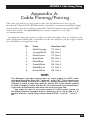
interconnect cable. Compare its pinning and pairing with those shown in
Appendix A.
NOTES
For all practical purposes, cable equalization cannot be exact: The
remote video image will never be as sharp as the original. The Remote
Unit’s equalization system is designed to produce very good results on
short or medium-length cables and acceptable quality across very long
cables (those over 150 m [500 ft.] in length).
At any cable range, you can see how the video would appear without
any compensation at all by turning the Focus dial counterclockwise as
far as it will go.
1. Run an application you intend to use that requires a high screen resolution,
such as a Windows art or design program, a word processor or desktoppublishing package, or even a graphics-intensive game.
2. If the video reaching the remote monitor is “undercompensated,” you will
notice black smearing on the right-hand edge of large horizontal objects
such as title bars. The degradation becomes more noticeable as cable length
increases.
3. Keep your eyes on a part of the image where the smearing is evident. Now,
turn the Remote Unit’s Focus dial clockwise, by hand or with a screwdriver,
until the smearing disappears and the edge becomes very bright and too
sharp. At this point and beyond the video is “overcompensated.”
4. Turn the Focus dial back slightly until you reach a point where the edge looks
as it should be (no smearing or over-sharpness). The compensation is now
adjusted correctly for the length of interconnection cable used. (If you can’t
seem to get the compensation close enough, and you’re running high-res
video to near the limits of the cable length that the Remote Unit is configured
for, see the Note in Section 5.1.)
5. Use the Brightness dial to adjust the brightness of the overall picture. After you
do so, you might need to make a further slight adjustment with the Focus dial.
One you’ve finished polishing up the video, your Extender system should be ready
for continuous operation.
39