1
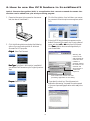
3. Install software
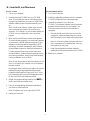
For PC Users
For Macintosh Users
1. Turn on your computer.
1. Turn on your computer.
2. Insert the Microtek CD-ROM into your CD-ROM
drive. This includes your scanner controller program
for capturing images from your scanner. The Microtek
Software Installer screen should automatically come
up.
2. Install the image-editing software, which is a separate
CD-ROM included with your scanner package.
3. Install all the software on your Microtek
CD-ROM. To install each software, open the software
program's folder, and then click the “Installer” icon.
Follow the screen instructions until installation is
completed.
Note: If the Microtek Software Installer screen does not
come up automatically, double-click the following in
succession: “My Computer” on your Windows desktop; the
CD-ROM icon; and cdsetup.exe to start the installer
program.
•
3. When the Microtek Software Installer screen appears,
click each software program in the order that it appears
on the screen to install all software components. (Your
software includes programs for image editing, OCR
text editing, document management, and the Adobe
Acrobat Reader program for reading documentation).
Microtek ScanWizard 5 is the scanner controller
program for capturing images from your scanner
and delivering it to your image-editing application.
Note: For iMac users, please visit Apple’s web site at
http:// www.apple.com to download and install any
iMac updates you may need.
•
For each software, follow the on-screen instructions
during installation. Default values are specified at every
point during installation; simply accept these values to
continue installation until you finish.
Install the software documentation reader for
reading and printing the manuals on the CD-ROM.
4. Restart your computer.
Note: You may be prompted to restart the computer at this
point. Do not restart your computer until all the software
has been installed.
In some applications, auxiliary information (such as the
Readme file) may be displayed after that particular
program finishes installing. Simply click the “X” close
box at the upper right corner of the displayed window
to return to the Microtek Software Installer.
4. After all the software has been installed, click EXIT on
the Microtek Software Installer screen
5. If any other image-editing software is bundled with
your scanner, install them now.
Note: The software may be on a separate CD-ROM.
6. Restart your computer.
2