1
Introduction, cont’d
Using GC2.3, you can configure a single room controller or
create a web-based remote monitoring system for hundreds of
A/V devices in multiple locations.
3.
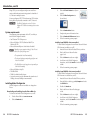
Click the IP Link® Software icon (shown
at right).
4.
Click the Global Configurator icon
(shown below).
5.
Click the Download Now button.
6.
Complete the personal information form.
7.
Click the Download GCSWxxxxx.exe button.
8.
Follow the remaining system prompts.
You may configure an IPL T PC1 interface using GC2.3 without
having the device physically connected to the A/V network.
C
Use Global Configurator version 2.3 or later. Update all PCs and devices running earlier versions
of GC.
System requirements
The minimum system requirements for the PC on which you
install Global Configurator include:
• Intel Pentium III 1 GHz processor
• Microsoft Windows NT SP4, Windows 2000 SP2, or
Windows XP SP2
• Microsoft Internet Explorer 6.0 with ActiveX enabled
®
®
®
N Depending on your computer settings, if ActiveX is not
enabled, one of the following occurs:
•The system loads ActiveX automatically.
•The browser displays a prompt asking you if you want ActiveX to be loaded.
• The GlobalViewer control page does not open until you load ActiveX manually. • Microsoft Windows Script 5.6
• 512 MB of RAM
• 50 MB of available hard disk space
• A network connection with a minimum data transfer rate of
10 Mbps; however, 100 Mbps is recommended.
Installing Global Configurator
Global Configurator software is available at no charge from
Extron.
Downloading and installing from the Extron Web site
To download and install Global Configurator on your PC:
1-4
1.
Visit the Extron Web site at www.extron.com.
2.
Click the Download tab.
IPL T PC1 • Introduction
Installing from CD-ROM — Autorun enabled
To install Global Configurator from an Extron Software Products
CD if Autorun is enabled on your PC:
1.
Insert the Extron Software Products CD into your drive.
2.
Wait for the Extron Software Products
page to load.
3.
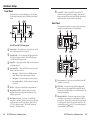
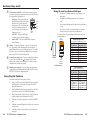
Click the Software icon (shown at right).
4.
Scroll down to the Global Configurator
description, and click the Install link in the far right
column.
5.
Follow the remaining system prompts.
Installing from CD-ROM — Autorun not enabled
To install Global Configurator from an Extron Software Products
CD if Autorun is not enabled on your PC:
1.
Insert the Extron Software Products CD into your drive.
2.
From the Windows desktop, open My Computer and select
the CD-ROM drive.
3.
Double click launch.exe.
4.
Wait for the Extron Software Products page
to load.
5.
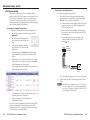
Click the Software icon (shown at right).
6.
Scroll down to the Global Configurator
description, and click the Install link in the far right
column.
7.
Follow the remaining system prompts.
IPL T PC1 • Introduction
1-5