1
VG175.book Page 9 Tuesday, October 17, 2000 11:49 AM
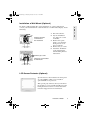
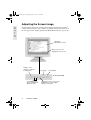
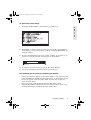
To adjust the screen image:
1
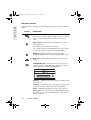
To display the Main Menu as shown below, press button [1].
E
N
G
L
I
S
H
2
To highlight a control you want to adjust, press the up ▲ or down ▼ button
on the display’s front control panel to scroll up or down the Main Menu: for
example, Contrast.
3
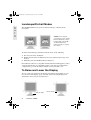
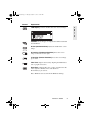
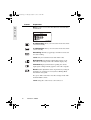
To select the highlighted control, for example, Contrast, press button [2]. A
control screen for the selected control appears as shown below.
4
5
To adjust the selected control, press the up ▲ or down ▼ button.
To save the adjustments and exit the menu, press button [1].
The following tips may help you optimize your display:
• Adjust your computer's graphic card so that it outputs a video signal of 1280
x 1024 @ 60Hz to the VA800. (Look for instructions on changing the refresh
rate in your graphic card's user guide.) Then, use Auto Sync to size and
center the screen image.
• If necessary, make small adjustments using the Fine Tune control.
• Adjust the Smoothing control so that the screen image looks focused, crisp,
and sharp when using a resolution other than 1280 x 1024.
ViewSonic VA800
9