1
System BIOS
Updating The System BIOS
Updating The System BIOS
You can download the latest system BIOS (standard flash operation) from HP’s Web site
at www.hp.com/go/workstationsupport. After accessing the site, select HP x2100
Workstation.
Instructions for updating the BIOS accompany the downloaded BIOS files and a BIOS
flash utility (flash.txt).
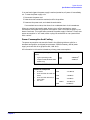
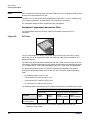
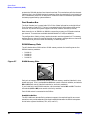
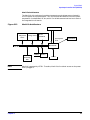
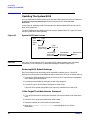
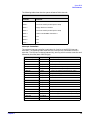
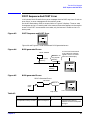
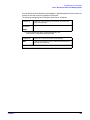
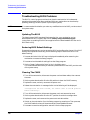
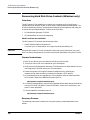
The BIOS update not only flashes the BIOS but also updates MaxiLife. Figure 3-1 shows
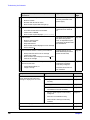
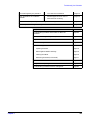
how the system BIOS flash operates.
Figure 3-1
System BIOS Flash Process
Boot
from
floppy
disk
Flash
BIOS
Reboot
Workstation
(press a key)
Flash
MaxiLife
Workstation
powers off
automaticall
CAUTION
Workstation
powers on
automaticall
Workstation
Boots
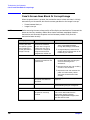
Don’t turn off the computer until the system BIOS update procedure has completed,
successfully or not; otherwise, irrecoverable damage to the ROM might occur.
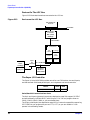
Restoring BIOS Default Settings
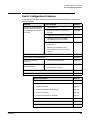
BIOS and configuration issues may cause suspected hardware errors. If the BIOS
settings are wrong, perform the following steps to restore the BIOS to its default setting:
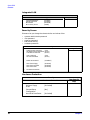
1. To access the Setup program, press F2 while the initial HP logo displays immediately
after restarting the workstation.
2. Press F9 to load the default settings from the Setup program.
3. In the main menu, set the Reset Configuration Data to Yes.
Take note of the system setup before you make any modifications to the BIOS.
If You Forget The Administrator Password
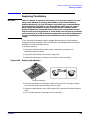
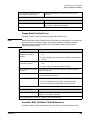
1. Turn off the workstation, disconnect the power cord and all cables, then remove the
cover.
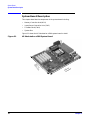
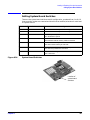
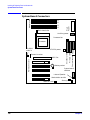
2. Set switch 9 on the system board switch block to ON.
3. Replace the power cord, and restart the workstation.
4. When the Passwords have been cleared message appears, turn off the
workstation.
70
Chapter 3