1
AudioSuite Processing
Preferences
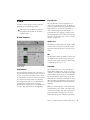
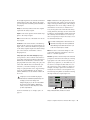
Before you begin using AudioSuite plug-ins, use
the Preferences dialog (Setups > Preferences >
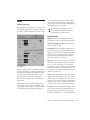
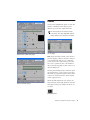
Processing) to configure default AudioSuite options according to your needs. These options include the default dither setting, a dither on/off
checkbox, and the AudioSuite buffer size option.
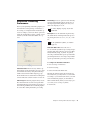
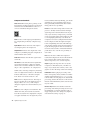
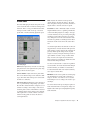
Edit Settings Accesses options for the currently
selected Default Dither plug-in. In the case of
the Digidesign Dither plug-in, this lets you to
turn noise shaping on or off.
See “Noise Shaping” on page 36 for more
information.
Bit Depth Selects the default bit depth used by
the dither function during AudioSuite processing. Bit depth can be set to 16-, 18-, 20-, or 24bit.
For an explanation of dither, See “Dither”
on page 36.
AudioSuite Buffer Size Selects the size of
Pro Tools memory buffer for processing and previewing AudioSuite plug-ins. Choices are Mini,
Small, Medium, Large, or Jumbo. In general,
choosing a smaller buffer speeds up AudioSuite
previewing functions. Choosing a larger buffer
speeds up AudioSuite processing of audio files.
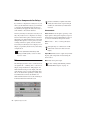
To configure the AudioSuite Buffer Size:
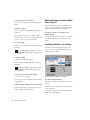
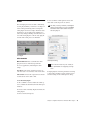
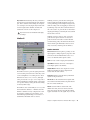
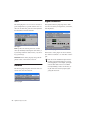
Processing Preferences page
AudioSuite Dither When selected, dither is applied during certain AudioSuite processes (such
as Normalize and Gain), using the dither algorithm selected in the Dither Plug-In pop-up
menu. Dither is most useful when working with
low-level files that contain a fade in or fade out.
Dither Plug-in AudioSuite plug-ins always create
files that inherit the session’s bit depth. With
the Dither Plug-In pop-up menu you can choose
the dither algorithm used for dithering higherbit source files during AudioSuite processing.
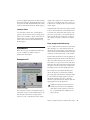
1 Choose Setups > Preferences.
2 Click Processing.
3 Select an AudioSuite Buffer Size.
Though the default setting will work well for
most situations, you may want to set the buffer
according to your current task. Before you audition an AudioSuite plug-in, set this buffer to
Mini or Small. Then, when you are ready to process a file, reset it to Large or Jumbo.
4 Click Done.
Chapter 4: Working with AudioSuite Plug-Ins
29