1
more high frequencies are attenuated. The maximum value for LPF is Off. This lets the signal
pass through without limiting the bandwidth of
the plug-in.
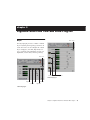
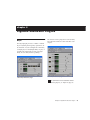
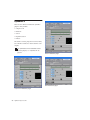
Delay Sets the delay time between the original
signal and the delayed signal.
Depth Controls the depth of the modulation applied to the delayed signal.
Rate Controls the rate of modulation of the delayed signal.
Feedback Controls the amount of feedback applied from the output of the delay back into its
input. It also controls the number of repetitions
of the delayed signal. Negative feedback settings
give a more intense “tunnel-like” sound to
flanging effects.
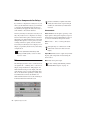
Tempo Sync (Pro Tools 6.2 and higher) Tempo
Sync provides a direct connection between session tempo and plug-in parameters that support
MIDI Beat Clock. This direct connection lets
plug-in parameters such as delay, auto-pan, and
other time-domain effects automatically synchronize to, and follow changes in, session
tempo. For plug-ins that do not support Tempo
Sync, the original MIDI Beat Clock window
(MIDI > MIDI Beat Clock) remains available in
Pro Tools.
Tempo Sync is not available in plug-ins
with which it would limit functionality. For
example, for the Virus Indigo and
IndigoV40 plug-in, use the Pro Tools MIDI
Beat Clock window (MIDI > MIDI Beat
Clock). See the Pro Tools Reference Guide
for more information.
For more information, see “Tempo Sync” on
page 17.
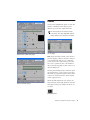
Tempo Available in some plug-ins that do not
support Tempo Sync, Tempo selects the desired
tempo in beats per minute (bpm). This setting is
independent of Pro Tools’ tempo. When a specific Duration is selected (see “Duration” below), moving this control will affect the Delay
setting. Likewise, the range of both controls will
be limited to the maximum available delay with
the currently selected Duration. To enter very
short or long delays it may be necessary to deselect all Duration buttons.
Use Edit > Identify Beat or Beat Detective to
determine the tempo. For more information
about Identify Beat and Beat Detective refer
to the Pro Tools Reference Guide.
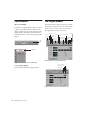
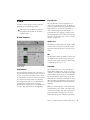
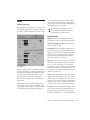
Meter Use this to enter either simple or compound time signatures. The Meter control defaults to a 4/4 time signature.
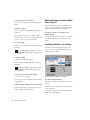
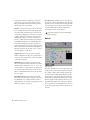
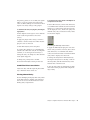
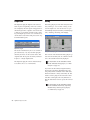
Duration Specifies a desired delay from a musical
perspective. Enter the desired delay by selecting
appropriate note value (whole note, half note,
quarter note, eight note, or sixteenth note). Select the Dot or Triplet modifier buttons to dot
the selected note value or make it a triplet. For
example, selecting a quarter note and then selecting the dot indicates a dotted quarter note,
and selecting an eighth note and then selecting
the triplet indicates a triplet eight note.
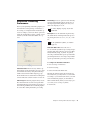
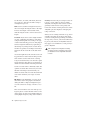
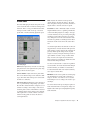
Triplet modifier Dot modifier
Duration
Tempo, Meter, Duration, and Groove controls
Chapter 5: DigiRack Real-Time TDM and RTAS Plug-Ins
51