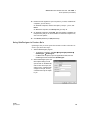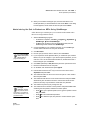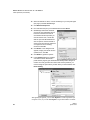
1
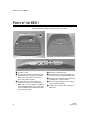
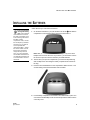
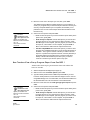
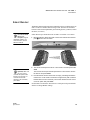
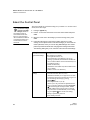
Quick Guide Contact Information United States United Kingdom Renaissance Learning PO Box 8036 Wisconsin Rapids, WI 54495-8036 Technical questions or problems: Phone: 087 0120 0718 Email: [email protected] Technical questions or problems: Phone: (800) 338-4204 Email: [email protected] Web: www.renlearn.com/support Latest support information: Web: www.renlearn.co.uk/renaissancezone Purchase NEO products, general information, or sales questions: Online store: www.renlearn.com/store/ Phone: (800) 338-4204 Email: [email protected] Europe, Middle East, and Africa Technical questions or problems: Phone: +44 870 120 0718 Email: [email protected] Latest support information: Web: www.alphasmart.eu/support Purchase NEO products: Web: www.renlearn.com/neointernational Purchase NEO products: Web: www.renlearn.co.uk/schools (This Website also provides a list of resellers and contacts for NEO products.) Asia/Pacific, Canada, and Latin America Technical questions or problems: Contact your local reseller. If you do not have a local reseller, email Technical Support at [email protected]. Latest support information: Web: www.alphasmart.eu/support Purchase NEO products: Web: www.renlearn.com/neointernational Copyright Notice Copyright © 2011 by Renaissance Learning, Inc. All Rights Reserved. This publication is protected by US and international copyright laws. It is unlawful to duplicate or reproduce any copyrighted material without authorization from the copyright holder. This document may be reproduced only by staff members in schools that have purchased the NEO 1. For more information, contact Renaissance Learning, Inc., at the address above. Advanced Technology for Data-Driven Schools, AlphaQuiz, AlphaWord, Beamer, KeyWords, NEO, NEO 1, NEO 2, NEO Manager, NEO Text2Speech, Renaissance, Renaissance Learning, the Renaissance Learning logo, and Renaissance Place are trademarks of Renaissance Learning, Inc., and its subsidiaries, registered, common law, or pending registration in the United States and in other countries. Macintosh is a registered trademark of Apple Computer, Inc., registered in the US and other countries. Windows is a registered trademarks of Microsoft Corporation in the United States and other countries. Windows Vista is either a registered trademark or trademark of Microsoft Corporation in the United States and/or other countries. Palm OS by ACCESS is among the trademarks or registered trademarks owned by or licensed to Palm, Inc.™ 9/11 NEO 1 NEO1QG-0911 W HAT’S IN THE N E O 1 K IT? W HAT ’ S IN THE NEO 1 K IT ? You’ll find these items in the NEO 1 kit: • your NEO 1 • three AA batteries • a standard USB cable for connecting NEO 1 to your computer or printer • the NEO Manager installation CD • the NEO Documentation CD, which includes your manuals • the NEO 1 Quick Guide (this guide) NEO 1 Quick Guide 1 P A RTS O F TH E N E O 1 P ARTS OF THE NEO 1 The drawings below will help you identify parts of your NEO 1: C A D B E F A The NEO 1 screen. B The keyboard. The top row includes keys that are unique to NEO, including on/off, the eight file keys, print, spell check, find, clear file, home, end, applets, and send. C The green light is on when your NEO 1 is connected to a computer, to a SmartOption Mobile Lab, or to an AC adapter. If your NEO 1 has a rechargeable battery pack, a green light means the batteries are charged; amber means they are being charged. 2 G H D The battery compartment cover. E The connection point for the AC adapter cord (for NEOs with the rechargeable battery pack). F The IR port for infrared beaming between NEOs or between NEO 1 and a computer. G The port for connecting NEO 1 to a computer using a standard USB cable. H A USB port for connecting NEO 1 directly to a USB printer. NEO 1 Quick Guide I NS TA LLI NG T HE B AT TE RI E S I NSTALLING THE B ATTERIES Follow these steps to install the AA batteries: If you purchased the rechargeable battery pack, insert it instead of the batteries and connect the cable on the battery pack to the matching cable next to the NEO 1 battery compartment. Then, connect the AC adapter to your NEO 1 and plug it in to an outlet as soon as possible after receiving the NEO 1. Charge the unit for at least 16 hours the first time; subsequent charges will only take 4–8 hours. For more information, see the NEO User Manual on your NEO Documentation CD or at www.renlearn.com/neo/ downloads. 1. On the back of the NEO 1, put your thumbs in the circles A and slide the compartment cover toward the left to remove it from the NEO 1. A A Note: After you install the batteries the first time, you may use a small Phillips screw to secure the cover. If you do this, you will need to remove the screw to open the cover the next time you install batteries. 2. The first time you open the compartment, you’ll find a small plastic bag with a Phillips screw for holding the battery compartment shut. Remove the bag. 3. Insert the three AA batteries into the compartment. Make sure the + end of each battery points toward the black and red cables. 4. Put the battery compartment cover back on and slide it back in place. You can insert the small Phillips screw into the hole provided to make sure the cover stays shut. NEO 1 Quick Guide 3 S TAR TIN G TH E N E O 1 OR S HU TTIN G I T D O WN S TARTING THE NEO 1 OR S HUTTING I T D OWN To start the NEO 1, press the on/off key in the top-left corner of the keyboard. The NEO 1 will start AlphaWord Plus, and you can begin typing immediately in the open file if you wish. Notice that you have eight files available to type text in; to switch between files, press one of the file keys (file 1, file 2, etc.). You can also save and name files on your NEO 1. For more information, see the NEO User Manual on the Documentation CD or at www.renlearn.com/neo/downloads. NEO 1 shuts down automatically to save battery power if you don’t use it for a certain amount of time. The default time is 4 minutes, but you can change it by pressing option--T or by using the Idle Time System setting in NEO Manager. I NSTALLING NEO M ANAGER NEO Manager helps your computer work with NEO 1. It lets you do the following: • Get files from your NEO 1 so you can view, save, and/or print the files. • Send files from your computer to your NEO 1. Files may include lessons, instructions, or just text files that you want to work in on the NEO 1. • View reports about student work in KeyWords on the NEO 1 and synchronize the data with Renaissance Place. For more about KeyWords, see page 9. • Install or remove SmartApplet programs from your NEO 1. • Change settings for your NEO 1 or one of the SmartApplets on the NEO 1. • View the items you’re about to send to the NEOs and select the NEOs to send them to. For more information about NEO Manager, see the NEO User Manual on your NEO Documentation CD or at www.renlearn.com/neo/downloads. To install NEO Manager, follow the steps for your type of computer on the next two pages. 4 NEO 1 Quick Guide I N S TALL ING N E O M A NA GE R Installing NEO Manager on Windows Computers Installing NEO Manager on Windows Computers NEO Manager works with Windows XP, Windows Vista, or Windows 7. 1. Make sure you’re logged in to the computer as the administrator or that you have administrator privileges. 2. Insert the NEO Manager CD into your computer and view the contents of the CD. On Windows 7, you may be asked whether you want to allow the program to make changes to your computer. Click Yes to continue. 3. Double-click the setup.exe file. 4. If your computer does not have Microsoft .NET Framework 4.0 Full, you will see a message telling you that NEO Manager requires it. Click Install. 5. When the NEO Manager installation wizard opens, click Next > in the first panel. 6. Read the license agreement. You can print the license if you want to by clicking the button provided. Click the first option to accept the terms and click Next >. 7. If you already have Renaissance Wireless Server installed, you may see a screen that tells you that it is using files that need to be updated. Leave the first option selected (Automatically close and attempt to restart applications) and click OK. 8. On 64-bit computers only, this happens next: a. A message will tell you that 64-bit drivers must be installed. Click OK. b. The NEO Manager 64-bit Driver wizard will open. Click Next >. c. Leave Complete selected and click Next >. d. Click Install. e. Click Finish. 9. If your computer must be restarted, on the last panel of the NEO Manager installation wizard, click an option to choose whether to restart now or later. Then, click Finish. If a restart is not required, leave the box checked if you want to see the Read Me file. Click Finish. 10. To start NEO Manager, click StartAll ProgramsNEO ManagerStart NEO Manager. Registration for Renaissance Online Plus gives you access to product tips and other useful information as well as notifications of software updates. NEO 1 Quick Guide 11. The first time you start the program, a Registration window will open, asking you to register your software. You can click Now, Later (to be reminded in two weeks), or Never. If you choose Now, you will go to the Renaissance Online Plus page. If you already have an account on the Renaissance Learning Web site, you can log in; if not, choose to create a new account. Once you are logged in, 5 I N STA LLI NG N E O M A NA GE R Installing NEO Manager on Macintosh Computers you can select your products and the information you would like to receive. When you have finished, click Quit. Installing NEO Manager on Macintosh Computers NEO Manager works with OS 10.4.x, 10.5.x, or 10.6.x. 1. Make sure you’re logged in to the computer as the administrator or that you have administrator privileges. 2. Insert the NEO Manager CD into your computer. 3. Double-click NEO Manager Installer on the CD. 4. Enter the administrator user name and password for this computer when the installer asks you to do so. Then, click OK. 5. Read the license agreement. (You can use the buttons to print or save it.) Then, click Continue. 6. Click Agree when the program asks if you want to accept the license agreement. 7. Click Install to start the installation. 8. Click OK when a message tells you that your computer may be restarted automatically after installation. 9. The installer will ask if you want to add the program to the dock. Click Yes or No. The installation will finish. Your computer may restart. After installation, the folders where NEO Manager and the Renaissance Wireless Server Utility were installed will open. 10. To start NEO Manager, do one of the following: Registration for Renaissance Online Plus gives you access to product tips and other useful information as well as notifications of software updates. 6 • If you have added NEO Manager to the dock, click the icon in the dock. • If you have not added NEO Manager to the dock, open the Applications folder, then the AlphaSmart Manager 2 folder. Doubleclick NEO Manager. 11. The first time you start the program, a Registration window will open, asking you to register your software. You can click Now, Later (to be reminded in two weeks), or Never. If you choose Now, you will go to the Renaissance Online Plus page. If you already have an account on the Renaissance Learning Web site, you can log in; if not, choose to create a new account. Once you are logged in, you can select your products and the information you would like to receive. When you have finished, click Quit. NEO 1 Quick Guide C O N N E C T I N G N E O 1 T O YO U R C O M P U T E R Connecting a Single NEO 1 to Your Computer C ONNECTING NEO 1 TO Y OUR C OMPUTER Connecting a Single NEO 1 to Your Computer 1. If this is the first time you have connected the NEO to your computer, check the following: • Make sure you are logged in to your computer as an administrator or that you have permissions that allow the device drivers to load properly. • Start the NEO Manager software if it isn’t already running on the computer. 2. Using the cable that came with the NEO 1, connect the thin, flat connector A to your computer, and connect the square end B to your NEO 1 at C. C A B On Windows XP computers, you may be notified that the driver is not certified for Windows XP. The driver will work for your system; to go on, click Continue Anyway. 3. The first time you connect your NEO 1 to a Windows computer, the computer may notify you that it has found the hardware and installed the driver. If a hardware wizard appears, follow the instructions in the wizard. The first time you connect your NEO 1 to an OS 10 computer, a keyboard setup assistant will open. Follow the instructions in the assistant. 4. The message on your NEO will tell you that it is connected and remind you what keys to press to send a file or to switch files. Connecting Multiple NEO 1s Using a SmartOption Mobile Lab If you already have a SmartOption Mobile Lab, you can connect your NEO 1s to the lab instead of connecting them to your computer one by one. See the instructions that came with your SmartOption Mobile Lab. NEO 1 Quick Guide 7 S M A RTA P P L E TS I N S TALL E D O N TH E N E O 1 What Are SmartApplets? S MART A PPLETS I NSTALLED ON THE NEO 1 What Are SmartApplets? SmartApplets are programs that are installed on your NEO 1. These programs allow you to write with the NEO 1, practice keyboarding skills, perform calculations, change settings, administer quizzes to your students, or “beam” files from one NEO 1 to another or to a NEO 2. Which SmartApplets Are Installed? All NEO 1s come with these SmartApplets installed: • AlphaWord Plus—This is the program that opens when you first turn on the NEO 1. The writing that you do on NEO 1 in files 1–8 is done in AlphaWord Plus. • KeyWords—KeyWords allows students to learn and practice keyboarding skills. (On UK NEOs, KAZ is included instead of KeyWords.) • Control Panel—The Control Panel allows you to change settings for the NEO 1 and for some SmartApplets. • Beamer—Beamer allows you to send files to other NEO 1s or NEO 2s without using cables (using infrared technology). You can disable beaming between NEOs on the NEO Manager Settings tab. • AlphaQuiz—AlphaQuiz allows students to take quizzes on the NEO 1. If you’d like to use this program, you need to install QuizManager and QuizDesigner on your computer. You can create quizzes on your computer using QuizDesigner, and then send them to one or more NEOs using QuizManager. (See page 18.) (AlphaQuiz is not included in the UK.) • Calculator—This program allows you to do calculations right on your NEO 1. (It can be disabled using the Control Panel settings; see the NEO User Manual.) 8 NEO 1 Quick Guide S M AR TA PP L E TS I NSTA LLED ON THE N E O 1 About AlphaWord Plus About AlphaWord Plus When you start your NEO 1, AlphaWord Plus opens automatically (unless you’ve changed settings to have another SmartApplet open.) AlphaWord Plus is the program that lets you write with NEO 1. Simply press one of the file keys (file 1, file 2, etc.) to choose the file to write in and start typing. Characters are saved in that file as you type them; there’s no need to worry about losing text if you accidentally shut off the NEO 1. The arrow keys, backspace, and delete all work as they do on a typical computer keyboard. See the label on the back of your NEO 1 for a list of helpful keyboard commands. These commands can help you perform tasks more quickly. If you want to delete all of the text from one of the files, press clear file. Then, press Y for yes when the NEO 1 asks if you’re sure you want to clear the file. To copy, cut, and paste text, you can use the same keyboard commands that you use in word processing programs on your computer. To copy text, select it and press ctrl-C or -C. To cut text, select it and press ctrl-X or -X. To paste it, press ctrl-V or -V. If you want to name and save a file so you can use the file space for other text, press ctrl-S. Then, type a name for the file and press enter. You can then clear the file space without losing the file you saved. To open a saved file again, press ctrl-O, move the cursor next to the file name, and press enter. For more information about using AlphaWord Plus, see your NEO User Manual on the Documentation CD or at www.renlearn.com/neo/downloads. Text2Speech devices are available to read your AlphaWord Plus documents aloud as you write. If you have purchased a Text2Speech device, refer to the instructions you received with it. About KeyWords The KeyWords SmartApplet helps students learn keyboarding skills and practice keyboarding. These instructions will help you start using the SmartApplet; for more information, refer to the NEO User Manual on the NEO Documentation CD or at www.renlearn.com/neo/downloads. NEO 1 Quick Guide 9 S M A RTA P P L E TS I N S TALL E D O N TH E N E O 1 About KeyWords St arting the KeyWords SmartApplet 1. Press applets on the NEO 1. 2. Use the arrow keys to move the cursor next to KeyWords; then, press enter. Addi ng Your KeyWords Students You must add each student who will be using KeyWords on the NEO 1. You can add up to eight students on each NEO. To avoid confusion on reports, don’t add the same student to more than one NEO 1 or NEO 2. Follow these steps to add students: 1. Start the KeyWords SmartApplet as described above. 2. Press once to move the cursor next to Add a student; then, press enter. 3. Enter the student’s first name and press enter. Then, enter the student’s last name and press enter. 4. Enter a password for the student (2–6 characters), press enter, and type the password again. Then, press enter. When you return to the list of KeyWords options, the new student will be in the list. Repeat these steps to add other students. If you make a mistake, use the arrow keys to go to the line and character where there is a mistake; then, use the backspace key to erase it. Select your name or choose to add name: - Teacher options - Add a student Luis Camacho How Students Start Using KeyWords Lessons Students follow these steps to start working in the KeyWords SmartApplet: 1. Start the KeyWords SmartApplet. 2. Press the key to move the cursor down next to your name in the list. Then, press enter. Select your name or choose to add name: - Teacher options - Add a student Luis Camacho 10 NEO 1 Quick Guide S M AR TA PP L E TS I NSTA LLED ON THE N E O 1 About KeyWords 3. Type your password and press enter. (The password was assigned when you were added as a student.) 4. Move the cursor down next to Pre-Test and press enter. The arrows on the screen show you that there are more options above or below the ones you’re viewing. 5. For the pre-test, after viewing instructions, type the text as instructed. At the end of the pre-test, you will see how many words per minute (WPM) you typed and how many errors you made. When you finish, you will go back to the list of lessons. Select Lesson or Option: - Student reports - Pre-Test Start Here! 6. After you complete the pre-test, you will return to the lesson list, where you’ll see * next to the pre-test that you’ve completed. The * will appear next to each lesson as you complete it. A + will appear next to each lesson that you have started, but not finished. 7. To start the first lesson, press the key to move the cursor next to Start Here!; then, press enter. 8. Follow the instructions on the NEO screen to learn about the space bar and enter key, how to sit properly, and where to put your hands on the keyboard. 9. After you complete this lesson, you will return to the lesson list, where you’ll see * next to the lesson you’ve completed. (The * will appear next to each lesson as you complete it.) The + will appear next to each lesson that you have started, but not finished. 10. To choose another lesson that you want to complete (such as A S K L Keys) move the cursor next to the lesson and press enter. (You may need to do the lessons in order depending on the settings of the KeyWords options; see the NEO User Manual for more information on the settings.) For more information on the other lessons, see the next section. How Students Complete Ot her KeyWords Lessons In each of the other lessons, students go through three activities: Learn new keys, Use accuracy and speed builders, and Take accuracy and speed test. As you complete each task, you can choose another option within this lesson, or you can select another lesson. To go back to a previous screen (such as the lesson list or the list of names), press esc until you get to that screen. NEO 1 Quick Guide 11 S M A RTA P P L E TS I N S TALL E D O N TH E N E O 1 About KeyWords Learn New Keys This part of the lesson helps you learn to type the keys. When you choose this option, KeyWords asks you to type the keys you’re learning and to type combinations of the keys in different sequences. If you type the wrong key, KeyWords will make corrections, but if you continue to type the wrong keys, KeyWords will give you a hint and show you the keyboard layout with the key highlighted to help you find it. You must press the correct key to go on. Use Accuracy and Speed Builders This helps you improve your accuracy and increase your speed while typing the keys. There are six practice passages in the accuracy and speed builders for each lesson. To choose the passage you want to work on, move the cursor next to it and press enter. During the accuracy part of the activity, KeyWords will ask you to type each of the words as accurately as possible; then, it will give you the words in different sequences. After you pass the accuracy part of the activity, the speed builder will start, and KeyWords will ask you to type the words as quickly as you can. KeyWords will show you your goal before the speed builder, and afterwards, it will show you whether you met the goal. Take Accuracy and Speed Test The test checks your proficiency typing these keys. When you choose this option, KeyWords shows you the goals you need to meet for accuracy and speed in order to pass the test. After you’ve finished the test, the screen shows your accuracy and speed scores, your goal, and whether you passed for accuracy and for speed. About t he Post -Test After you finish the KeyWords lessons, select the post-test. The post-test is similar to the pre-test; after viewing the instructions, type the text as instructed. At the end of the test, the screen will show you how many words per minute you typed and how many errors you made. How Students View t he Student Progress or Last Lesson Report Students follow these steps to get reports about their work in KeyWords: 1. After starting the KeyWords SmartApplet, press the key to move the cursor down next to your name in the list. Then, press enter. 2. Type your password and press enter. 3. On the Select Lesson or Option screen, press to move the cursor up next to Student reports, which is at the top of the list. Then, press enter. 12 NEO 1 Quick Guide S M AR TA PP L E TS I NSTA LLED ON THE N E O 1 About KeyWords 4. Move the cursor next to the report you want; then, press enter. The Student Progress Report includes all lessons you’ve worked on. It shows you your goals and your actual words per minute and accuracy, the accuracy and speed builders you’ve completed, and whether you’ve passed the test. The Last Lesson Report shows this information for the last lesson only. For more information on the three options for the report, see the NEO User Manual on the Documentation CD or at www.renlearn.com/neo/ downloads. 5. Select one of the options and press enter: • Print: Choose this option if you want to send the report directly to the printer. Then, press print. • Send directly to computer: Choose this option if you want to send the report to a file on your computer via a cable connection. Close NEO Manager on the computer, open the program you want to send the report to, connect NEO 1 to the computer, and press send on NEO 1. Disconnect the cable when the report has been sent. • Transfer to AlphaWord file: Choose this option if you want to send the report to an AlphaWord Plus file in one of the eight file spaces on the NEO 1. Then, type the number of the file you want to send the report to. If a password is required for the file, enter the password (or the master password). If the NEO warns you that the text that’s already in the file will be deleted, press Y for yes if you want to continue. The file that you sent the report to may open. How Teachers View a Group Progress Report from One NEO 1 Teachers follow these steps to get information about each student’s last lesson on one NEO: 1. Start the KeyWords SmartApplet (see page 10). 2. With the cursor next to Teacher options, press enter. 3. Type the master password for this NEO and press enter. If you don’t know the master password, contact Technical Support or set a new one using NEO Manager. For more information, see the NEO User Manual on the Documentation CD or at www.renlearn.com/neo/downloads. 4. Move the cursor down next to Create group progress report and press enter. For more information on the three options for the report, see the NEO User Manual on the Documentation CD or at www.renlearn.com/neo/ downloads. NEO 1 Quick Guide 5. Select one of the options and press enter: • Print: Choose this option if you want to send the report directly to the printer. Then, press print. • Send directly to computer: Choose this option if you want to send the report to a file on your computer via a cable connection. Close NEO Manager on the computer, open the program you want to send the report to, connect NEO 1 to the computer, and press send on NEO 1. Disconnect the cable when the report has been sent. 13 S M A RTA P P L E TS I N S TALL E D O N TH E N E O 1 About KeyWords • Transfer to AlphaWord file: Choose this option if you want to send the report to an AlphaWord Plus file in one of the eight file spaces on the NEO 1. Then, type the number of the file you want to send the report to. If a password is required for the file, enter the password (or the master password). If the NEO warns you that the text that’s already in the file will be deleted, press Y for yes if you want to continue. The file that you sent the report to may open. Other Tasks in KeyWords For more information about the other options for teachers and students in KeyWords, see the NEO User Manual on the Documentation CD or at www.renlearn.com/neo/downloads. You’ll find information on the following: • Deleting students • Requiring students to complete the lessons sequentially • Setting a pre-test and post-test level for students • Setting accuracy and speed goals for students • Requiring students to use the opposite shift key when typing capital letters • Requiring students to type the home row keys before each accuracy and speed builder activity and each test • Requiring one or two spaces between sentences • Setting KeyWords options using NEO Manager • Retrieving KeyWords data and generating reports in NEO Manager • Synchronizing KeyWords data with Renaissance Place (using NEO Manager) so that you can use the reports in KeyWords RP • Using KeyWords RP to view reports about student work in KeyWords on NEOs • Resources for KeyWords teachers • KeyWords lessons 14 NEO 1 Quick Guide S M AR TA PP L E TS I NSTA LLED ON THE N E O 1 About Beamer About Beamer The Beamer SmartApplet uses infrared (IR) technology to send data from one NEO 1 or NEO 2 to another without using a cable. (You can also send data between a NEO and an AlphaSmart 3000 running System 3 software, a Palm OS device, or a Dana.) You can also beam files to your computer using the AlphaBeam software. For more information, see the NEO User Manual. If there is text in the clipboard, NEO 1 will ask if you want to overwrite the clipboard with the file you’re receiving. To continue and allow the clipboard to be overwritten, press enter. Follow these steps to beam files from one NEO 1 to another or to a NEO 2: 1. Move the NEOs to within three feet of each other and aim their infrared ports A at each other as shown. A 2. The sender should open the file he or she wants to send and press ctrlsend. The receiver should open the file space that he or she wants to receive the text into and press ctrl-B. 3. If the file that the receiver chose was not empty, a message will ask the receiver if he or she wants to overwrite it or append to it (that is, add the beamed text to the end of the file). The receiver should move the cursor next to an option and press enter. See the NEO User Manual to find out how to send password-protected files and how to change Beamer settings. NEO 1 Quick Guide 15 S M A RTA P P L E TS I N S TALL E D O N TH E N E O 1 About the Control Panel About the Control Panel You can also change settings using NEO Manager, which can send setting changes to several NEOs at the same time. For more information, refer to the NEO User Manual on the Documentation CD or at www.renlearn.com/neo/ downloads. 16 The Control Panel lets you define settings for your NEO 1. To use the Control Panel, follow these steps: 1. Press the applets key. 2. Press to move the cursor down next to the Control Panel and press enter. 3. Move the cursor next to the settings you want to change; then, press enter. 4. Follow the instructions on the screen to make changes. For some settings, such as Spell Check or Calculator settings, you must enter the master password, which you can set using NEO Manager. The master password prevents students from changing these settings themselves. The following table gives you an overview of the Control Panel settings. Setting Description Spell Check Settings These settings are available: • Turn spell check off (or on) • Turn add words to user dictionary off (or on) (During a spell check, this determines whether the user can add words that aren’t in the dictionary but are spelled correctly.) • Delete user dictionary (Deletes the custom dictionary that includes words you’ve added.) • Add new word to user dictionary AlphaWord Plus Settings These settings are available: • Turn show marks in files on (or off) (Determines whether you see right arrows for tabs and carriage return arrows in the text you type. You can also change the setting by pressing option--K.) • Turn file passwords on (or off) (Allows you to set passwords for AlphaWord Plus files. You can also do this by pressing ctrl-option-P and entering the master password. All files initially will have the password write. To change the password for an individual file you’re working in, press option--P or use the next setting.) • Change a specific file password • Reset all file passwords NEO 1 Quick Guide S M AR TA PP L E TS I NSTA LLED ON THE N E O 1 About the Control Panel Setting Description Change Default AlphaWord Font Lets you choose the font size for AlphaWord Plus only based on the number of text lines that will fit on the NEO 1 screen. (Changes to font size don’t apply to other SmartApplets.) Turn Calculator Off Lets you disable the calculator for this NEO 1. Two-Button On Option When this is on, you must press enter and on/off together to turn NEO 1 on instead of just pressing on/off. This is used to prevent the NEO 1 from being turned on accidentally. Set Screen Contrast NEO 1 Quick Guide Lets you make the screen lighter or darker. Press or to change the setting (1–16). Lower numbers lighten background and text; higher numbers darken the background. Keyboard Command Reference List Lets you view a list of keyboard shortcuts you can use to perform functions on the NEO 1. View Keyboard Layout Shows you the layout of keys on the keyboard with the currently selected layout. Press shift or option to see what characters are available when you press that key together with another key on the keyboard. Display Battery Status Shows you the state of the battery charge. Change Keyboard Settings These settings are available: • Change keyboard layout (Lets you choose a different keyboard layout; for details, see the NEO User Manual on the Documentation CD or at www.renlearn.com/neo/downloads.) • Change slow keys setting (Sets how long you must hold down a key before it appears on the screen—useful for users with unsteady hands or those who have difficulty targeting certain keys.) • Turn sticky keys on (Allows users to press keys in key combinations such as ctrl-S one at a time instead of simultaneously for those who have difficulty pressing more than one key at the same time. For details, see the NEO User Manual.) Update Text2Speech Device Lets you send updates to your NEO Text2Speech device if you have one within range of the NEO IR port. 17 S M A RTA P P L E TS I N S TALL E D O N TH E N E O 1 About AlphaQuiz (for US NEOs) About AlphaQuiz (for US NEOs) AlphaQuiz allows students to take quizzes right on their NEOs. The results can then be sent back to the teacher’s computer. Quizzes can include true/false, multiple-choice, short answer, and essay questions. To create quizzes, teachers will need to install QuizDesigner. To send quizzes to NEOs and receive answers, teachers will need QuizManager. This following procedures explain how to install the software, create a quiz, administer quizzes to students, and retrieve and grade responses. For more detailed information about AlphaQuiz, see the instructions on your NEO Documentation CD or at www.renlearn.com/neo/downloads. Installi ng Qui zDesi gner and Qui zManager To install QuizManager and QuizDesigner, you must have Windows 98 (Second Edition) or higher or Macintosh OS 9 or higher. A Web browser is required for viewing help, but an internet connection is not required. Follow these steps to install QuizDesigner and QuizManager: You can also download the QuizDesigner and QuizManager programs at http://www.renlearn.com/neo/ downloads/. Click the AlphaQuiz SmartApplet System link for Mac or PC (Windows). 1. Insert the NEO Manager CD into your computer. 2. Open the AlphaQuiz folder on the CD. 3. To start installing QuizManager, double-click QuizManager Setup.exe (Windows) or QuizManager Installer (Macintosh). 4. Click Next > (Windows) or Continue (Macintosh). 5. Read the license agreement. (You can print it if you wish; on Macintosh computers, you can save it.) On Windows computers, click the first option (“I accept...”); then, click Next >. On Macintosh computers, click Accept. 6. On Windows computers, click Next > after reviewing the installation location. Then, click Install. After the software is installed, the final panel may ask you to choose whether to restart the computer now; click one of the options. (You may want to wait to restart until after you’ve installed both programs.) 7. Click Finish (Windows) or Quit (Macintosh). 8. To start installing QuizDesigner, double-click QuizDesigner Setup.exe (Windows) or QuizDesigner Installer (Macintosh). 9. Click Next > (Windows) or Continue (Macintosh). 18 NEO 1 Quick Guide S M AR TA PP L E TS I NSTA LLED ON THE N E O 1 About AlphaQuiz (for US NEOs) 10. Read the license agreement. (You can print it if you wish; on Macintosh computers, you can save it.) On Windows computers, click the first option (“I accept...”); then, click Next >. On Macintosh computers, click Accept and go to step 12. 11. On Windows computers, click Install. After the software is installed, the final panel may ask you to choose whether to restart the computer now; click one of the options. 12. Click Finish (Windows) or Quit (Macintosh). Using QuizDesigner to Create a Quiz QuizDesigner lets you create quizzes that students can take on the NEO. To create a quiz, follow these steps: 1. Start the QuizDesigner program: • On Windows computers, click StartProgramsAlphaSmart QuizDesignerQuizDesigner. • On Macintosh computers, open the Applications folder, then the QuizDesigner folder. Double-click QuizDesigner. 2. When QuizDesigner opens, the Quiz Options dialog box will open as well. On the Basic tab, enter a name for the quiz, the author’s name, a password for changes to the quiz, and any comments that may be helpful to you. NEO 1 Quick Guide 19 S M A RTA P P L E TS I N S TALL E D O N TH E N E O 1 About AlphaQuiz (for US NEOs) 3. Click the Advanced tab and make any changes you wish. These options let you decide whether passwords will be needed, whether other SmartApplets will be blocked on the NEO 1 during the quiz, and whether students can export their answers to AlphaWord Plus or print them. For more information about these options, see the instructions on the Documentation CD or at www.renlearn.com/neo/downloads. 4. Click the Prompts tab and make any changes to the prompts (instructions) that will appear before each question type. 5. Click OK. Watch the Quiz Capacity bar at the bottom of the window. Since the file size of each quiz is limited, this shows how much space is still available based on the questions you’ve entered so far. 6. In the QuizDesigner, click Add Question and click one of the question types; then, click OK. (On Windows computers, you can simply click one of the question type buttons in the toolbar instead.) 7. Enter the question and other required information: • For multiple-choice questions, enter the correct answer and the alternate answers. Be sure to check the box next to the correct answer. Answers will appear in the order in which you enter them. • For true/false questions, click True or False. • For short answer questions, you can enter the correct answer (or multiple correct answers separated by commas) and click an option to choose how the program will match student answers to the correct answer(s). • For essay questions, enter the maximum number of words. For all questions, you can also enter remarks. Students won’t see the remarks while they take the quiz, but you can include them in the report that is distributed to students after the quizzes are graded. 20 NEO 1 Quick Guide S M AR TA PP L E TS I NSTA LLED ON THE N E O 1 About AlphaQuiz (for US NEOs) 8. When you’ve finished creating the quiz, click the save button in the toolbar (Windows) or click the File menu and choose Save. In the dialog box that appears, choose where to save the quiz and click Save. Administering the Quiz to Students on NEOs Using QuizManager Follow these steps to send the quiz you’ve created to student NEOs and to then receive and grade their answers. 1. Start the QuizManager program: • On Windows computers, click Start Programs AlphaSmart QuizManager Launch QuizManager. • On Macintosh computers, open the Applications folder, then the QuizManager folder. Double-click QuizManager. 2. Connect the NEOs to your computer (see page 7). The QuizManager Control window will show how many are connected. 3. Click Send Quiz. If a connected NEO doesn’t have space for the quiz, the program will notify you. 4. Find the quiz you saved, click it to select it, and click Select. 5. If you required an access password when you created the quiz, it will be filled in, but you can change it. If you did not require a password, you can enter one now. If an Access Password is filled in, students must enter it before taking the quiz. Click Send. 6. Click Close (Windows) or OK (Macintosh) when the quiz has been sent. 7. Disconnect the NEOs from the computer. 8. On the NEO, each student should press applets. 9. Each student should use the key to move the cursor down next to AlphaQuiz and press enter. 10. The student should move the cursor next to the quiz he or she needs to take and press enter. 11. The student should enter his or her first and last name and press enter. Students may also be asked to enter the class number and/or access password, and they may be asked to create their own password. 12. The student can press any key to begin the quiz. For longer questions, students may need to use the arrow keys to scroll down to see the entire question or all possible answers. NEO 1 Quick Guide 13. The student enters an answer to each question and presses enter. After answering the last question, students have three options: • Press -J to go to a specific question; then, type the question number and press enter. • Press -B to find unanswered questions. • Press -F to finish the quiz, then press Y to confirm that the quiz is done. 21 S M A RTA P P L E TS I N S TALL E D O N TH E N E O 1 About AlphaQuiz (for US NEOs) 14. When all students are done, connect the NEO(s) to your computer again (see page 7) and start QuizManager. 15. Click Retrieve Responses. 16. Find and select the quiz you’ve administered and click Select. 17. QuizManager will find the students’ work on the quiz and display what it has found. Check the box next to each student whose responses you want to retrieve. Then, choose the date the quiz was administered and click an option to choose whether to create a new document for responses or merge them into an existing document. Click OK. 18. Click Points. In the dialog box that appears, assign point values to each question; then, click OK. 19. Click Grade to grade the quizzes. 20. In the Grading dialog box, highlight one student’s name. Review the points that the program gave students automatically. Make changes as needed. For essay questions and some short answer questions, you need to assign the point values yourself. When you have finished, click Done Grading. After grading the quizzes, you can click Reports to create reports that you can print or save, or you can click Export to export the results to a text file. 22 NEO 1 Quick Guide S M AR TA PP L E TS I NSTA LLED ON THE N E O 1 About the Calculator About the Calculator To use the calculator, follow these steps: 1. Press the applets key. 2. Press to move the cursor down next to Calculator. Then, press enter. To copy calculations so that you can paste them into an AlphaWord plus file, press shift--C. Then, press applets, scroll up to AlphaWord Plus, press enter, and open the file you want to paste into. Press ctrl-V. 3. Enter the calculation using the keys listed below. When you press =, the calculator will show the answer to the right of the equation. Use the following keys in calculations: • + to add, as in 89+91 = 180 • - (the hyphen) to subtract, as in 9-2 = 7 • * or x to multiply, as in 2*5 = 10 (If you type x, the Calculator will show *.) • / to divide, as in 18/2 = 9 or 100/2/10 = 5 • ^ to raise a number to a power, as in 3^2 = 9 • e to calculate exponential notation, as in 10e6 = 10000000 • ( and ) to group calculations in complex formulas, as in (15*2) + 10/4 = 32.5 If you finish one calculation and start the next one with an operator (+, -, *, etc.), Calculator starts the equation with the results of the previous equation. This does not apply to the e operator. To remove calculations, press clear file. To close the calculator, press esc. You can disable the calculator using the Control Panel settings on the NEO or the Settings tab in NEO Manager. This may be useful if you don’t want students to have the calculator available when they’re working calculations by hand. NEO 1 Quick Guide 23 24 NEO 1 Quick Guide About Renaissance Learning Renaissance Learning, Inc. is a leading provider of technology-based school improvement and student assessment programs for K12 schools. Adopted by more than 72,000 schools, Renaissance Learning’s tools provide daily formative assessment and periodic progressmonitoring technology to enhance core curriculum, support differentiated instruction, and personalize practice in reading, writing, and math. Renaissance Learning products help educators make the practice component of their existing curriculum more effective by providing tools to personalize practice and easily manage the daily activities for students of all levels. As a result, teachers using Renaissance Learning products accelerate learning, get more satisfaction from teaching, and help students achieve higher test scores on state and national tests. Renaissance Learning has seven U.S. locations and subsidiaries in Canada and the United Kingdom. P.O. Box 8036 Wisconsin Rapids, WI 54495-8036 (800) 338-4204 www.renlearn.com © 2011 Renaissance Learning, Inc. NEO1QG.0911 R54378